Introduction
1.4 How to uninstall Etere applications
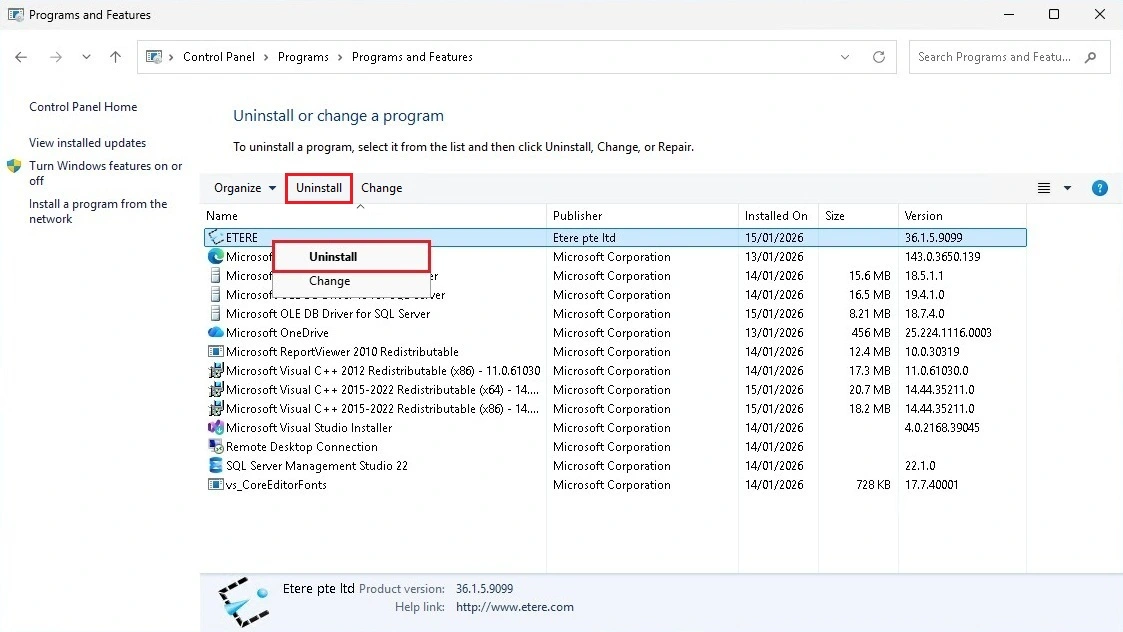
To completely remove every single Etere application from the computer, it is necessary to uninstall Etere from the Control Panel.
To do so, access the Control Panel, click on Programs and then on Uninstall a program; right-click ETERE and select the Uninstall option in the context menu (or left-click ETERE and select Uninstall in the command bar) to start the uninstallation process.
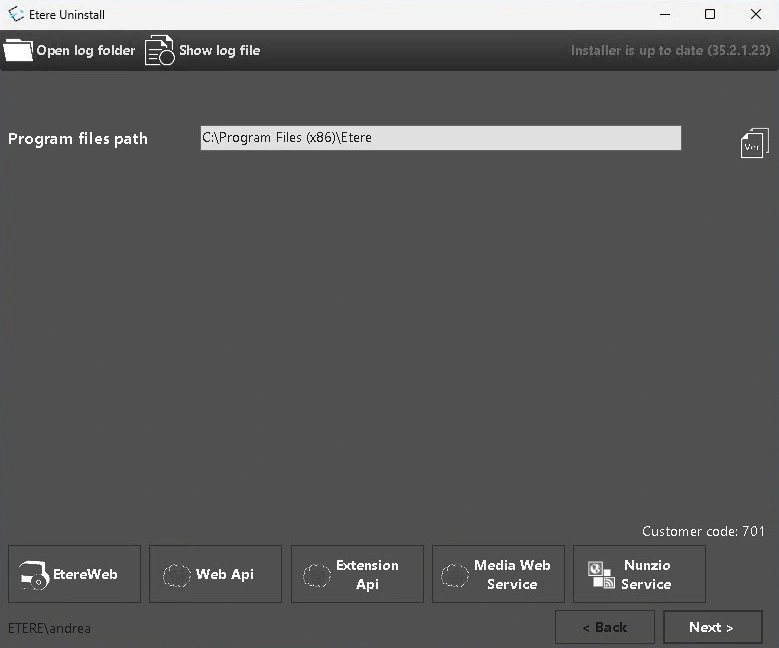
An Etere Uninstall panel will automatically open, prompting you to check that the path from where the Etere objects will be removed is correct. If it is indeed correct, click on the "Next >" button to proceed.
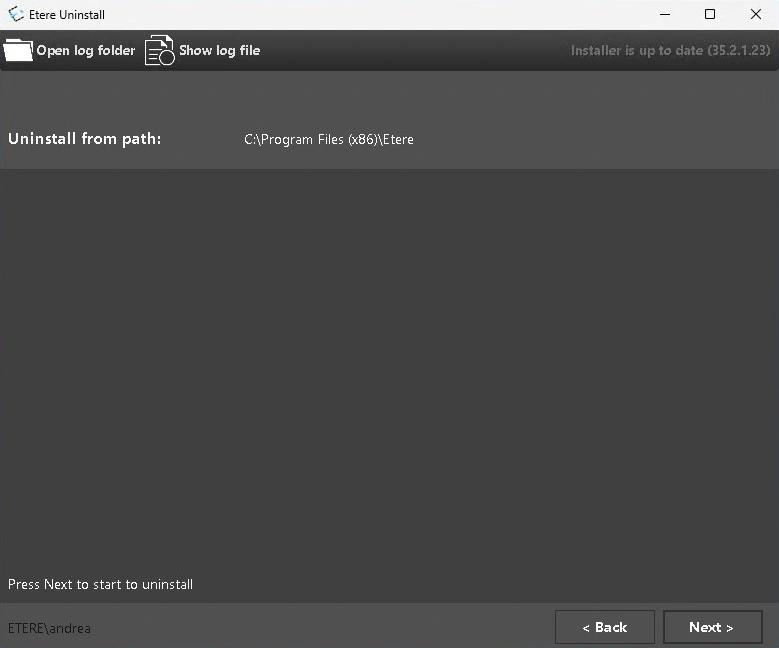
Then, in the following page, click "Next >" once again to begin the actual uninstallation process.
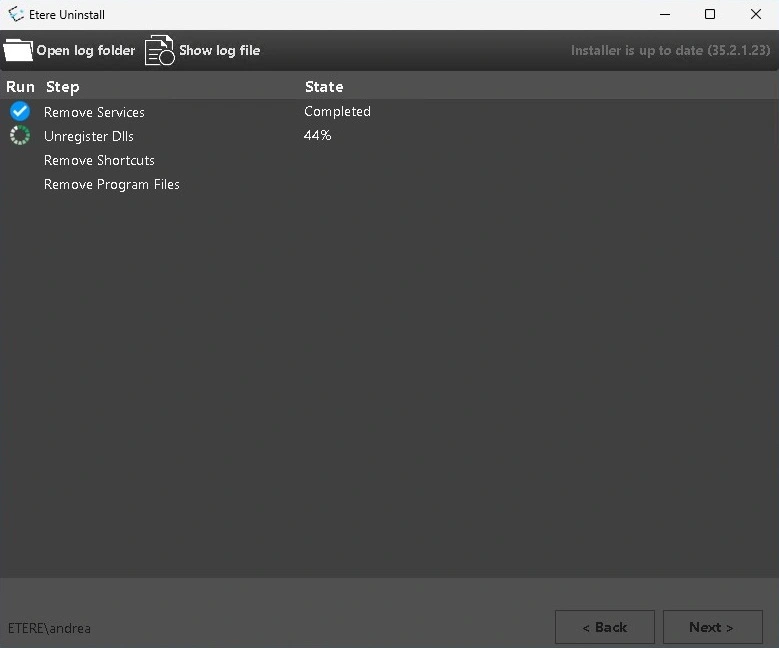
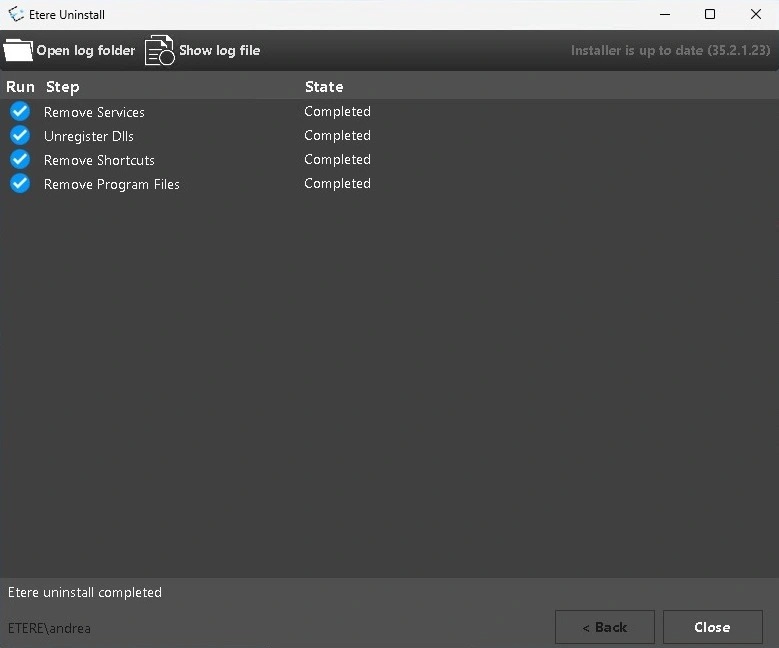
The following is a brief list describing the meaning of each entry in the process.
Remove Services
Removes the services associated with Etere installed on the computer where the uninstallation process is being executedUnregister Dlls
Removes registry entries associated with Etere DLLs on the computer where the uninstallation process is being executedRemove Shortcuts
Removes Etere application shortcuts from the Windows Start menu and the Desktop, as well as the Startup shortcuts, on the computer where the uninstallation process is being executedRemove Program Files
Removes all files in the C:\Program Files (x86)\Etere folder (or the folder specified by the user) and unregisters Etere from the Windows system, ensuring the application no longer appears as installed on the computer where the uninstallation process is being executed
Please note: Etere’s uninstaller treats all Etere modules collectively as a single application, rather than as individual modules, therefore it does not allow the removal of individual modules separately. Refer to chapter [1.4.1. How to remove a single Etere module] for more detailed information.
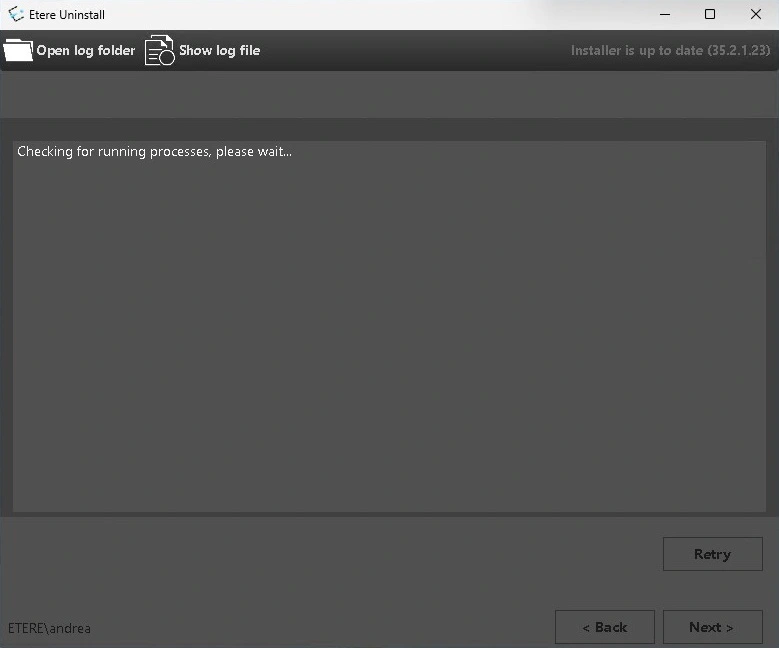
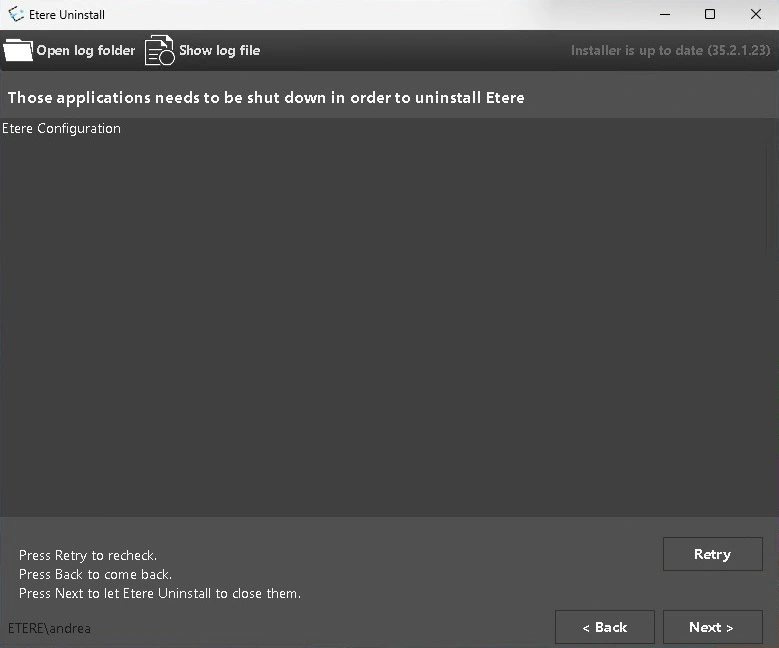
The uninstaller checks whether any Etere processes are currently running on the computer, including desktop applications and background services. If an active application is detected, the user is alerted and prompted to close it before continuing with the uninstall operation.
For instance, in the images featured in this chapter, the uninstaller has detected that the module Etere Configuration is still active and it has notified the user to shut it down to go forward with the uninstallation.
During the uninstallation, all Etere application fonts (those registered for Etere’s exclusive use and not visible in Windows Settings) are removed and unregistered from the Windows Registry. Additionally, any API services previously installed by Etere during the installation process are also removed from the system.
 Control_Panel_Uninstall_2026
 Uninstall_1_2026
 Uninstall_2_2026
 Uninstall_3_2026
 Uninstall_4_2026
 Uninstall_5_2026
 Uninstall_6_2026