Using Etere CensorMX
58.2.1 Functions
- CensorMX Main Interface
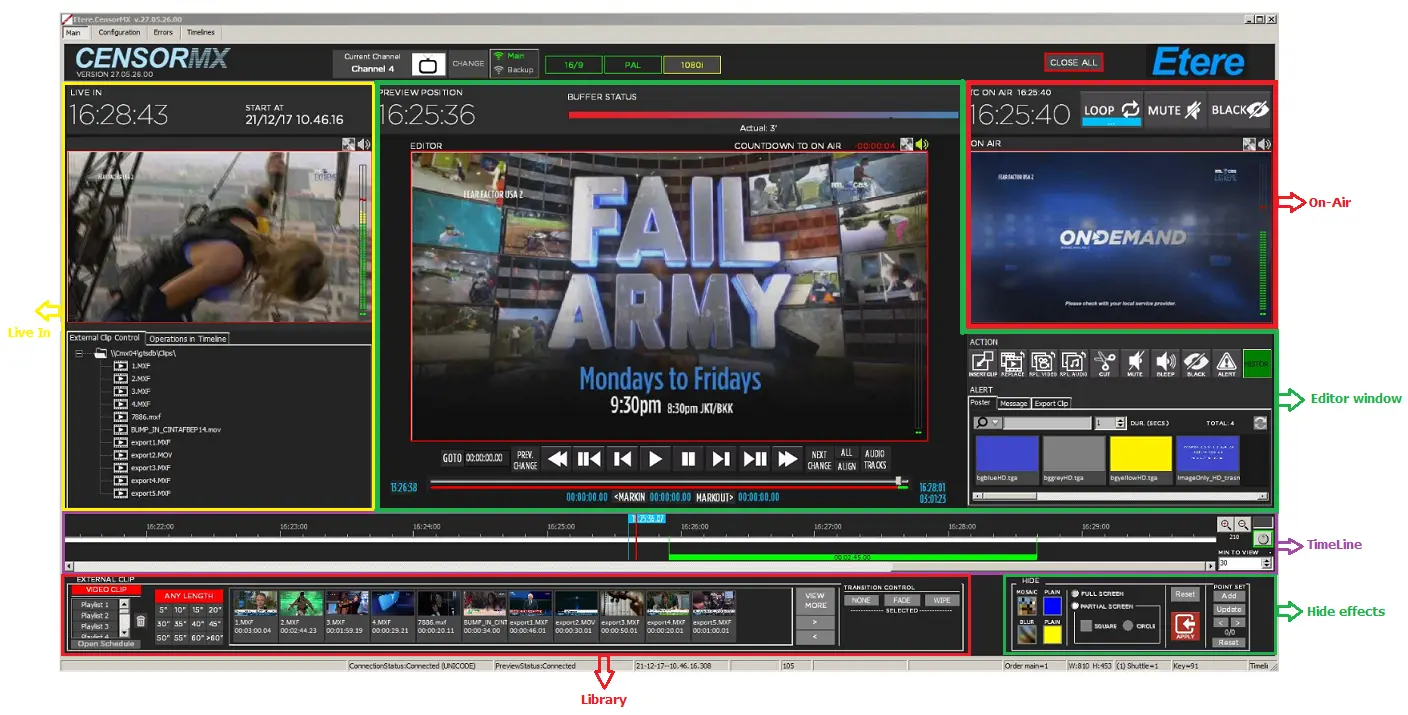
When Etere CensorMX is launched, there are six sections on the main screen: Live In, Editor window, On-Air, Timeline, Library and Hide effects.
The sections are listed in the table below.- Live In - It displays what is currently recorded (the live feed etc.).
- Editor window - This section allows you to perform censorship for the footage in the "Live In" screen.
- On Air - It displays what is airing on your channel.
- Timeline - This shows the position of the live feed, the editor and on-air.
- Library - This is the library that contains the replacement clips.
- Hide effects - Use the features provided to hide specific video file footage when displaying on the screen.
It also indicates all the edits that have been performed with markers.
Censormx_main_screen
The features in each section are described below.
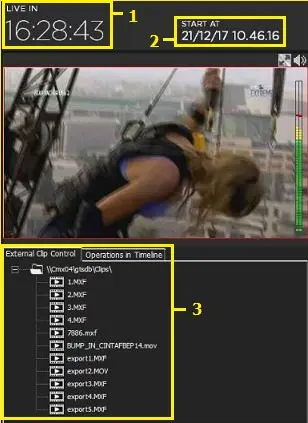
- LIVE IN
Numbers1_new- LIVE IN time: The current actual time.
- Start time: It indicates the time when the GTimeShift Recording was started.
- External clip control / Operations in the Timeline: The "External clip control" tab display all external clips in the library.
The "Operations in Timeline" display the clip's Timeline in play.
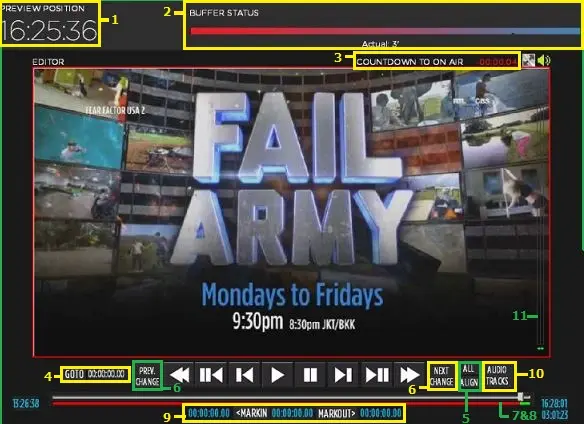
- EDITOR
Censormx_editor_indidator_new- Previous position: It indicates the last position of the clip in play.
- Buffer Status: This shows the actual delay compared to Live In Feed.
For the screenshot below, the delay is 9’34” because the total cut is 26” (10’ – 26”=9’34”). Where:
- The ' refer to minutes
- The " refer to seconds
- Countdown to On-air: This shows the time remaining for the video in the Editor to go on-air.
- GOTO: This is used to move the Editor to a certain point.
- All align: This moves the Editor align with On Air.
- Prev. Change / Next change: Not in use.
- Track bar: You can move the position by using this bar. At the ends, indicate the points for minimum and maximum positioning.
- Bar under track bar: The Red bar is the portion that has already aired. The Green bar is the editable portion.
- MARKIN and MARKOUT: These are used for setting the Marks for the operations. They must not be too close to the On Air time. Note that the minimum is 15 seconds, and there is a check first for the Operations. The value in the centre shows the duration.
- Audio Tracks: This button manages the audio tracks in the preview. It managed up to 8 channels, two tracks per channel.
- Channels display: The position of the eight audio channels to be managed.
Note
All the menu buttons (menubuttons01) located below the Editor only apply to the video seen in the Editor.
Note
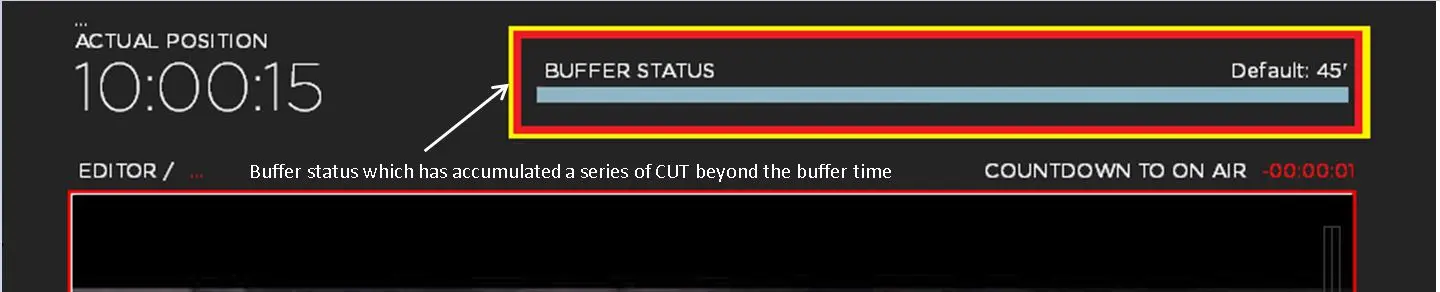
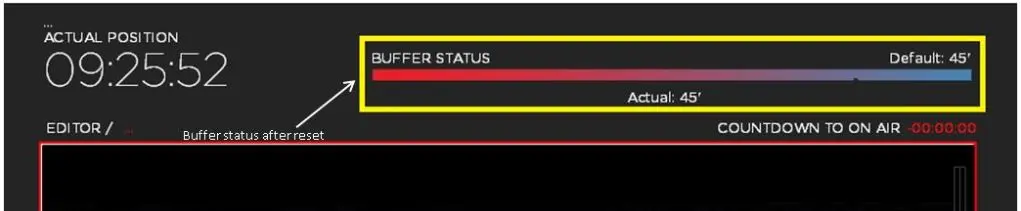
If the BUFFER STATUS has accumulated a series of CUT beyond the buffer time, e.g. 45 minutes, you should delete the file: Etere.Censormx.Operations_1.txt in C:\Program Files (x86)\ETERE and restart the application. After that, BUFFER STATUS and REPORT/TOTAL CHANGES will be reset.
An example of buffer status which has accumulated a series of CUT beyond the buffer time is shown below:
Censormx_buffer_status_before_reset
After Reset:
Censormx_buffer_status_after_reset
- Previous position: It indicates the last position of the clip in play.
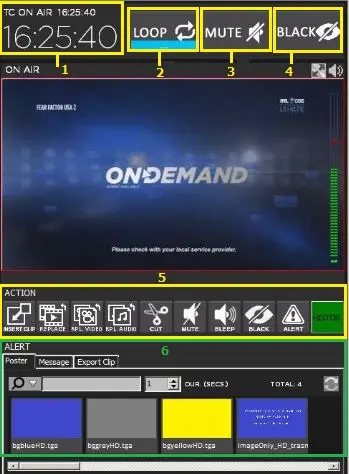
- ON-AIR
Numbers3_new
Features on screen - 1. Actual On-air time
Description: This is the position relative to the actual time. For example, if the delay is 10’ and it is now 12.00.00, the counter will show 11.50.00
Features on screen - 2. Cut to Loop
Description: Click this button to repeat the video, which is currently on-air. Click the button again to reset the looping of the video file.
Features on screen - 3. Cut to Mute
Description: This stops the audio that is on-air immediately. To restore, press the button again.
Features on screen - 4. Cut to Black
Description: This blacks the video that is on-air immediately. To restore, press the button again.
Features on screen - 5. Action menu
Description: Use the functions provided in the menu to execute the desired actions.
Features on screen - 6. Alert message
Description: Use the functions in the menu to prompt text messages or images containing messages to alert the user. You can set the duration (in seconds) for the alert message to display on-air.
- TIMELINE
Nowtimeline002_new
Features on screen - 1. Red vertical line
Description: It shows the position of the On Air feed.
Features on screen - 2. Blue vertical line
Description: It shows the position of the Editor. You can drag the line to shift the position of the Editor.
Features on screen - 3. Zoom in
Description: It narrows the range on the Timeline.
Features on screen - 4. Zoom out
Description: It widens the range on the Timeline.
Note: The limits of the Timeline are those of Airnode (which is about delay x 3).
Note:
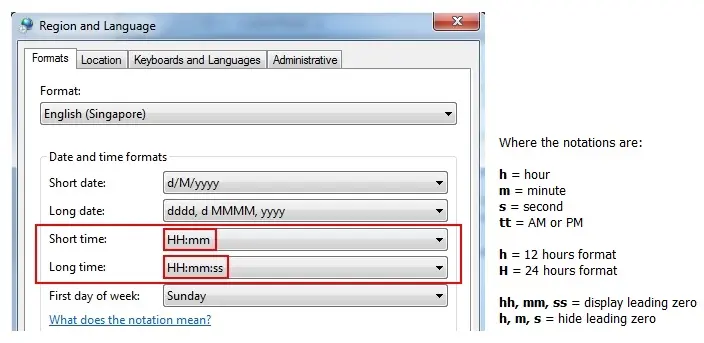
The clock format used for the Live In time follows the PC clock format (12 hours/24 hours).
Adjusting the computer's date, time, or number settings to the 24-hour format is recommended to prevent confusion.
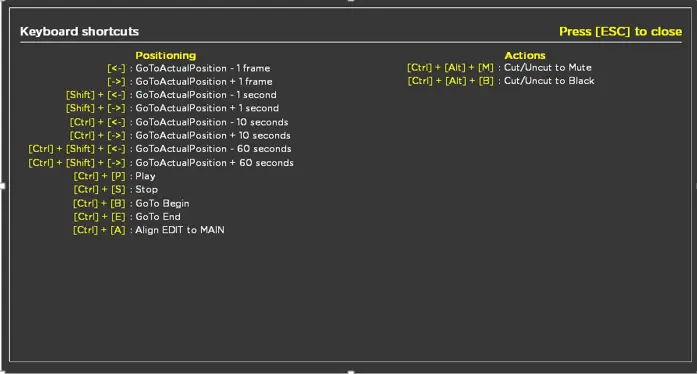
It's possible to set more than one clip into the Timeline using the positioning commands from the command line.
Clip_in_timeline
To activate the command line mode, press <Ctrl> + k, and the box next to zoom-in/zoom-out will change to green.
To view the list of positioning commands, press <Ctrl> + L
Positioning_command - DEFINE MINUTES TO VIEW ON THE TIMELINE
Minutestoview
You can define minutes to view the Timeline. The max to view is 720 minutes (12 hours), compatible with the selected resolution via the Zoom tool.
Manage Clips In The Timeline
These are actions to manage clips in the Timeline:
- Insert clip - Insert the clip and increase the life choice buffer.
- Replace - This function replace the clip in the Timeline.
- Rpl. Video - Replace the video file.
- Rpl. Audio - Replace the audio file
- Cut - Cut the video bounded by marks.
- Mute - Mute the video file in play.
- Bleep - Bleep the audio from the selected marks.
- Black - Display a black screen on-air.
- Alert - Insert a message to alert the user.
- HISTORY - Retrieve from the historical file.
Manage_clip_new
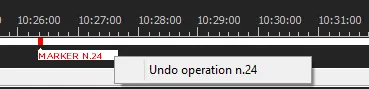
- Undo Operation
To undo, right-click on the operation and select "Undo operation":
Undo
It is necessary to ensure that the operation has not already passed on the Timeline and that there are at least 15 seconds ahead of airtime.
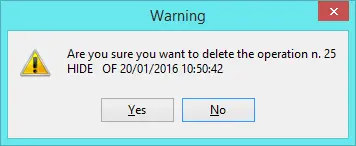
To confirm the operation, a warning message will appear. Click <Yes> to continue:
Warning
NB: The “Undo Operation” controlled controlled, e.g. undo one inserted clip before you insert a new clip, one clip at a time. If the function is abused, it may overload the timeline's processes.
Note:
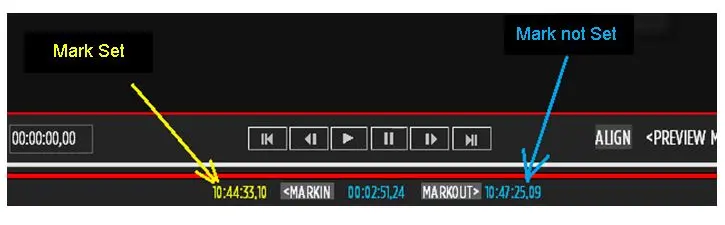
To determine if a Mark is set, it must appear in yellow. If it appears in blue, the mark is not set.
To switch from set/not set, select the button [<MARKIN] [MARKOUT>]
Markset
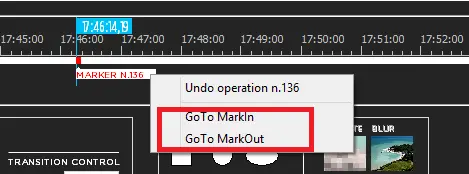
To go to MarkIn or MarkOut, click on the Timeline and select <GoTo MarkIn> or <GoTo MarkOut> from the drop-down list.
Markin_markout
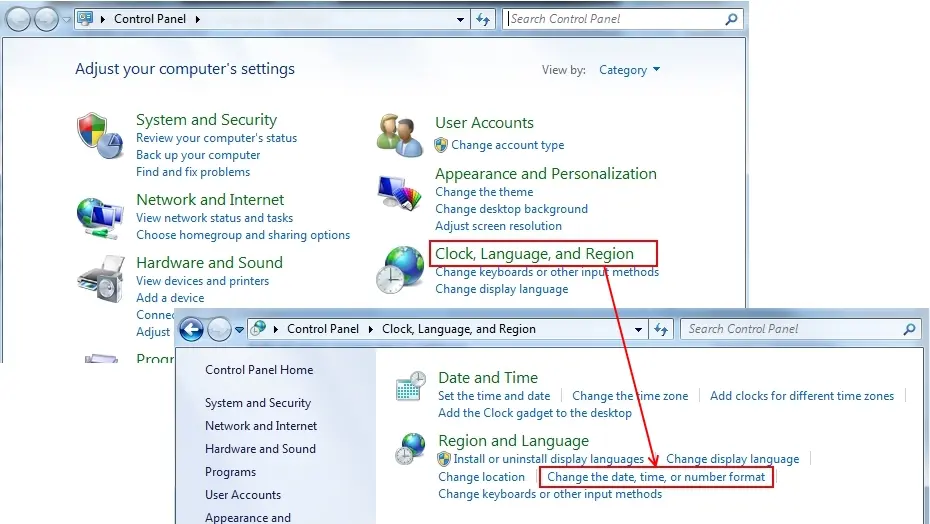
Changing the clock to the 24-hour format- Click [Start] and go to "Control Panel".
- Click [Clock, Language, and Region] and then click [Change the date, time or number format].
Clocktime0021
- Under "Short time", select [HH: mm]. Under "Long Time", select [HH:mm: ss].
Clocktime0030 - Click [OK] to save the changes. The PC should display the time in the 24-hour format now.
NB: CensorMX can prolong uninterrupted operations for an extended period but is subject to a maximum of 400 days.
 Markin_markout
 Clocktime0021
 Markset
 Warning
 Clocktime0030
 Manage_clip_new
 Clip_in_timeline
 Minutestoview
 Positioning_command
 Undo
Undo
 Censormx_buffer_status_before_reset
 Censormx_main_screen
 Numbers3_new
 Censormx_editor_indidator_new
 Numbers1_new
 Nowtimeline002_new
 Censormx_buffer_status_after_reset