67.2 Multiviewer User Interface
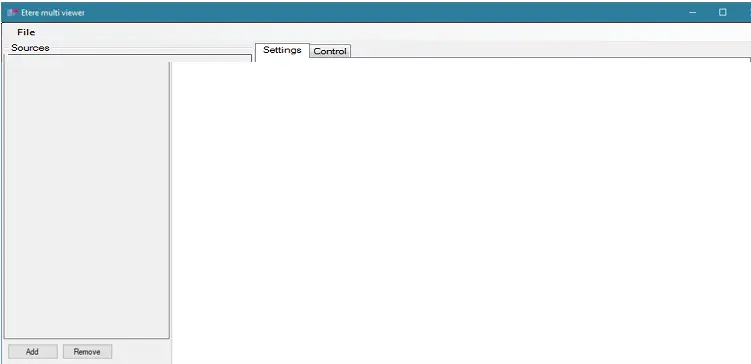
After installing Multiviewer in the workstation, it presents a blank screen during the initial start-up.
4737_Etere_Multi_viewer_1
After the Multiviewer starts, you need to add a video input source to Multiviewer Preview in the Control tab and define the setting for each input source.
4736_Etere_Multi_viewer_2
•In the “Number of displays” parameter, you can define the number of Multiviewer instances to co-exist in the same workstation; each instance display would contain the number of monitors defined in the “Number of monitors per display” parameter.
•In the “Number of monitors per display” parameter, you can add a maximum of 24 input sources to be broadcast simultaneously within the same display on the same workstation.
In the Settings tab, there are 2 input source types: network stream input and video device input.
•Network stream input: Refer to IP stream input; this input reads the file via the URL and broadcasts the video to the Multiviewer monitor.
•Video device input: This input type connects to an SDI video device and broadcasts the video to the Multiviewer monitor.
After inserting an input source into the Preview window, you can toggle between the Multiviewer Preview and Settings/Control using the “Alt + Tab” control keys. Moreover, there is no impact (e.g. flicking) on the Multiviewer interface when you position the mouse over the Preview window.
You can launch Etere Automation to view the inserted source in Automation and ensure that the input source is aligned with the schedule in Automation. You can also run Executive Editor in the workstation where Multiviewer is active to check the event on-air.
When the Multiviewer is started with the UDP stream (e.g. Automation) available, if the UDP stream is lost, restarting the Multiviewer is not required; the Multiviewer will auto-recover when the UDP stream is resumed.
4734_Etere_Multi_viewer_3
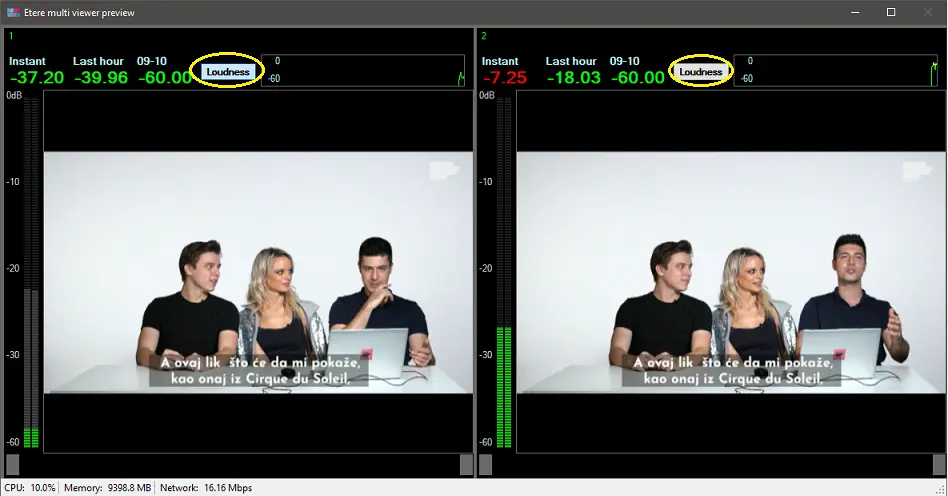
In Audio Configuration, if the View Loudness panel option and Loudness normalisation option are enabled, you can view the loudness status in the Multiviewer Preview window as indicated in the screenshot below.
Etere Multi viewer preview 1
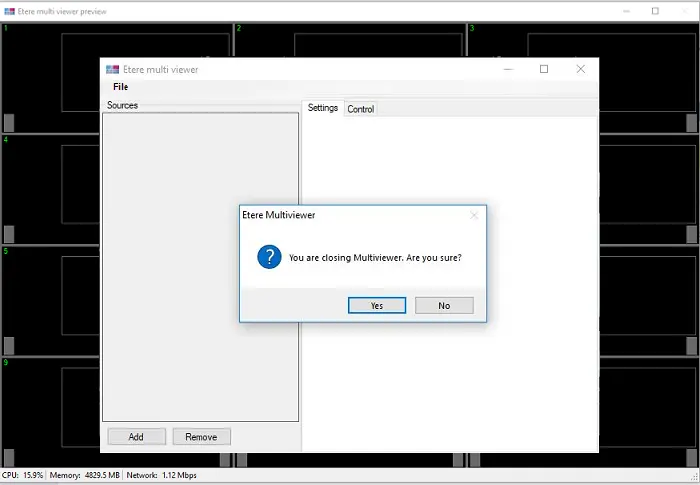
When multiple applications are running in Multiviewer, users need to close each application properly before closing Multiviewer; a warning message would be prompted to alert the user. From the warning message, select <Yes> to terminate all applications and close Multiviewer, or select <No> to cancel the command and close each application properly before closing Multiviewer.
Etere Multi viewer preview 2
Save Logs
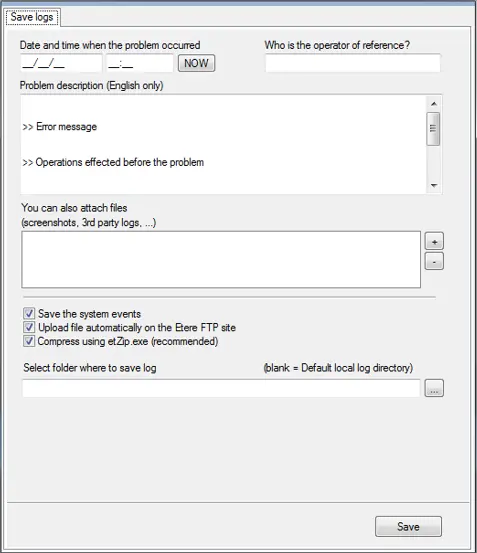
Use the File > Save Logs function to save the activities log for reference or investigation purposes.
4735_Etere_Multi_viewer_4
Provide the following parameters:
Save logs
Parameter - Date and time when the problem occurred
Description: Enter the date and time to extract the activities from the log file. You can also click the <NOW> button to extract logs captured in real time.
Parameter - Who is the operator of reference
Description: Specify the name of the operator who manages the problem during its occurrence.
Parameter - Problem description (English only)
Description: Type a short description in English to describe the problem briefly.
Parameter - You can also attach files
Description: Click the ‘+’ button to attach files or screenshots to describe the problem better.
Parameter - Save the system events
Description: Enable this option to include the System Event log in the log file.
Parameter - Upload file automatically on the Etere FTP site
Description: Enable this option to automatically upload the log file to the Etere FTP server upon completion.
Parameter - Compress using etZip.exe (recommended)
Description: Compressing the log file when transmitting over the network is recommended.
Parameter - Select the folder where to save the log
Description: Click the browse button and select a directory path to store the extracted log file. If left blank, the log file will be created in the default log directory in the local workstation.
When all parameters are confirmed, click the <Save> button to save the logs for distribution.
NB: If you select one frame, expanding the frame to full-screen mode is impossible.
 Save_logs
 Etere_Multi_viewer_preview_2
 Etere_Multi_viewer_preview_1
 Etere_Multi_viewer_1
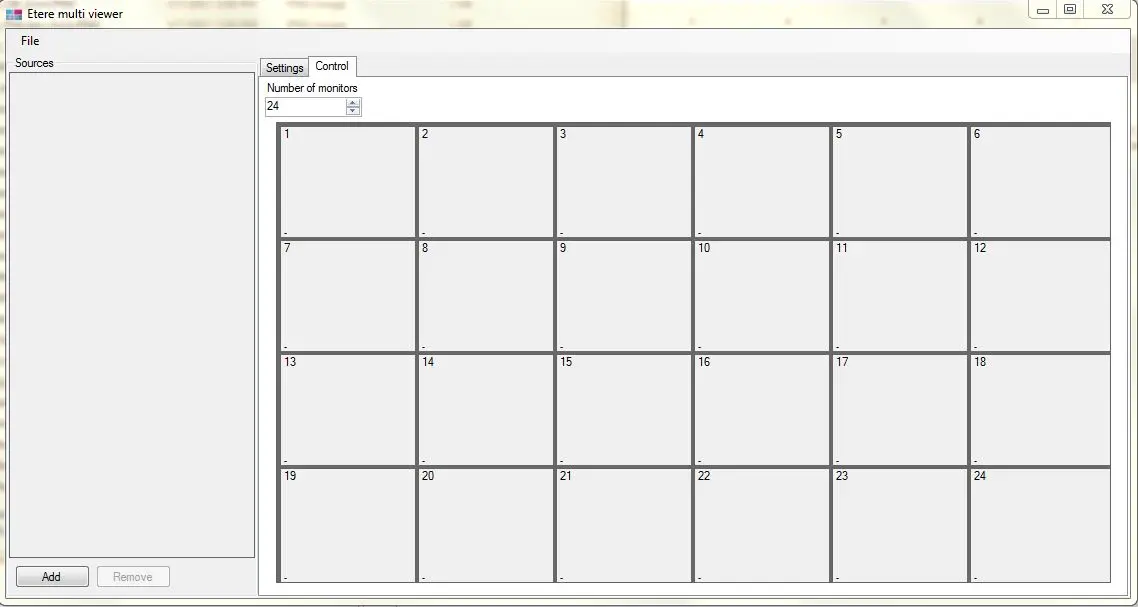 Etere_Multi_viewer_2
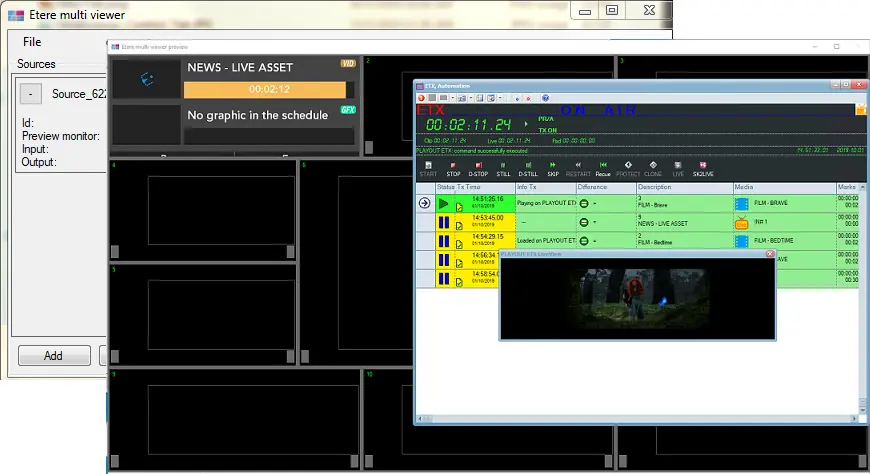 Etere_Multi_viewer_3
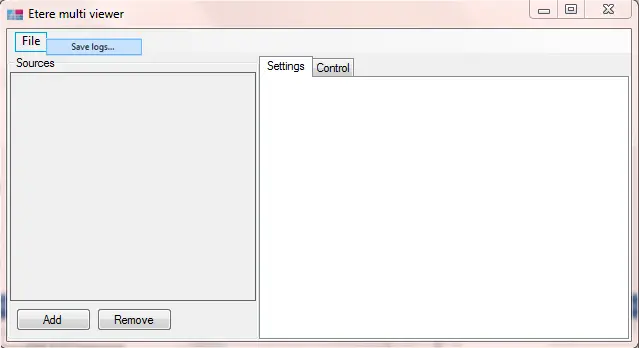 Etere_Multi_viewer_4