59.3.9.37 Dragon get transcription
Action Description
Using the Dragon get transcription T-workflow action, you can transcribe an audio file stored in the location path and keep the transcribed file in a desired output directory for viewing and editing the audio content.
NB: For the “Dragon get transcription” action to function correctly, scheduling more than one transcription action running simultaneously is not advisable.
Action Parameter
You are required to fulfil the parameter below:
dragon_transcription_workflow_action
•Name: Provide the name of the Dragon Transcript application configured in Configuration Editor to activate the transcription process.
•Value: Select one of the configuration settings which define the specific input and output path for transcription, e.g. Dragon Configuration 2, Dragon Configuration 3, etc. This parameter would allow more than one Dragon Transcript instance in T-workflow with a dedicated input path and output path
How to use it
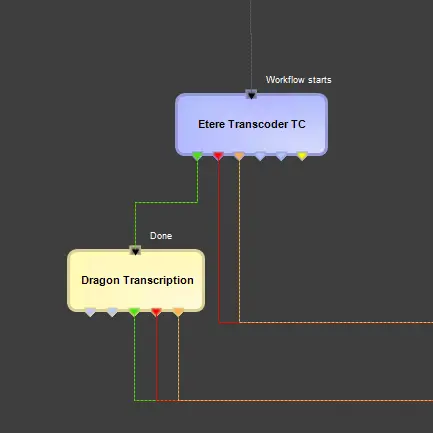
To use the Dragon Transcript T-workflow action includes the Dragon Transcript as part of the action into a T-workflow to be attached to the audio file asset using thE T-Workflow Designer.
dragon_transcription_workflow
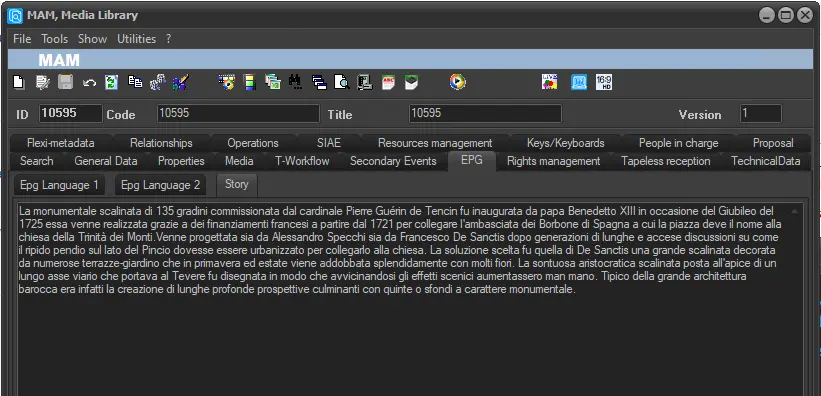
The Dragon Transcript action would wait for the end of the T-workflow process and insert the audio file transcription in the asset’s story field.
In Media Library, you can view the transcription by navigating to the “Story” tab of the metadata.
dragon_transcription_media_library_action
 dragon_transcription_workflow
 dragon_transcription_media_library_action