91.4.2 Schedule section
The schedule section of Radio Playout includes tabs for managing the daily schedule, the As Run and Advertisements:
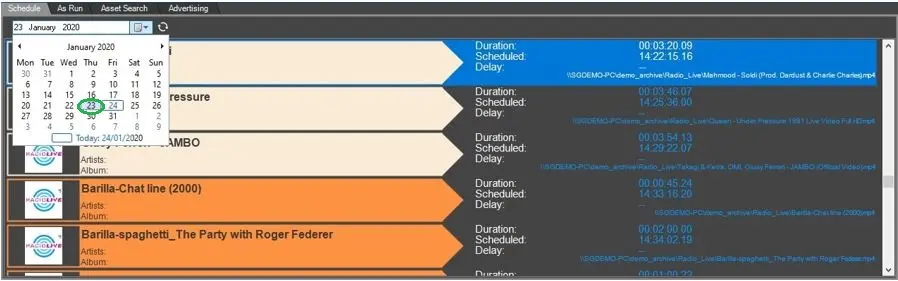
SCHEDULE
7874_schedule.jpg
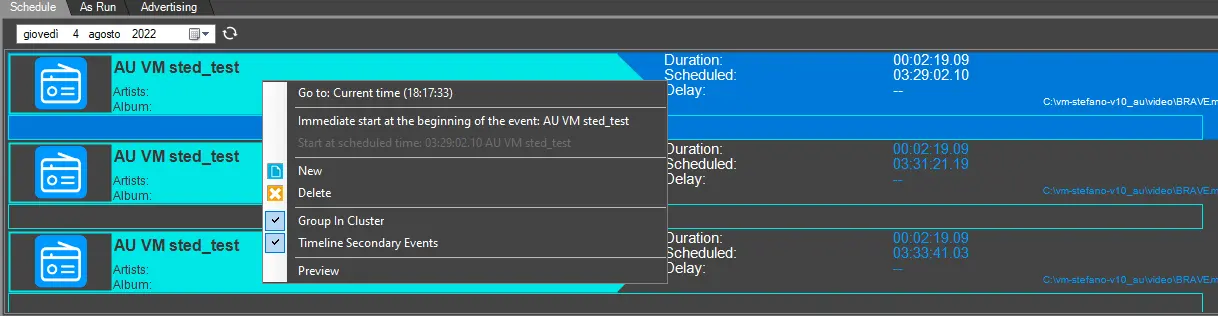
from this tab you can select the schedule from the related form and manipulate it by right clicking and using the context menu on the event(s) preferred:
Go to: Current time - Shifts the schedule visualization to the actual time of the local machine.
Immediate start at the beginning of the event - Starts immediately the playout of the selected event.
Starts at scheduled time - In case the event start is later than the present time, starts that event at scheduled time.
New - Search and add a new event.
Delete - Delete an event from the schedule.
Group in Cluster - Groups commercial events in clusters.
Timeline Secondary events - Shows the som, eom and duration of secondary events associated to the event.
Preview - Shows the preview of the event (see chapter 91.4.4.0 Radio Live Playout - Player).
ADVERTISING
8030_Advertising.jpg
This section is dedicated to resume in the selected schedule all the commercials, scheduled manually or by Air Sales.
Tips and Tricks:
Handling fixed events: A fixed event is an event whose scheduled time is fixed across the schedule (so , if there are some modifcations, its scheduled time won't be modified).
This could lead to empty "spaces" across the schedule or overlappings of events if some modifications occur.
To avoid this behavior, the user can schedule Variable events before the fixed event in order to, when an empty space or overlapping occur due to a fixed event, let the duration of the variable events be modified to correct the gap (starting from the first variable event before the fixed event).
 Radio-live_playout_select_date
 schedule
 Advertising