84.2.2.17 Operations Log (Undo)
The Operations Log tool allows operators to easily undo undesired operations by restoring the schedule to a "scheduling restore point" prior to their execution.
This log will display a complete record of all operations with the following characteristics:
• Operations performed on the current open schedule by either Executive Editor or other Etere modules (e.g. Air Sales, Ingest, F90, etc),
• Operations performed on the current open schedule by the current Etere workstation,
• Operations performed on the current open schedule by other workstations while the current one was running
Besides accessing to this function via the menu Tools > Operations Log, it is also possible to call it just by pressing the standard [CTRL+Z] keys combination. In the log, the date and time format is captured as dd/mm/yyyy, hh:mm:ss.ms.
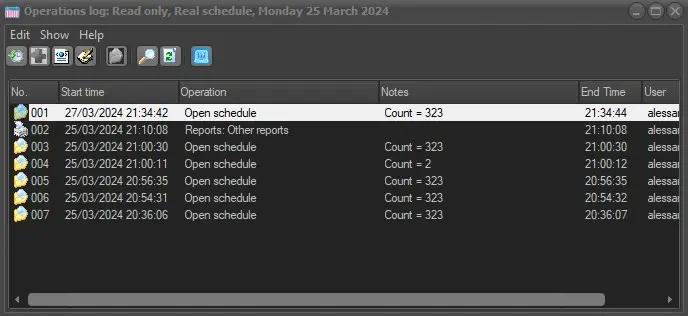
operations_log
Example of use
Let's suppose that some events have been deleted from the schedule by mistake, in order to bring them back it will be enough to do the following steps:
1. Press the CTRL-Z keys combination from the main schedule, the Operations Log window will be opened displaying all operations performed on the schedule, detailing the following information:
• No.: The order number of the operations performed, starting from the last one.
• Start time: The exact date and time when the operation has been launched.
• Operation: The performed operation (e.g. Open schedule, New, Cut, Paste, Delete, Another user's changes, etc.).
• Notes: Additional information regarding the performed operation (e.g.: the event where it's been executed: "06:33:13:15 - National News").
• End time: The precise date and time when the operation has been completed.
• User: The user that was logged in the system when the operation was performed.
2. Individuate the delete operation intended to be undone (e.g. #002 ... Delete ...) and select an operation prior to it (e.g. #003 ... Paste ...) to be used as the 'scheduling restore point':
Note: operations colored with yellow will be undone since they have been performed after the selected scheduling restore point)
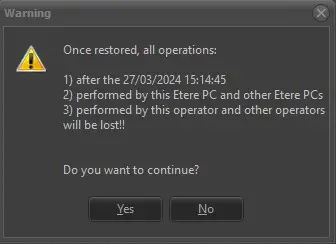
3. Make double-click or right-click on the selected operation and use the [Overwrite the scheduling with the log] option to restore the schedule at the selected point, a message will warn the operator about the consequences of this function and will ask for a confirmation:
log_warning
- All operations performed successively to the selected 'scheduling restore point' will be undone, including those which are present in the list (e.g. #003 and #002) and those which don't (e.g. because the list has not been updated).
- All successive operations performed not only by the current workstation but by any other workstation will be undone.
- All successive operations performed by the current user and any other user will be undone.
4. Moreover, other functions are available under the Log section for managing scheduling restore points, these functions include:
View the log - It shows how the schedule was at the selected restore point, thus allowing to check if it's the correct restore point to which the schedule should be restored. In order to quit from this view and return to the actual schedule use the [Reload the schedule] function.
Overwrite the scheduling with the log - This function (also available by making double-click on an operation) restores the current opened schedule to the selected recovery point, that is, it will undo all operations after it (even if they have been performed by other workstations or users).
Properties - It opens the XML file containing detailed information about the selected operation (e.g.: time, login, pc, application, etc).
Reload the schedule - It restores the current schedule to its actual point, that is, to the point at which it was before using the [View the log] function.
Search for the log files - If you need to view archived operations of previous days, this option will open the log folder (e.g. c:\program files\eterelog\user.xxx\ee\) allowing you to view (in XML format) all the previously saved operations records.
Refresh - It simply updates the list by adding recent operations (e.g. performed from other workstations).
 operations_log
 log_warning