84.2.4.28 Secondary Events Planning - Time based planning
The "By time" section allows to plan secondary events across specific time slots (i.e.: 'n' times, each 'n' minutes, etc), thus permitting to plan the appearance of secondary events across a schedule over a period of time. This section is constituted by 3 sections where all configurations are sequentially made:
• Scheduling rules: The criteria (i.e. dates, weekdays, intervals) with which the plan will be applied.
• Secondary events: Add and organize the secondary events (logos, passthru, switches, etc) intended to be planned.
• Scheduled appearances: Consult all the secondary events planned for the selected period.
Managing plans
In order to manage a secondary events plan just create a new plan, open an existing plan or duplicate the current plan, then, it will be enough to follow the procedure described in the following lines:
1. Assigning rules
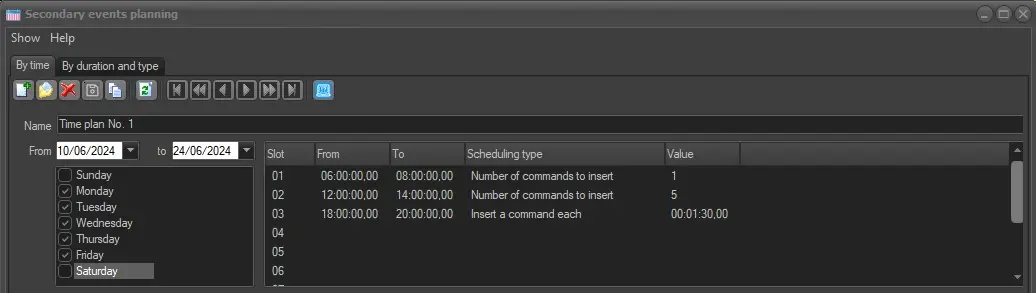
Enter a descriptive name for the plan in question and compile the following parameters:
Assigning_rules
From-To - Specify the dates period (e.g. 01/07/2011 - 31/07/2011) on which the plan will be applied.
Weekdays - Optionally, narrow the plan to specific weekdays (e.g. Monday to Friday).
Time slots - Enter the -up to ten- time intervals featuring the commands (i.e. secondary events) to be planned. Available scheduling types includes:
• All Number of commands to insert: Secondary events will be inserted within the time slot so many times as the value specifies.
• Insert a command each: Secondary events will be inserted within the time slot following the indicated interval value.
2. Secondary Events Selection
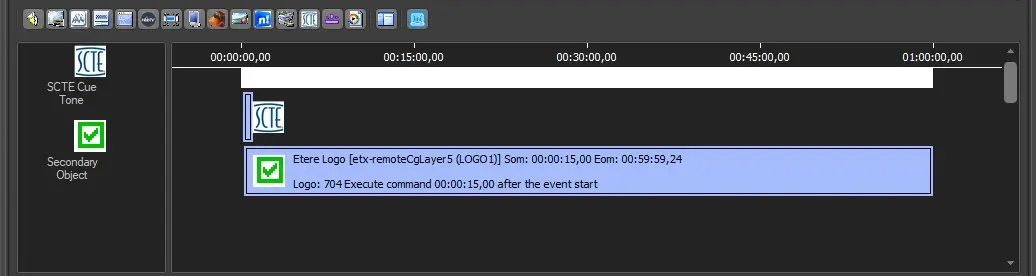
Add all the secondary events that will form part of the plan in the middle section. Further information on how to configure secondary events can be found in the previous chapters.
Secondary_Events
It's worth mentioning that secondary events can be inserted more than once to the same event depending on its duration.
3. Scheduled Appearances
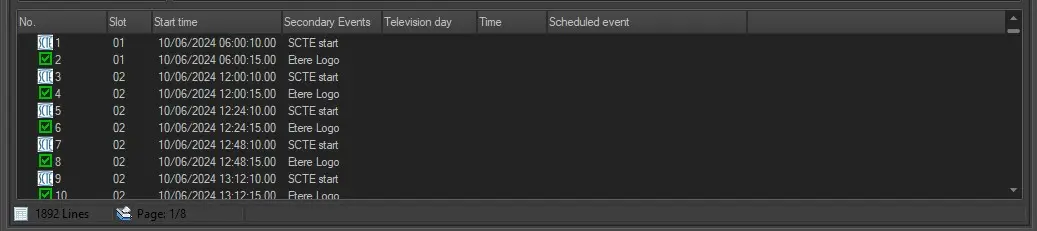
In the bottom section will be displayed all the appearances to be planned into schedules for the selected secondary events:
Scheduled_Appearances
Each scheduled appearance will be represented by a row. All rows will be displayed across multiple pages and it's possible to navigate among them with the arrow buttons in the toolbar.
4. Saving the plan
Once all configurations have been defined, just press the Save button to store the plan in the database. In order to apply all planned secondary events to events matching the planning criteria (i.e. dates, weekdays and times) the following actions are available:
Automatically - Planned secondary events will be automatically applied every time a schedule is published only if the "Insert secondary events in any EE publication" parameter is enabled in Etere Configuration.
Manually - Planned secondary events can be manually applied to an open schedule by using the "Apply Secondary events as defaults" function from Executive Editor.
 assigning_rules
 secondary_events
 scheduled_appearances