72.7.6 Live subtitling
Etere Live Subtitling provides an interface to insert closed captions (subtitles) into clip and enable you to preview the closed captions, modify its positions, change closed captions color and font size before apply the closed captions.
There are many ways you can insert the closed captions into video file:
•You can import a closed captions file into workstation and attach the closed captions to the video clip.
•You can input the closed captions in real-time while previewing the video clip.
•Using the Speech-to-text feature to dictate closed captions into text format and saved as closed captions file to import.
•Insert closed captions with ETX Closed Captions Server or ETX inserter.
You can refer to Subtitles Management section to learn more about managing the closed captions in Etere MAM module.
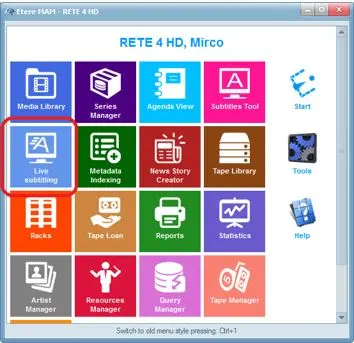
The Live Subtitling application has been embedded into MAM module main menu when MAM is launched. Double click on icon “Live Subtitling” to start the application.
Live Subtitling 1
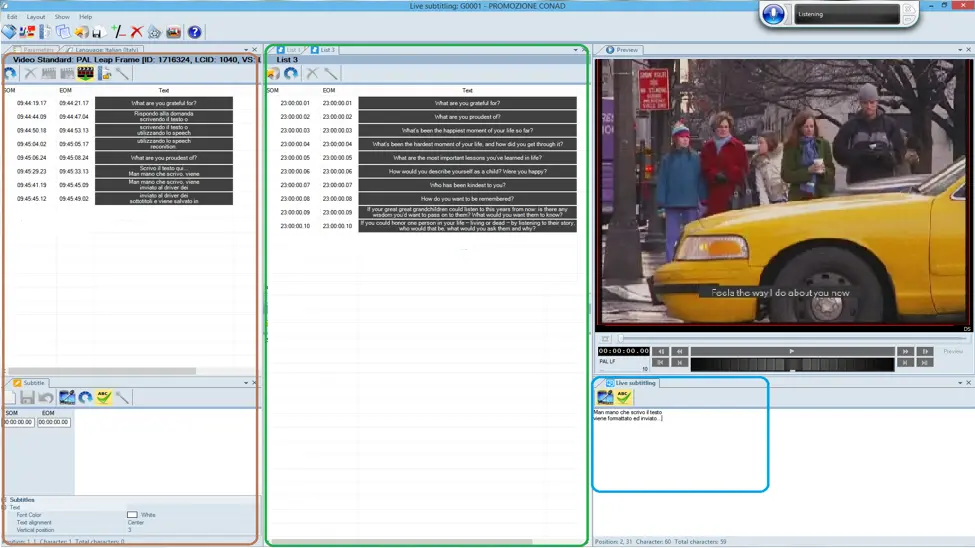
In the Live Subtitling GUI, there are mainly presented in there functioning areas:
Live Subtitling GUI
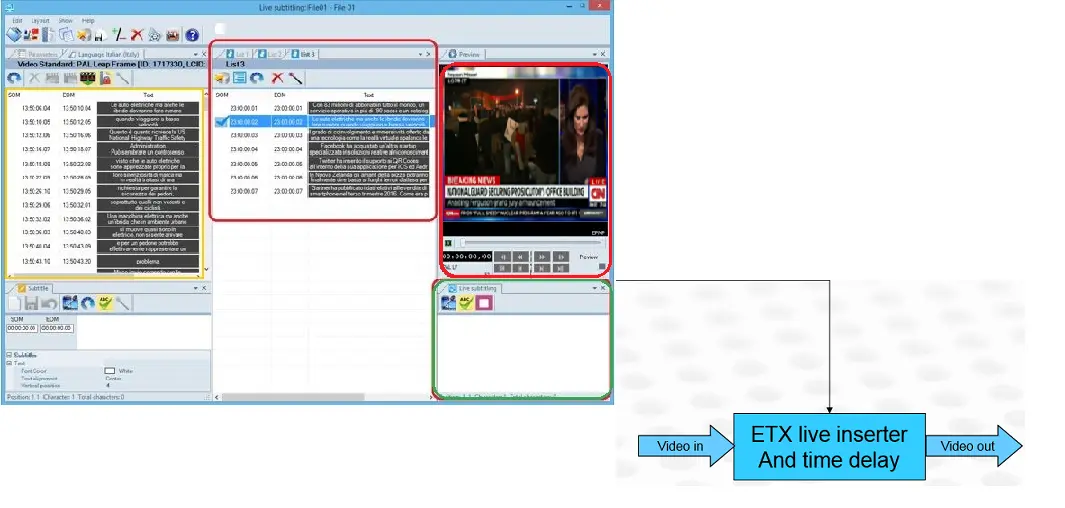
•The left panel contain the subtitles present in MAM Database.
•The middle panel contain the pre-prepared subtitles imported from text file or rundown. You can double-click on any imported file to send the subtitles to Closed Captions Server immediately or edit before send.
•On the right panel, the top window display the live preview of the subtitles, where bottom window allows you to write live subtitles text and send immediately to the Closed Captions Server.
NB: In the inserter server, 2 network cards can be installed with different IP address to facilitate different user groups accessing the inserter server, e.g. one card for WORKGROUP users and one for Domain (DNS) users.
Using Shortcuts in Live Subtitling
After the pre-prepared subtitles are imported to Live Subtitling, you can use some shortcut keys to speed up the subtitles submission.
Live Subtitling 2
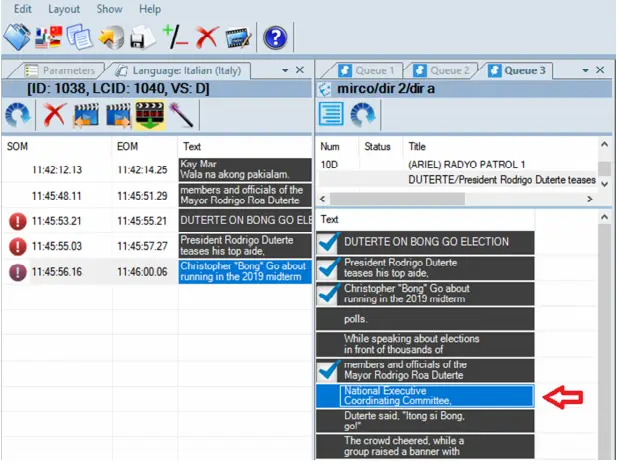
As you can see from the above screenshot, subtitles submitted to Closed Captions server are displayed on left panel, on the right panel it displayed all pre-prepared subtitles where the current subtitles focal point is highlighted in a blue box as indicated above.
•By pressing the “Enter” key, it submit the highlighted subtitles to the Closed Captions server and move focal point to next subtitles in the line.
•For returning to previous Closed Captions, press the "Backspace" key.
•To select the subtitles text above the current highlighted subtitles, use the “PgUp” (page up) key.
•To select next subtitles text below the current highlighted subtitles, use the “PgDn” (page down) key.
•By pressing the “End” key, it trigger the “Clear/Stop” function to clear all displaying closed captions and send an empty text to Live Subtitling.
Live Subtitling 3
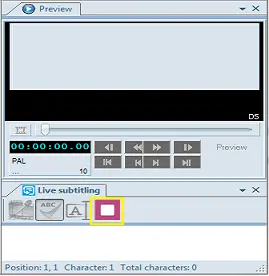
This icon work similarly when entering subtitles manually and transmit to CC Server, it would clear all subtitles submitted to CC Server in the text box for user to re-enter subtitles text.
Methods to Insert Live Subtitles
There are 4 options that Live Subtitles can be inserted to video file:
1. Typing
2. Re-Speaking
3. Preload Importing a File
4. Preload Teleprompter Content
Refer to sub-chapters in this section for more descriptions of each insertion method.
The diagram below illustrate subtitles insertion and broadcast.
Live Subtitling 4
Selecting Closed Caption Style
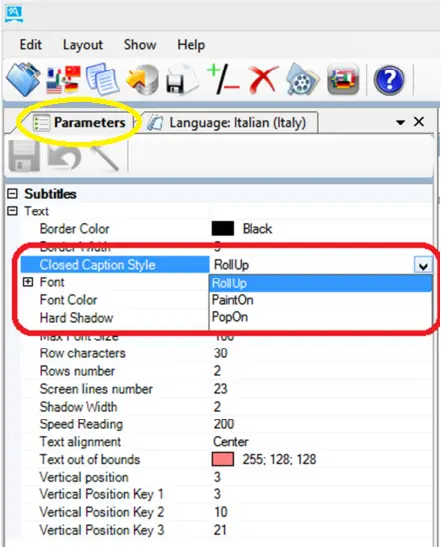
With the Live Subtitling Tool, when sending the subtitles to ETX Closed Captions (CC) server you can determine how the subtitles would be displayed on-air using the “Closed Caption Style” parameter
Closed Caption Style
From the Parameter tab, select one of the closed caption style from the list to display the subtitles on-air:
•RollUp: The subtitles use double chevrons (>>) to indicate different speaker, each sentence would rolls up to about 3 lines, the top line would disappears when a new line is added to the bottom, allowing the continuous rolling up of new subtitles.
•PaintOn: The subtitles are painted on screen from left to right, the words in subtitles are exactly the same words as were originally used.
•PopOn: The subtitles would appear onscreen and remain visible for several seconds before it disappear. A few frames of media would be left without subtitles before the next lines of closed captions pop on.
Main and Clone Closed Captions Server
In Etere Configuration Editor, you can configure Main and Clone Closed Captions servers to manage subtitles submission.
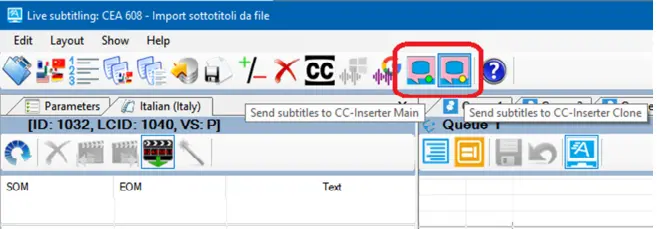
In Live Subtitling, two icons has been deployed for selecting Main or Clone Closed Captions server when sending subtitles.
Main or Clone
When the subtitles file is ready for transmission, select one of the following destination:
•Send subtitles to CC-inserter Main: The Main server is active, this icon send the subtitles to the Main Closed Captions server for inserting the subtitles.
•Send subtitles to CC-inserter Clone: In the event when the Main server is unreachable, click this icon to send the subtitles to the backup server for inserting the subtitles.
Time alignment
It is important to note that the system time in Live Subtitling workstation and Closed Caption Server must be aligned when transmitting subtitles transport stream. Live Subtitling requires to put the subtitles within a given time, and Closed Captions server would execute the insertion when subtitles arrived. When the system times are not aligned, e.g. Live Subtitling workstation time is ahead of Closed Captions server, it would resulted delay in Closed Captions server inserting the subtitles.
The time alignment problem can be overcome by installing time synchronization components, e.g. Etere Time Flooder and Time Receiver, to synchronize the system time for all computers within the network.
 Live_Subtitling_1
 Live_Subtitling_GUI
 Closed_Caption_Style
 Main_or_Clone
 Live_Subtitling_2
 Live_Subtitling_3
 Live_Subtitling_4