Stories

79.4.8.16 Editing Content with Etere Story Creator

Once a video file is selected, you can start editing the video.

4801_Rundown_story_edit

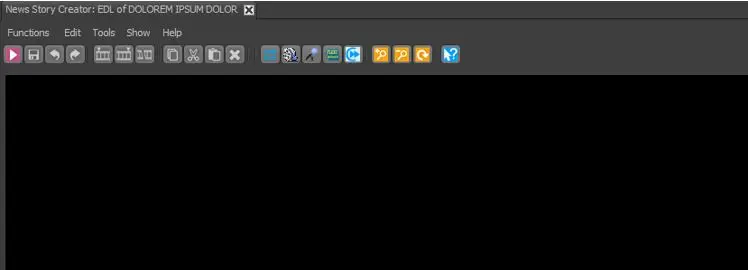
Nunzio native NLE Editor is composed of several build-in functions:
•Main Menu: It list all the available functions, spread into cascade menus.
•Toolbar: It list all the available functions, spread into a single and easily accessible Toolbar menu.
•Stage: The Main NLE Stage where it is possible to preview the previously loaded material.
•Controls: Player controls;
•Audio Recorder: Audio recorder, manage and control audio channel level.
•Timeline: Video and Audio timelines.
Once a material is added to the stage / timeline is it possible to start editing the material.
You are able to insert a starting and an ending point in order to extract the desired portion from the given material, or split it into a segment.

4802_Rundown_story_set_point

Once you had set the start point and ending point to the material, save the story and the material would be listed as EDL in Etere MAM.

4803_Rundown_story_in_mam

Audio Recorder UI
The Audio Recorder UI, located in the top-right corner of the window allows to insert audio tracks in the segments list, or edit the audio track.

4804_Audio_Recorder_UI

The Audio Recorder counts with the following features:
•New File: Create a new asset directly on Audio Recorder UI. After the creation, it would be possible to Import an Audio file based on the codec previously configured, relying on Import Audio File function;
•Open: allowing the operator to search for an asset which have an audio file -with wave codec- stored in the audio over path set in the parameters, once the asset is selected (making double-click on it), the audio track will be inserted in the Segments list and loaded in the Audio recorder;
•Save: Applies all changes performed to the audio track;
•Save as..: Displays the extended asset creation form for defining the asset form that will hold the recorded audio track, after which, the recorded audio is saved in the audio over path and then linked to the asset form; and inserts the audio track into the Segments List (if not yet done);
•Set SOM: Set a starting point;
•Set EOM: Set an ending point;
•Normalize: : In case the audio is not normalized (e.g.: new recording), it makes its entire amplitude uniform, maximizing the signal level while not changing the signal to noise ratio;
•Increase Level: Volume UP;
•Decrease level: Volume DOWN;
•Undo: Undo Operations;
•Import Audio Files: Import an Audio File from the filesystem into the current project;
•Show the Configuration Editor: Open the configuration Editor form.
Function: New File
Description:
Create a new asset on Audio Recorder UI. Upon create, relying on Import Audio File function, it is possible to Import an Audio file based on the codec previously configured.
Function: Open
Description:
Search for an asset with audio file stored in the audio over path set in the parameters. Once the asset is selected the audio track will be inserted in the Segments list and loaded in the Audio recorder.
Function: Save
Description:
Save all changes applied to the audio track.
Function: Save As
Description:
Displays the extended asset creation form for defining the asset form that hold the recorded audio track, after which, the recorded audio is saved in the audio over path and then linked to the asset form; and inserts the audio track into the Segments List.
Function: Set SOM
Description:
Set the starting point of the audio track.
Function: Set EOM
Description:
Set the ending point of the audio track.
Function: Normalize
Description:
If the audio is not normalized (e.g.: new recording), it makes the entire amplitude uniform, maximizing the signal level while not changing the signal to noise ratio.
Function: Increase Level
Description:
Increase the audio level.
Function: Decrease Level
Description:
Decrease the audio level.
Function: Undo
Description:
Revert the last action applied to audio.
Function: Import Audio File
Description:
Import an Audio File from the file system into the current project.
Function: Show the Configuration Editor
Description:
Open the Configuration Editor form.

Function

Rundown_story_edit
Rundown_story_set_point
Rundown_story_in_mam
Audio_Recorder_UI
Function