73.4.2.6 Create Asset in Media Library
In Memory, you can create a media asset containing the past recording data in Media Library by simply follow the steps described below:
In the Parameter tab, complete the parameter settings:
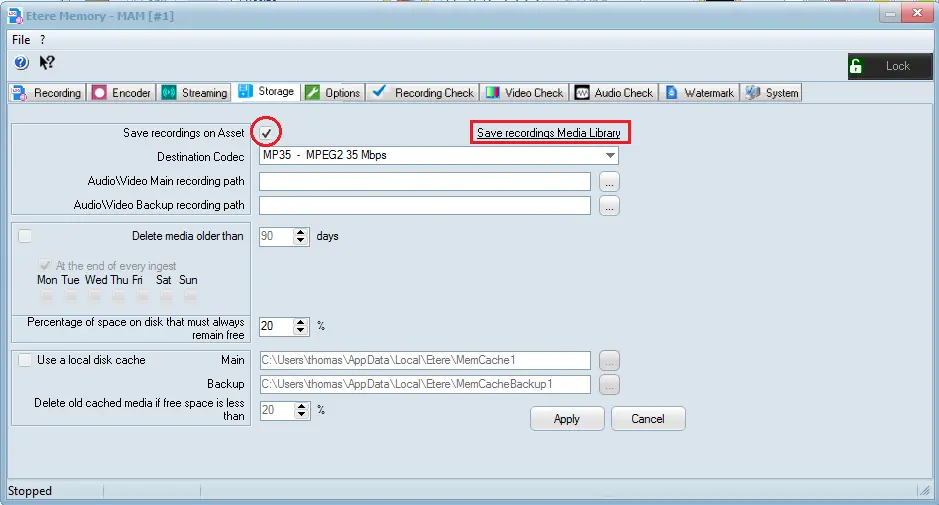
Save recordings on asset
•Ensure that the checkbox “Save recordings on asset” is enabled to archive the recording file to database with the selected codec specified in the “Destination Codec” parameter.
•Select a destination codec from the list to archive the asset.
•Specify the Main and Backup recording path to store the recorded file.
•Next, click on “Save recordings Media Library” and select a date from the calendar as the start date for archiving the recording file, with current date as the default end date. Double-click the selected date to close the calendar.
Save recordings Media Library
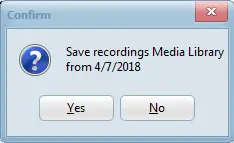
A popup message would appeared and you are required to confirm the date selection.
Save recordings Media Library from
Click the <Yes> button to proceed with the creation of recorded asset in Media Library.
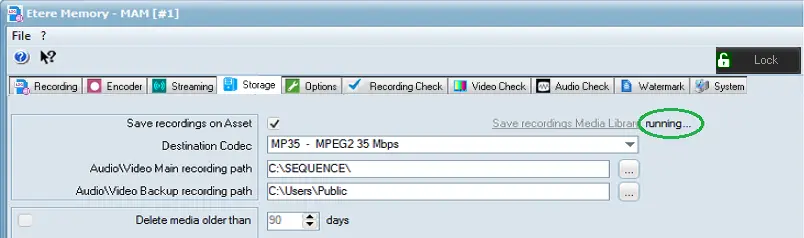
The process started by displaying a “Running” indicator on screen.
Running
Upon completion, the asset file would be created in the main and backup path specified in the settings.
 Save_recordings_Media_Library_from
 Running
 Save_recordings_Media_Library
 Save_recordings_on_asset