84.2.2.1 SCHEDULE Menu
The Schedule menu contains the operations that can be done on the whole opened schedule or on multiple schedules.
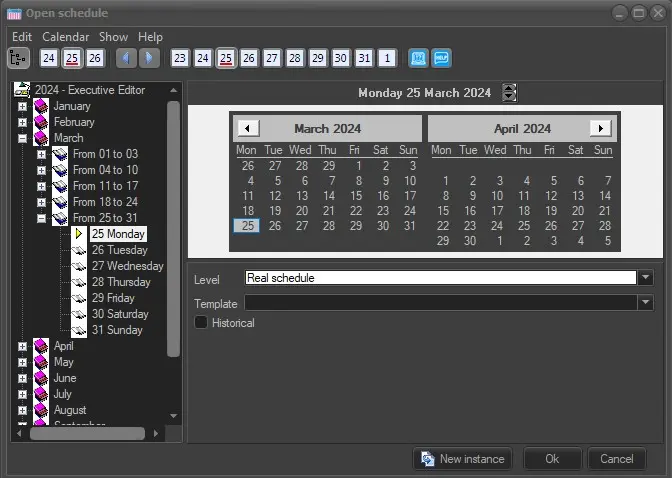
Open schedule: Allows to open a specific schedule day through a user-friendly interface. Select the desired schedule day, on either the tree, data-bar or calendar, and set other parameters about it:
4851_Open_schedule
• Level: The real schedule is selected as default, but you can choose from up to 10 levels in which you can create alternative schedules (even if the real schedule is opened/locked by another user). It is also possible to choose to open the changes schedule or the schedule for verification.
Note: In order to access a scheduling level, specific user rights are required.
• Template: Allows to choose a pre-configured template (Etere Configuration > Settings > Executive Editor > Templates) that Executive Editor will follow when displaying the schedule, showing only the asset types enabled on the template.
• Historical: If enabled, the archived schedule of the selected day will be open (in read-only mode). See chapter 59.2.10.0 Historical for more information about how to archive and restore a schedule.
Note: From Etere version 36.1.376.9470, to see this option enabled, the user must be granted this right: FUNCTIONS > Executive Editor > Executive Editor\Historical database.
• Change data even if the day is transmitted: This option, if enabled, allows to modify past schedules. If disabled, the past schedule will be opened in read-only mode. This option must be managed with caution, as the modification of aired schedules can lead to the generation of an invalid transmission report.
• Ad Insertion: Allows you to specify the ad insertion networks (these are also pre-configured in Etere Configuration > Settings > Basic > Ad Insertion Management).
• New instance: Opens a new Executive Editor instance, allowing, for example, to handle various schedules simultaneously. It is possible to switch from one instance to another just by using the shortcut 'CTRL-[1-9]'.
Note: The "Open schedule" function can be set to be prompted each time an operator access to Executive Editor. This option is available in Etere Configuration > Settings > Schedule parameters > "Open calendar to select date on every Executive Editor start".
Today: It directly opens the broadcast schedule of the current day.
Note: To allow users to modify the schedule events on current day, the “Today schedulings” right must be set to “Allowed” in Etere configuration > Configuration editor > Users > Permissions, BASE node.
Publish: This sends the current schedule to the Automation PC (both main and clone if you have a clone system) for airing. It is important to know that Executive Editor saves the schedule onto the SQL database. Prior to be aired, the schedule always needs to be published. This can be done manually by selecting this option from the Schedule menu (or through the toolbar button) or automatically using the Etere Aligner application as well. The workstation must be granted with “Playlists publication” rights (Etere configuration > Configuration editor > Users > Permissions, BASE node) in order to execute this function.
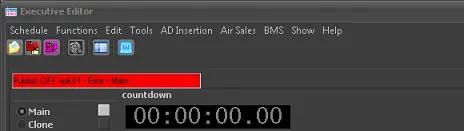
Before publishing, ensure the Publish OFF is not triggered unintentionally for the main or backup automation. When the Publish OFF function is active for one or both automations of a station, the related automation status bar in Executive Editor's Remote Control panel starts blinking. You can double-click on the status bar to disable it.
4853_Publish_Off
The “Publish” command scan all the events scheduled within the 24 hours of a schedule day, it's not possible to publish events scheduled on specific time frame, e.g. from 10:00:00:00 to 16:00:00:00.
After the “Publish” command is issued, if there is no response from Automation within one second, the Publish command would be aborted and retried. If the Automation do not respond to “Publish” command after 3 unsuccessful attempts, warning message would be triggered to alert the operator.
The execution of “Publish” command is recorded in the Schedule Log, it can be identified between keyword “Start reload” and “Reload complete” in the log.
In addition, there are “Remote Control EE" log and "Remote Control Publisher" log which contain the information sent to Automation during publication.
In order to prevent schedule freeze due to discrepancy in automation playlist from database, it is mandatory to perform a manual “Publish” after each Live event, and after media arrives for asset previously published with media.
The publication of a schedule can take some seconds, however, during this time the operator is able to carry out other scheduling tasks.
The "publish" function is not available for alternative playlists to prevent unwanted issues on the main playlist. Publishing is however possible using the F9 shortcut.
Auto-Publish: If enabled, the schedule will be automatically published each time the schedule is modified. Please note that in case this option is enabled, the "Auto-Publish" message will be displayed in the top part of the windows, just beside the current station name.
As “Auto-Publish” would update Executive Editor for every changes made to the schedule, you might want to disable this feature when modifying (insert/paste/delete) the events during on-air transmission to prevent interruption to the event schedule.
On-air schedule publishing: Recalculate actual scheduled times for the live countdown: If enabled, each time the currently on-air schedule is published, the difference (shown in the difference column) between the current time and the last-published time will be reset to zero (since the last-published time is overwritten with the current time) and the live countdown of the remote control will be updated based on the published values. If there is live event scheduled within the next 4 hours time frame, the “Live” counter would trigger the countdown.
Link to the Schedule of the Day Before: This parameter allows the current schedule to be linked to the previous one ensuring that if the last program from the previous day ran over the roll-over time, the two schedules are linked and the last program will continue as the first program on the current schedule.
Synchronized playlists: If enabled, it will be possible to manage from a single schedule the daily schedules of other different stations. This feature allows Executive Editor to work in a truly multichannel mode, where all events insertions, shifts, replacements and deletions are automatically replicated in the linked stations. Please refer to the Synchronized Playlists chapter for information about how to configure and use this feature.
Open snapshot for Video Assist: This option will show a small window detailing all the snapshots created in the Video Assist database.
Filter only Short Event Reel events: Use this option to REMOVE from the current schedule all those events which type doesn't have the 'short event reel' property enabled (see Etere Configuration | Settings | Type Properties).
Filter only NON Short Event Reel events: Use this option to REMOVE from the current schedule all those events which type has the 'short event reel' property enabled (see Etere Configuration | Settings | Type Properties). Please note that 'live' events are also filtered from the schedule since they are not managed in Video Assist schedules.
Note: Please note that each time the schedule is filtered by either non-short or short event reel events, the space remaining between scheduled events is replaced by a separator line (which code is "___M") that will be used to automatically stop the playout each time it arrives to a separator line, requiring a manual intervention to continue with the playout. Separators can also be manually inserted by making right-click on the Video Assist schedule and selecting the related function.
Changes Approval: It allows to compare and modify the real schedule (which will be broadcasted) against the variations schedule (which has been imported). Please refer to the Checking Schedule Variations chapter for information regarding how to use this feature.
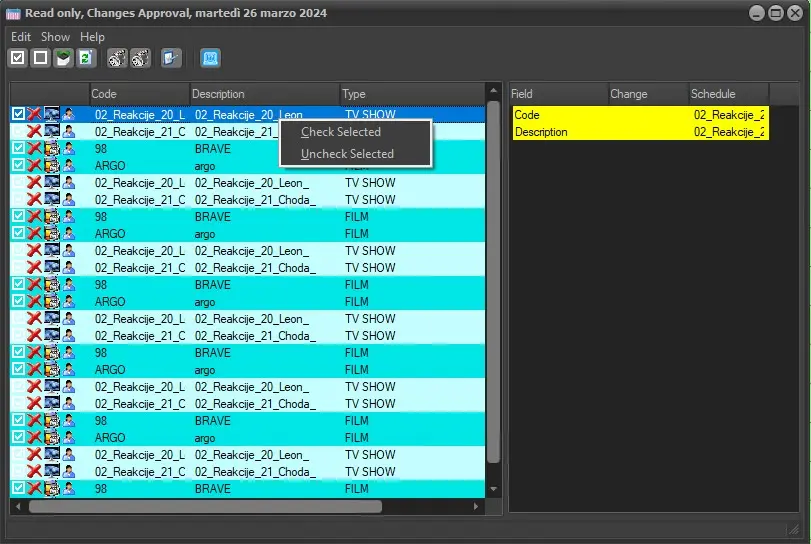
When selecting the approved events for scheduling you can use the “Ctrl” key or “Shift” key to select or deselect multiple events and enable/disable the selection using the “Check Selected” or “Uncheck Selected” function to expedite the scheduling process.
4852_Check_Selected_or_Uncheck_Selected
Note: When changing event schedule, the variation schedule is based on the “SystemID” imported from the file.
Verify schedule: Once you have completed your schedule for the day, by activating this function you save a copy of the completed schedule and this copy is then referred as the 'Schedule for Verification' of the selected day. Post broadcast you can then run a transmission report using the Verify Schedule module of what was actually aired and compare it to the schedule you had completed.
Start F90: It sends a message to Etere F90 communicating that the schedule of the currently opened day has been saved, in this way all running Etere F90 exports configured to automatically import/export the schedule each time it is saved will be executed.
This feature allows you to import/export schedules in multiple dates, with default of 7 days from the past and 30 days in the future.
Refresh: It simply performs the refresh of the schedule, useful in case the schedule is being simultaneously modified by different users.
 Publish_Off
 Open_schedule
 Check_Selected_or_Uncheck_Selected