76.1.1 User Interface
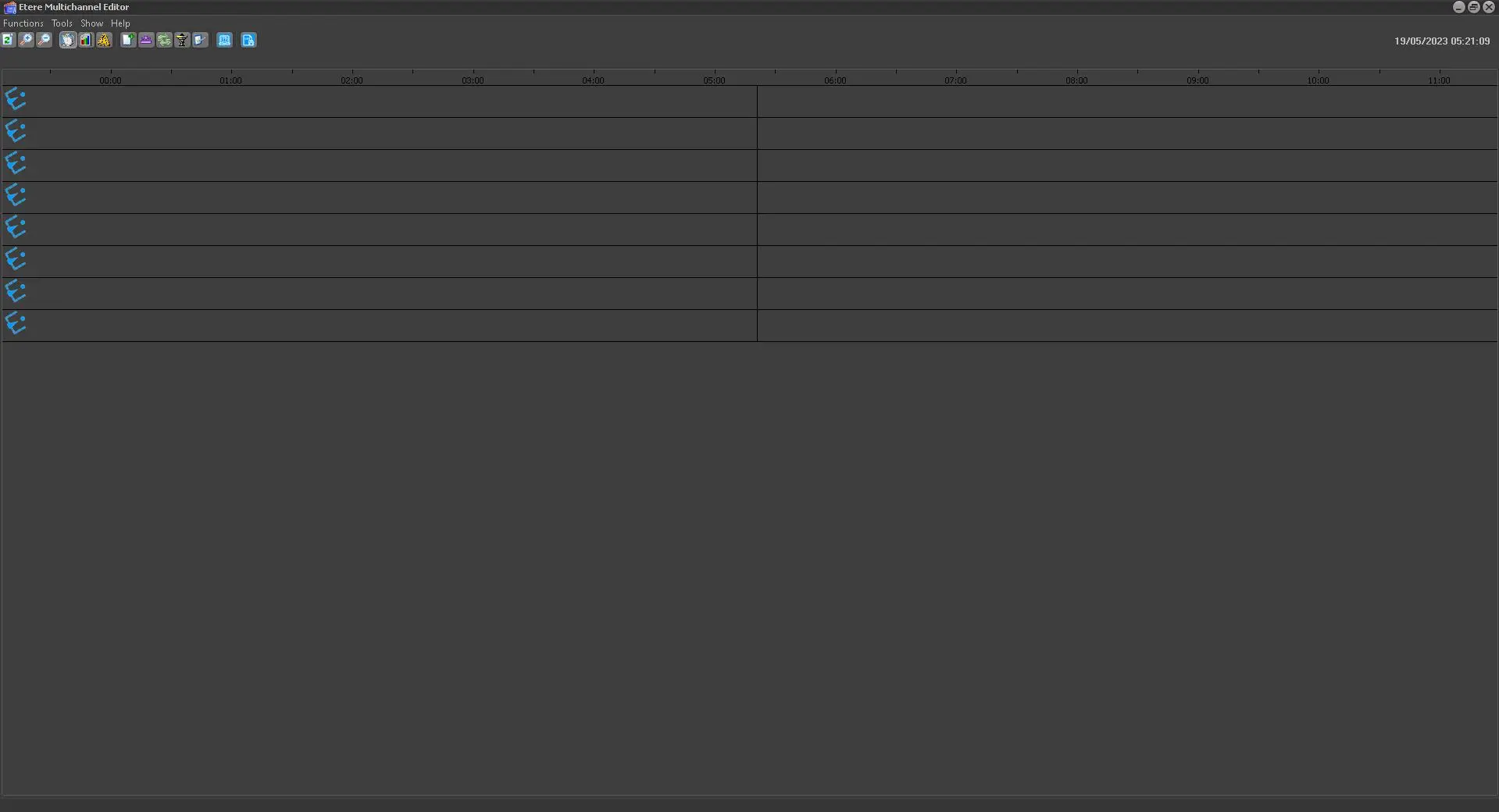
Once you have opened it, the software automatically reads the published schedules and shows the whole daily schedule along the timeline. Below is illustrated how the main Multichannel Editor window looks:
multichannel_gui_start
The colored rows represent the schedules, each color corresponding to a different type of event, while the channel logo on the left indicates to whom the schedule belongs. Additionally, when you scroll the pointer along the scheduled row, you can see the duration and other information of the event you are focused on using a small context menu that appears.
Moreover, to be sure that what you see is always in line with the publication, press the 'Refresh' button that reloads the situation of the published schedule in real time.
 multichannel_gui_start