9.2.1 Advanced Search
The Advanced Search function provide a wide variety of filtering options to extract assets matching the criteria.
Note: In the most recent Etereweb versions, Search and Advanced Search sections have been merged into one, where full-text search is available and a dedicated link allows to open the Advanced search.
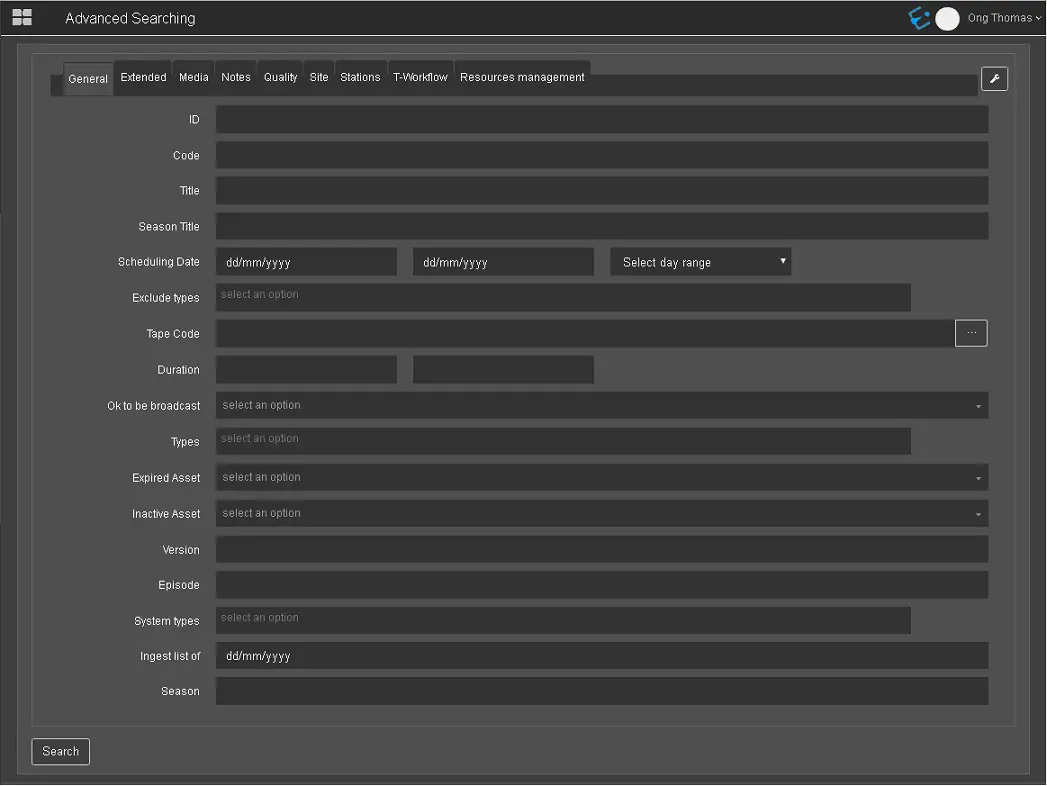
First of all, you can click on the “Filter setting” icon to launch the selection of built-in filters for Advanced Search.
Filter_setting
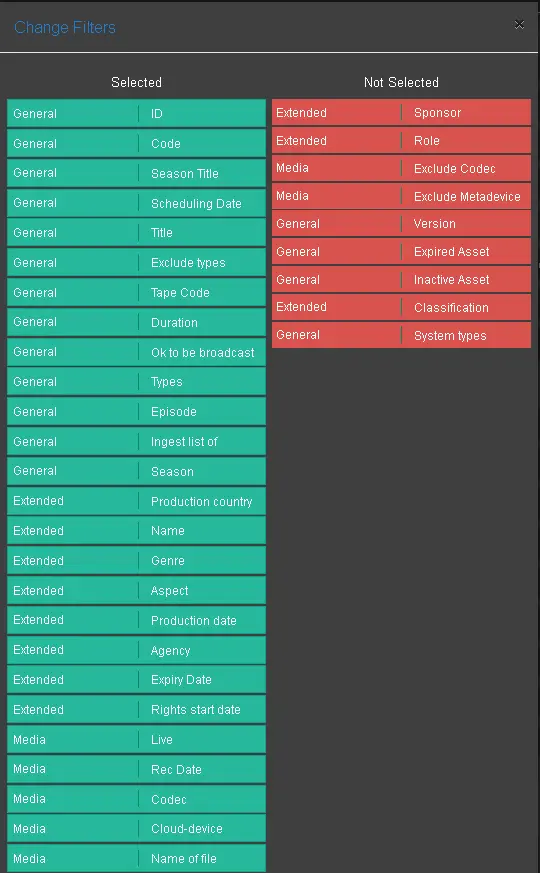
In the Change Filters menu, selected filters are displayed in green, while not selected filters are displayed in red. The filters are displayed according to the user group setting defined in Web Advanced Search in Etere Configuration Settings.
From the menu, simply drag-and-drop the filters between the “Selected” and “Not Selected” columns to determine the filters to be used when executing Advanced Search.
Upon selection, click the <Save> button to confirm and exit from Change Filters dialog.
The added filters would be appeared in the Advanced Search.
Change_Filters
WARNING: If there is no filter template defined for the logged in user, a default template with all filters would be launched, and medication of filters is not allowed.
Before using the Advanced Search function, you must first define the search options to be performed on the appearance of words, you can filter the search word (e.g. "the") appeared at start of the words (Prefix), at end of the words (Suffix), within the whole words (Whole), or an element in the search word (Infix).
If assets consist multiple versions, all versions of the assets would be displayed in the search results.
The filters available in Advanced Search are the default filters / columns which cannot be modified or removed. The filters are grouped according to the template set in Web Advanced Search feature in Etere Configuration Settings. You can customize the (additional) columns to be displayed for selective group of users to suit their needs..
When filtering assets by Types, you must select the available types to be filtered, else it does not filter all types enabled for the login user. Moreover, in order to include filtering of System Type objects the “Search also system types” option in Search Option settings must be enabled.
For filtering Nunzio's stories, you can select News story or News Feed as asset type to be filtered.
If you are using the “Scheduling Date” parameter to filter assets within the date range and there is no calendar available for selection of dates, the date must be entered in “mm/dd/yyyy” format.
When filtering assets by Title, if the Multilanguage Options settings is selected, you can filter asset’s title with the selected languages.
In Advanced Search, special characters like “&” or “|” (and others) in the Title field (and other fields) are not allowed.
WARNING: Similar to Media Library in desktop application, assets marked as "Not OK to broadcast" would not be filtered.
WARNING: When you perform a generic advanced search (without using filter) from single station, only assets that exclusively enabled for the station would be retrieved.
 Filter_setting
 Change_Filters