59.5.22 Available Filters
All reports allow users to customize them by dictating a long series of parameters available through the different tabs within their modules. By default, all filters are disabled (i.e. blank or unselected) and can be enabled just by configuring them as explained in the following tables:
ASSET
Search and add the asset(s) to which the report will be referred. If no asset is added, all assets present within the period will be included in the report.
CODE
The "code" area permits, as it name suggests, to narrow the retrieved results by specifying any of the following filters concerning the code field:
• Starts with Enter the string with which the asset's codes must begin to be retrieved in the report (e.g., code like 'test*').
• Between Insert two values, and only those assets whose code is comprehended between them will be retrieved (e.g., code between '500' and '600').
• Contains: To retrieve the assets' code must contain the string inserted here (e.g., code like 'test').
• It doesn't contain: To be retrieved, assets' code must NOT contain the string inserted here (e.g., code not like 'test').
• Empty: Only the empty events will be retrieved (e.g., code = '').
DATE
Indicate the time criteria to be used for filtering events; it is possible to define any of the following methods:
• Interval: It permits to specify if the days to be included will be taken from a given custom date or one of the standard filters (i.e., 'current day', 'this week', 'next week', 'current month', 'current year', 'today's month date', 'today's year day', 'previous month', 'previous year', 'last 30 days, 'following 30 days' or 'all dates').
• Time: Indicate if the report will include the whole day scheduling or only a specific time range.
DESCRIPTION
The "description" tab permits the retrieval of only those tapes whose description field matches (entirely or partially) with the selected filter:
• Starts with Enter the string with which the tape's description must begin to be retrieved in the report (e.g., a description like 'test*').
• Between Insert two values, and only those tapes whose description is comprehended between them will be retrieved (e.g., the description between '50' and '60').
• Contains: To retrieve the tape's description, the field must contain the string inserted here (e.g., a description like 'test').
• It doesn't contain: To be retrieved, the tape's description must NOT contain the string inserted here (e.g., description not like 'test').
• Empty: Only those tapes whose description field is empty will be retrieved (e.g., description = '').
SCHEDULE TYPE
Choose among the schedule levels from which the data will be retrieved; the schedules managed by Etere include:
• Real schedule: All events scheduled in the main schedule for being broadcast will be included in the report.
• Alternative schedule 1-10: Select the alternative schedule(s) that holds events on ancillary playlists (e.g. import, changed, air sales, etc).
• Recycle bin: It will include in the report only those events initially scheduled on the selected period but then deleted (i.e. moved to trash).
• All schedules but the real one: If selected, all events scheduled on alternative schedules will be included but not on the actual schedule.
TYPE
Indicate the event type(s) that will be used to filter the events included in the report. Use the 'Hide groups and system types' option to display only those types defined by the station and hide those created by default Etere. With the 'Print type colour' option, it is possible to show the type colour in the report, allowing one to recognize each type easily.
PROPERTIES
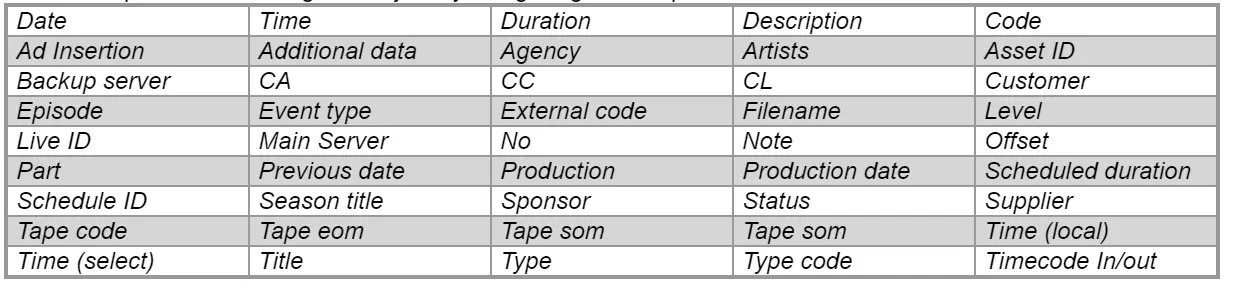
The "properties" tab permits customization of the layout of the report by selecting the complementary information that will be displayed on it. You can also decide to include some standard info, such as:
• Print date: Enable it to display the date (and time) in each page footer,
• Page number: If active, a progressive number will be displayed in the footer on all pages across the report,
• Operator: It is the login name of the person who performs the report,
• Station name: The name of the station from which the report is being performed,
• Multiple lines text: Enable this option to continue printing a detail in another line instead of truncating it (as by default).
• Interline: Enable this option to increase the space between lines to 1.5 cm (one-and-one-half); by default -when disabled- this space is set to 1 cm (single).
• Columns: Specify the database fields to be included in the report. Currently enabled columns will be displayed in the top part, where arranging them just by using drag and drop will be possible.
NB: If the "SMPTE metadata" filter is included in the report, metadata will also be available for columns (smpte).
• Export/Import configuration: Users can export the current report layout (i.e. columns retrieved from the properties tab) into a Windows registry file (.reg), thus allowing to, for example, import it by another operator on a different workstation.
It is important to note that exported layouts can be imported only from their source reports; the exported layout of the "playlist" report can be exclusively imported from the "playlist" report module.
NETWORKS (SPLIT)
Select the split networks, among the ones already configured in Etere Configuration > Settings > AD Insertion Management, on which the events to be retrieved must have been transmitted to be included in the report:
• Main network: The network on which events are mainly scheduled.
• Secondary networks: The split networks are configured in the abovementioned section.
• All networks: If selected, the report will include the events scheduled across all the main and the split networks. In this case, the 'split' column is suggested under the properties tab to identify the network to which events belong.
STATIONS
Select the station(s) from which scheduled data will be retrieved.
 Columns