84.4.5.15 STANDARD > GENERIC > XML ASSETS FULL FOR XSLT BIS
Import Scope
The Import XML Asset Full for XSLT BIS allows to import XML files previously exported by the "XML Assets Full for XSLT" export function; the XML files containing information related to assets.
This import have the same parameters as import XML Asset Full for XSLT, it allows to submit multiple instances of import XML Asset Full for XSLT through same channel.
Please refer to Import XML Assets Full for XSLT chapter for the details information of the import process.
Import Parameters
Before import, the following parameters must be compiled:
Import standard generic xml assets full for xslt tbis
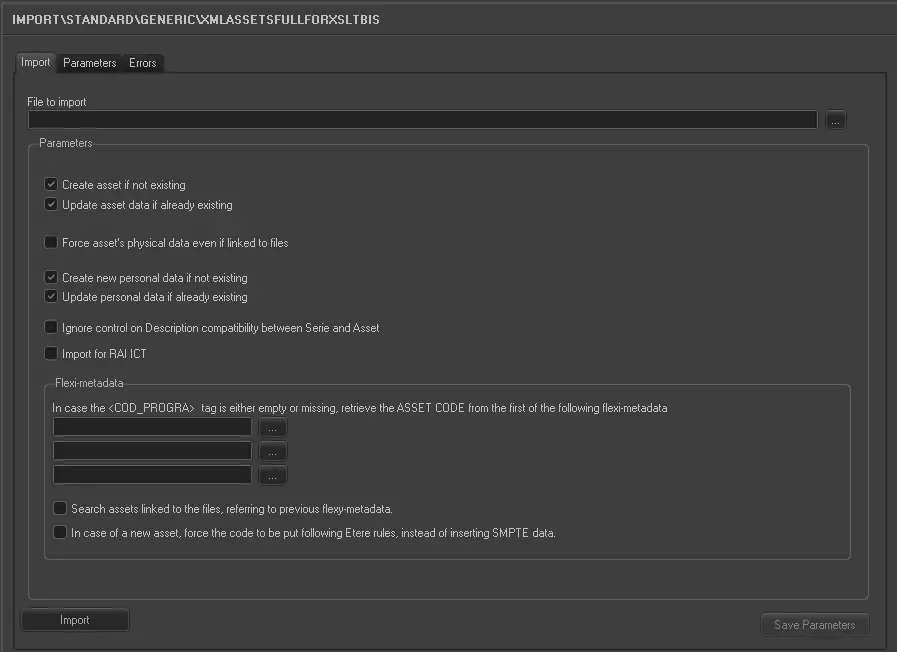
Import tab
File to import - Browse and select the file to be imported into the system.
NB: Please note that only files with XML extension are supported.
NB: When import XML-EDL linked asset, it does not import the segment in the asset.
Create asset if not existing - If enabled, nonexistent assets (i.e. not yet in the database) will be inserted in the Media Library.
If disabled, nonexistent assets will be ignored.
In the latter case it's suggested to enable the "update asset data..." parameter to only update existing assets.
Update asset data if already existing - If enabled, existing assets (i.e. already in the database) will be updated with imported information.
If disabled, existing assets will be ignored.
In the latter case it's suggested to enable the "create asset..." parameter to only create new assets.
Force asset's physical data even if linked to files - If enabled, the physical data (start and end timecodes) of existing assets will be updated even if said asset are already linked to a file.
If disabled, physical data of existing assets won't be modified.
Create new personal data if not existing - If enabled, nonexistent personal data (i.e. not yet in the database) will be imported in the Personal Data db.
If disabled, nonexistent personal data will be ignored.
Update personal data if already existing - If enabled, existing personal data (i.e. already in the database) will be updated with imported information.
If disabled, existing personal data will be ignored.
Ignore control over compatibility between the seasons and Asset Description - If this option is enabled, when the asset’s description of the imported seasons is different from the asset in database, the asset would be imported, but the asset’s description would not be updated to the description field (FSERIE.DESCRIZIO ) in database table.
In case <Cod_Progra> tag
is either empty or missing, retrieve the ASSET CODE from the first of the following flexi-metadata - Select up to 3 flexi-metadata to be used as asset code if the <Cod_Progra> tag is either empty or missing.
The first metadata will be preferred when available, otherwise the second one or the third one will be used.
Search assets linked to the files, referring yo previous flexy-metadata - If enabled, the import would make reference to previous flexy-metadata when searching assets to linked to the files.
In case of a new asset, force the code to be put following Etere rules, instead of inserting SMPTE data - When creating new assets during import, enable this option to assign the asset code based on Etere rules, instead of adhere to the rules of importing SMPTE data.
NB: In circumstances when asset code is not defined adhere to Etere specification, the creation of asset would be denied to prevent “orphan” assets in database.
Note: When importing SMPTE data, the following rules applied if there is data in the <ITEM> tags:
•If the data type is STRING and contains no value (blank), the data in existing asset is not updated, if asset does not exist in Etere, it is not created.
•If the data type is STRING and contains “##” value, the data in existing asset would be delete from Etere, if the data does not exist in Etere, it is not added.
Import standard generic xml assets full for xslt tbis 1
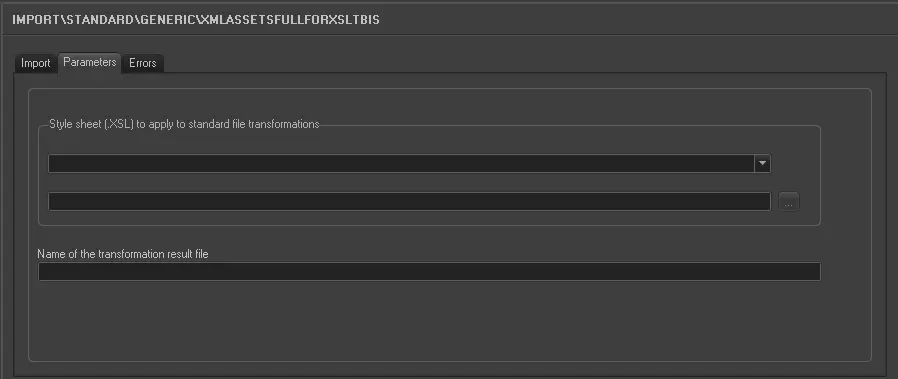
Parameters tab
Stylesheet (.XSL) to apply to standard file transformations - If specified, imported XML data will be converted from the standard format into a custom format, based on the given XSL style sheet (e.g. ET_XML_ASSETS_FULL_XSLT).
In case the <External> option is selected, it will be possible to freely browse and select any .XSL file
Name of the transformation result file - Enter here the full path and name with which the transformed file will be fixedly saved.
If not specified, no transformation will be performed (i.e. only standard XML files will be created).
Launch the import
Once the import has been configured, it can be started just by pressing the <import> button, so many asset forms as xml files exists on the selected folder will be created.
NB: In case some problems encountered during the import process, under the 'errors' tab you can view the detail information pertaining to the error.
Sample file to import
The format of the file to be imported is the same as the file exported by the "XML Assets Full for XSLT" function.
 5219_Import_standard_generic_xml_assets_full_for_xslt_tbis_1
 5218_Import_standard_generic_xml_assets_full_for_xslt_tbis