59.2.49.2 Web Advanced Search
The Web Advanced Search section defines the filters to be displayed when the user performs an advanced search on Etere Web.
Web_Advanced_Search
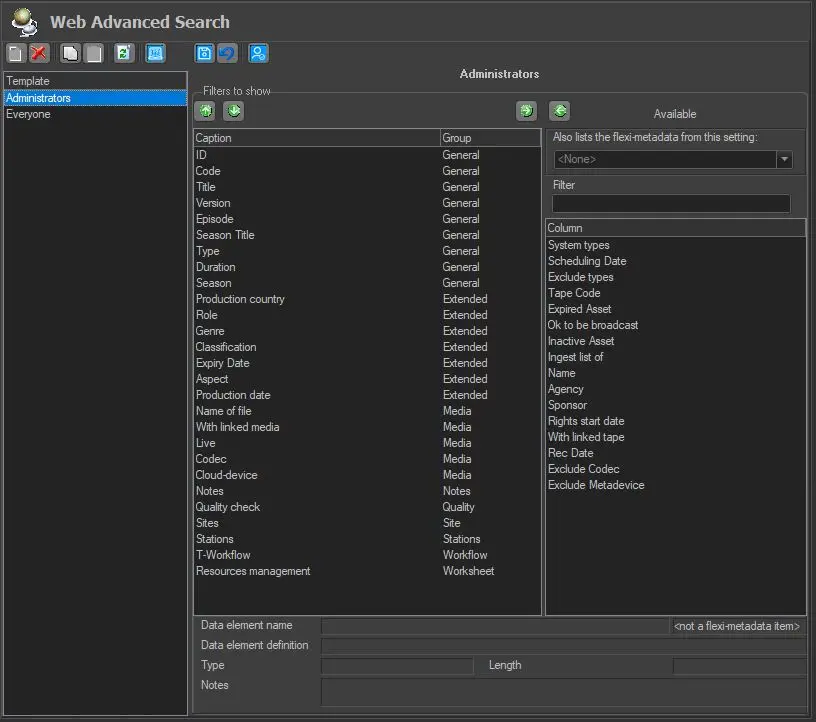
In the Web Advanced Search configuration settings, templates are available on the left panel; once a template is selected, a list of the enabled filters for the selected template is displayed on the right pane in the Caption window.
You can select desired filters to be displayed in the EtereWeb Advanced Search (in the Media Library module) by adding them to the central pane using the left-green-arrow button or removing the selected columns from the centre pane using the right-green-arrow buttons. Filters can be added and removed with double-click too.
When more filters are added to the central pane ("Filters to show"), you can position them using the up/down green-arrow buttons.
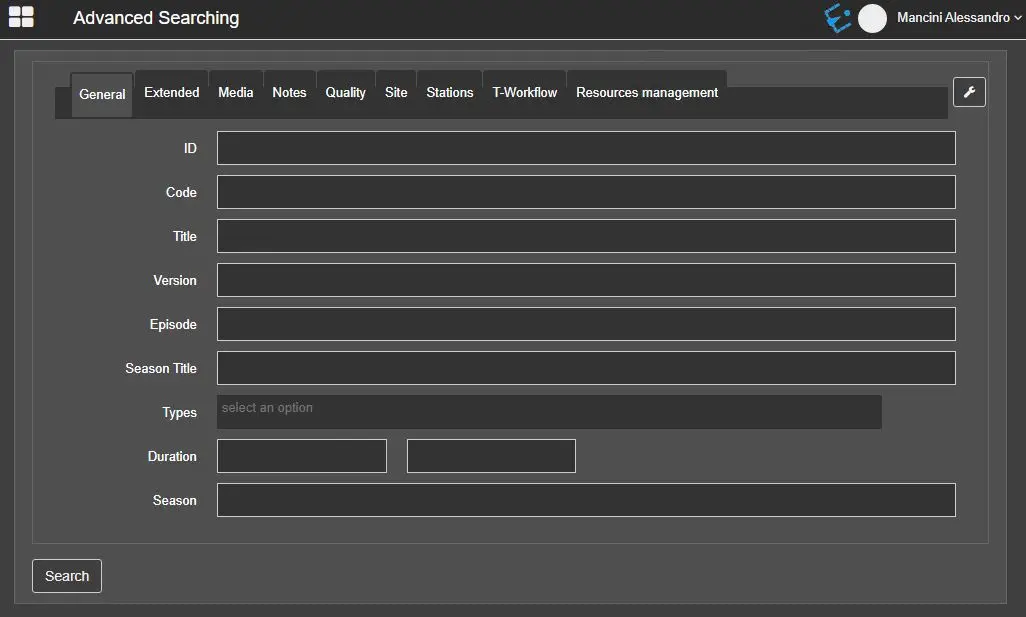
NB: Please note that the group name listed in the topmost position in the Group column would appear as the first tab in the template when Web Advanced Search is launched. You can modify the appearance of various tabs in Web Advanced Search by arranging the group names in the Group column.
On the right pane, more options are available:
- Also lists the Flexi-metadata from this setting: you can select <All> to list all Flexi-metadata related to the assets. This option is set as <None> by default.
- Filter: enter a keyword to search filters in the caption table to shorten the list.
In the EtereWeb, the Web's Advanced Search feature is bundled in the Media Library module when the users log in to Etere Web.
ll_flexi-metadata
NB: If there is no user-defined template found in the system, the default template with all the filters would be presented when the user launches Advanced Search in EtereWeb.
 Web_Advanced_Search
 all_flexi-metadata