70.3.7.4 Using a backup server
Etere HSM allows implementing a manual main-backup deployment for robotics servers, this fault-tolerance method allows increasing the resilience of the system by using a backup robotics server whenever the main server is unavailable (e.g. maintenance, shutdown, etc.).
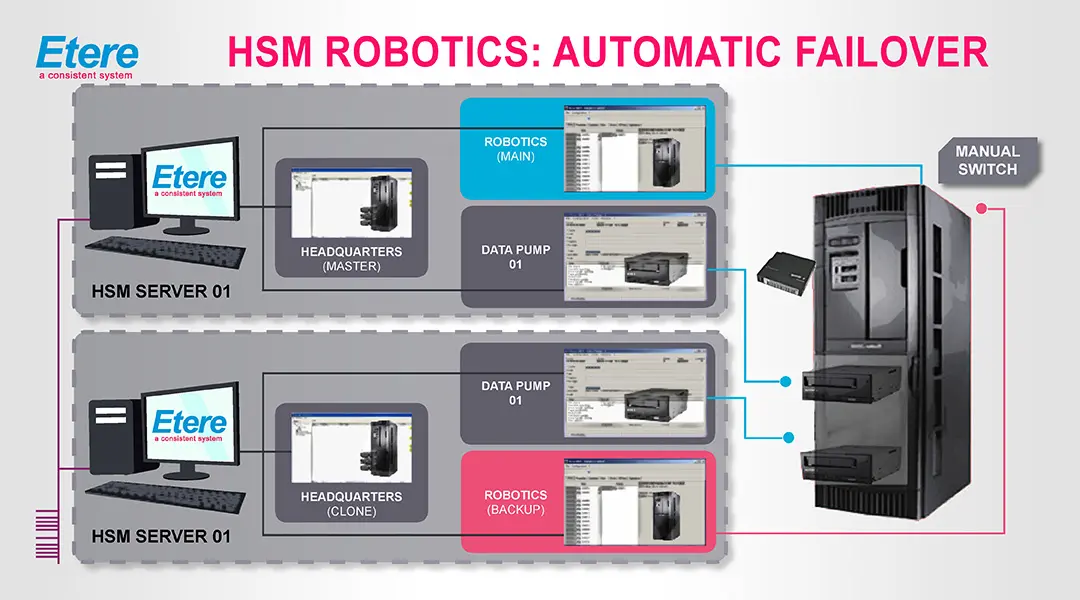
HSM Robotics Automatic Failover
In this chapter will be provided the instructions required to prepare and use a backup robotics server:
Prepare the Robotics Backup
Switch to Robotics Backup
Roll back to Robotics Main
Suggestion
Besides supporting a manual failover deployment for robotics servers, Etere HSM also provides an automatic failover deployment based on two servers (master and clone) used to control either two libraries or one library concurrently, in that scenario robotic servers are automatically switched in case of failure. For further information on this feature please refer to the "Master/Clone Robotics" chapter.
PREPARE THE BACKUP ROBOTICS SERVER
In order to use a backup server it's required to first configure it as explained in the "HSM Configuration > Installation procedures" chapter, that is:
1. In the backup robotics server (e.g. etlibraryws2008), install the tape library's windows drivers:
Server Manager
2. Now the backup robotics server is ready for manual switch.
SWITCH TO ROBOTICS BACKUP
Whenever the main robotics server becomes unavailable, the backup server can be switched on through the following procedure:
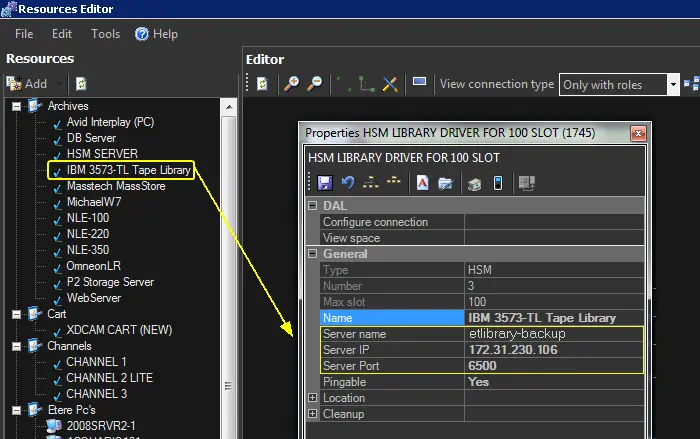
1. In the backup robotics server, open Etere Configuration > Resources Editor and modify the tape library's resource by replacing the main server's information (Server Name, Server IP and Server Port) with the backup server's one:
NB: This operation allows the backup server to control the tape library using the same license as the main one.
Resurces Editor
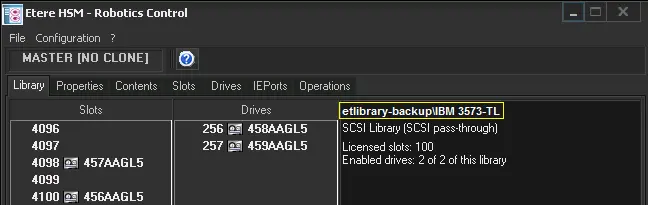
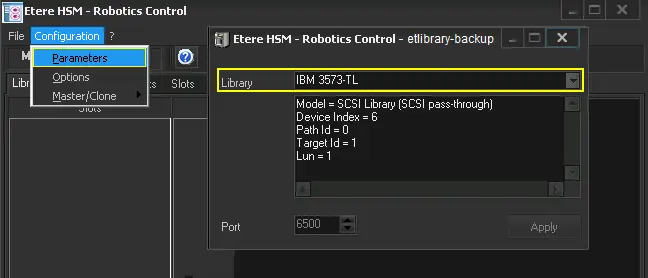
2. Still in the backup robotics server, open HSM Robotics and configure it by selecting the library (e.g. IBM-3573-TL):
Etere HSM - Robotics Control 1
Etere HSM - Robotics Control 2
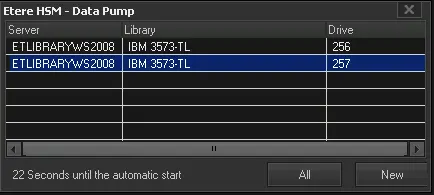
3. Open HSM DataPump, press the [New] button:
Etere HSM - Data Pump 1
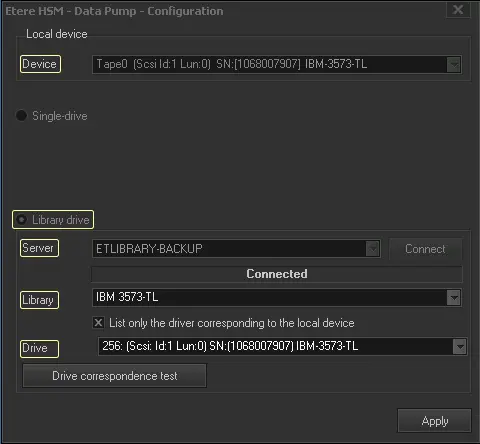
A configuration windows will be displayed, set the parameters below and press [Apply]:
Etere HSM - Data Pump - Configuration
Device - Select the tape drive to be used by the DataPump.
Library drive - Check the "library drive" option.
Server - Select the backup robotics server (e.g. etlibrary-backup) and click on [Connect].
Library - Select the library to be controlled.
Drive - Select the tape drive to be controlled.
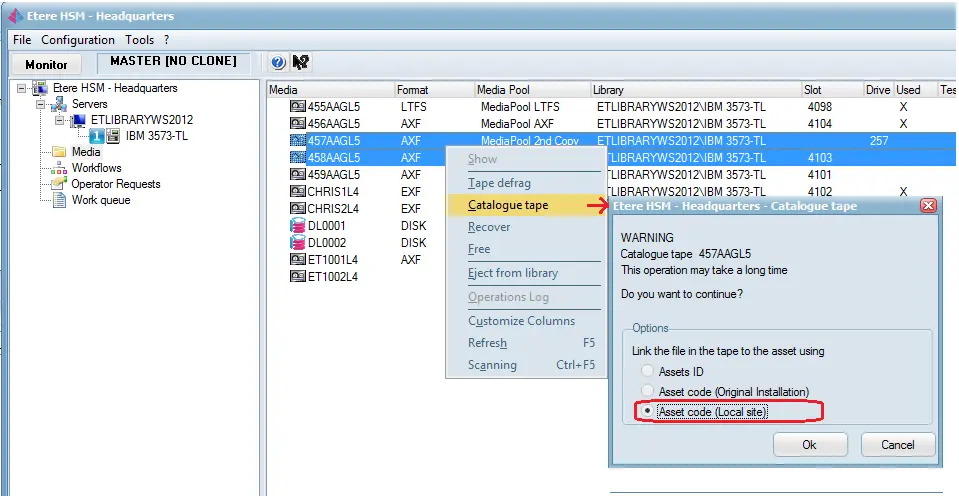
4. Open HSM Headquarters and add the backup robotics server (e.g. etlibrary-backup):
Etere HSM - Headquarters 1
Etere HSM - Headquarters 2
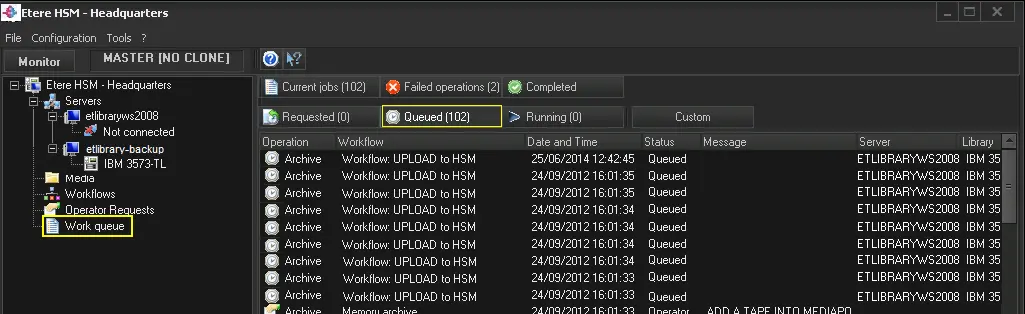
5. The backup robotics server is now ready for use.Notice that all operations queued on the main server will remain unaccomplished:
Etere HSM - Headquarters 3
Updating the system to specify that all already queued operations must be accomplished by the backup server needs executing (from SQL Management Studio) the following query:.
UPDATE hsmworkqueue
SET server = 'ETLIBRARY-BACKUP' --backup server
WHERE server = 'ETLIBRARYWS2008' --main server
AND queued > 0 AND expired = 0 AND terminated = 0 --to apply only to pending operations
Note: The 'ETLIBRARY-BACKUP' and 'ETLIBRARYWS2008' values must be replaced with the names of the backup and main servers respectively.
ROLL BACK TO ROBOTICS MAIN
When the main robotics server becomes available again, rolling back to it can be accomplished following the previously described switching procedure but for the main server instead of the backup one.
WORKING PRINCIPLE FOR ROBOTICS MAIN AND BACKUP
The working principle for the Robotics main and backup is that the client (or datapump Headquarters) will communicate with one of Robotics. If this is not achievable, it will then start to communicate with each other.
 Resurces_Editor
 Etere_HSM_-_Robotics_Control_2
 Etere_HSM_-_Robotics_Control_1
 Etere_HSM_-_Headquarters_3
 Etere_HSM_-_Data_Pump_-_Configuration
 Etere_HSM_-_Data_Pump_1
 Etere_HSM_-_Headquarters_1
 Etere_HSM_-_Headquarters_2
 HSM_Robotics_Automatic_Failover
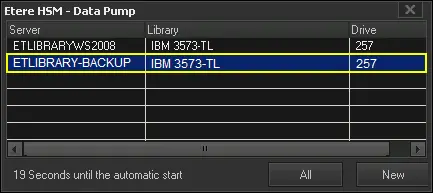 Etere_HSM_-_Data_Pump_2
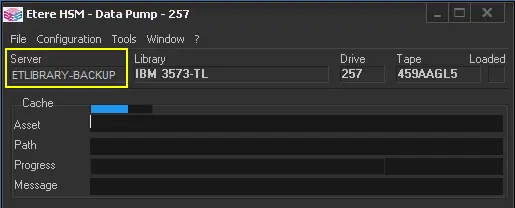 data_pump
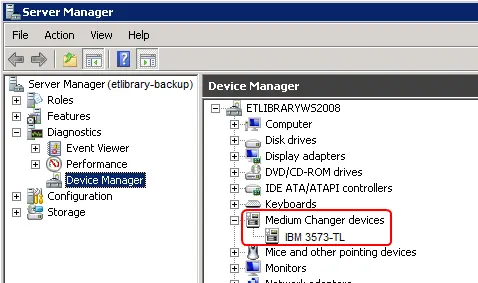 device_manager