208.5.2.1 Configuration and use
Main settings
To use EVS Integration tools, launch its executable (Etere.EvsGateway.exe) and configure the settings described in the following section:
Evs_main_1
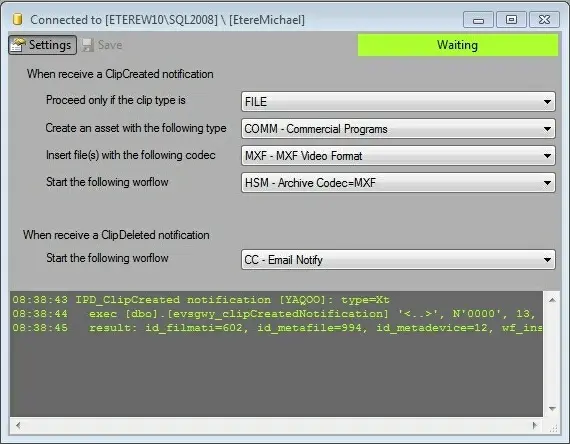
Parameter - Settings
Description: Displays the parameters of the actions performed each time a transfer or delete notification arrives.
Parameter - Save
Description: Stores all changes performed to parameters in the Etere database.
When receiving a ClipCreated notification:
Process only if the clip type is - Indicate if the EVS Integration tools would be subscribed to receive a notification related to either transferred (FILE) or ingested (XT) files.
Create an asset with the following type - Specify the type of assets created within the Etere system. Types are defined under the Etere Configuration > Settings > Types Editor > Types module.
Insert file(s) with the following code - Specify the codec of the assets to be created within the Etere system. Codecs are defined under the Etere Configuration > Settings > Devices > Codecs module.
Start the following workflow - Select the workflow to be launched for the new asset after receiving a "ClipCreated" notification.
When receiving a ClipDeleted notification:
Start the following workflow: - Select the workflow to be launched for the asset after receiving a "ClipDeleted" notification.
Moreover, the Activity Monitor panel would show all the actions performed within the Etere system (e.g. asset created, workflow launched, etc).
Create an IPWS Client
Once the main settings have been configured, it can start a new connection by selecting the "New IPWS Client" from the "EVS" menu:
Evs_newinstance
Evs_main_2
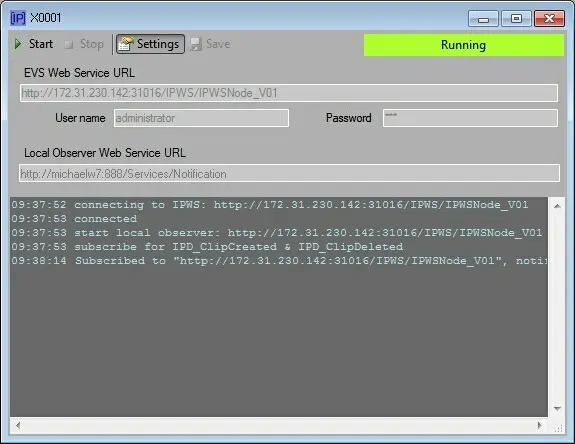
Parameter - Start
Description: Activates the local web service to start receiving notifications from the EVS Web Service and perform actions according to the received notifications.
Parameter - Stop
Description: Deactivate the local web service to stop receiving notifications.
Parameter - Settings
Description: Displays the parameters for connecting to the EVS Web Service. Available parameters include:
•EVS Web Service URL: Enter the URL used by the EVS Web Service for subscribing notifications.
The required format is: http://[ServerIp]:[ServerPort]/[NodePath], for instance:
http://192.168.1.124:31016/IPWS/IPWSNode_V01
•Username and password: Enter the credentials provided by the EVS Web Service to establish communications.
•Local Observer Web Service URL: Specified the URL of the local web service to be subscribed to the EVS Web Service for receiving notifications.
The required format is: http://[LocalIp]:[LocalPort]/[URI], for instance:
http://192.168.1.172:888/Services/Notification
NB: Please refer to the How to Authorize a WS chapter for detailed information on authorizing the local webserver to receive notifications.
Parameter - Save
Description: Stored all changes performed on the "IPWS Client" into the database; the saved settings would automatically load the next time the EVS Integration Tools application is launched.
Moreover, the Activity Monitor panel will show all the communication traffic between the Local web service and the EVS web service (e.g. connection established, notifications subscribed, received information, etc).
Start receiving notifications!
Once the [EVS_main_icon01 Start] button is pressed, the web service starts listening for notifications; every time a notification is received from the EVS IP Director, the EVS Integration Tools application performs one of the following procedures depending on the notification type and the main settings:
•ClipCreated (a file has been transferred from the XT2 server to a Nearline storage)
1. A new asset is created within the Etere Media Library with the given type and codec.
2. The file's name (which also describes the file content) is inserted with a maximum length of 30 characters.
3. The asset is linked to the HD file stored in the EVS XT2 server.
4. Etere DataMover automatically launches the selected T-workflow for the asset to transfer and transcode the file.
•ClipDeleted (a file has been deleted from the XT2 server)
1. The deleted file is removed from the Etere Media Library, and the selected T-workflow launched Etere DataMover.
 Evs_newinstance
 Evs_main_2
 Evs_main_1