59.3.14.1 Attach a T-workflow to one or more assets ?
Once the T-Workflow has been created, the user can use it in different ways but with a single aim: to determine actions for specific assets. A T-Workflow can be used mainly in three ways:
•Assigning it to a specific asset type(s) (e.g. assign to all the assets whose type is 'MOVIE')
•Specifying one or many T-workflows to be used by a pre-determined asset (e.g.. assign a T-workflow to all the assets which will go On-Air in the week, and its description contains the word 'concert')
•Setting an Etere Module to launch a T-workflow when some criteria are satisfied (e.g. setting a workflow to be launched from Etere Ingest when the ingestion process is completed)
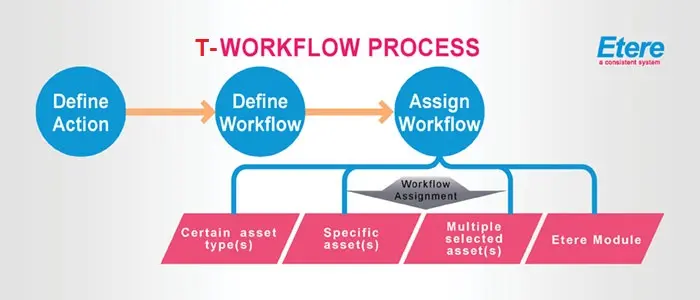
The following figure is a synthesis of the T-workflow assignment procedure and its role in the entire T-workflow process:
T-workflow_process
How to assign a T-workflow to a specific asset type(s)
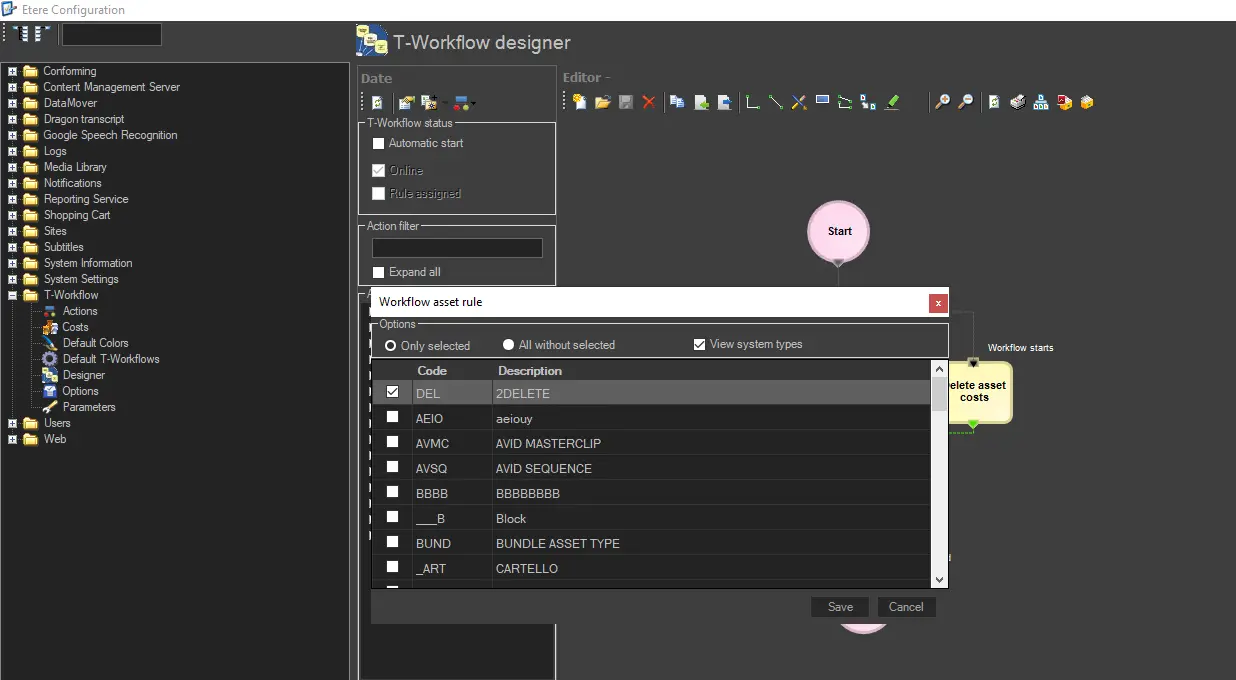
To configure a T-workflow to run exclusively with pre-determined assets, the user should go to 'Etere Configuration > Configuration Editor > T-Workflow Designer', open the desired T-workflow and click on the 'Manage workflow asset rules' option, which is meant for linking a T-workflow to specified asset types:
Manage_workflow_asset_rules'
T-Workflows enabled through this method will be automatically attached when an asset of the selected types is created; depending on whether the T-workflow is set for auto-start, the T-workflow will be automatically executed for the asset.
How do we assign a T workflow to a single asset?
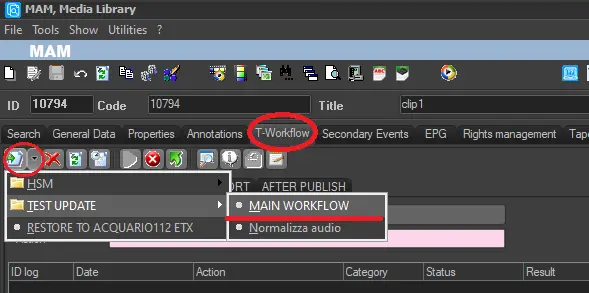
Going to 'Etere Scheduling -> Asset Form' and opening an asset under the Workflow tab in the Asset Form, you can manage the asset's T-workflows. An asset can be associated with a T-workflow just by clicking on the option 'Add workflow.' the user will be able to link one or more T-workflows to the current asset:
Add_workflow
Along the top of the screen are various icons representing operations that can be carried out in the form. As T-workflows are associated with the form, they will appear as tabs below the row of icons. Any tab selected for viewing/editing and depending on the asset status in that particular T-workflow question, the icons will be active. For example, if the asset has already started to move through a specific T-workflow, the 'launch workflow' green triangle button will not be active as the operation is obsolete.
How to assign a T-workflow to multiple selected assets
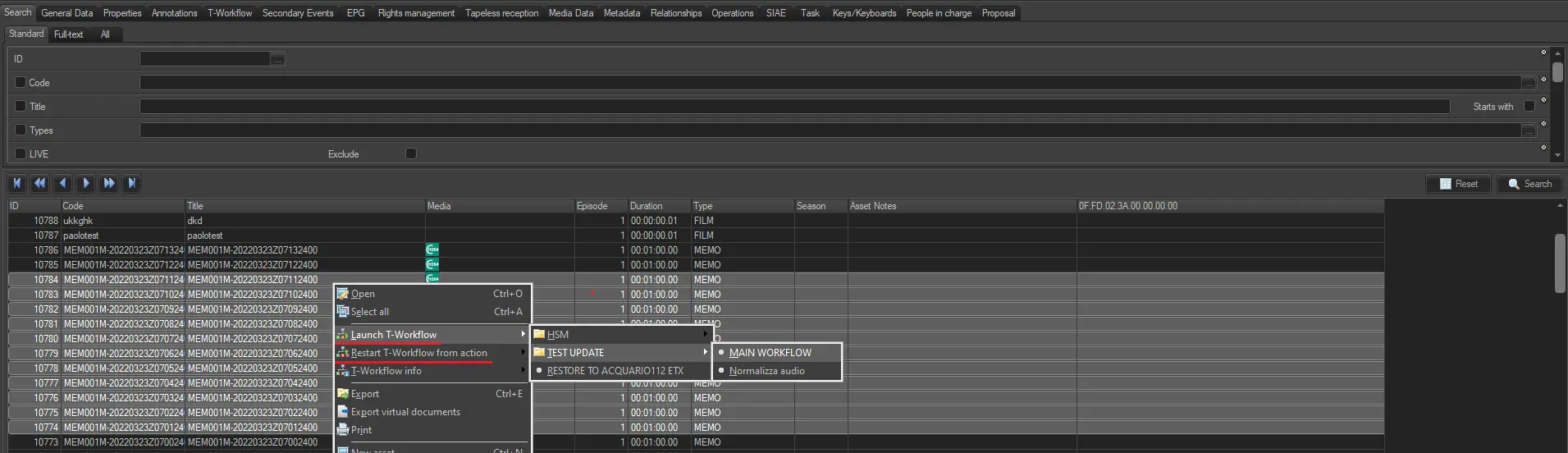
The Media Library allows you to manage multiple assets, editing them simultaneously. This is useful when you wish to associate various assets to a T-Workflow. In the 'Search' screen, once the search results are listed by selecting assets one after another, holding down the CTRL key, multiple assets can be chosen or selected as in the example, the 'select all' option if you want to select all the assets listed below, after then, you can choose between either launching a T-Workflow (the system will automatically attach and start the T-WF on the asset) or restart an already running or started one from a specific action within the T-Workflow.
adding_a_T-workflow
If you want to assign T-workflows in a more specific way (add more than one T-workflow, launch one or more of them, etc.) to all of these selected assets, right-click on the list and select 'Open', only the first asset that was selected will open. Still, any changes made to this asset will be replicated across all selected assets. The system will only allow feasible changes to be made for all assets. Associate T-workflows as detailed above, and the association will be replicated across all selected assets.
Assigning T-workflows for specific Etere Modules:
Due to Etere's distributed architecture, all T-workflows can be used by the other Etere Modules automatically, and users can set Default T-Workflows for specific operations (e.g. after the asset is modified).
 T-workflow_process
 Manage_workflow_asset_rules'
 Add_workflow
 adding_a_T-workflow