65.1.2.7 Master Control channel
In this chapter is explained how to create and manage an Etere Master Control Channel in Etere ETX.
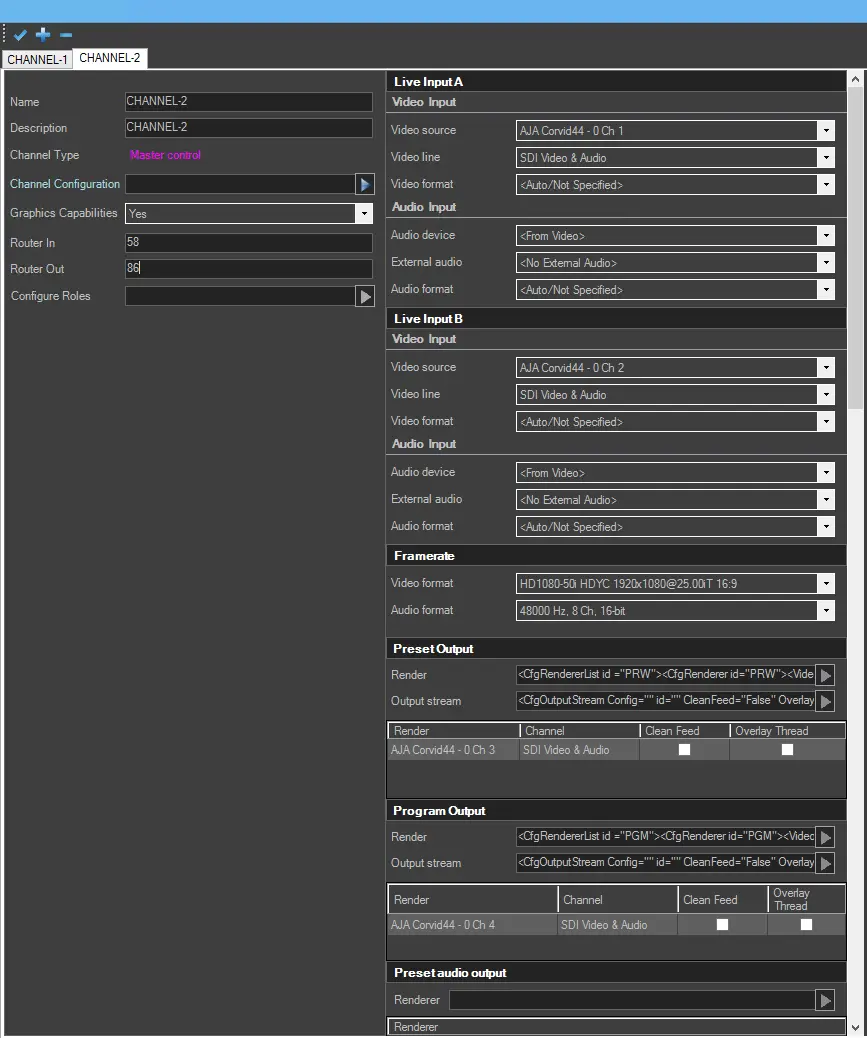
Fulfill the required parameters in order to configure a Master Control channel.
4966_etx_mc_config
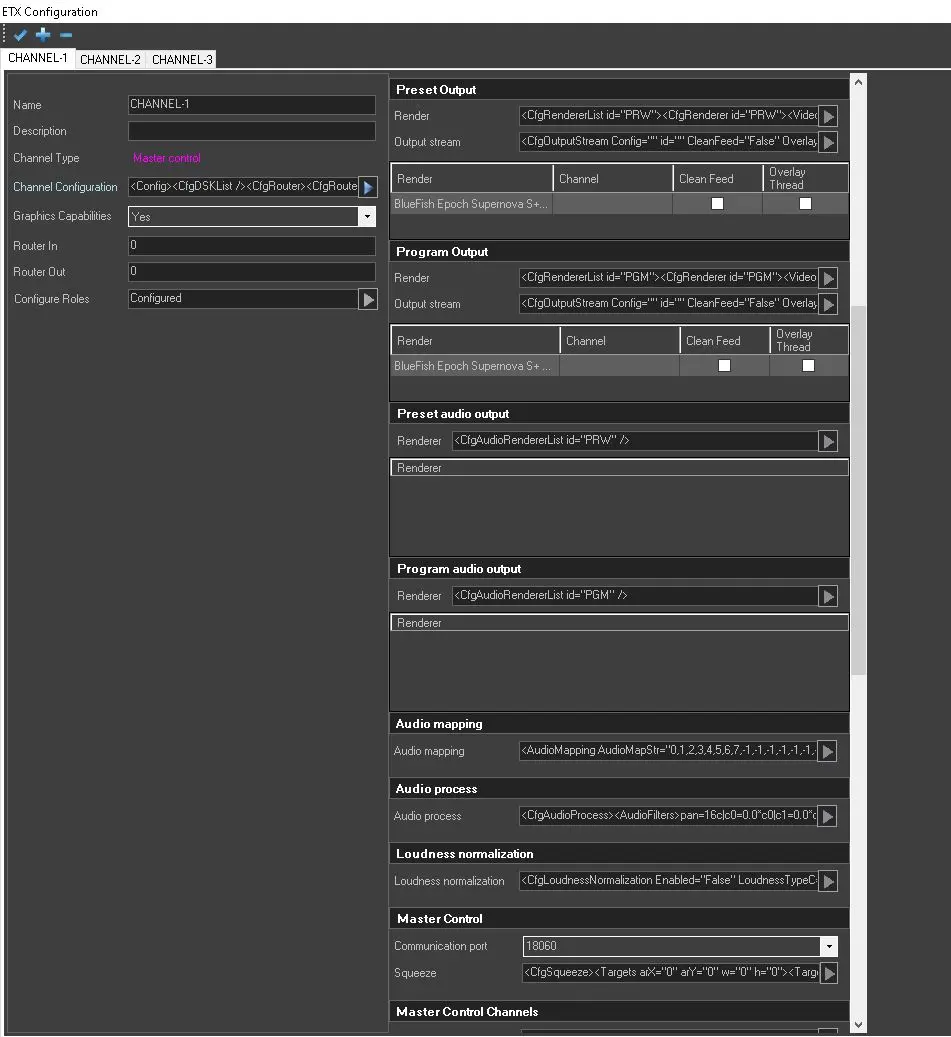
etx_mc_ch_conf_2
-----------------------------------------------------------------------------------------------------------------------------------------
Live Input - Video Input
Video source: Select the video source for live transmissions.
Video line: If the SDI video card is selected as input source, select the specific SDI input channel. If [Stream URL] is selected as video source, insert here the URL and its parameters.
Video format: If the SDI video card is selected as input source, select the input video format.
NDI Channel: Select the NDI channel, among the ones configured in the etere router IP, to force the reception of the NDI signal through that specific channel. Otherwise, select [Router] to let Etere take the inputs set in Master Control Channels section (see below).
List active NDI streams: If set to True, in the NDI channel field will be listed also the NDI streams detected in the network.
NDI Bandwidth: Select the proper bandwidth to use, depending on the Network capabilities, Highest or Lowest.
Acquire when not selected: Allows to avoid load\unload of live inputs processes, to minimize the timing of switch. This parameter is available only for SDI input and a physical router must be present.
Live Input - Audio Input
Audio device: Select an audio format,or default to the video card.
External audio: Select any available external audio, or leave as default if there is no external audio.
Audio format: Select the incoming audio format,i.e.frequency,channels,bit,etc.
Note: In a Master Control channel, it's possible to configure up to 2 fixed Live input channels (A and B, featuring the same parameters), although even more are allowed to be set in Master control channels section.
-----------------------------------------------------------------------------------------------------------------------------------------
Framerate
Video format: Select the output video format from the list.
Audio format: Select the output audio format from the list.
-----------------------------------------------------------------------------------------------------------------------------------------
Preset/Program Output
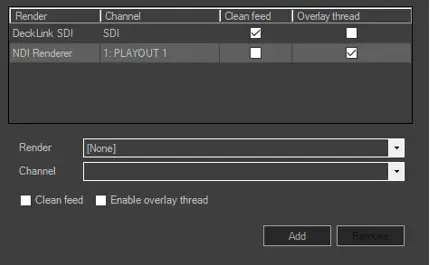
Render: Specify a render (NDI or SDI) and its related channel for preset and program outputs.
Channel: Specify a channel of the preset and program output. Once selected the output render and channel, you can select the “Clean feed” (render without any CG) or "Overlay thread" (CG loaded in a separate thread) options during the output streaming.
ETX_mastercontrol_output_stream_settings
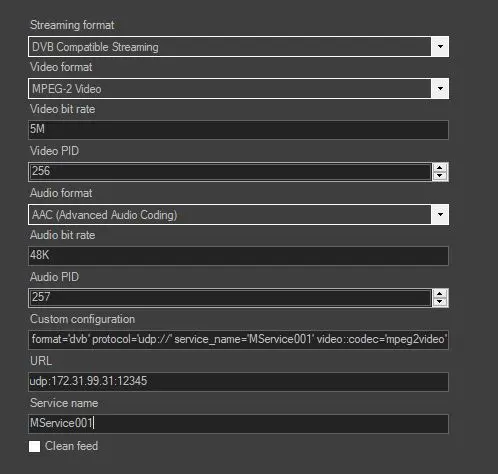
Output stream: Click on the arrow and select the type of output stream as indicated in the screenshot below, then compile the fields as needed.ETX_mastercontrol_output_stream_format
Once the ouput stream has been configured, it is possible to edit the string by inserting custom parameters not available during the configuration phase.
It is possible, for example for SRT stream, to add additional destinations instead a single one, adding them manually on the Custom configuration field, in the following format:
stream.1::path='srt://172.31.230.1:9998?mode=caller' stream.2::path='srt://172.31.230.2:9999?mode=caller'
In the example below, custom string <embed_scte35='true'> has been inserted into output stream, to manage the SCTE-35 cue tone in RTMP streaming.
ETX_mastercontrol_output_stream_configure
-----------------------------------------------------------------------------------------------------------------------------------------
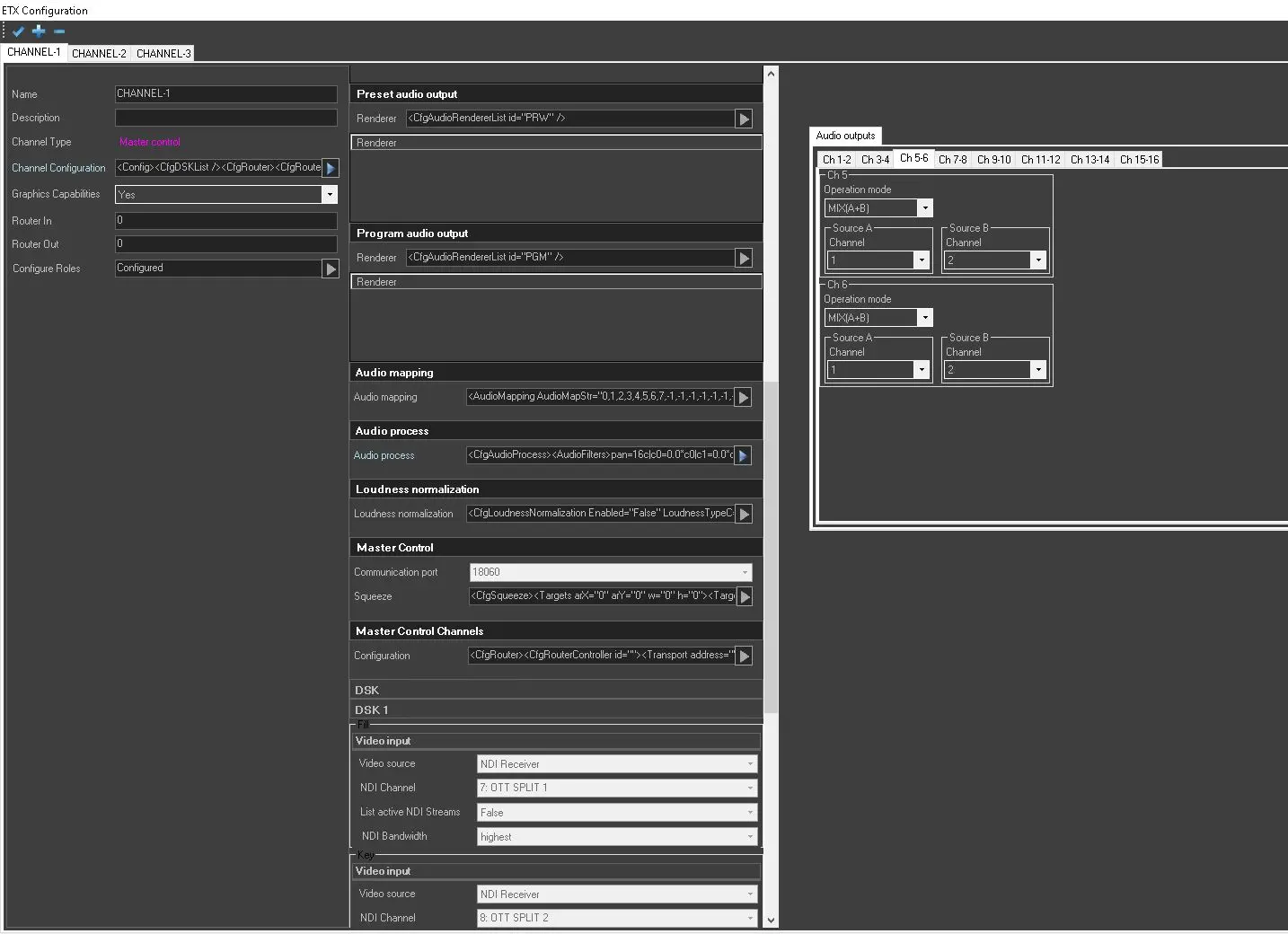
Preset/Program audio output
Renderer: Select an optional output device for preset and program audio.
Note: In case of SDI renders, it's not possible to assign the same SDI output to both preset and program renderers.
-----------------------------------------------------------------------------------------------------------------------------------------
Audio Mapping: The Audio Mapping allows to define up to 16 audio channels.
Note: In Audio Mapping, default audio channels would be inserted if the mapped audio channels are not present in the file.
-----------------------------------------------------------------------------------------------------------------------------------------
Audio Process: The Audio Process allows the configuration of the SUM and the MIX of 2 Audio Channels A and B. It's possibile to SUM Left and Right of Channel A and Left and Right of Channel B and apply the Audio Normalization in output. On the other hand, with the MIX function, it's possible to MIX a Stereo channel into a MONO one.
-----------------------------------------------------------------------------------------------------------------------------------------
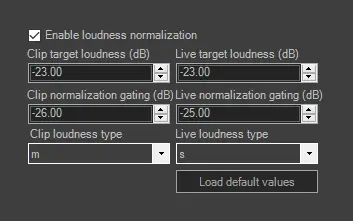
Enable/Disable the Loudness normalization feature. If loudness normalization is enabled, set a loudness unit to normalize the loudness to a target level.
ETX_master_control_loudness_settings
Define the parameters for best compromise:
Clip target loudness(dB): Set the loudness decibel scale for video clip.
Live target loudness(dB): Set the loudness decibel scale for live clip.
Clip normalization gating(dB): Set a getting value to eliminate the influence of silence loudness in video clip.
Live normalization gating(dB): Set a getting value to eliminate the influence of silence loudness during live.
Clip loudness type: Select the type of loudness for video clip.
Live loudness type: Select the type of loudness for live.
In the bottom, the [Load default values] button would allow you to load all default values for the above parameters.
Note: To use this feature, the license ET5535 is required.
-----------------------------------------------------------------------------------------------------------------------------------------
Master Control
Communication port: This is the network port used by Automation to control the Master Control. The communication port number 18010 is the port used by the first channel of the resource (CHANNEL-1). Subsequently, the second channel uses port 18020, the third one uses port 18030, and so on.
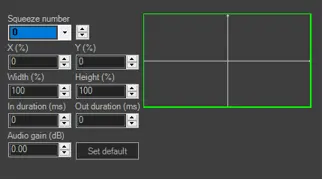
Squeeze: Allows to customize the squeeze according to the selected template or defining a custom set of values.
ETX_mastercontrol_channel_squeeze_editor
There are 50 templates for selection, from 0 to 49:
Squeeze number 0 = squeeze back
Squeeze number 1, 2, 3, 4 = squeeze to any four corner of the frame, with size equal to one quarter of the frame (the four quarters will be highlighted according to the template selected)
Squeeze number 5 – 49 = various preset for squeeze back
The image position (expressed in percentage) can be adjusted vertically (Y) or horizontally (X), as well as the frame dimensions, with parameters Width (%) and Height (%).
The duration (in milliseconds) of image entering and existing the frame can be set with parameters In duration and Out duration.
Note: From Etere version 30.2 onwards,communication with Master Control must be configured via hostname instead of IP address.
-----------------------------------------------------------------------------------------------------------------------------------------
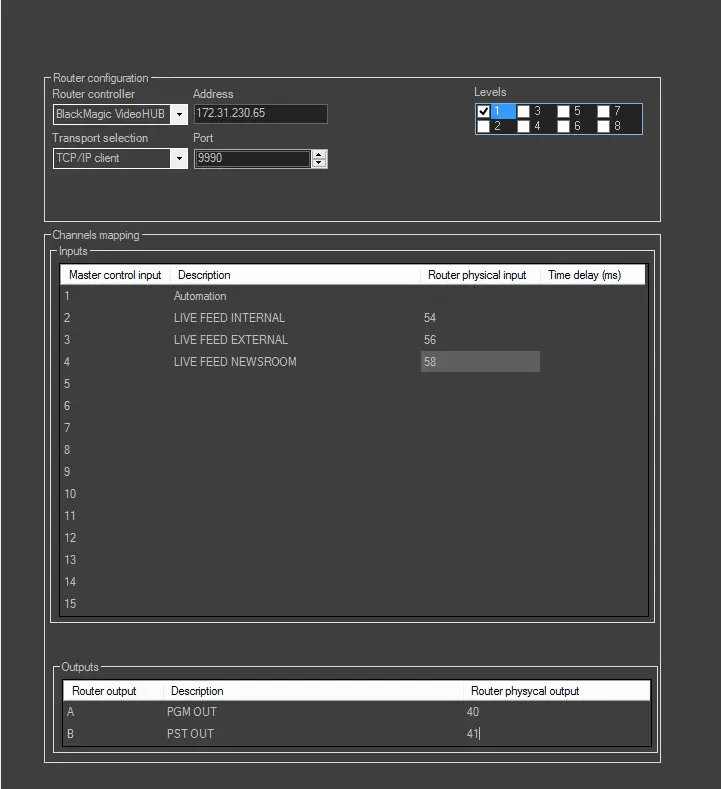
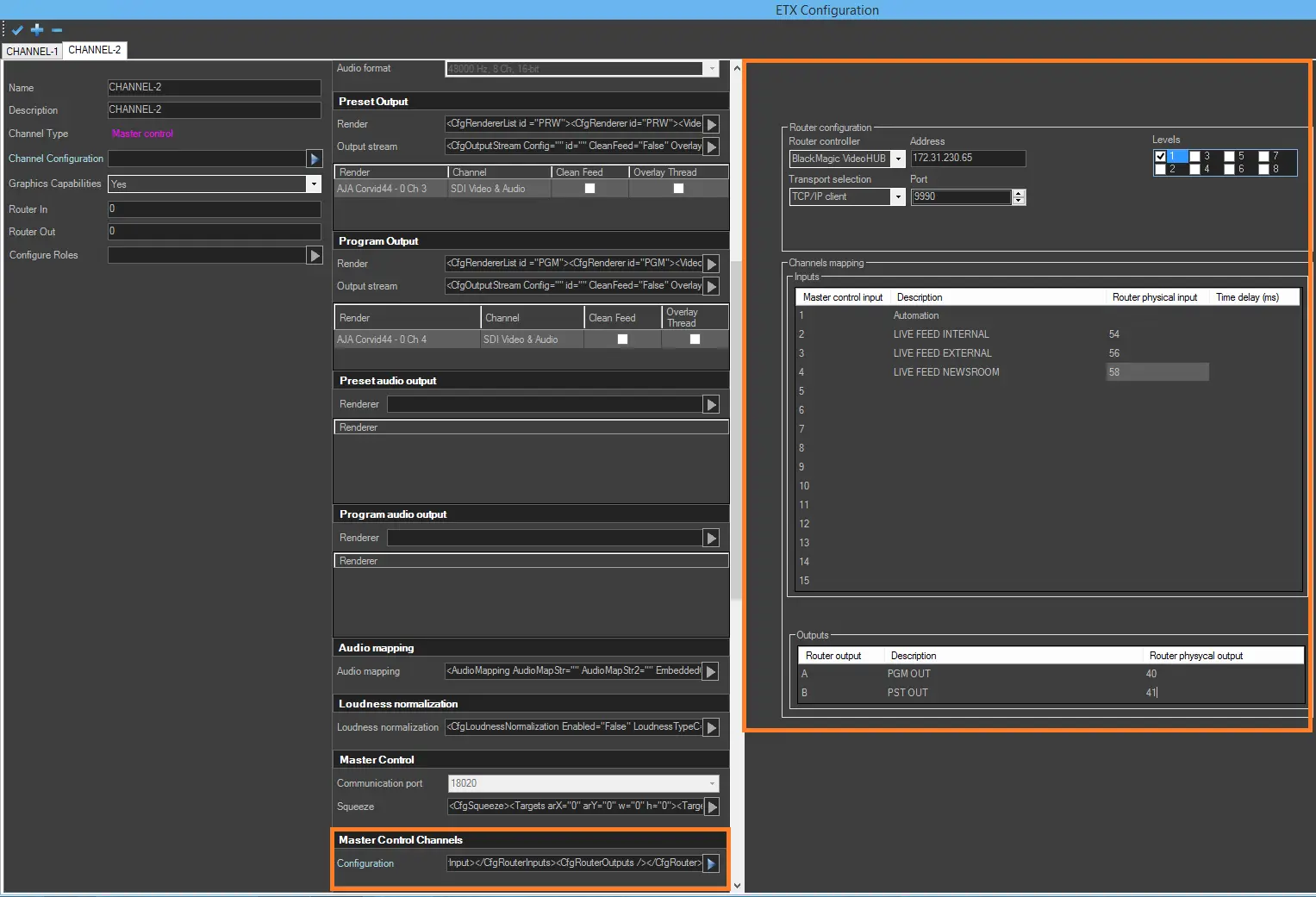
4965_video_router_config
4964_video_router_config_details
According to the router module, further parameters will be displayed beside the “Router controller” list. These parameters must be set as described in the proper sub-chapter in 59.6.0.0 Resources chapter.
After the router has been selected, the next step is the channel mapping. Configure the channels of the router that must be used as inputs (Live input A and Live input B) and outputs (Preset and Program output).
If the Router controller is non-Etere IP Router, the router's physical inputs and outputs can be defined.
Note: From the Etere Version 33.3.132.6952 it is possible to select within the channel configuration ONLY the devices licensed and configured as resources.
-----------------------------------------------------------------------------------------------------------------------------------------
Configure in this section the settings for SCTE signals.
Remote control port: Specify the port where the insertion commands from STMan are received.
AS index: AS_index uniquely identifies the source of the message (AS stands for Automation System, since it is possible to have several automation systems active at once). The number ranges from 0 to 255 and shall be zero if this index is not required.
DPI PID index: The DPI_PID_index allows a given AS to direct messages to a specific DPI PID within a specific MPEG program in a specific Transport Stream (TS) within the purview of the operational system (DCS).
Note: DPI_PID_index is required only if multiple Injector Instances (logical injectors) are present for any physical connection or if one or more Injector Instances are generating more than one DPI PID.
Normally, there shall be one value of DPI_PID_index for each DPI PID referenced by a program’s PMT for each program within the purview of the DCS. The exception to the rule is the case where a single DPI PID is shared by more than one program within a single TS. In this case, more than one PMT may make reference to the same shared DPI PID via a common value for DPI_PID_index (example, multiple language versions of the same movie).
Heartbeat period (ms): Configure the time interval in which the heartbeat is sent.
Renderer: Select the device where the SCTE-104 signal should be sent through.
Renderer/ANC line: Select the channel and the ANC line where the SCTE-104 signal should be inserted.
-----------------------------------------------------------------------------------------------------------------------------------------
Note: A warning message would be prompted if configuration GUI is closed (using the "X" button) without saving the settings.
 ETX_master_control_loudness_settings
 ETX_mastercontrol_output_stream_format
 ETX_mastercontrol_output_stream_settings
 ETX_mastercontrol_channel_squeeze_editor
 ETX_mastercontrol_output_stream_configure
 4964_video_router_config_details
 4965_video_router_config
 4966_etx_mc_config
 etx_mc_ch_conf_2
 audio_process_mc