71.16.3.1 Ingest Channel Configuration
On the PC where ETX is installed, launch Configuration module and open Resource Editor. From the Resource Editor click on the specific ETX resource under the resource tree to open the resource properties for editing.
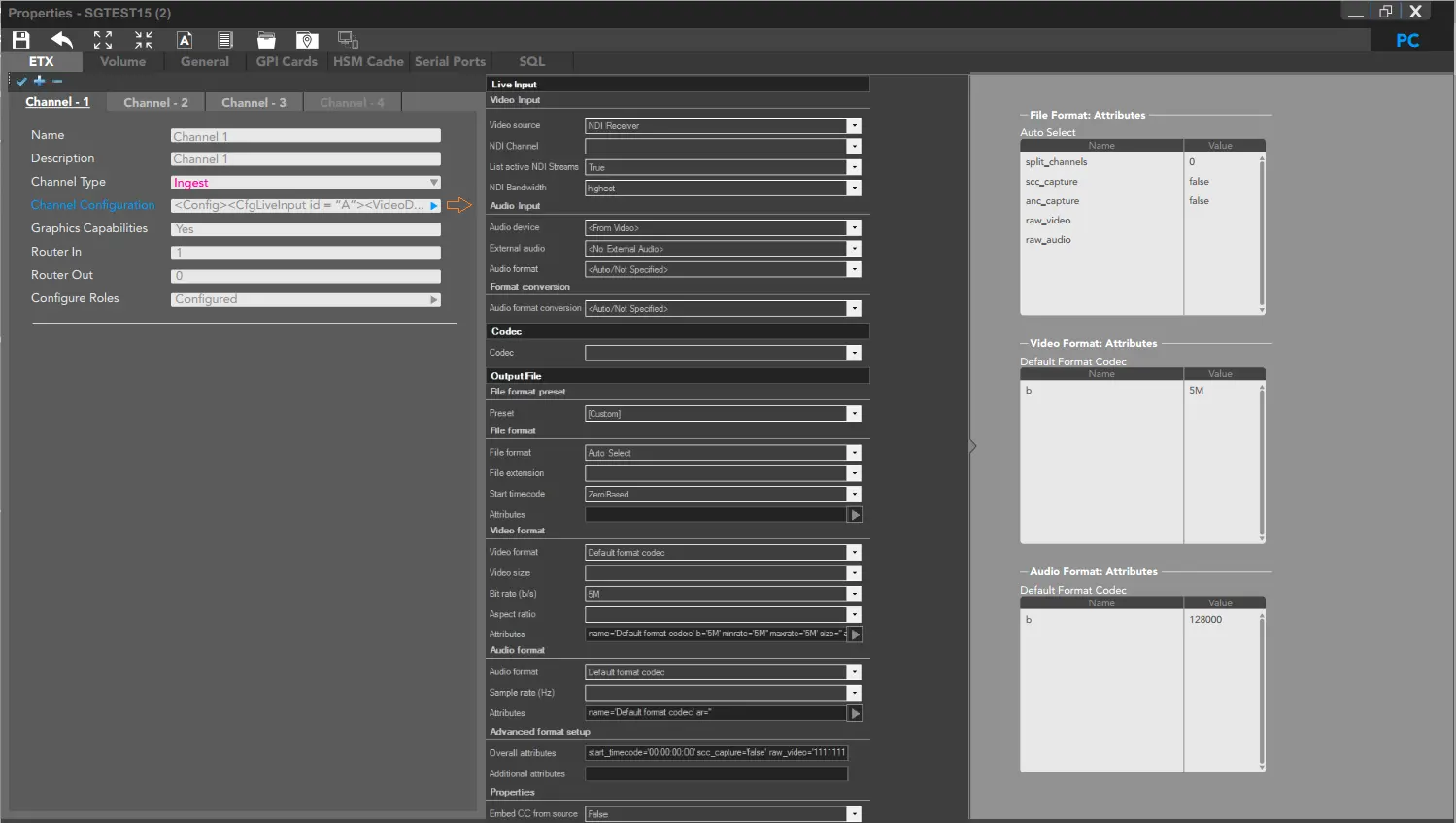
Resource properties
❖Name: Enter a channel name.
❖Description: Enter a short description to identify the Ingest channel.
❖Channel Type: Select “Ingest” as the type of channel.
You can click the icon to add new channel, or click the icon to delete the selected channel.
•When new channel is added, the channel number would be created progressively after the last channel, e.g. "Channel -5" in the instance above.
•When deleting a channel (e.g. "Channel -4") the configuration dialogue would reposition to the previous channel (e.g. "Channel -3") upon deletion. You would need to respond (click “Yes”) to the warning message to confirm the deletion.
•If you delete a channel in middle position (e.g. "Channel -3") and create a new channel, the new channel number would reuse the last deleted channel number, which is "Channel -3".
Once the Channel configuration is completed, click the icon to confirm and save the channel settings.
❖Channel Configuration: Click on the arrow to launch the Channel Configuration dialogue.
Live Input
•Video Input
❖Video Source: Select the video card installed for ingest, e.g. NDI Receiver.
❖NDI Channel: If NDI Receiver is selected as input source, select the specific NDI channel.
❖List Active NDI Streams: If the value is set to "True", a list of current active NDI stream are listed in the “Video line NDI stream” field, Etere Mediacore application would use the NDI stream selected in “Video line NDI stream”.
❖NDI Bandwidth: Select the higher or lower bandwidth to be used by NDI Receiver.
•Audio input
❖Audio Device: Select an audio format, or default to the video card.
❖External audio: Select any available external audio, or leave as default if there is no external audio.
❖Audio format: Select the incoming audio format, i.e. frequency, channels, bit, etc. If you are using the same channel for 2 different sources, set the input audio format to “Auto / not specified”.
•Format Conversion
❖Audio Format Conversion: Select conversion type to convert audio format.
Codec
•Codec: Select an available codec to be used. If this parameter is left blank, codec type “UNK” (Unknown) would be set.
Output File
•File format preset
❖Preset: Select a file format preset value from the list
•File format
❖File Format: Select a file format for the output file, e.g. MXF, MPEG, MOV, etc.
❖File Extension: This parameter would be auto-update once file format is selected. (*)
❖Start Timecode: Select an option to start timecode during ingest.
❖Attributes: This parameter would be auto-compile once the above parameters are fulfilled.
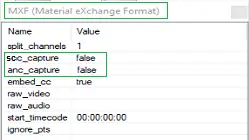
* NB: In the format settings below, the “scc_capture” and “anc_capture” settings are set to “False” by default during Etere installation and updates. If MXF file format is specified for ingest channel, the application would not auto-create output file with extension “.scc” and “.anc” unless the settings are changed to “True”. Moreover, in order to include non-live events in VANC (On-air Assets) report, the “scc_capture” attribute must be set to “True”.
scc_capture
•Video format
❖Video format: Select a video format from the list.
❖Video size: Select displayed size from the list.
❖Bit rate (b/s): Select a bit rate.
❖Aspect ratio: Select an aspect ratio (“16:9” or “4:3”)
❖Frame rate: Set a frame rate in the ingest file. If the parameter is leave as blank, the frame rate from the input source would remain unchanged.
❖Attributes: This parameter would be auto-compile once the above parameters are fulfilled. In addition, by click on the browse icon on the right, you can set the scan type as progressive (not ok to broadcast) or interlaced (payable by Automation) when creating the ingest file.
NB: For better performance and prevent loss of frames during registration, you can set “sc_threshold” attribute to “1000000000” and set the “threads” attribute to “auto” or a fairly higher number (default is 4) depending on the number of CPU on the machine, e.g. set to 16 if the machine has 24 computing units..
•Audio format
❖Audio Format: Select an audio format.
❖Sample Rate (Hz): Select a sample audio rate from the list.
❖Attributes: This parameter would be auto-compile once the above parameters are fulfilled. You can click the arrow button and define a default attribute.
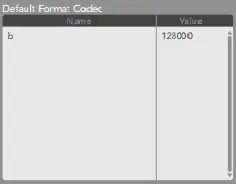
Default Forma -Codec
•Advanced Format Setup
❖Overall Attributes: The attributes defined in file format, video format and audio format would be displayed
❖Additional Attributes: Specify any addition attributes to be defined for the output file.
•Properties
❖Embed CC from source: Use this option to embed closed captions from source input (set to “True”) or disable the function by setting to “False”.
NB: When using ETX resource for ingest, the existence of channel would be checked before execute the ingest.
Multiple ingest on same path
If there are more than one ingest channel available in the ETX resource on the same volume, you can assign multiple ingests to be recorded on the same path.
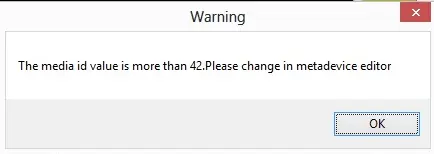
A warning message would be pop-up to alert the operator before accepting the configuration.
Warning message
Click <Yes> to confirm the same path to be used for ingest and closed the message.
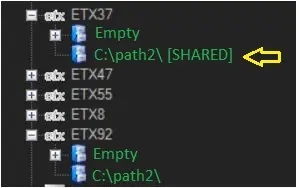
In the cloud-device, the path with the shared volume path is indicated with the suffix [SHARED] on the path name.
SHARED
If a ingest station mapped to the shared volume is changed or removed, it main volume would not be affected.
If the volume is removed, the shared path would also be removed from all associated devices if there is no file linked to it.
NB: Warning message would be prompt if configuration GUI is close (using the "X" button) without saving the settings.
NB: Etere advice disable the Antivirus on Ingest station to avoid video freezing problem.
 scc_capture
 SHARED
 Default_Forma_-Codec
 Warning_message
 Resource_properties