65.2.1.15 How To create Transitions Between Playlist
To create Video Transitions in Etere ETX Toolbox Player, you need to perform the following steps:
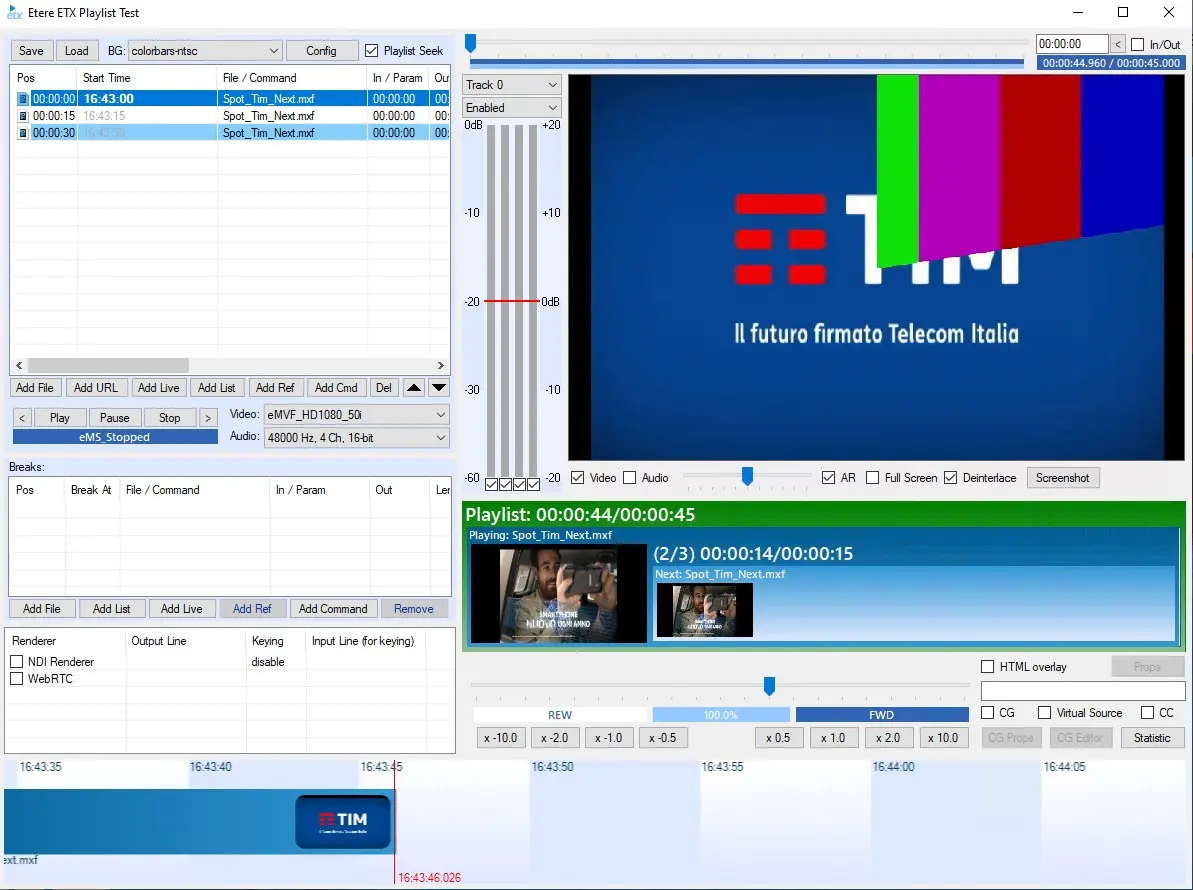
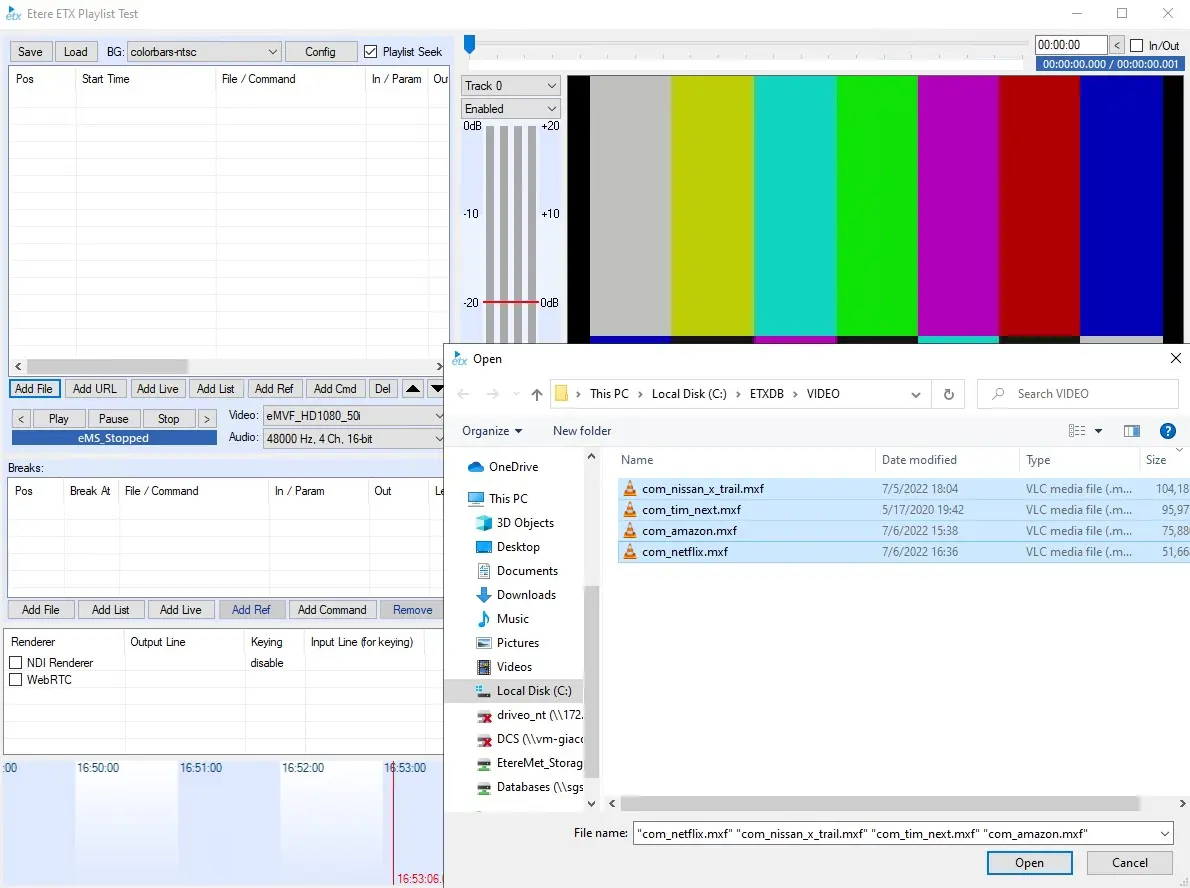
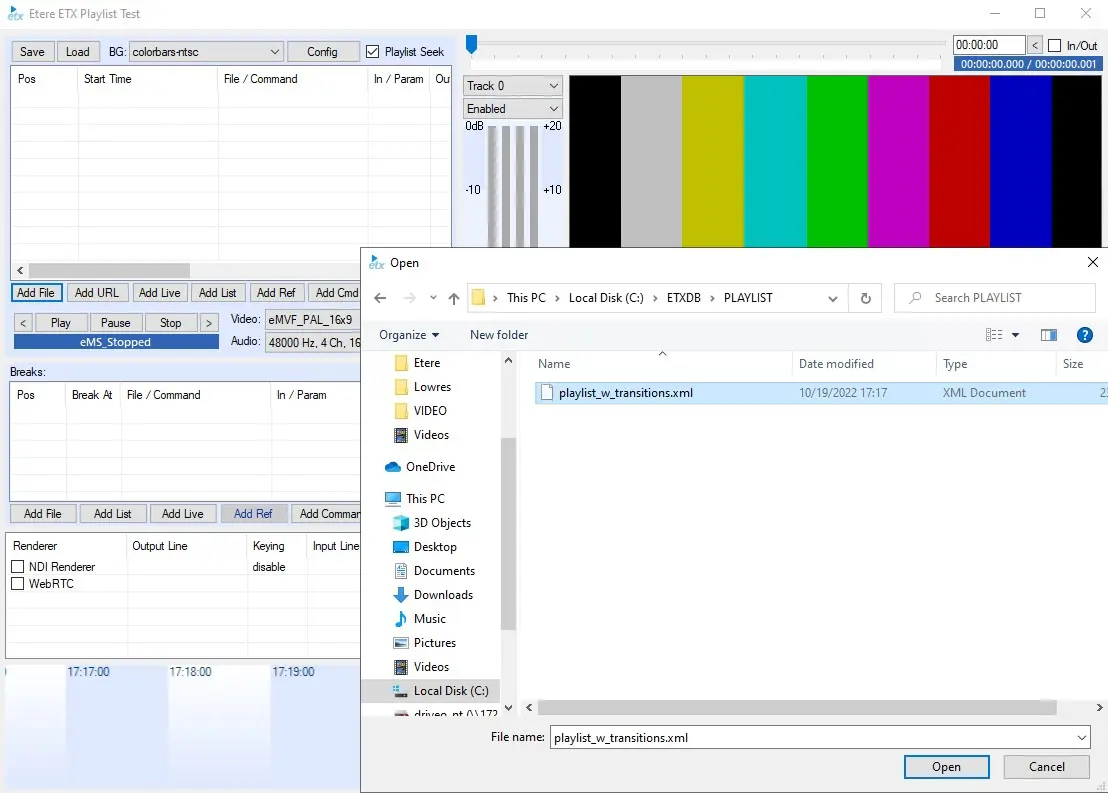
- Open the playlist application and add files; it is possible to load video files as well as XML files;
- add_files
- add_files_xml
- Double click on the file under the File/Command section to open ETX File Config config_etx;
- To set a transition at the beginning of the file, use the "transition_in" property. For the ending, you should use the "transition_out" property. By default, audio and video transitions are executed simultaneously. If you would like to make a delay or change a time for audio transitions, you should set "transition_in::audio_time" (duration of audio transition) and "transition_in::audio_delay" (delay before audio transition relative to the video transitions. It is also possible to set negative value properties.mfile_config
List of transitions:
Barn:
- Motion: Indicates whether new content is first revealed from the outside or inside. out - The transition moves from the centre of the object toward the borders of the object.
In - The transition moves from the object's borders toward the centre.
- Orientation: Indicates whether the filter effect is horizontal or vertical.
horizontal: Transition lines are horizontal;
vertical: Transition lines are vertical.
transition_in:.type: Barn
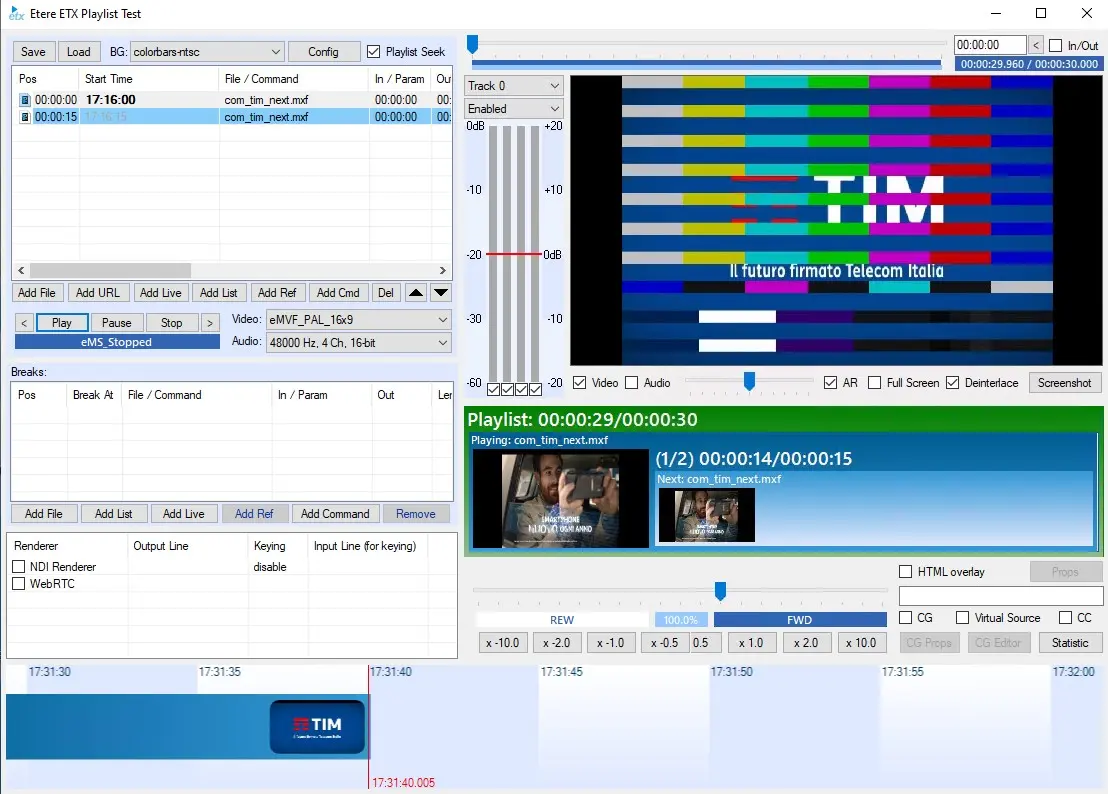
Blinds:
- Bands : The number of strips into which the content is divided during the transition. The range is from 1 to 100;
- Direction: The direction of motion in the transition (up, down, right, left);
transition_in:.type: Blinds
blind_in
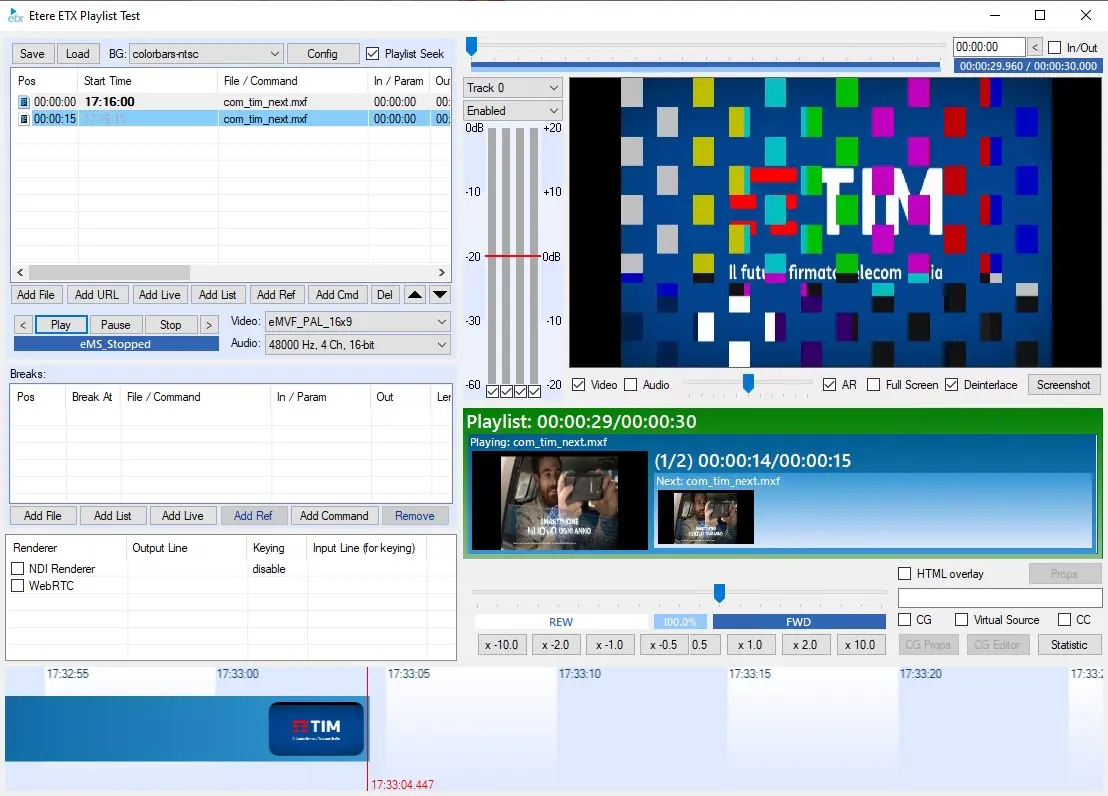
CheckerBoard:
- Direction: The direction of motion in the transition (up, down, right, left);
- SquaresX: The number of columns. The range is from 2 onwards
- SquaresY: The number of rows. The range for this is from 2 or more.
transition_in:.type: CheckerBoard
checker_board
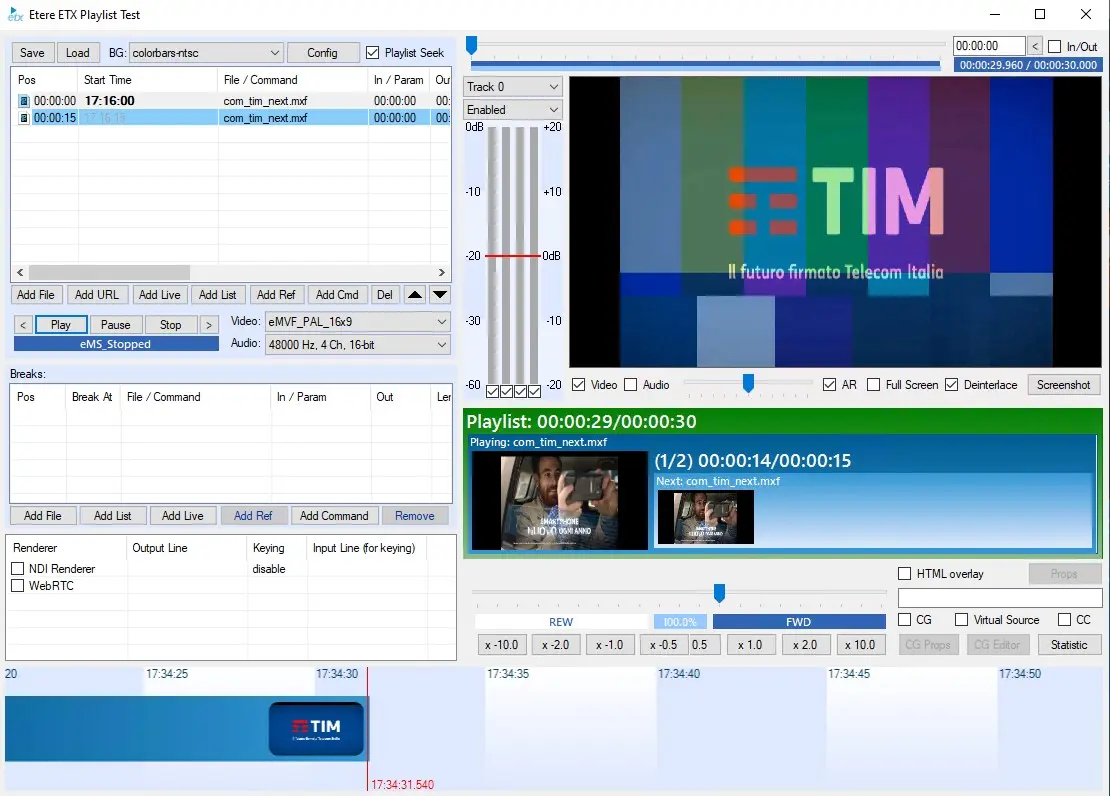
Fade
- Overlap: The fraction of the transition duration of original and new content displayed. The range for this is from 0.0 ... 1.0.
Also, it is possible to do transitions to coloured screens or custom images. To do it, you should use the file path or colour name as the parameter of this transition: fade(c:\temp.jpg) or fade(black).
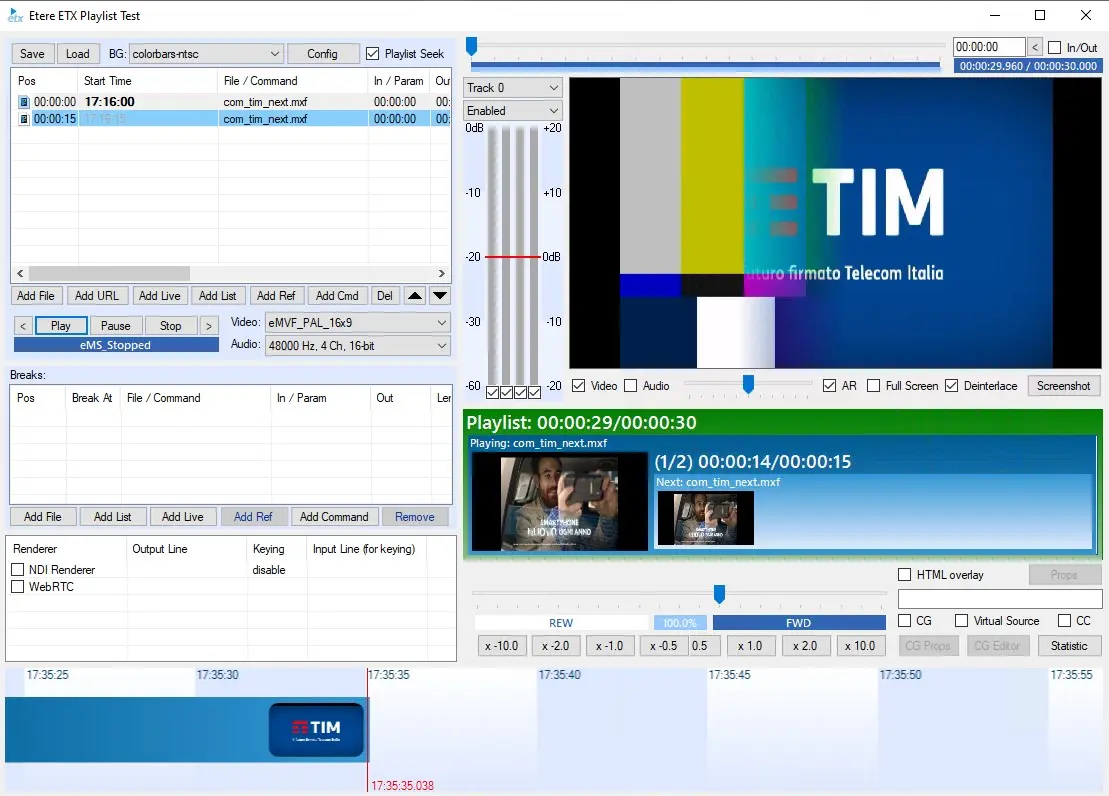
GradientWipe:
- GradientSize: Percentage of the object that is covered by the gradient band. The range for this is from 0.0 to 1.0.
- WipeStyle: Indicates whether the gradient band moves vertically or horizontally. This range is from 0...1 (horizontally, vertically);
- Motion: Indicates whether the content is revealed as defined by the WipeStyle property setting or in the opposite direction.
transition_in:.type: GradientWipe
gradient_wipe_in
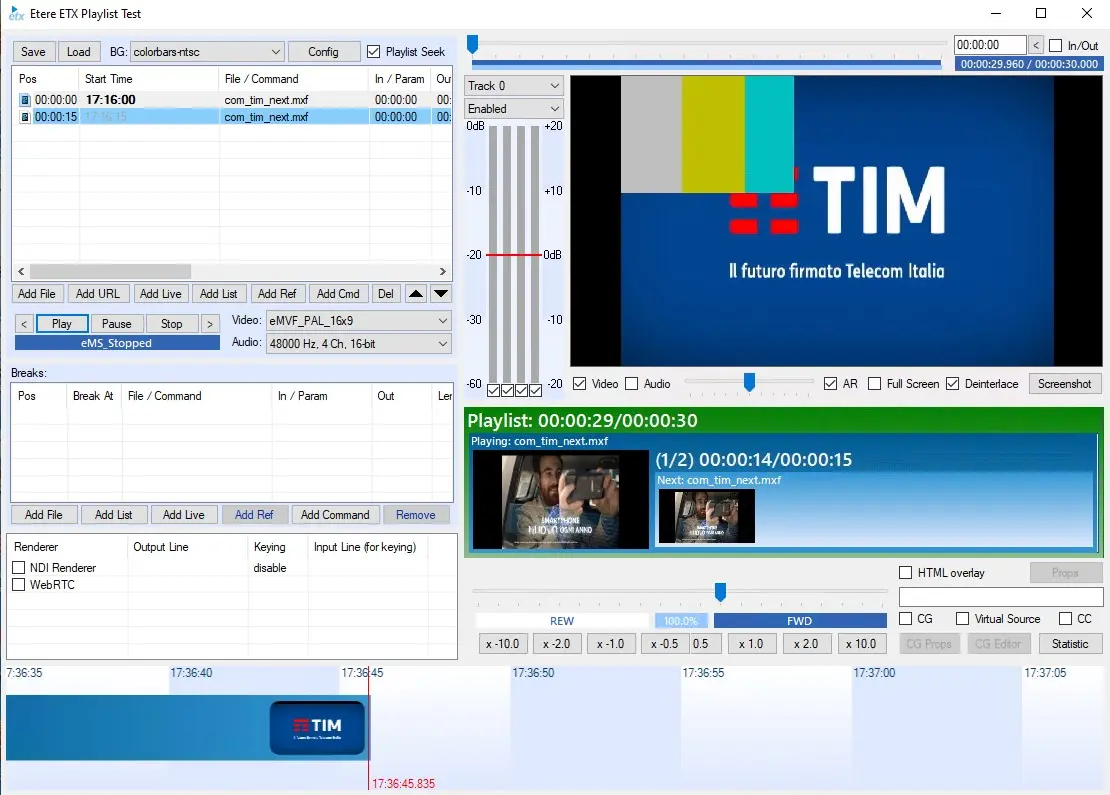
Inset:
This transition does not support any additional features.
Iris:
- irisStyle: The shape of the Iris filter aperture:
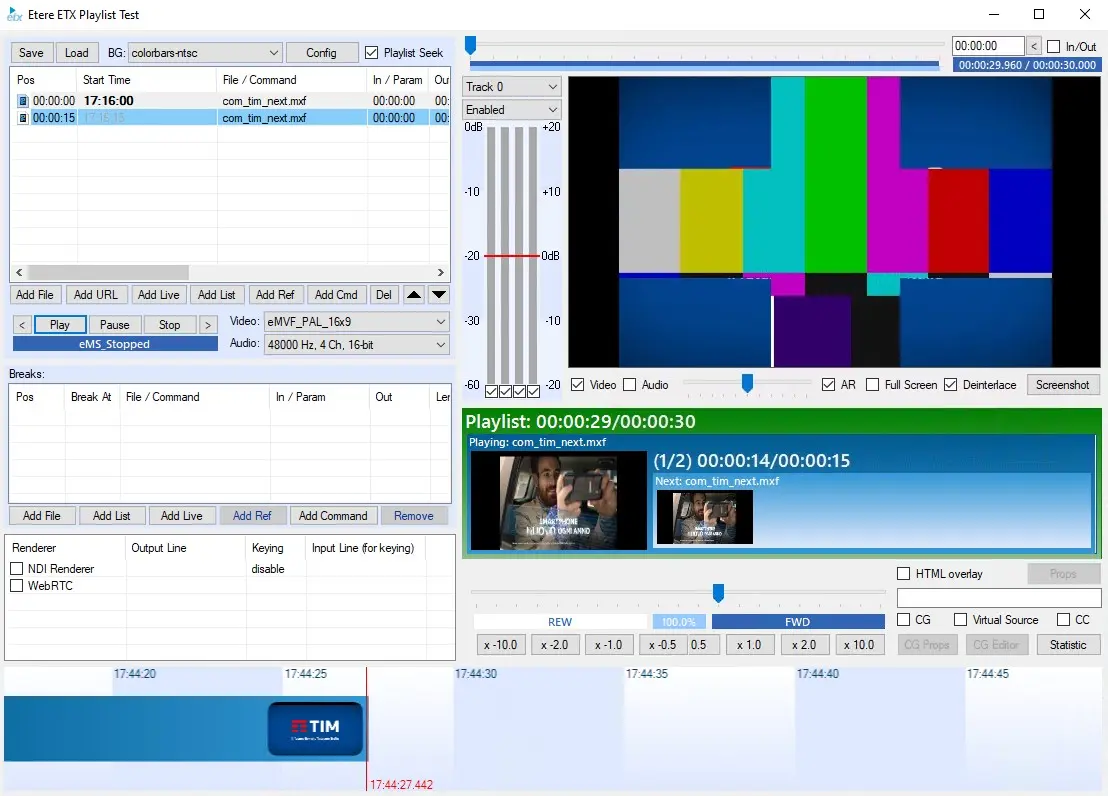
- DIAMOND: Diamond-shaped aperture;
iris_diamond_in
- CIRCLE: Circular aperture;
iris_circle_in
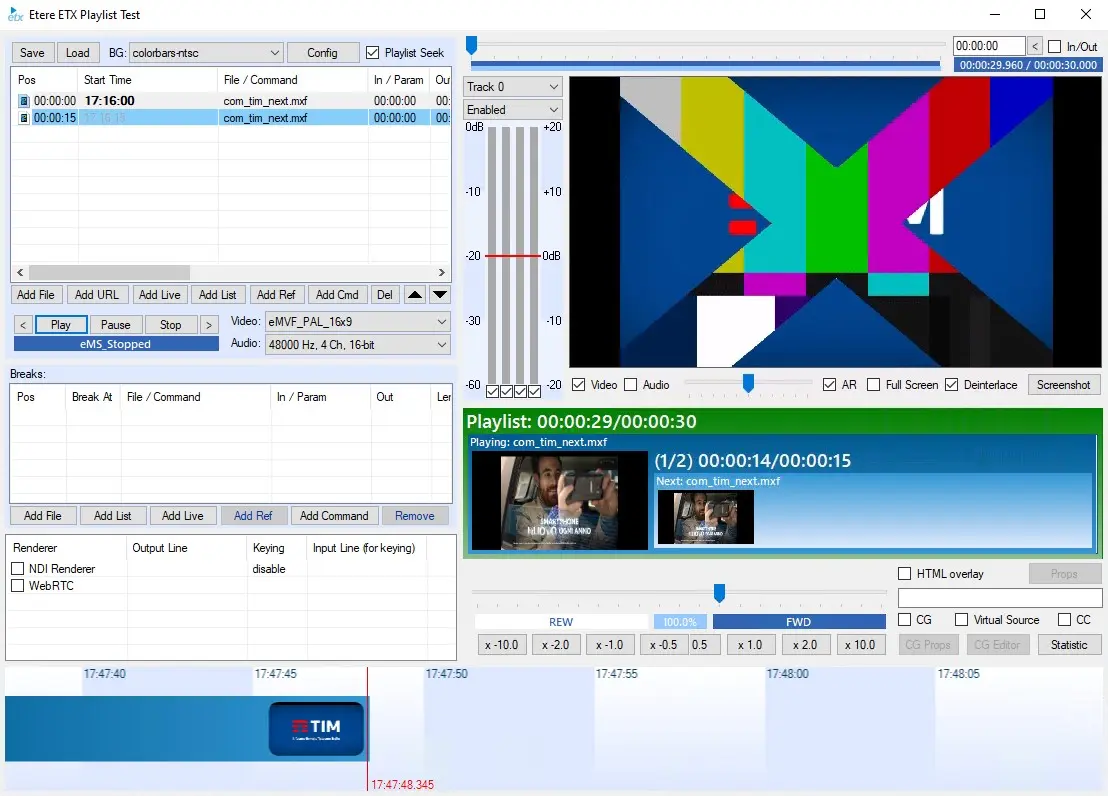
- CROSS: X-shaped aperture;
iris_cross_in
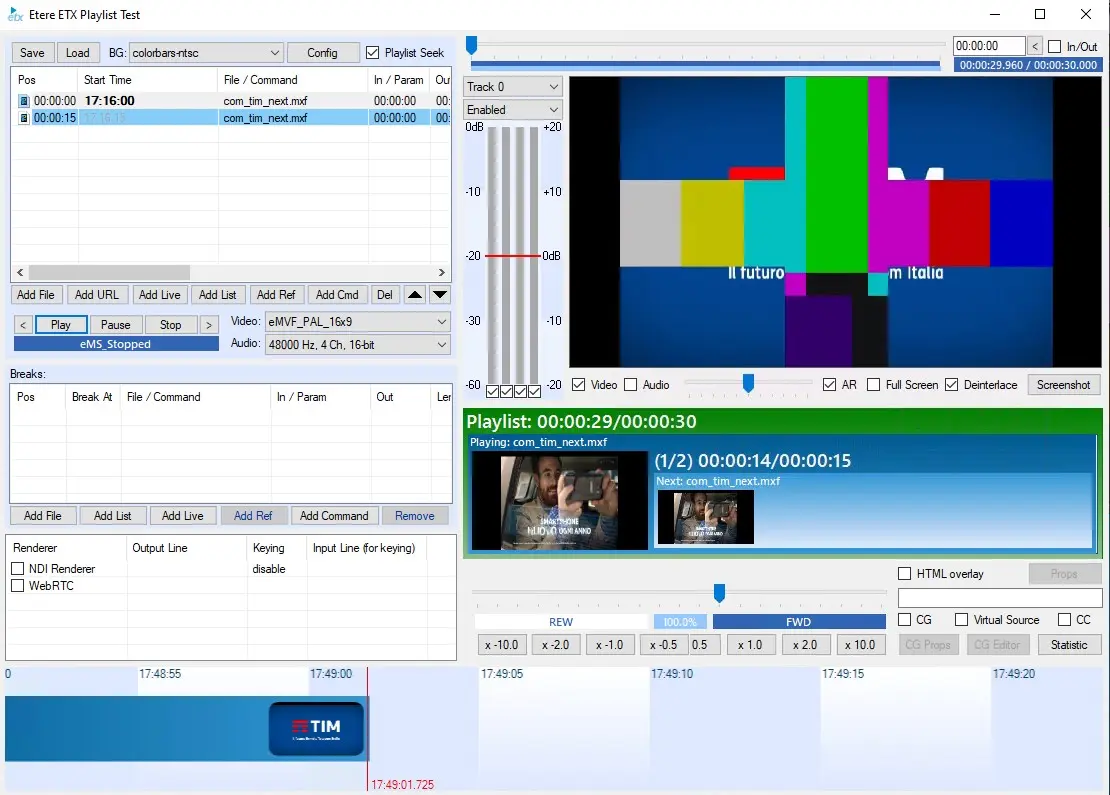
- PLUS: Plus sign-shaped aperture;
iris_plus_in
- SQUARE: Square aperture;
iris_square_in
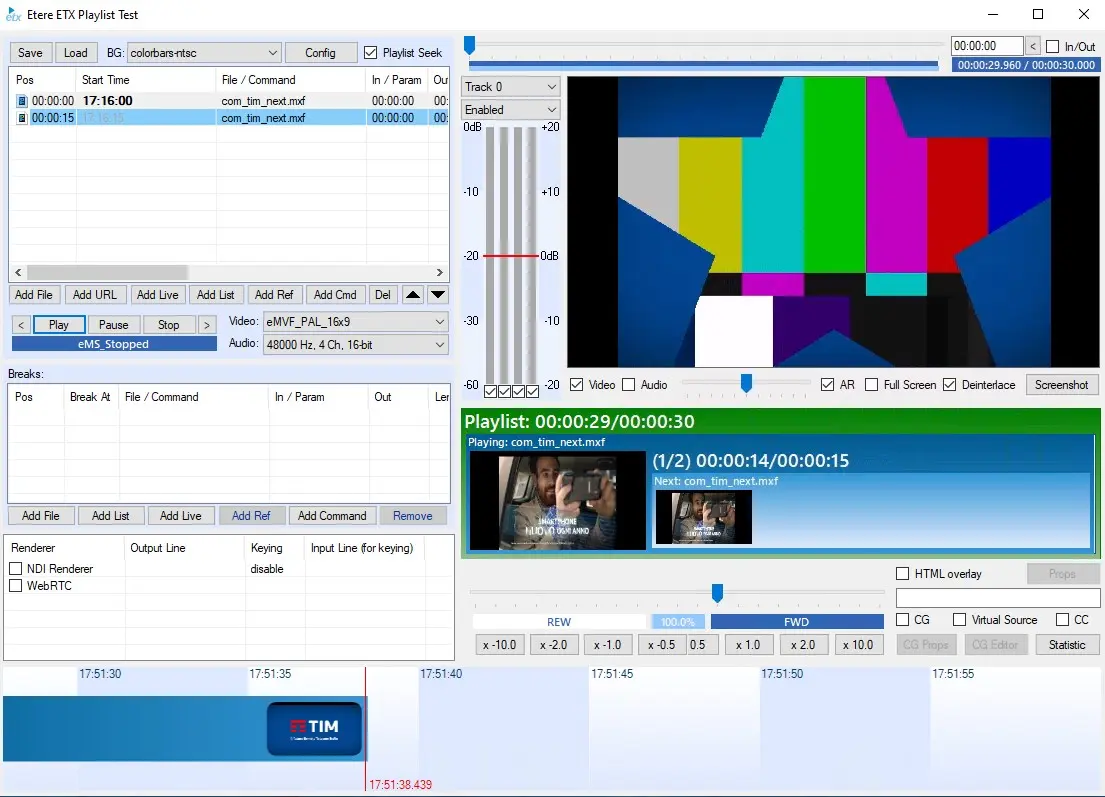
- STAR: Star-shaped aperture.
iris_star_in
- DIAMOND: Diamond-shaped aperture;
- Motion: Indicates whether new content is revealed from the outside or the inside first (out, in).
transition_in:.type: Iris
transition_in:.type(sub_items): Iris(irisStyle=STAR)
Pixelate:
- MaxSquare: Maximum width in pixels of a pixelated square. The larger the number, the larger the squares and the coarser the picture. The range for this is from 2 to 50.
The Pixelate transition is a complex visual effect. In the first half of the transition, the content is displayed as expanding pixelated squares. The width of the pixelated squares increases from one pixel to MaxSquare pixels at the halfway point of the transition. The final half of the transition reduces the pixelated squares to individual pixels, revealing the new content. During this transition, the original content fades into the new content. The fade effect is produced by reducing the opacity of the original content to zero while the opacity of the new content is raised to 100 per cent simultaneously.
transition_in:.type: Pixelate
pixelate_in
RadialWipe:
- WipeStyle: Method used to reveal the new content:
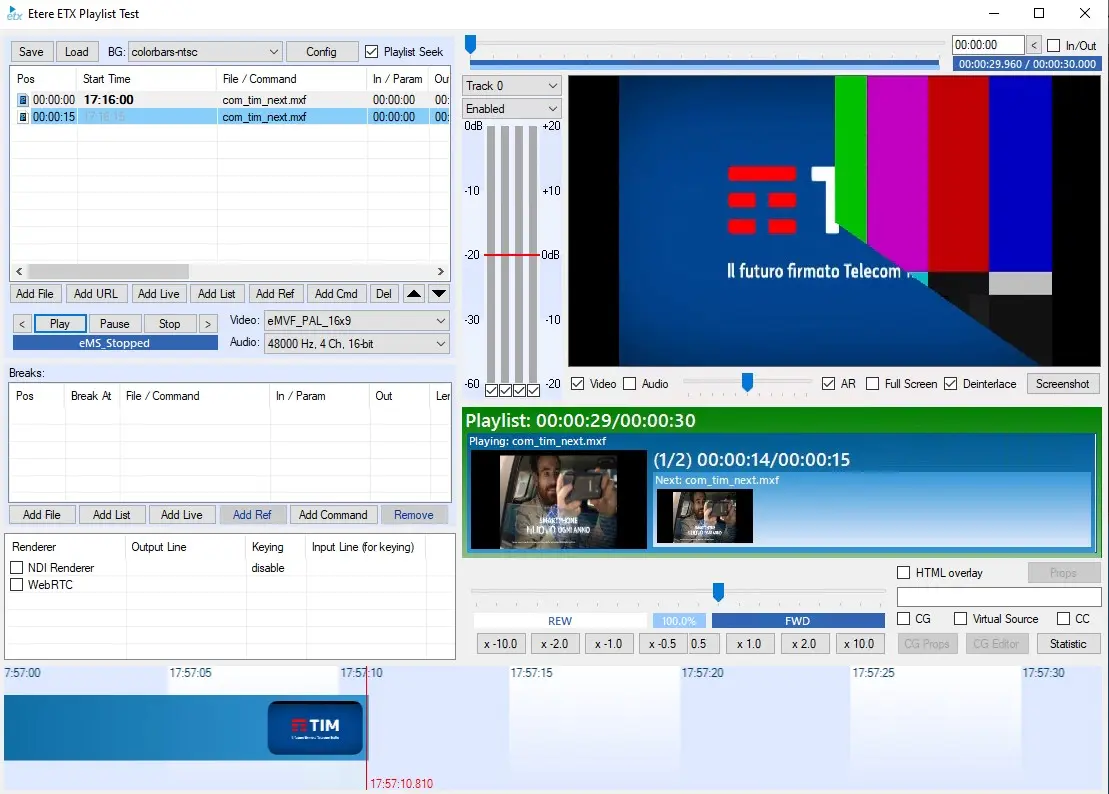
- CLOC: Sweeps around the centre, clockwise from the top;
- WEDGE: Sweeps around the centre in both directions from the top;
- RADIAL: Sweeps from the top to the left side, with one end of the sweep anchored on the upper left corner.
transition_in:.type: RadialWipe
transition_in:.type(sub_items): RadialWipe(radialwipeStyle=CLOCK)
radial_wipe_clock
RandomBars:
- Orientation: Indicates whether the filter effect is horizontal or vertical:
- horizontal: Transition lines are horizontal;
- vertical: Transition lines are vertical.
transition_in:.type: RandomBars
random_bars
RandomDissolve:
This transition does not support any additional features.
transition_in:.type: RandomDissolve
random_dissolve
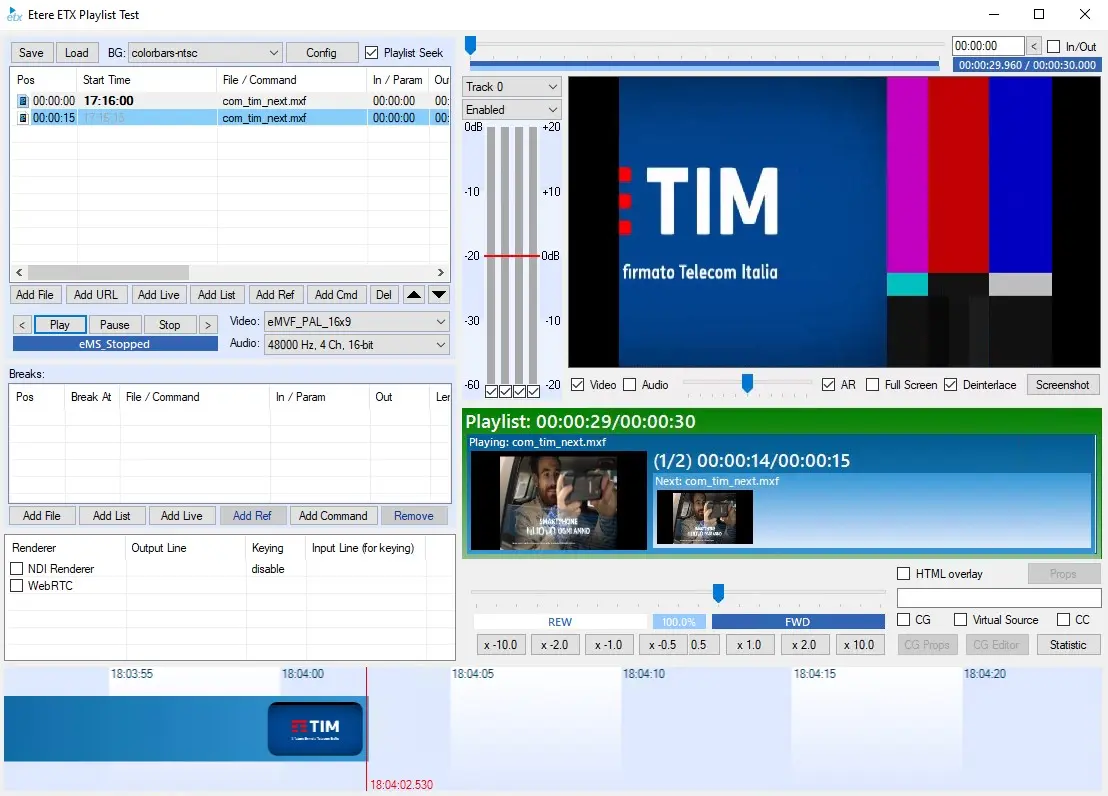
Slide:
- bands: The number of strips into which the content is divided during the transition. The range for this is from 1 to 100;
- slideStyle: Method used to reveal the new content:
- HIDE: Slides bands of original content out, exposing new content;
- PUSH: Slides bands of new content in, pushing original content out;
- SWAP: Alternating bands expose new content or push original content out simultaneously.
transition_in:.type: Slide
slide
Spiral:
- grid size X: Number of grid columns used for the filter. The range for this is from 1 to 100;
- grid size Y: Number of grid rows used for the filter. The range for this is from 1 to 100.
The combination of the GridSizeX and GridSizeY property values divides the content of an object into a grid for the filter to use.
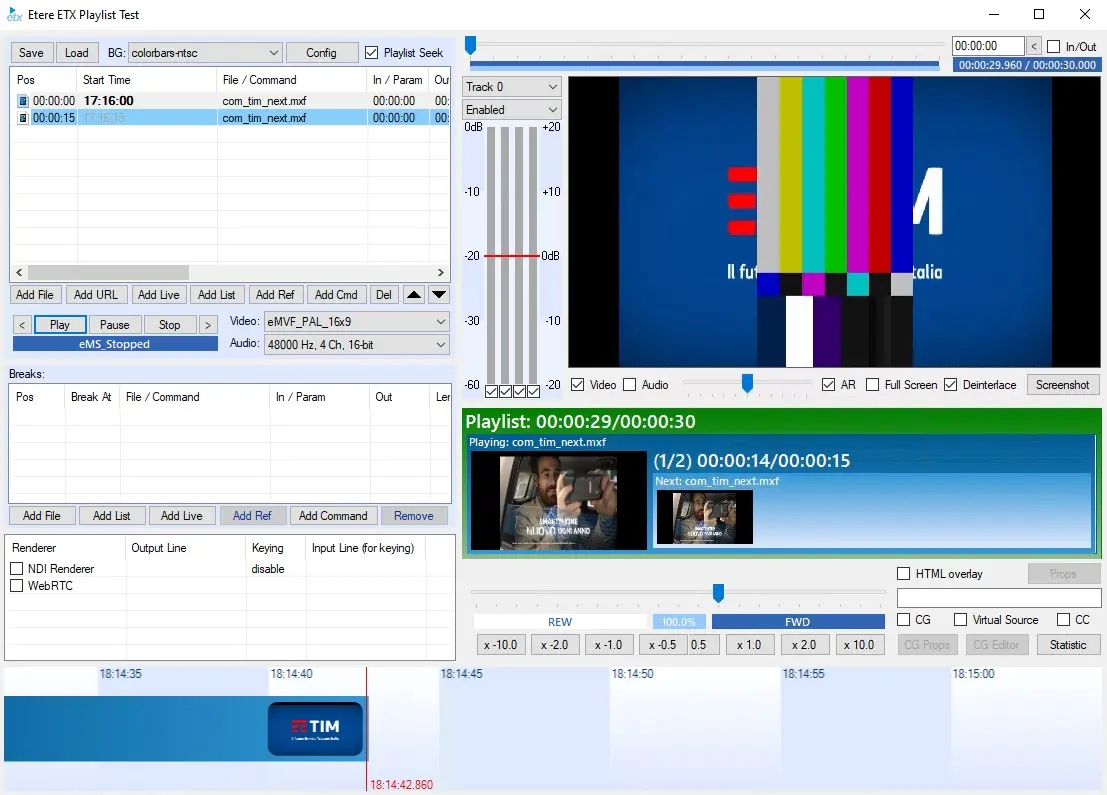
Stretch:
- stretchStyle: Method used to reveal the new content.
- HIDE: Stretches new content over original content from left to right;
- PUSH: Stretches new content in and squeezes original content out, moving from left to right. This motion resembles a cube rotating from one face to another;
- SPIN: Stretches new content over original content from the centre outward.
transition_in:.type: Stretch
stretch_in
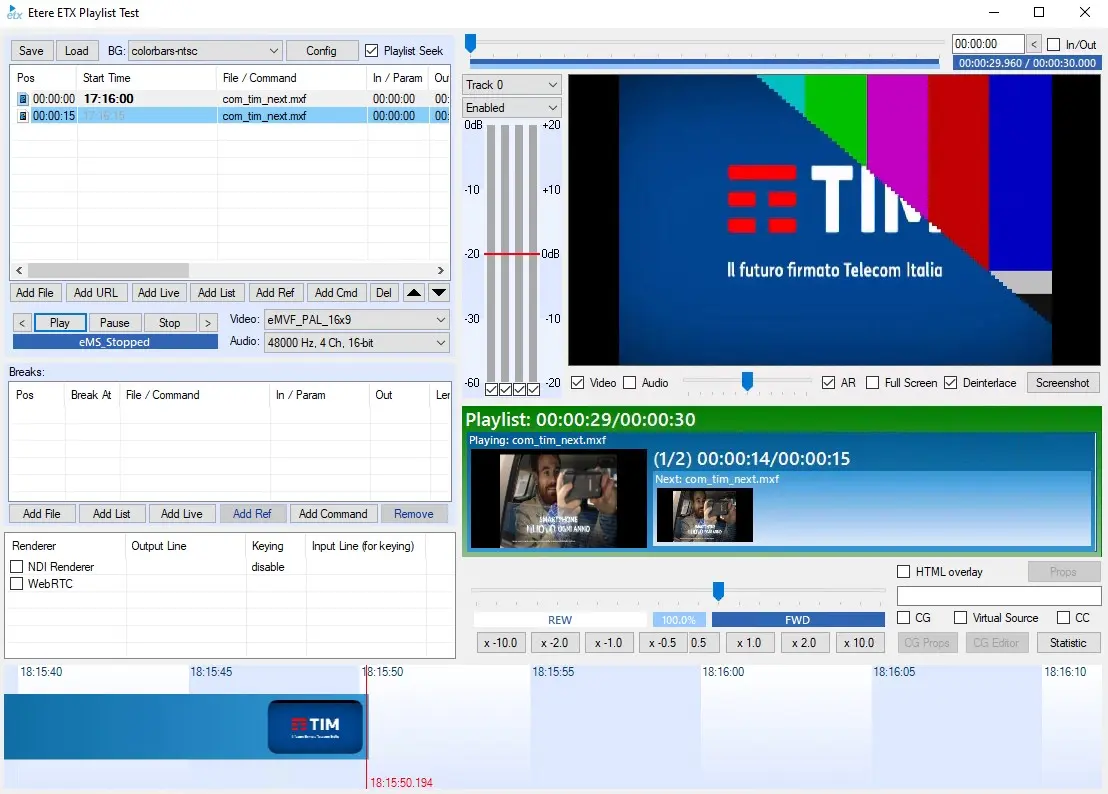
Strips:
- Motion: Corner from which new content is revealed during a Strips transition:
- leftdown: from the upper left corner to the lower right;
- leftup: from the lower left corner to the upper right;
- right down: from the upper right corner to the lower left;
- right up: from the lower right corner to the upper left.
transition_in:.type: Strips
strips
Wheel:
- Spokes: Number of wedges that the content is divided into during the transition. The range for this is from 2 to 20.
transition_in:.type: Wheel
wheel_in
ZigZag:
- GridSizeX: Number of grid columns used for the filter. The range for this is from 1 to 100.
- GridSizeY: Number of grid rows used for the filter. The range for this is from 1 to 100.
The combination of the GridSizeX and GridSizeY property values divides the content of an object into a grid for the filter to use.
The transitions with parameters are set like this: stretch(stretchStyle=PUSH) or with full description: type=wheel spokes=10.
Note, please that they are DirectX transitions, and for some of them (ZigZag, Barns, Blinds, Slide, Spiral etc.), the previous and next items are paused during the transition. Transitions are implemented for files, live sources, background and breaks.
transition_in:.type: ZigZag
zig_zag_in
 mfile_config
 radial_wipe_in
 add_files
 add_files_xml
 config_etx
 fade_in
 barn_in
 blind_in
 inset_in
 checker_board
 gradient_wipe_in
 iris_PLUS_in
 iris_star_in
 iris_cross_in
 iris_diamond_in
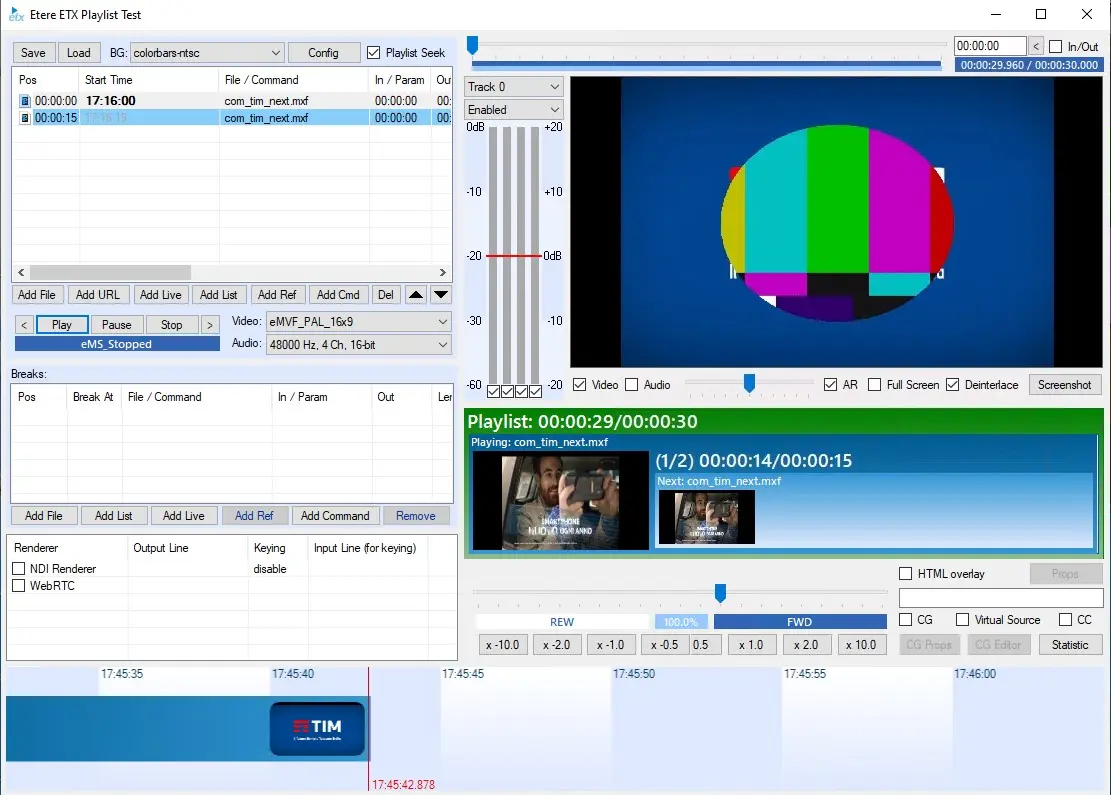 iris_circle_in
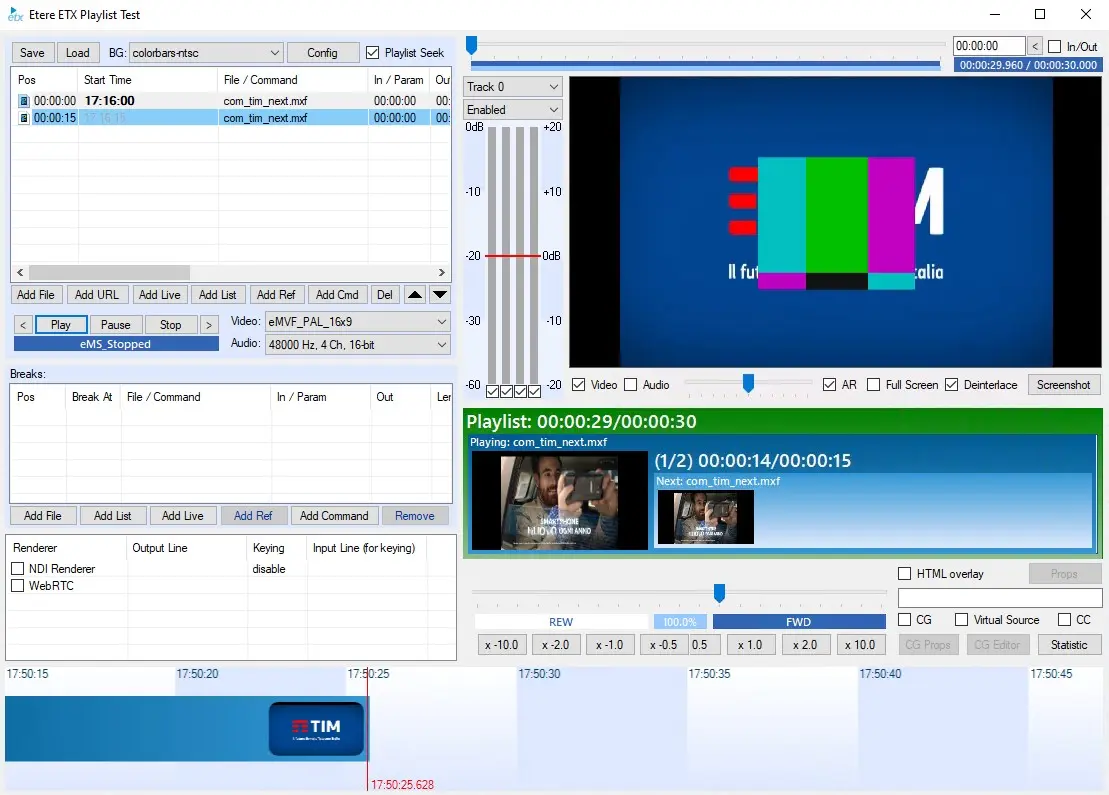 iris_square_in
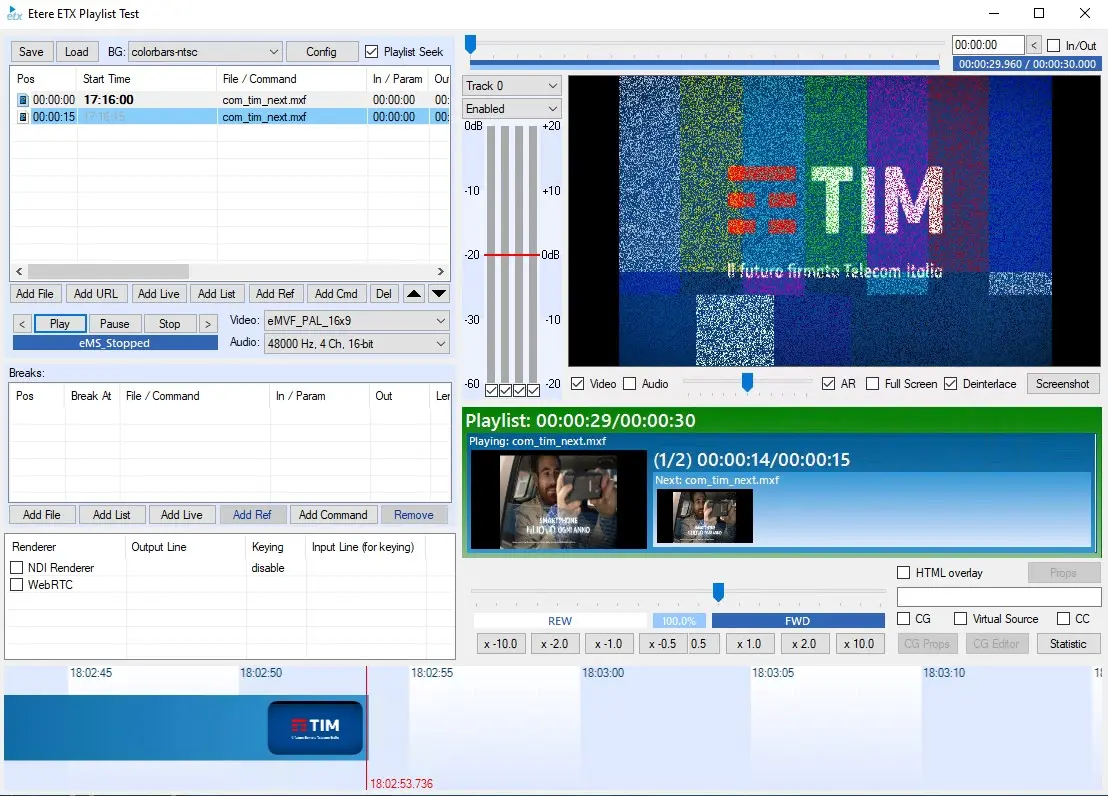 random_dissolve
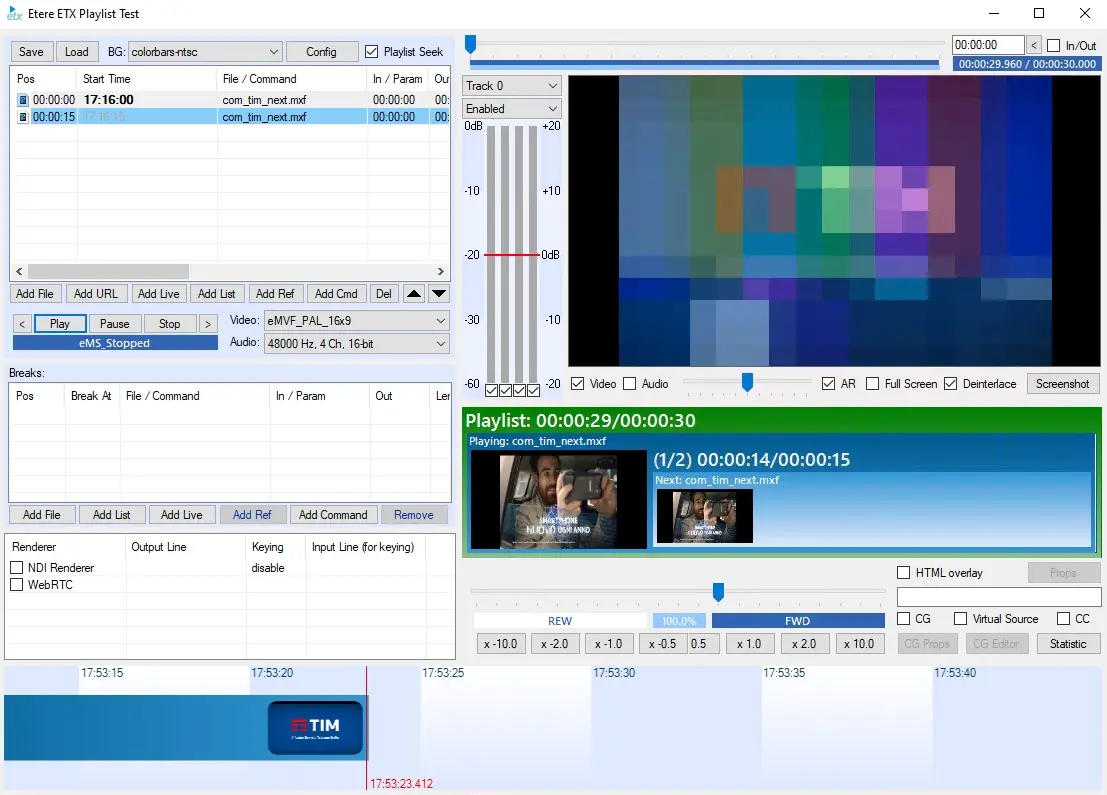 pixelate_in
 radial_wipe_clock
 random_bars
 slide
slide
 stretch_in
 strips
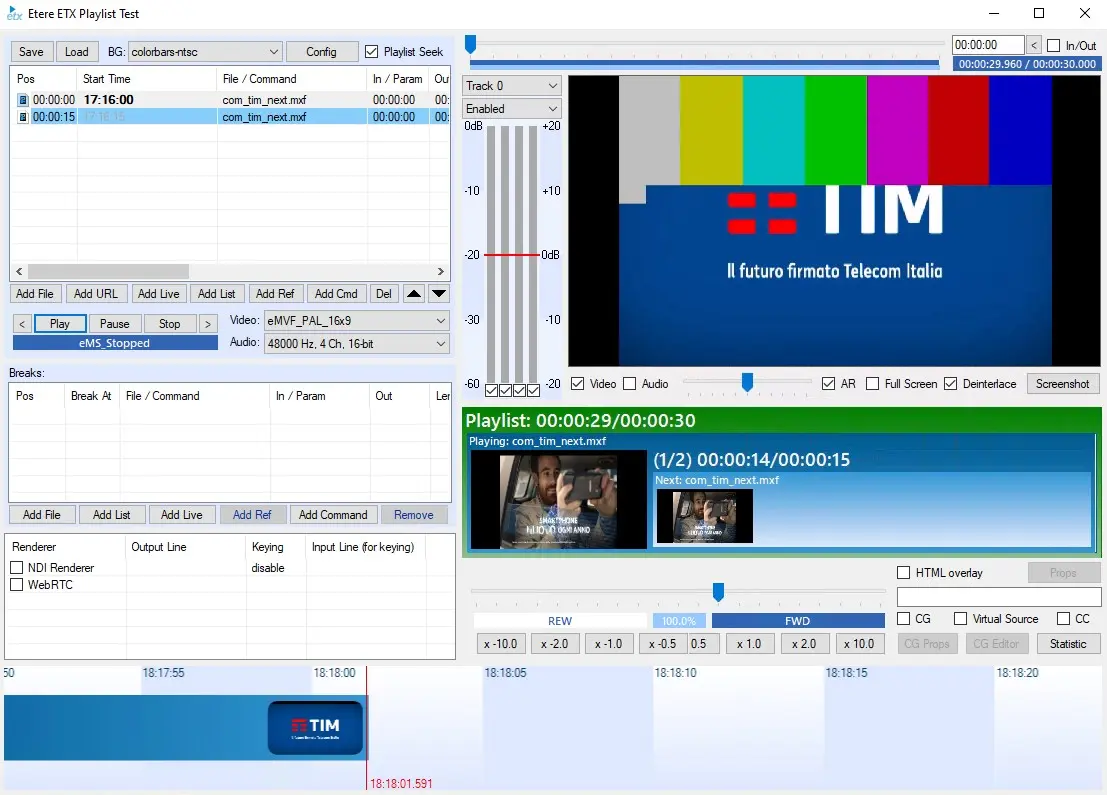 zig_zag_in
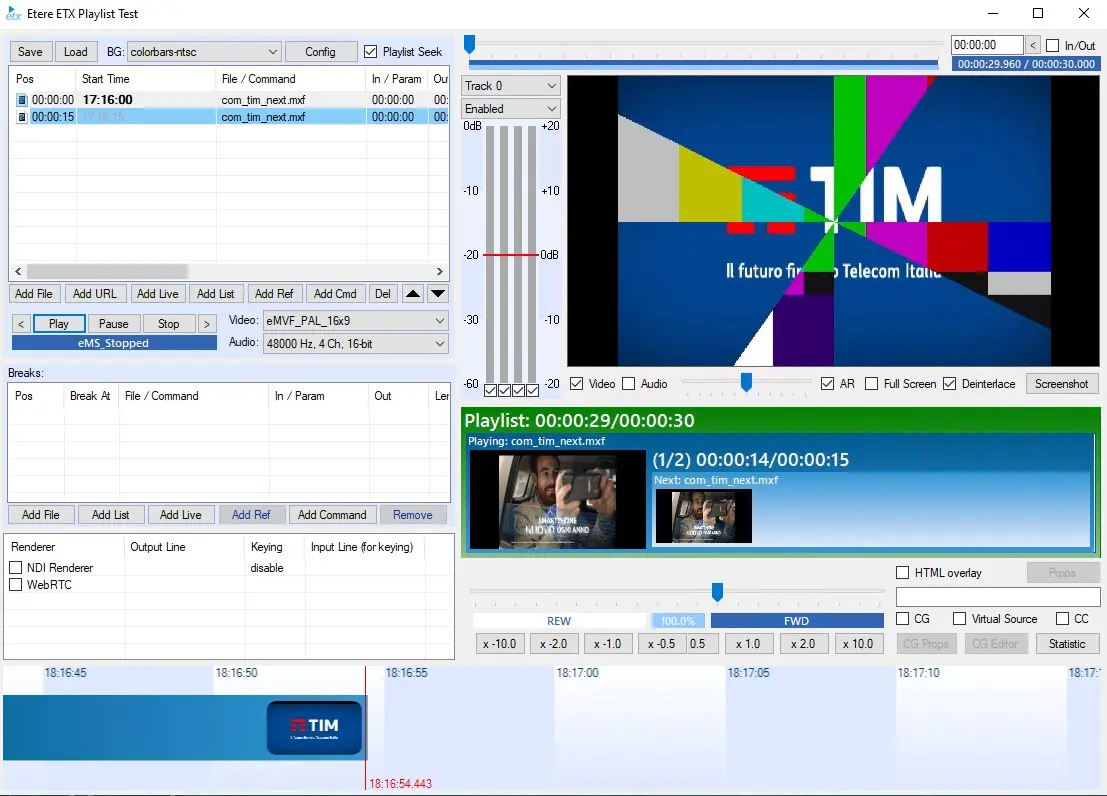 wheel_in