91.4.1 Configuration section
In the configuration tab the user can set different options and see some information about the playout system. Information is split in the following tabs:
Automation tab
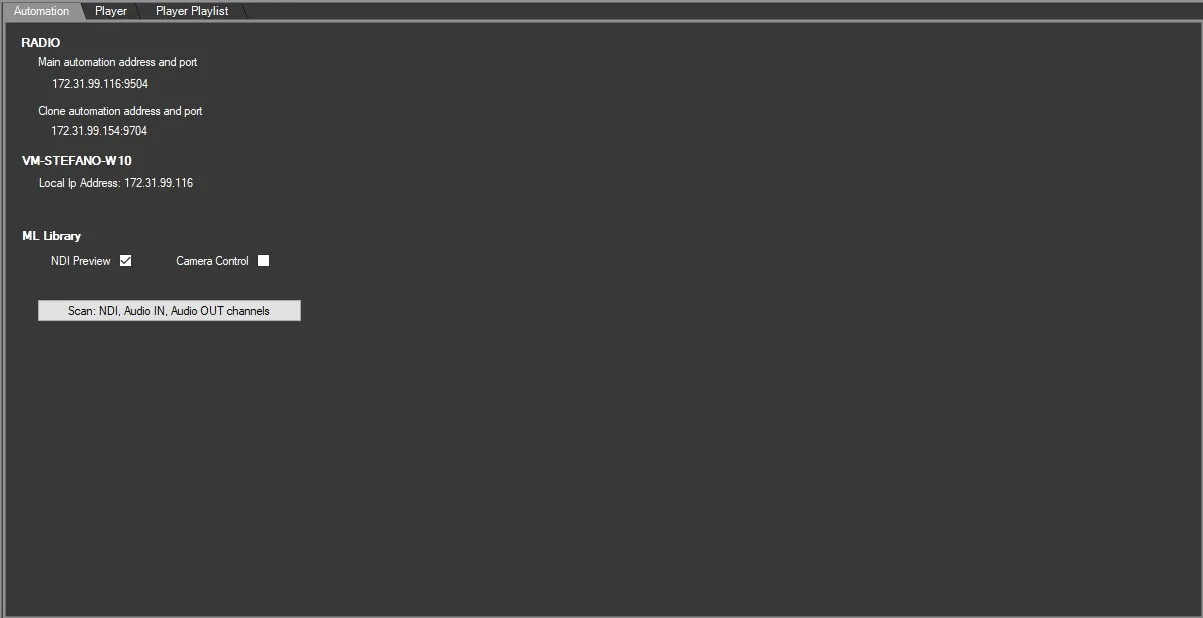
In the Automation tab, the user can see the host IP address of the server where Radio Live is installed, the IP address and port of the main playout.
Radio-live_playout_configuration
It's worth mentioning that Etere Radio Live support MAIN and CLONE configuration as well.
In case the system has been configured as main\clone (see the related section in Radio Live Engine chapter to know how to configure it), in this section will be visible also the clone automation IP address and port.
NB: Note that main playout communicates by default through the port "95xx", while clone playout communicates through port "97xx". Ports are assigned automatically by Radio Live Engine.
It will be always available one stream at time; the CLONE would start streaming once his role has changed to MAIN.
In this section it's possible to enable or disable the NDI preview and the Camera Control functions.
Player tab
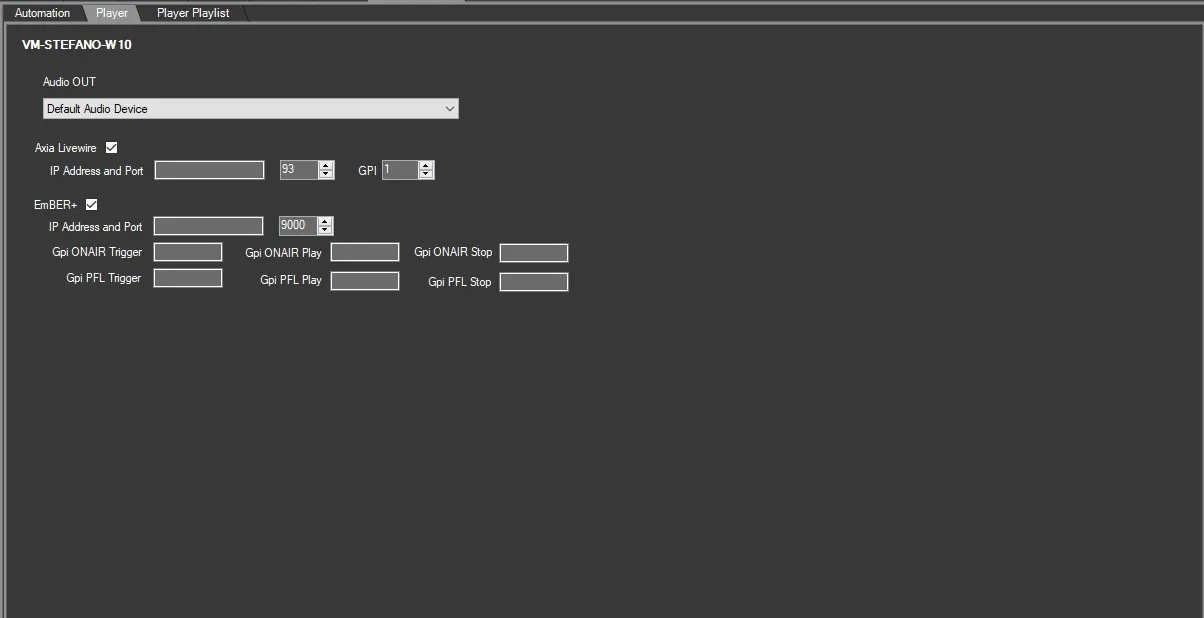
This tab allows to set the local output audio device for the Radio Playout Player.
If in the network there is an Axia Livewire device, the user can enable the related flag and set the IP address and port of the machine where the device is connected.
The parameter GPI allow to specify which GPI, in the Axia Livewire device, is associated with the command to play/pause the Radio Playout Player.
In the same way EmBER+ flag can be enabled to support devices that use this protocol, the following settings are needed:
- IP address and Port: sets IP address and port of the mixer
- Gpi ONAIR trigger, Play and Stop: when the dedicated Radio Playout button is pressed, Etere plays the selected event on the preview (Trigger), opens (starts) the fader channel set in Audio OUT once the gpi command is received (Play), close (stops) the fader channel set in Audio OUT once the gpi command is received (Stop)
notes: it is preferrable to leave the Gpi ONAIR forms empty if the user wants to use only mixers
- Gpi PFL trigger, Play and Stop: when the dedicated mixer button is pressed, Etere plays the selected event on the preview (Trigger), opens (starts) the fader channel set in Audio OUT once the gpi command is received (Play), close (stops) the fader channel set in Audio OUT once the gpi command is received (Stop)
configuration_player
Player Playlist tab
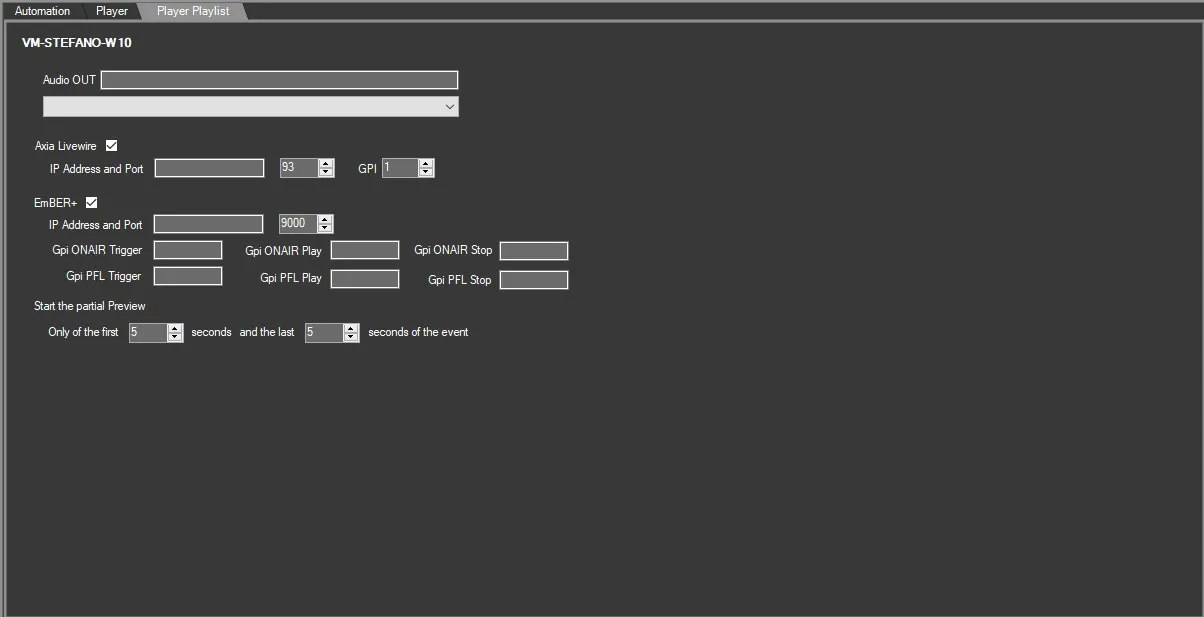
As the previous one, this tab allow to set the local output audio device for the Radio Playout Player Playlist.
If in the network there is an Axia Livewire device, the user can enable the related flag and set the IP address and port of the machine where the device is connected.
The parameter GPI allow to specify which GPI, in the Axia Livewire device, is associated with the command to play/pause the Radio Playout Player.
In the same way EmBER+ flag can be enabled to support devices that use this protocol, the following settings are needed:
- Gpi ONAIR trigger, Play and Stop: when the dedicated Radio Playout button is pressed, Etere plays the selected event on the preview (Trigger), opens (starts) the fader channel set in Audio OUT once the gpi command is received (Play), close (stops) the fader channel set in Audio OUT once the gpi command is received (Stop)
notes: it is preferrable to leave the Gpi ONAIR forms empty if the user wants to use only mixers
- Gpi PFL trigger, Play and Stop: when the dedicated mixer button is pressed, Etere plays the selected event on the preview (Trigger), opens (starts) the fader channel set in Audio OUT once the gpi command is received (Play), close (stops) the fader channel set in Audio OUT once the gpi command is received (Stop)
In Start the partial preview section of this tab, it's possible to specify how many seconds from the start of the event and how many before its end, the Player playlist should play the file.
For example, if the file to preview lasts 30 seconds and this parameter is set to:
only the first 5 seconds and the last 10 seconds of the event
The player will play from 00:00:00.00 to 00:00:05.00 then skip to 00:00:20.00 and play until the 00:00:30.00.
configuration_playerplaylist
Once the needed modifications have been done, it's mandatory to click Apply button to confirm them.
 Automation
 Player
 Player_Playlist