9.2.4.10 Media Data
The Media Data TAB contains information regarding the asset's associated media file, file name and location, the SOM duration and the codec used.
After logging in with a valid user ID and password, the media data display launched, enabling the user to retrieve the media information.
WARNING: To perform upload/download of media files from meta devices for preview, the meta devices listed in "Cloud-Devices for Web users" in Configuration > Rights Management must be granted "Allowed" access.
Media_Data
Notice that the first media file is selected on the left panel; the codec code of the media file, its duration, the physical path and the file name are shown on the display. Two media symbols are also displayed at the top right-hand corner.
WARNING: The Physical Path Name and Physical File Name parameters of the media file are only visible to the user with Supervisor rights or System Administrator. Users without privilege could only view the meta device name.
Some information displayed in the Media Data tab can be modified and confirmed by pressing the <Save> button.
WARNING: To modify media data and update the changes using the <Save> button, you must be granted System Admin rights or EtereWeb\Supervisor rights. Refer to Rights Management for Web for more information on rights assignment.
You can click on any media file and download the media file for preview. If the Download fails, you can rectify the EtereWeb's path configured in Media Folder in the Configuration module. The download button is available only for codecs with the flag "Download" enabled in Etere Configuration > Settings > Codecs.
WARNING:
- If you use the Google Chrome browser, the experiment feature "Enable support for FTP URLs" must be set to Enable in browser settings to fulfil the Download. You can locate the feature in the Chrome browser by entering "Chrome://flags" in the textbox when opening a new tab in the browser. If the "Enable support for FTP URLs" feature is displayed as "Default", set it to "Enabled";
- The availability of the < Download> feature is attributed to the Web Browser used to access EtereWeb. For instance, the Firefox browser can preview MP4 files automatically where file downloading is not required.
- When previewing a file with the HLS property (extension ".m3u8") in the standard player, the preview must point to the ".m3u8" file via HTTP or HTTPS.
An asset with multiple media files
If an uploaded asset has multiple image files linked to it, all images will be displayed for viewing when the asset is selected.
- The first image uploaded would become the default asset thumbnail.
- You can select any image and set it as the default thumbnail.
FLEXI-METADATA
The Flexi-metadata button lets users see the same list directly from the media data tab.
flexi_metadata_button
Click on Flexi-metadata to display the list of Flexi-metadata links to the selected asset.
flexi_metadata_page
The flexi-metadata files are displayed on the left panel; clicking on any flexi-metadata property settings will be displayed on the right panel.
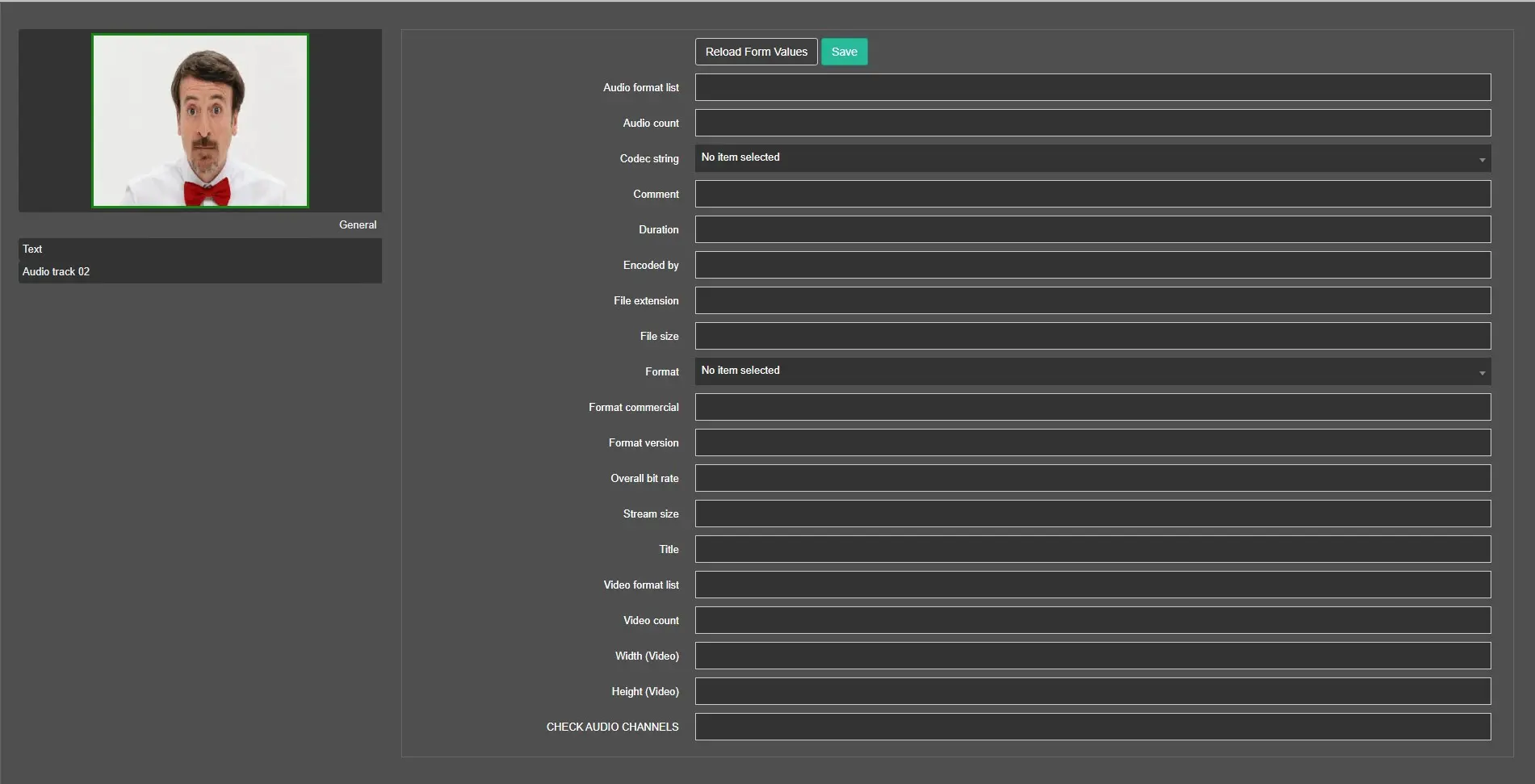 flexi_metadata_page
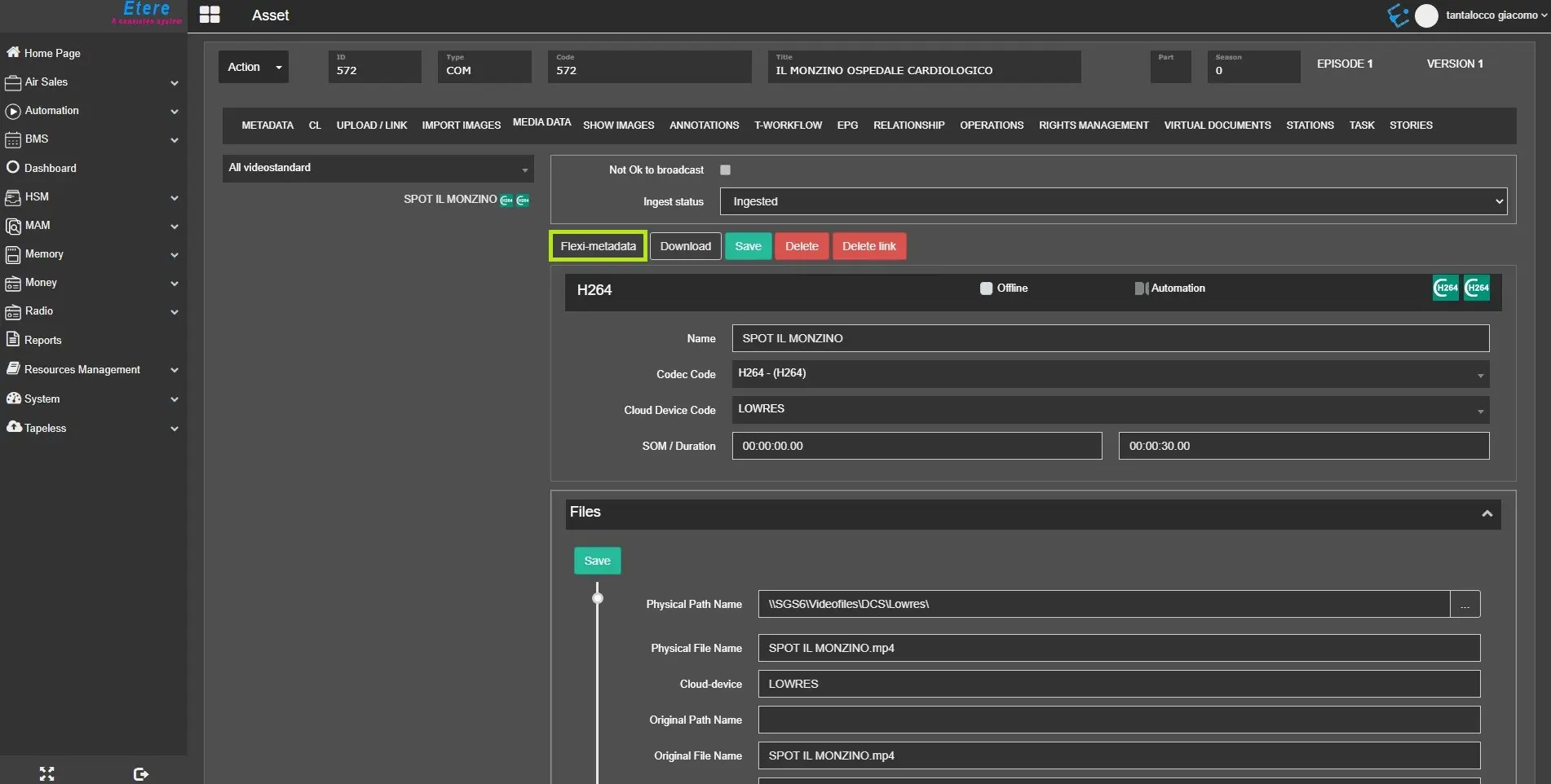 flexi_metadata_button
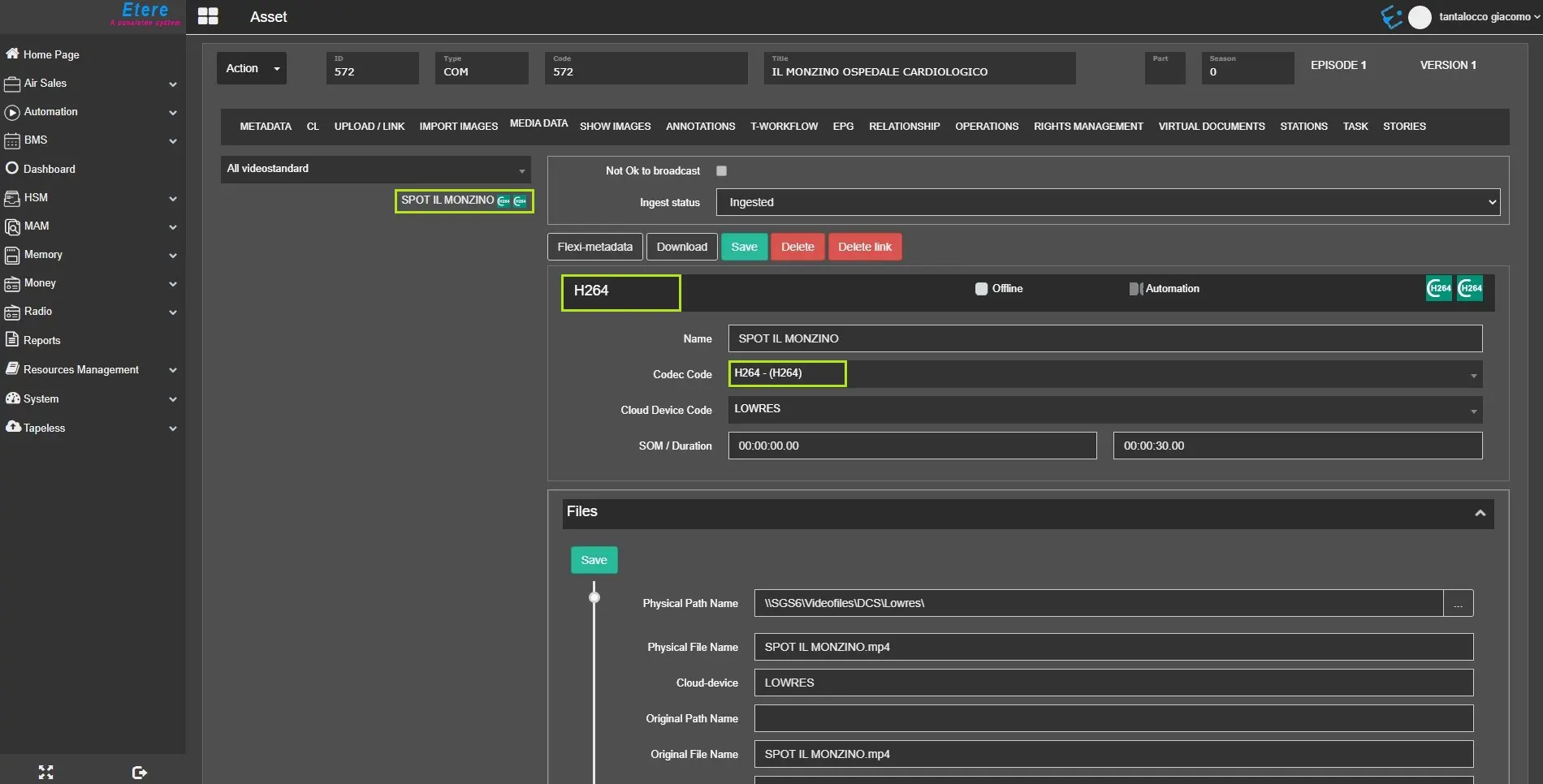 media_data