84.3.2.1 User Interface
Before start using Etere Cartwall, ensure that the resources to be used has been configured. Once configured, you can access to Cartwall through Etere Scheduling Menu:
5047_Cartwall
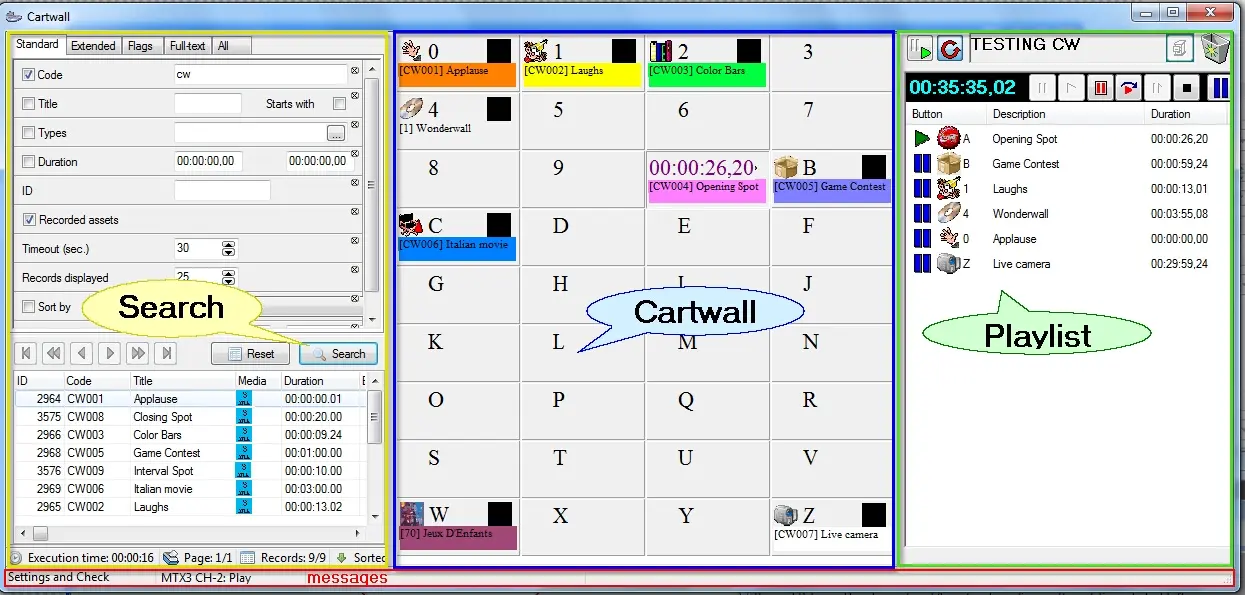
As shown in the image above, the main window is divided into four key parts which allow the operator to manage Etere Cartwall efficiently, the interfaces are described in the following lines:
SEARCH - Search the assets to be transmit and assign the assets to the Cartwall by drag-and-drop the assets into specific box indicated by alphanumeric key.
CARTWALL - Manage the assets assigned to Cartwall, being able to save Cartwalls as different profiles.
PLAYLIST - Create custom playlists by drag-and-drop assets from Cartwall to Playlist. If there are assets in the playlist, the new assets would be added to the bottom of the list.
Beside managing the assets in the playlist panel, there are functions available in this panel that you can change the display interface of Cartwall:
5048_Cartwall_playlist_useful_functions
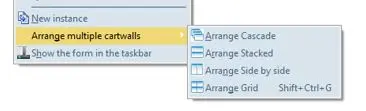
New Interface - The Cartwall icon in Schedule start menu does not allow you to start another instance of Cartwall, but you can launch a new Cartwall instance by right-click on the Playlist panel and select “New instance”, a new instance of Cartwall would be displayed side-by-side. More instances can be launched using this function.
Arrange multiple cartwalls - This function is very useful if you had started multiple cartwall instances, it allows you to arrange the layout of multiple cartwalls to your preference.
•Arrange Cascade: The multiple cartwalls would be displayed in cascade manner, with one partially overlay another.
•Arrange Stacked: All cartwalls would be displayed horizontally with one on top another.
•Arrange Side by Side: All cartwalls would be displayed vertically side-by-side. Please note that the Playlist panels would be hidden when more instances were opened.
•Arrange Grid: Arrange the multiple cartwalls to cover the display screen, from left to right, top to bottom.
Show the form in the taskbar - Select this function to display the cartwall instance number at the taskbar, e.g. "Cartwall DEFAULT (No.5)" is the 5th cartwall instance you had started. Use this function to identify the sequent of Cartwall instances started in the workstation.
MESSAGES - Located in the bottom of the window, it displayed all the Information regarding the broadcast device, the Cartwall and the control mode
Cartwall functioning mode
Settings and control - The cartwall can be set and perform the playout.
Settings only - Only settings is allowed on the cartwall.
Broadcasting device status
Off - switched off or disabled device.
Idle - functioning device.
Ready - device ready for transmission.
Play - device in play.
Still - device is paused.
Fault - device faulty.
NB: If the resources have been correctly configured, Etere Cartwall will start in 'Settings and control' mode and you will be allowed to broadcast Cartwalls; else, the program will start automatically in 'Only settings' mode and broadcasting is not allowed.
 5047_Cartwall
 5048_Cartwall_playlist_useful_functions