71.18.12 Managing Defective Video Segments
Etere Ingest offers a useful feature regarding red channel condition issues, it is the possibility of easily search for defective video segments that have been automatically detected during the ingest process, in order to look for assets which contains these kind of issues, just follow the next procedure:
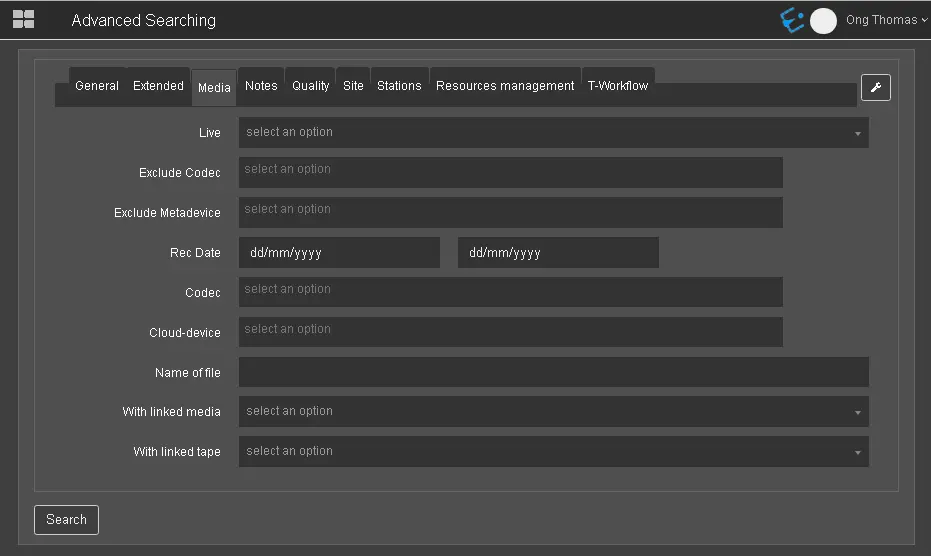
1.Open the 'Asset Form' application, the 'Search' tab will be automatically focused,
2.Tick-off the 'with automatic blacks' filter, to include in the search only those events which EDL contains at least one automatic 'garbage video' (manual marks will not be considered):
Asset Form
It is possible to use other several filters besides the one regarding automatic blacks (e.g.: "ingest date", "duration", "type", "metadevice", etc) to narrow the search, more info regarding search filters can be found in the proper chapter Media Library : Available Filters.
3.The list located in the bottom part will contain all assets matching given filters, to open an specific asset just make double-click on it,
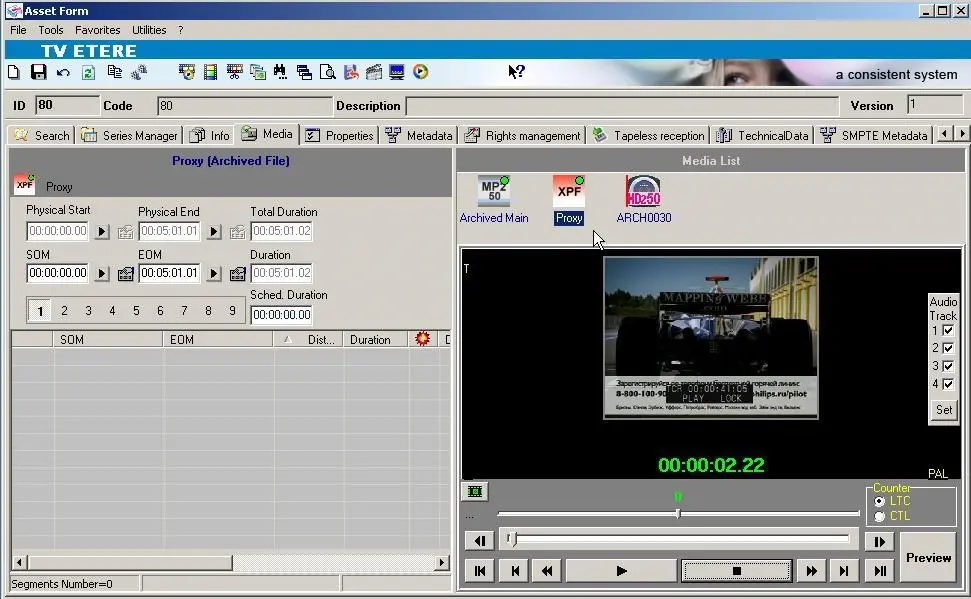
4.Move to the 'Media' tab and double-click on the required media (e.g.: 'Generic SeaChange') on the 'Media List' area, this action will open the EDL for the selected media at the left of the window:
Media tab
5.At this point, all 'automatic blacks' will be listed as 'garbage video'(ChannelCondition_bulkVideo defected video segments marked to not be broadcasted), in this section you will be able to:
•Preview the asset to verify automatically detected blacks, this by making double-click on the proxy media icon (e.g.: 'WMV').
•Modify certain properties of the 'garbage video' such as SOM, EOM, Duration, Description, Type, Picon, etc.
•Delete the video faults in case the operator considers it is able to be transmitted.
•Etc.
NB: Please refer to the Media Library: EDL chapter for further info regarding EDL Management.
 Asset_Form
 Media_tab