59.4.20.12 Flexy Converter
Once the Flexy Converter action has been created and added to a workflow it's ready to be used from the Flexy Converter tool as explained below:
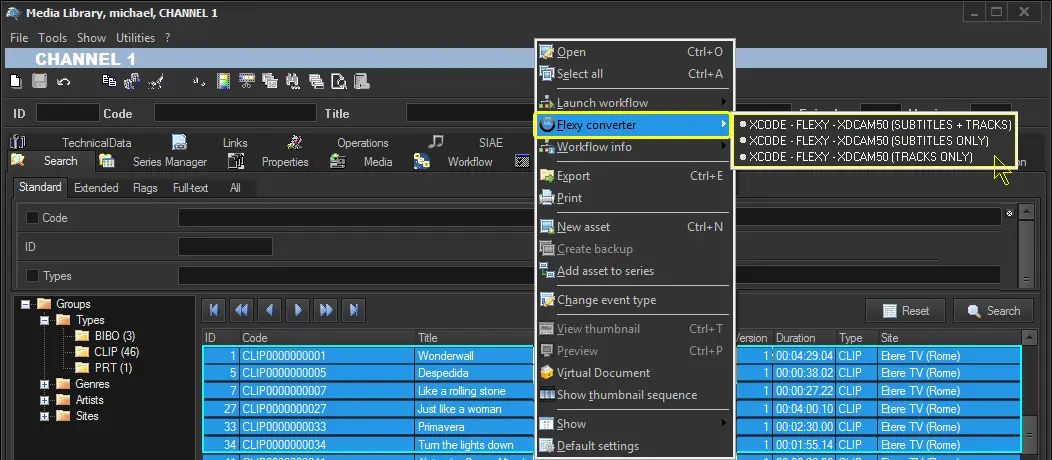
1. In the Media Library, search and select one or more assets and make right-click on them, click on the "Flexy Converter" option and select the workflow to be launched:
Flexy Converter
2. The Flexy Converter wizard will be displayed to allow specifying the way the workflow will be launched:
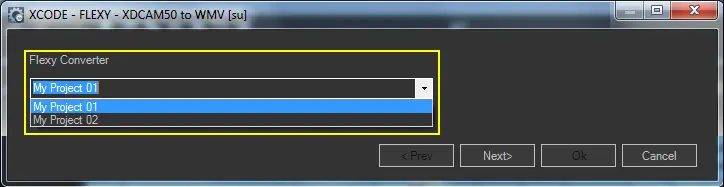
Select the project
The first window allows selecting the project to be used by the workflow; by default, the project set in the "Flexy Converter action" is selected, but it can be changed with any other available one. Once done, press the [Next] button:
Select_the_project
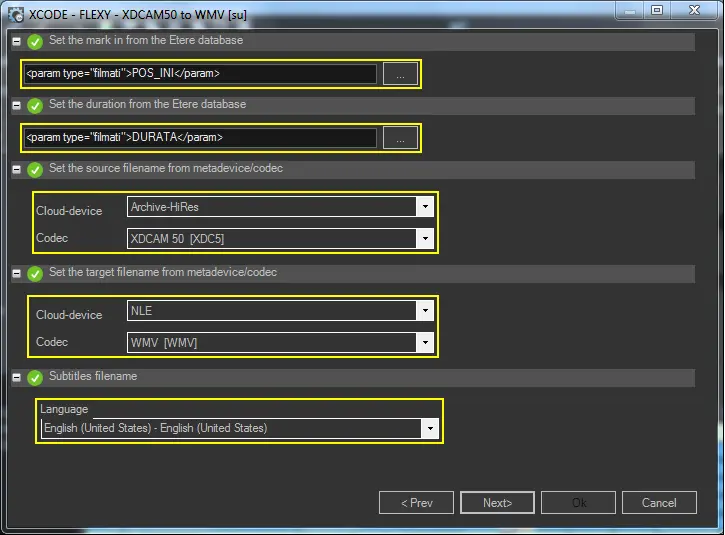
Check and modify the parameters.
The second window displays all variables and transformation rules set in the project so the user can either confirm or modify them. Once done, press the [Next] button:
Check_and_modify_the_parameters
NB: Changes performed here are applied only to the current workflow instance; the project remains unaltered.
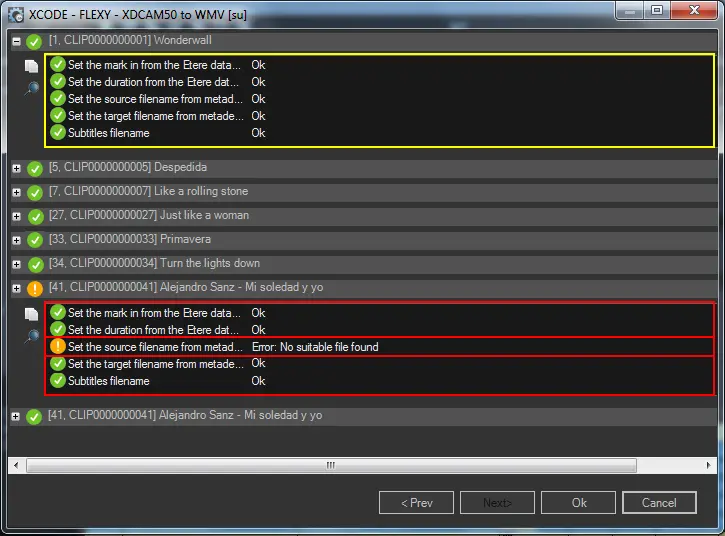
Check the parameters
The third window displays a summary of the project for all selected assets, indicating the status of all transformation rules:
Check_the_parameters
The attribute's value has been correctly transformed
The attribute's value could not be transformed (i.e. Etere data is missing?)
3. At this point, the transcoding operation will start as follows:
XML Rhozet projects will be generated in the database, including the transformed values, whereas XML subtitles will be generated and temporarily stored in the cache directory configured in action.
XML_subtitles
Active Requests
The workflow is started and executed for all assets:
Once completed, the transcoded file will be linked to the assets and made available in the Media Library:
xcode_flexyconverter
 Select_the_project
 Check_and_modify_the_parameters
 Check_the_parameters
 XML_subtitles
 xcode_flexyconverter
 Active_Requests
 Flexy_Converter