59.5.2.1 Service Setup
Etere Reporting Services is an Etere embedded feature (available only for licensed users) that doesn't need a special installation but requires installing some prerequisites.
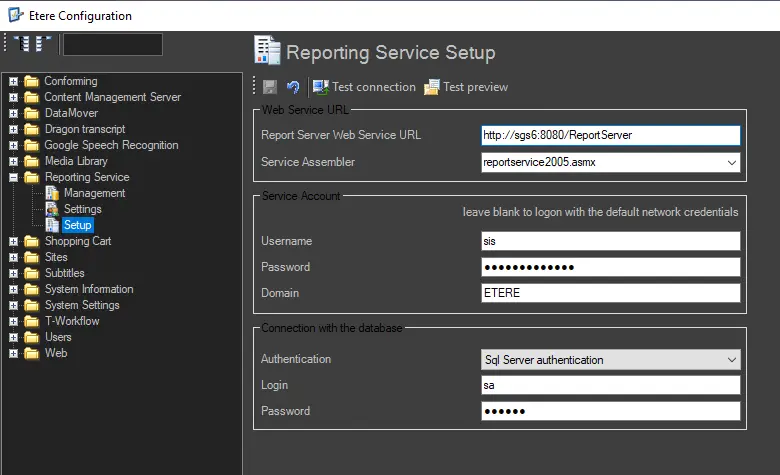
To start using Etere Reporting Services, its connectivity parameters need to be configured under the Etere Configuration > Configuration Editor > Reporting Service module:
SETUP
Service_Setup
Web Service URL
• Report Server Web Service URL: Enter the URL where the web server that provides the reporting service is installed,
• Service Assembler: Select the .asmx file to be used as the web service source (i.e., the report database to be used),
Service Account
• Network User & Password: Specify the Windows login data to access the web service, leave it blank to use the currently logged user,
• Domain: Indicate the domain of the MS Windows network.
Connection with the database
• Authentication: indicate if the connection will be established using either the Windows Authentication (i.e., logged-in Windows user) or the SQL Server Authentication (i.e., SQL credentials).
• Login and Password: Define them in case of using the SQL Server authentication.
Toolbar
• Save: It saves all entered parameters into the database.
• Cancel: Undo all unsaved changes.
• Test connection: It simply attempts to connect with the reporting service using the abovementioned parameters.
• Test preview: Use it to test the entire reporting functioning; a testing report containing details related to Etere's system installation will be displayed.
Please note:
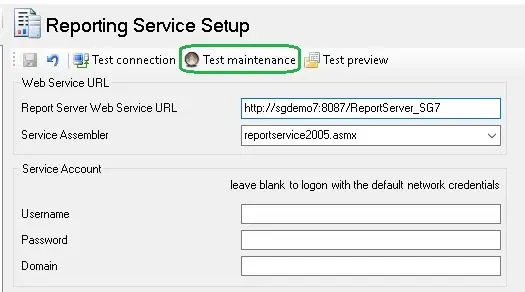
From Etere released version 29.1 onwards, the Test Maintenance tab has been removed from the Setup menu.
Test_Maintenance
The "Test Maintenance" function enables the user to upload a selected report file (.rdl) and save it into the Reporting Server; this function is obsolete as ".rdl" files are no longer copied from the Etere installation zipped file into the Program Files folder in the local workstation.
SETTINGS
settings
Colours
• Report Header, Report Footer, Table Header, Table line 0, Table line 1: Indicate for each element if the default colour will be used (checked) or not (unchecked and set).
Graphics
• Report header: This option allows to set the icon that will appear in the header for all reports; it can be:
- Default header: To use the default station's icon, check the "default" option.
- Custom header: To use a custom icon, disable the "default" option and press the [change] button to select another icon. When selecting a custom icon, all those icons which don't meet the format requirements (i.e. single-image, 32x32 to 48x48 and 16/32 bit colours) will be marked with yellow to indicate that they may cause rendering problems.
NB: Custom icons can be inserted from the Etere Configuration | Settings | Basic | Icons section.
 Setup
Setup
 Test_Maintenance
 settings