72.4.2.1 Managing Tasks
What is a task?
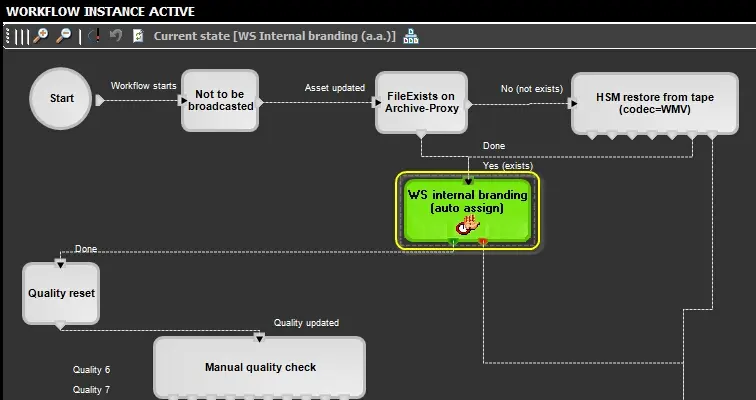
A task is something you need to finish by a certain date & time but do not need to schedule specific time to accomplish the task; more of a reminder that you need to complete something. A task can be assigned to, for example, brand a certain program:
Workflow instance active
How to manage tasks
Once a contact is open in the "Agenda", there will be automatically loaded the tasks assigned to the current authenticated user (see Etere Rights Management), all tasks will be available in the bottom part of the Agenda along with an icon that indicates their status:
Task
Soon available - The task is assigned to the current user but it is too soon to perform it (i.e. its start date is not yet past).
In progress - The task is assigned to another user (e.g. of the same group), who has already undertaken it.
Available - The task is assigned to the current user and is waiting for being performed.
Completed - The assigned task has been successfully performed by the current user.
Not available - The task is assigned to the current user but it isn't ready for being performed.
Possible causes may be: Workflow not yet arrived to this action, Workflow aborted, etc.
(*) Task which due date is expired will be displayed on red text in order to highlight its overdue condition.
How to assign tasks in bulk
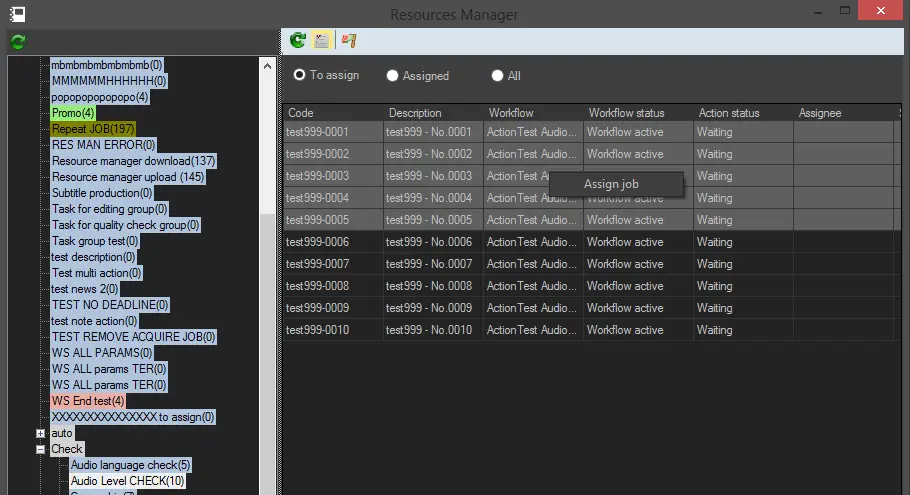
You can select one or more tasks and open assignment form through the context menu function. This is useful for bulk assignment of tasks. To do so, enable To assign and assign job.
Resurce manager 1
How to hide aborted T-workflows
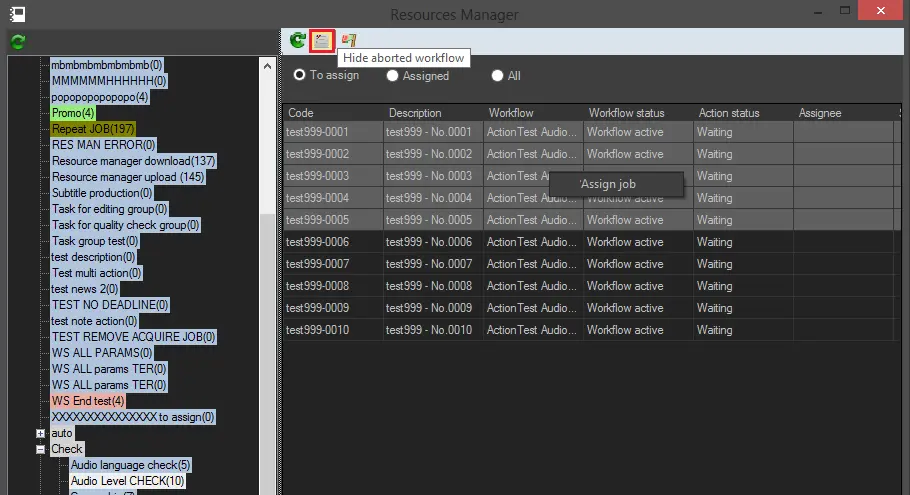
If you abort a T-workflow action, the aborted T-workflow would still visible under in the “To assign” panel due to the present of the T-workflow instance. By click on the “Hide aborted workflow” icon the aborted T-workflows would be invisible from the agenda view.
Hide aborted workflow
How to force job releases
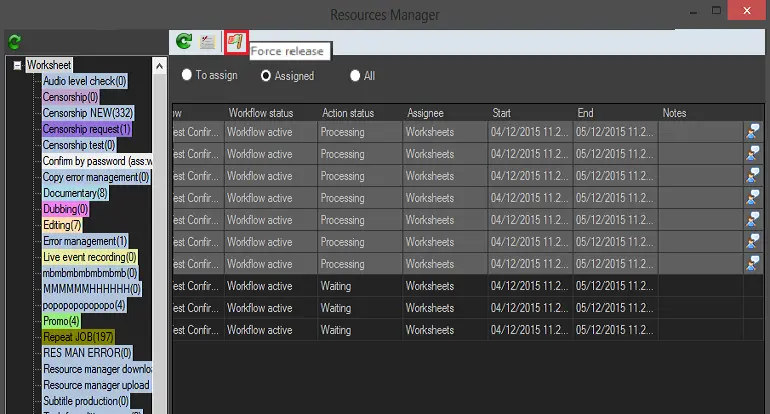
When a task (or tasks) is locked by user, the task is displayed as “Processing” in the Action Status column. User with Administrator rights is able to force job releases through the context menu function as well. To do so, simply enable the "Assigned" option to view all assigned jobs, select those tasks to be released and click on the "Force release" icon to release the tasks in force.
Force release
Completing a task
In order to complete a task from the Agenda, you can search for the task through the following filters:
Show - Enable the filters to be used for displaying tasks, filters are cumulative and includes: "not available", "available", "completed" of "all tasks".
Period - Specify the period to which tasks deadlines are related, that is, "last week", "this week", "next week"; "last month", "this month", "next month" or "next three months".
Once a task is opened (through a double-click), it is possible to compile its following required fields:
Job Info (to read)
Workflow - Shows the T-workflow on which the worksheet is contained and from which it was launched.
Action - Shows the worksheet action on which the worksheet is based (e.g. subtitling).
NB: Warning message would be prompt if you attempt to copy a worksheet action into Agenda View. Worksheet action must be created from the wizard.
Status - Displays the current status of the worksheet, and in case it is available allows the operator to undertake it. Possible status colors are:
The worksheet is available and ready to be undertaken by the user.
The worksheet is undertaken by the operator and it is now ready to be compiled.
The worksheet is unavailable for compilation since it is owned by another user.
Priority - The priority with which the worksheet should be accomplished.
Asset - Indicates the asset for which the worksheet has been launched.
Period - The period within which the worksheet should be performed.
Budget - The type, value and unit of the cost related to the worksheet completion.
Notes - Any eventual text regarding the completion of the worksheet.
.Job execution (to compile)
Cost - Set the cost type (money, time or quantity), cost value and measurement unit required for calculating the cost of the worksheet. For details on this calculation refer to Defining costs.
NB: In case of saving a worksheet that is incomplete but with an entered cost, the cost will be inserted into the list of asset costs. If this cost is subsequently modified, it will be updated.
To invoice - Specify if the worksheet will be either invoiced or not.
Notes - Enter a brief note regarding the work order processing (e.g.: problems, extra info, etc).
Result - Choose the more suitable result for the worksheet among the supported ones (e.g. completed, failed, missing media, etc).
.Job completion
[Media Library] - Open the Media Library module, bringing complete access to the asset information.
Flexi Metadata -
•Asset Flexi Metadata: This option allows you to manage the key flexi metadata related to the selected asset. Refer to Flexi-metadata chapter for more information.
•Videofile flexi metadata: Use this option to edit or set the flexi metadata of the current metafile. Refer to Technical Data chapter in Media Library for more information.
[Execute] - Open the quick management feature set for the worksheet and required the task completion. Currently available features are explained in the "Quick Management Features" chapter.
It's worth mentioning that for all tasks the following sidebar tools will be available:
The Preview panel is positioned in the left part of the task manager.
Use this panel to preview -through the proxy browser- a file by using the most common playback commands.
NB: Customer is advised to set Windows Registry key “mxf.index_path” with string type value = “null” to prevent creation of index file when previewing a huge MXF file. The Windows Registry is automatically set when the workstation is installed with Etere version 29.3.
The Asset Properties panel is positioned in the right part of the task manager.
Use this panel to view the most relevant properties (e.g. ID, Code, Title, Type, Duration, Scheduled data, etc) of the task's related asset.
Located in the top right of the task window, the following buttons allows to quickly jump to a different task:
Jump to the next task in the list.
Jump to the previous task in the list.
For tasks, you are also able to perform multiple selection of the same tasks in order to set the same results for all of them simultaneously. This includes editing their flexi metadata.
Removing tasks automatic assignment
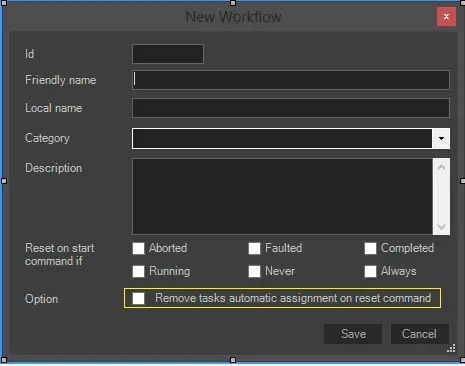
Enabling this option removes the tasks automatic assignment when you reset the T-workflow:
New Workflow
 Resurce_manager_1
 Hide_aborted_workflow
 New_Workflow
 Task
Task
 Force_release
 Workflow_instance_active