70.3.8.5 Contents tab
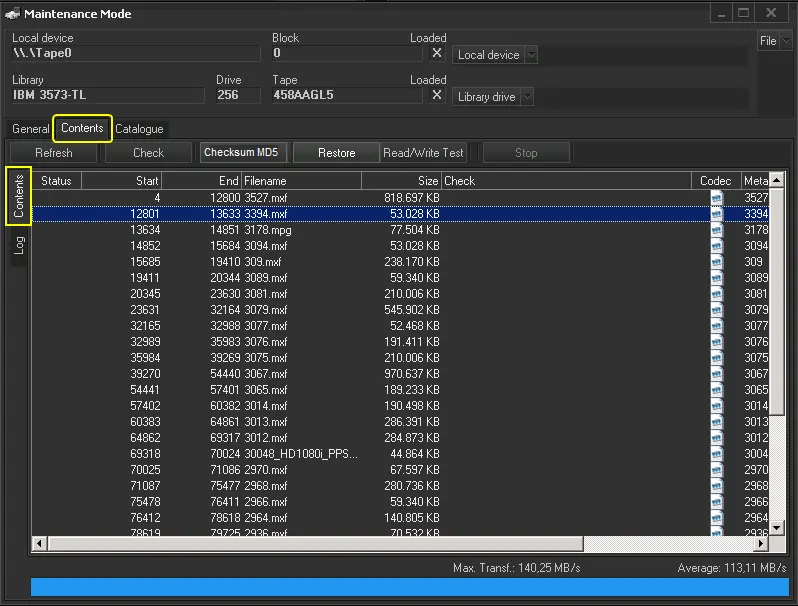
In the "Contents" tab are shown the content of the cartridge, exactly as stored in the Etere database. Under this section is possible to perform the following actions:
Refresh
Updates the list of content within the tape.
Check
Performs a "check" on the correspondence of the content present in the Etere database and the one actually present in the cartridge, in case some incongruences arise, a "recatalogue" will be suggested to the operator.
Note:
▪If a CRC error is found when reading the tape, it will be flagged as faulty (i.e.with errors) and its fixing will be requested.
▪When faulty tapes are detected, a message will inform about the files that might be probably lost.
▪Once a faulty tape (.e. with errors) is successfully fixed, it's automatically flagged back as "available".
NB: The “Check” tape utility would utilize the resource on the specific tape device, others Data Pump operation would not be disrupted.
Checksum MD5
In this tab, it displays files containing Checksum MD5 status in the tape content. The files with Checksum values usually indicated in 2 status:
The green tick indicate that the file contains Checksum MD5 hash value.
The blue tick indicate that the file contains Checksum MD5 hash value computed on another copy of the file.
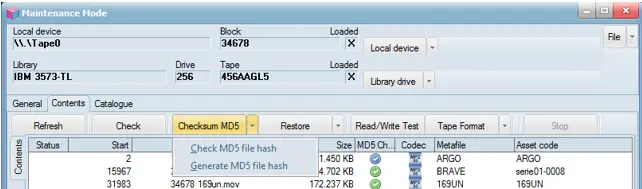
You can perform validity check on tape media, including LTFS tapes (Linear Tape File System), verify the tape content before restore to database. Two functions are available under the Checksum MD5 tab:
•Check MD5 file hash: From the tape content, select files with the green tick or blue tick and click on this function to calculate the MD5 Checksum hash value, and compare the calculated value against the Checksum hash value stored in the files.
•Generate MD5 file hash: Use this function to generate a MD5 Checksum hash value for those files without MD5 Checksum and store the hash value in the file. You can also select files already containing Checksum values (files with green tick HSM_DP_Content_Green_arrowand blue tickHSM_DP_Content_Blue_arrow) to calculate the Checksum hash value and compare the hash values stored in the files.
The following results are expected after executed the above functions:
•Files without MD5 Checksum are successfully generated with hash value stored in the files, indicated with green tickHSM_DP_Content_Green_arrow.
•Files containing MD5 Checksum hash value matched the hash values calculated from MD5 Checksum. The files would be indicated with green tickHSM_DP_Content_Green_arrow.
•Files containing MD5 Checksum hash values (files with green tick HSM_DP_Content_Green_arrowand blue tickHSM_DP_Content_Blue_arrow) might had been modified or corrupted, it does not matched the calculated hash values. The files would be indicated with red tickHSM_DP_Content_Red_arrow.
Restore
This function allows to restore metafiles and other HSM files (i.e. memory files, database backups). In order to do this, just select the item and press the [Restore] button:
Metafile
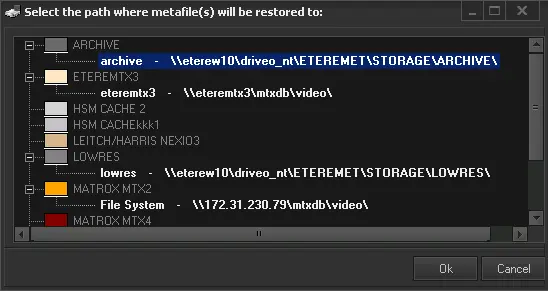
In case the selected file is a metafile it will be also possible to select the metadevice path on which it will be restored (restored files will be updated on the asset's media):
You can select multiple destination paths when restoring metafile in maintenance mode.
HSM file
Instead, in case the file is an HSM file, it will be possible to browse and select any path on which the HSM file will b restored (without updating the asset's media):
Read-Write
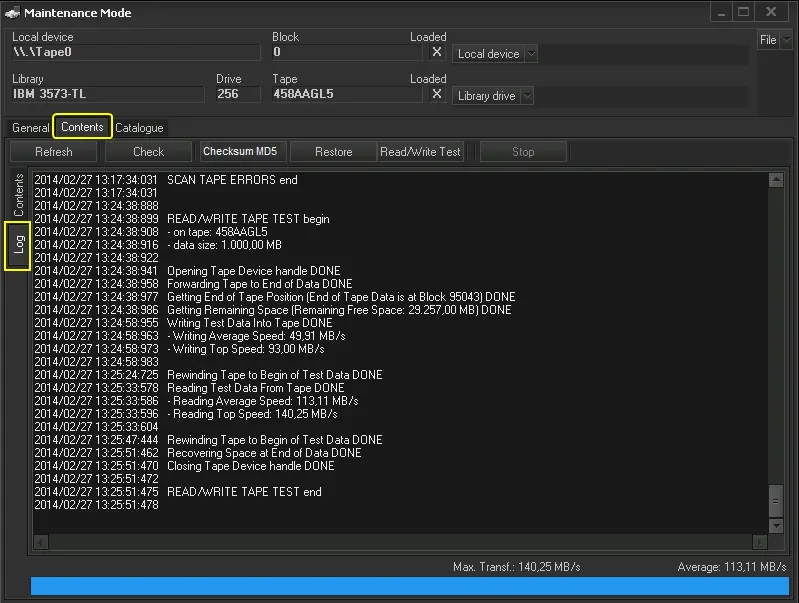
This function allows testing the read/write capabilities of the tape through the following automatic process:
1. The user selects the size of data to be written (default=1000Mb)
2. HSM Data Pump will write (after files contained in the tape) some random data, calculating the writing speed
3. HSM Data Pump will read the data previously written, calculating the reading speed
4. HSM Data Pump will clear from the tape all data written during the test
Stop
Interrupts, in a safe way, a "check" operation in progress without waiting for its completion.
 hsm_file
 metafile
 content_log
 check_md5
 check
check
 content_restore