59.5.4.80 Program Revenues by Order
Report Description
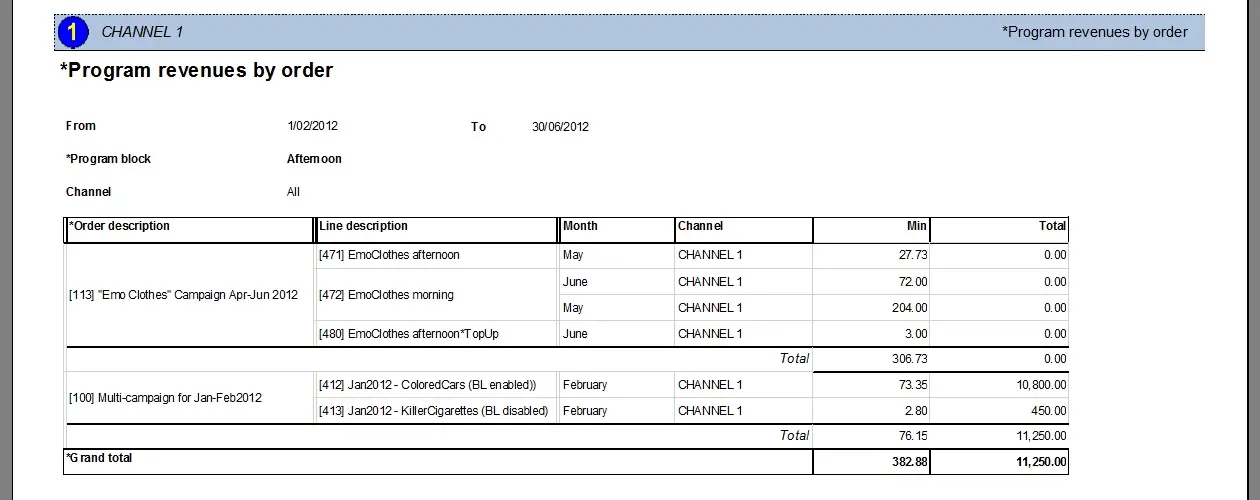
The Program Revenues by Order report allows the generation of a document containing the monthly revenues earned from orders scheduled on specific program blocks, narrowing the information to a particular network station and scheduling period. Displayed data include:
Order Description - Description of the order from which scheduled commercials are contracted
Line description - Description of the line from which scheduled commercials are derived
Month - Month to which the row revenues are related
Channel - Network station on which events are scheduled
Min - Length (in minutes) of the events planned from the order line
Total - Revenues earned from the order line
This report is helpful to, for example, analyze the revenues earned from specific orders scheduled on a particular program's time slot.
Note
Please note that this report retrieves data from the production and historical databases (if it exists). This feature will include more information in the news but require more time to generate.
Report Filters
All the parameters that permit detailed report generation have been spread across seven different tabs to allow for a more straightforward configuration. By default, all filters are disabled (i.e., either blank or unselected); to enable them, it is enough to configure at least one parameter on their inside. Available filters include:
•Period: Specify the period from which data will be retrieved.
•Channel: Indicate the network station from which revenues will be calculated (i.e. on which commercials are scheduled). Leave this parameter blank to include revenues from all channels.
•Program block: Select the scheduling block to which the report is related. Blocks time slots used in Air Sales to refer to specific programs.
Report Preview
The [Settings] permits the configuration of the page layout of the outgoing document; once filters and settings have been set, it will be possible to select between displaying a preview using the related [Preview] button or printing the document directly using the [Report] button:
Please note that some reports permit the export of the generated document in the most common formats (pdf, CSV, doc, xls, XML, etc) just by using the [Export] button.
Program_Revenues_by_Order_preview
 Program_Revenues_by_Order_preview