59.9.3.5 Query Capture
The "Query Capture" tab allows capturing real-time information related to queries currently in execution, thus allowing us to trace the user activity for further analysis.
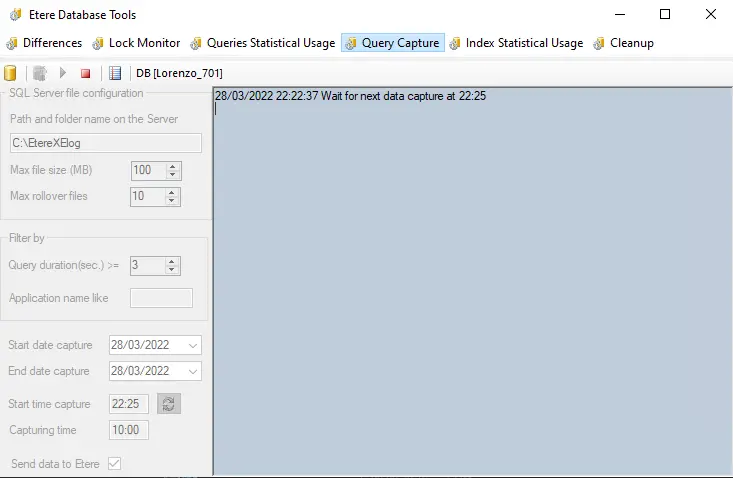
To start capturing queries, set the parameters below and press the [Start] button:
Query_Capture
Path and folder name on the Server: Enter the SQL server's local path in which the file containing captured data would be stored.
The specified folder must meet the following requisites:
✓ The storage directory must be in the local computer of the SQL Server (C:\, D:\, E:\, etc.)
✓ The storage directory must be shared with +R (read), +W (write) and +D (delete) permissions to the SQL Server authenticated user (e.g. sa)
✓ The storage directory must have a minimum free space capacity of 5GB for the captured data file.
Max file size: Specify each log file's size limit (5MB or more). A new log file would store the captured data if a capturing file reached this size.
Max rollover files: Specify the segmentation limit for log files, this is the maximum number of files to created on each capture period.
Filter by: Specify the criteria for filtering captured data:
Query duration: Only queries lasting more (or equal) than the specified value would be captured.
Application names like Only queries containing the string specified here would be captured.
NB: This feature is only available for 2008R2 or higher SQL Servers.
Start date capture: Enter the start date to capture data from query executions.
NB: Just so you know, this data cannot be from the past; it must be from the current day onwards.
End data capture: Enter the end date to capture data from query executions.
NB: This data cannot be from the past; it must be greater than the start date.
Start time capture: Enter the start time to start capturing data from query executions.
Press the [refresh] button to set the closest valid time automatically.
NB: Just so you know, this value cannot be in the past; it must be at least one minute ahead of the current time.
Capturing time: Enter the duration of the capture. For instance, if the start time is 08:00 am and the capturing time is 10:00, data will be captured daily from 08:00 to 18:00 (i.e. 10 hours).
NB: So that you know, this value cannot be zero; captures must be performed for at least one minute.
Send data to Etere: If enabled, captured data would be automatically sent (once a day) to Etere's customer support service for analysis.
NB: Sending data requires the Database tool's computer to have internet access.
NB: Please note that data is sent like standard Etere logs via FTP by the FTPUtils utility.
NB: If this function is enabled, created files will be automatically deleted from the EtereXELog directory after being sent. Instead, if disabled, all created files would be retained.
Note:
Please note that the "Query capture" function captures queries executed by users. Therefore, to optimise its execution, it's highly suggested to limit the capturing time to the office working hours (e.g. 08:00:00 - 20:00:00) as users execute queries within this period.
[Database]: Shows the database connection parameters (set in Etere Configuration > Settings > Basic > System), allowing us to change them (e.g., to analyse a database different from the production one).
[Capture test]: Creates a test file in the storage directory to verify the working status of the capture (e.g. database connection, write permissions, etc.).
[Start]: Start capturing the activity of executing queries.
NB: This button will be available only if a [Capture test] has been previously performed at least once.
[Stop]: Interrupt the capturing process.
[Log]: Open the captured log (i.e. dbutils.exEventsCapture.log).
Information analysis
Information captured in this section is intended to be sent to Etere for analysis. All recorded data is compressed into a zip file named in the following format:
[ModuleName], [UserName], [PCName], [Date-time].zip
(where date=yymmdd, time=hhmmss)
It's worth mentioning that all created logs (e.g. exEventLog, u001, MICHAELW7, 131111-081300.zip) will contain an XEL file (Extended Event File) readable by SQL Server Management Studio.
Troubleshooting
Below, I've listed solutions to some common issues encountered during query capturing.
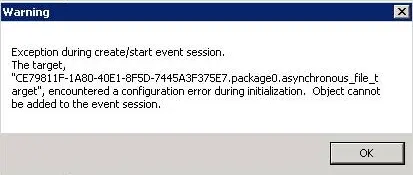
"Exception during creation/start of an event session"
In case you receive this warning message, the following actions need to be taken:
Warning 1
➢ Verify that the storage path (e.g. D:\My Databases\QueryCaptures) is shared.
➢ Verify that the authenticated user has write permissions for the storage path (e.g. D:\SQLSRV\EtereXELog).
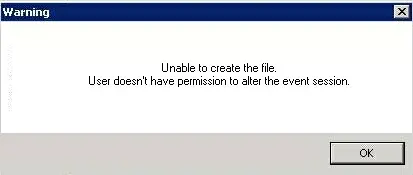
"Unable to create the file. The user doesn't have permission to alter the event session."
In case you receive this warning message, the following actions need to be taken:
Warning 2
➢If using "MS SQL Server authentication", verify that the authenticated user has administrator privileges.
➢If you are using "MS Windows authentication", either set an MS SQL Server authentication (with administrator privileges) or verify that the authenticated user is enabled in the SQL Server and has administrator privileges.
 Warning_2
 Query_Capture
 Warning_1
 Warning_2