59.2.49.12 Web Tapeless
The Web Tapeless feature allows you to customise the columns to be displayed in the "Asset to Send" and "Asset to Link" modules when using the Tapeless module in EtereWeb.
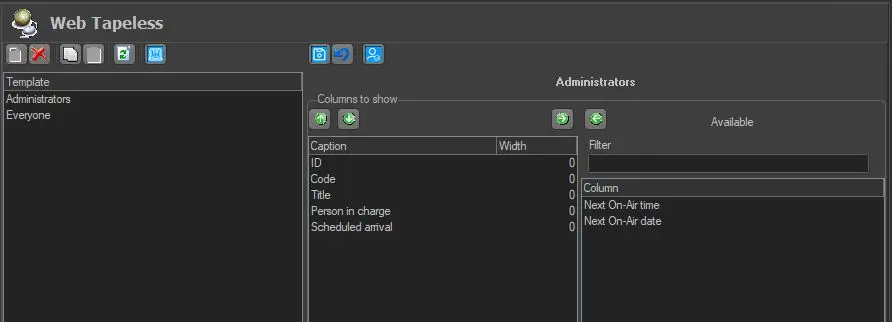
Web_Tapeless
A list of user templates is available for selection on the left panel in the Web Tapeless configuration. When a user template is selected, click on the <New> icon in the Toolbar will display a list of available columns for the selected user template on the right panel under the Available > Column window. For Tapeless Reception, the key columns to be selected include Scheduled arrival, Person in charge, Next On-air date, and Next on-air time.
How to configure
• From the right panel, select desired columns to be displayed in the "Asset to Link" and "Asset to Send" modules when you access the Tapeless module in EtereWeb. Add the columns to the central panel using the left-arrow button or remove them using the right-arrow button.
• When more columns are added to the central panel ("Column to show"), you can position them using the up/down arrow buttons.
• Each added column would have a column width of "0" value; you can adjust the column width to accommodate the size of data in the column.
• When all columns settings are confirmed, save the settings and exit from the configuration template.
Login to EtereWeb
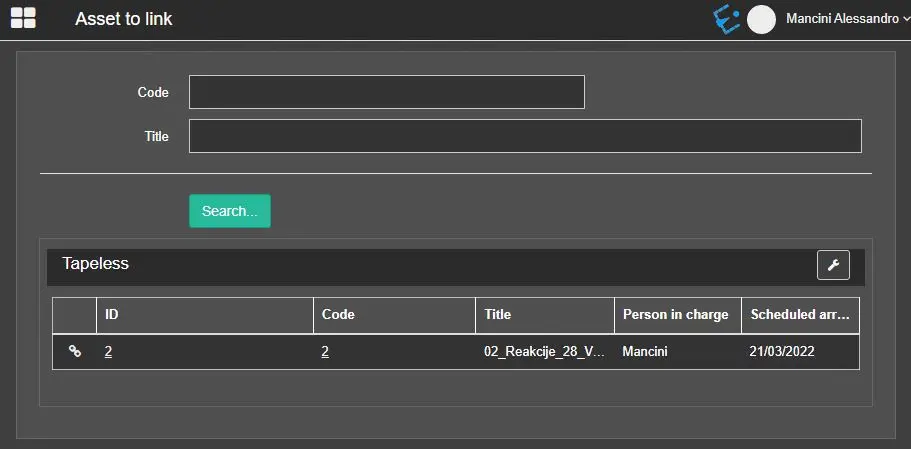
When you log in to EtereWeb and access the "Asset to Link" and “Asset to Send" modules in Tapeless, the selected columns are displayed as defined in the Web Tapeless configuration settings.
Asset_to_Link_and_Asset_to_Send
 Web_Tapeless
 Asset_to_Link_and_Asset_to_Send