59.6.2.226 Harmonic - Channelport MC resource editor
The "Edit Resource" form allows one to define a Harmonic master control resource (2 input and one output channel). The fields required for its configuration are following described:
READ-ONLY INFO
Code - The path of the resource that you are editing is displayed.
Type - Shows the type the resource belongs to (e.g. MAST).
Number - Ordinal number that differentiates the resource from others of the same type.
Resource Properties
Name - A brief description that identifies the resource must be inserted.
Driver - Select the driver to be used by Etere to control the master control. Available drivers include:
•CPHARMONIC: The device will be controlled via serial using the Standard OXTEL protocol.
•CPHARMONICIP: The device will be controlled via ethernet using the Standard OXTEL protocol.
•CPHARMONICIPNA: The device will be controlled via ethernet using the Network Automation protocol.
•CPHARMONICMTXMC: This driver is no longer available.
NB: The Network Automation protocol is a simplified version of the Standard OXTEL protocol; it doesn't require the headers of the commands and the checksum and does not give back acknowledgement.
IP Address and local port - In case of using an ethernet protocol (i.e. cpharmonicip or cpharmonicipna), it must be specified:
•The IP address of the device host.
•The local UDP port (default=9100) the device uses for listening.
E19 resource ID - Optionally, insert the ID of the resource created under the Resource Editor module for this resource. This identification number is used, for example, to check the storage space usage of the resource.
RESOURCE PARAMETERS
Transition speed - Set the 3 transition speeds in milliseconds (slow, medium and fast) related to the time the DVE (Digital Video Effects) will take to complete a given task.
Use the up and down arrows to adjust the value or type of the required fields.
Number of channels - Specify how many input channels (max. 2) and output channels (max. 1) will be managed by the device (this information is used to edit the channels in the resources tree).
NB: Please note that commands supported by this device are a sub-group of the ones supported for ImageStore devices (e.g. imagestore HDTV, Imagestore 300+, Imagestore Intuition); therefore, the Channel Port MC will be treated as a Grass Valley Imagestore to send Oxtel commands over TCP/IP.
Once compiled, click the [Confirm] button to add the MASTER CONTROL resource to the Resources tree. Afterwards, it will be possible to configure the following:
Device users: Select the resource and click the [Users] button.
Channelport MC resource editor - User
Indicate to which user and to which module or program the relevant resource must be activated by specifying the following:
READ-ONLY INFO
Resource - Code of the resource channel.
Name - Name of the resource channel.
ID Number - Identification number of the resource channel.
USER INFORMATION
PC Name - Indicate the specific workstation (user) for which the resource will be allowed. Once selected, it will be automatically retrieved and displayed the ID number and PC name corresponding to the selected user.
Function - Indicate the module (function) on which the user mentioned above will be allowed to use the resource in question
USER PARAMETERS
Com Number - Indicate the number of the PC that the device is connected to.
Via UDP - If the device is controlled via UDP, indicate here the IP address and local port the device host uses for listening.
Com configuration: - Available configurations include: Baudrate (default=19200, 9600, 38400, 57600, 115200), Parity (default=None), Databits (default=8) and Stopbits (default=1). The resource must be set with the default data displayed here.
422 - Device (out): Indicate the no. of the device to be activated when you open the resource.(-1=not installed)
Controller (in): Indicate the no. of the controller to be activated when you open the resource. (-1=not installed)
NB: Only in special cases with a centralized video router that allows one to commute serial ports can you set the data referred to above to 422.
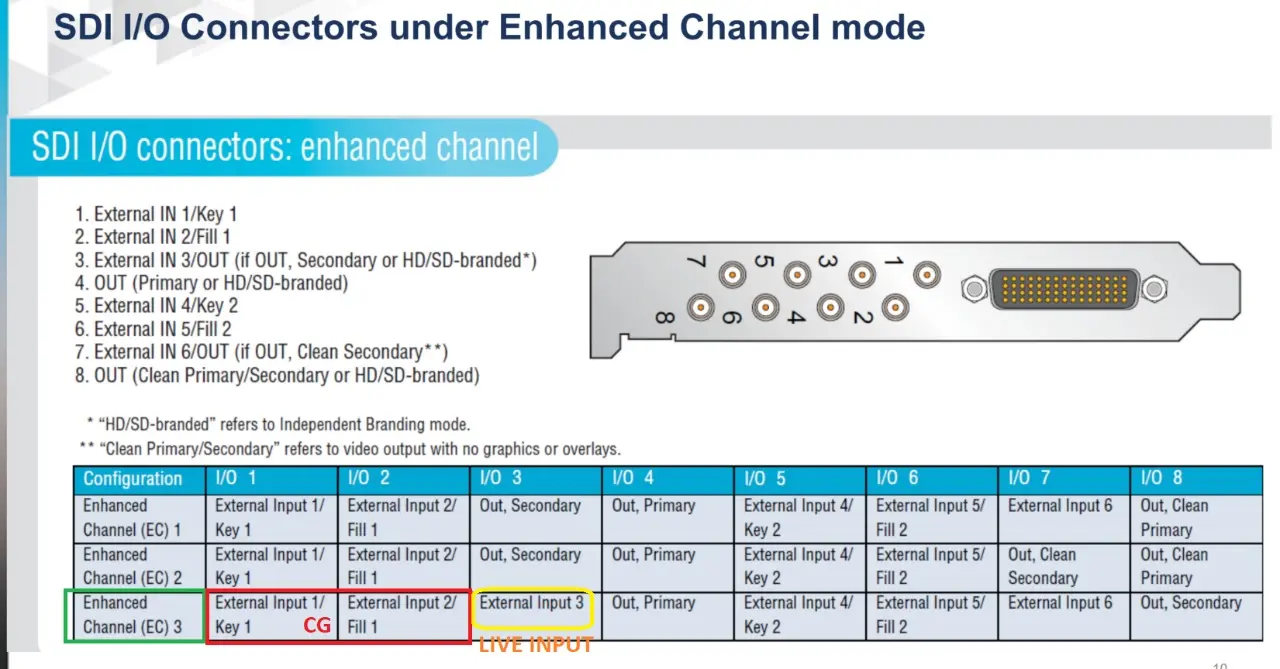
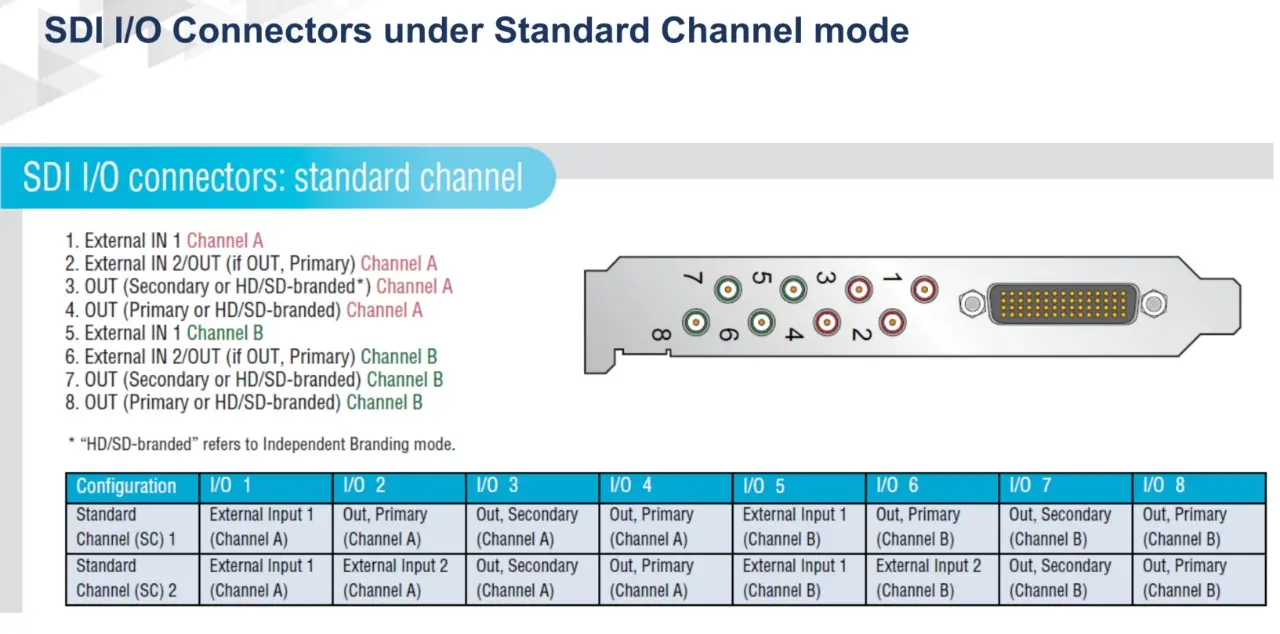
Changed mapping between etere channels and cp channels
Channel Mapping:
Etere channel Channel port channel
1 Player A (unchanged)
2 External In 1 (unchanged)
3 Color generator (unchanged)
4 Player B (new)
5 External In 2 (new)
6 External In 3 (new)
7 External In 4 (new)
8 External In 5 (new)
9 External In 6 (new)
... Color generator (unchanged)
harm-cp-vtvcab
harm-cp
 harm-cp
 harm-cp-vtvcab