72.2.1.16 T-Workflow Management
Searching by Workflow
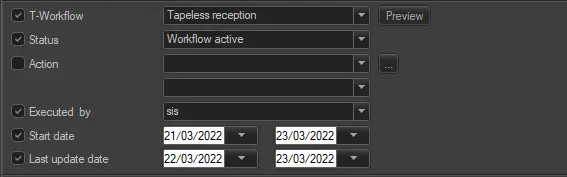
Etere allows to search assets based on certain T-workflow-related information, compile the workflow filter present on the search section indicating the following parameters:
4262_T-Workflow
Workflow - Indicate the T-workflow to be used as the criteria to filtering retrieved assets. By pressing the 'Preview' button it display a graphical representation of the current selected T-workflow.
Status - Specify if the T-workflow must be 'not associated', 'not started', 'active', 'terminated', 'abort', 'fault'.
Action - In case of filtering 'active workflows', it is possible to specify the exact action (and its state) on which the T-workflow is positioned.
Only actions active for the selected T-workflow are displayed, press [...] button for an Action's detailed view.
Executed by - Indicate the operator who launched the T-workflow to narrow the filtering process.
Managing workflows
Etere Media Library allows to manage, for various selected assets, one or more T-workflows directly from the Search tab. In order to do this just select the asset(s) to be managed, right-click on them and select one of the following operations:
•Launch T-workflow
This function will perform, for each selected asset, one of the following actions:
If the T-workflow is not yet attached - The T-workflow will be attached to the asset when launched.
If the T-workflow is attached and not started - The T-workflow will be launched for the asset.
If the T-workflow is attached and ended - The T-workflow will be re-launched for the asset.
If the T-workflow is attached but running/aborted/fault - No action will be performed. A warning message will be displayed indicating the issue and the related assets.
•T-workflow info (Ctrl+W)
The Workflow Info tool will be opened, allow the operator to manage T-workflows either for one asset or multiple assets.
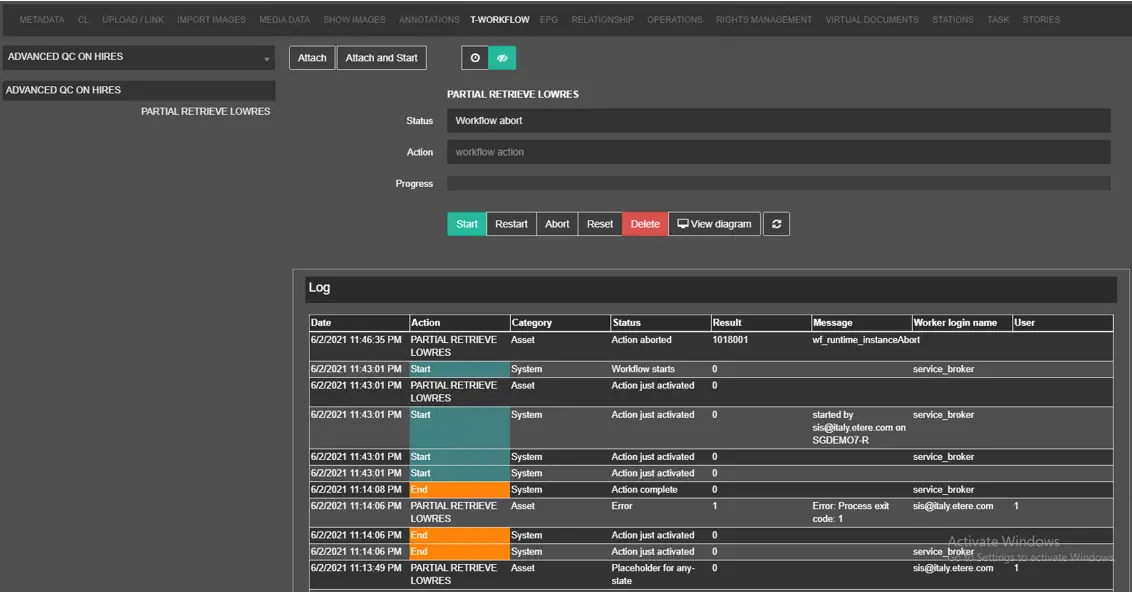 T-Workflow
 T-Workflow