76.1.3 Available Functions
Here is a detailed summary of the toolbar buttons, which are also available under the Function menu:
•Refresh: Use it to update the schedule shown in 'Multichannel Editor' and also to activate the display of other options to be added that have to be visualized in the form (such as commercial crowding or warning messages),
•Zoom in/Zoom out: It allows you to increase or decrease the timeline scale,
•Auto refresh: It allows you to activate/deactivate the auto-refresh option,
•Commercial Crowding: When it is active, the percentage of commercial crowding will be shown in the schedule row (needs refreshing):
commercial_crowding
•'Warning Message: When it is active, a warning message will be shown in the schedule row in the case where a video file is not registered. In general, all warning messages are marked by a triangle, the same visible in Executive Editor (once you activate this option, remember to refresh to make it visible),
•Executive Editor: Choose to open the Executive Editor module at the top or bottom of the window. Executive Editor allows daily managing schedules (i.e., insert events, move events, delete events, etc.) and publishing (Multichannel View_secondbutton05) changes to the automation schedules.
•Remote Panel: It lets you view the automation remote control window for all selected stations. See the Remote Panel chapter.
•Emergency Event Insertion: It allows to insert an event across different stations at specific positions of their automation schedules.
See the Emergency Event Insertion chapter.
•Run secondary event Immediately: It permits sending a secondary event (e.g., logo, crawl, pass-thru, etc.) on air directly through Etere STMan. See the Run secondary event immediately chapter.
•Multichannel Asset Change: It opens the Multichannel Asset Change module that allows to schedule a pool of assets through a set schedule on a rotating basis. It easily replaces an event across all its scheduled on-air appearances with other assets.
•Parameters: It allows you to set the configuration parameters, see the Parameters chapter.
•Help: It activates the contextual help at the point that you click,
•Save Logs: It allows you to see software log files, save them, and send them directly to technical support if you need help.
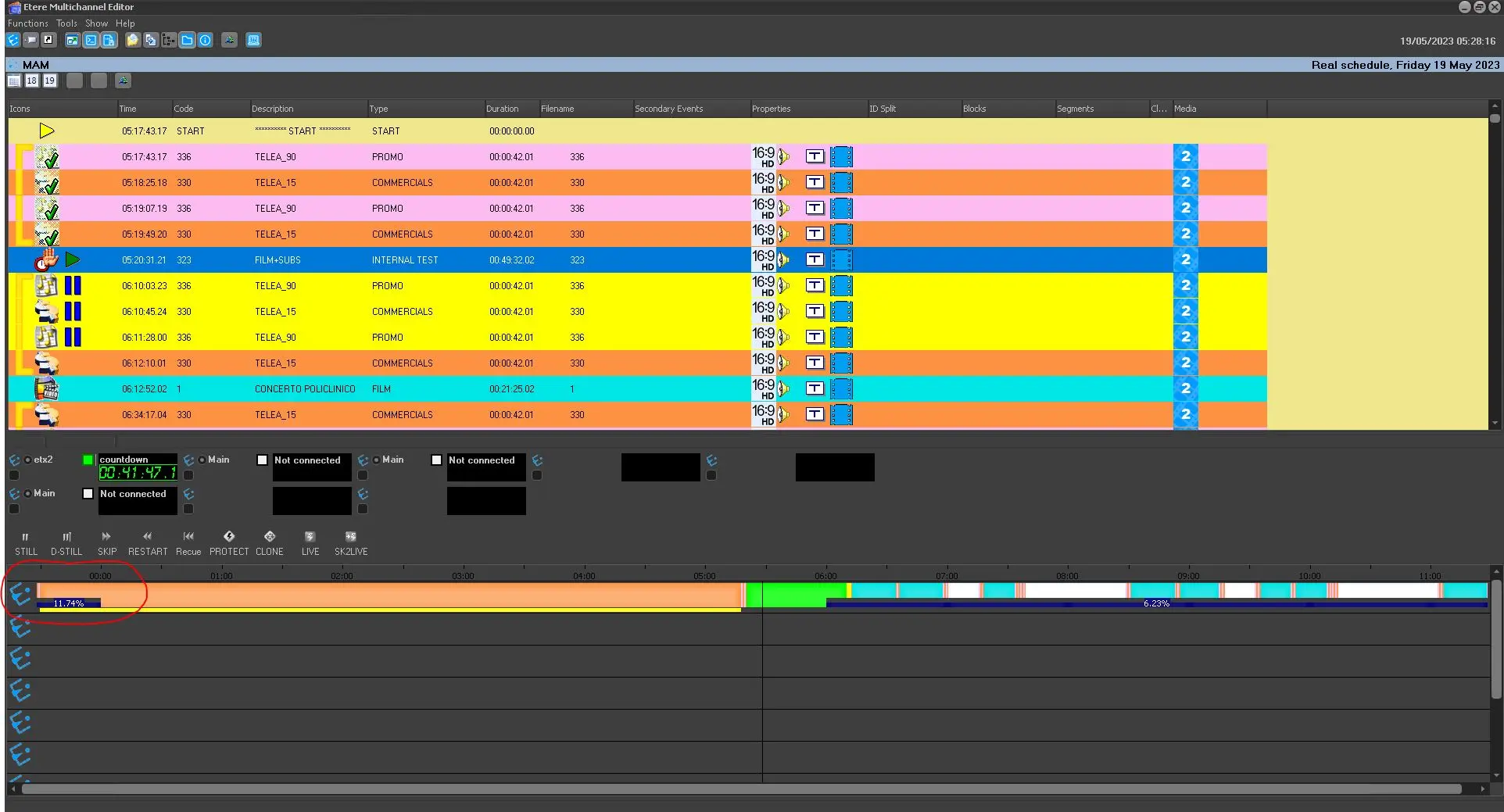 commercial_crowding