72.2.2.56 Secondary events - Event Type
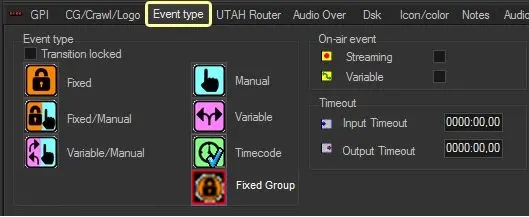
The "Event Type" tab enables you to specify the type of the event depending on the nature of its duration:
Event Type
Fixed - The event will have a fixed on-air start time that will be maintained even if new events are added around it.
If 2 fixed events were scheduled consecutively, only the first event would be fixed event, the second event would be changed to “Manual” event (if it is Live event) or “Timecode” event (if it is not a Live event).
NB: Please note that two Fixed events cannot be scheduled in close sequence (a warning message will be displayed). If a scheduled event is fixed, its previous event must be variable or variable/manual.
NB: If two Fixed and Fixed/Manual events are applied consecutively using the “Apply Secondary Events as Default” function in Executive Editor, the second event would be converted to a Manual event.
Fixed/Manual - The event will have a fixed on-air start time but its end will be manually controlled by an operator.
When 2 LIVE events were scheduled consecutive, the first LIVE event would be “Fixed” event where the second LIVE event would be changed to “Manual” event in the schedule.
Variable/Manual - The event will have a variable duration as its end will be manually controlled by an operator.
This event type can be used for "live" events, even if their suggested type is "manual".
Manual - The event will have a manual duration as the operator must skip the event (e.g.: from the automation Remote Control). This event type is highly suggested for "live" events.
Variable - The event will have a variable duration, that is, it will automatically adjust its duration to end either before (i.e. interrupt its transmission) or after (i.e. loop its transmission) to coincide with the scheduled start time of the next event in the schedule.
This event type can be set for events scheduled before fixed events, thus allowing them to start at their fixed times. For further details refer to How to broadcast a variable event.
Timecode - The event will have a timecode duration, that is, it will be aired from its SOM (mark in) to its EOM (mark out) timecode. It's worth mentioning that this type is set for almost all events.
Fixed Group - Select a group of events and fix the on-air start time. The calculated total duration of the selected events would be displayed in the Duration column in-line with the first selected event, the last event in the selected group would remain its fixed scheduled time in the Time column. The selected events can be empty or overlapped in the list.
There are 2 criteria when selecting this option:
• Manual scheduled event is not allow to be selected.
• Only one “Fixed group” is allowed
Transition locked - Enabling the "transitions locked" option allows to avoid changing the "event type" property of events with "transitions".
On-air event
Streaming - Set this property for events intended to be sent on-air while still recording them, this, taking into account their expected timecodes.
When an asset is created with an expected duration, once scheduled it will appear in the schedule with a "red triangle" warning icon to indicate that it has not yet been ingested. As soon as the asset starts to being ingested by Etere Ingest, it will be possible to use the "update duration and media" function (in Executive Editor) and republish the schedule to make the event to be considered as ingested (even if the actual recording has not been completed) so the automation will be able to send it on-air.
NB: This property is usually enabled for the live events (e.g. News).
Variable - Set this property for events intended to be sent on-air for their actual duration, that is, without taking into account their mark in and mark out timecodes.
When an asset is created, it can be scheduled several times a day or for several days. It may occur that the file associated to the asset is re-ingested several times causing the asset duration to vary within schedules; to avoid performing the "update duration and media" function (in Executive Editor) every time the asset file is re-ingested, enable this property so that the automation puts the event on-air for its actual duration (the schedule will adapt itself forward if actual duration is greater or backward if it's less than scheduled duration.
NB: This property must be set only for ingested assets, otherwise, the automation will continuously attempt to read the actual duration of the event (e.g. live) displaying a warning icon and possibly causing issues on the automation playout. In order to check if an asset is either ingested or not just make sure it doesn't appear in the schedule with a "red triangle" warning icon.
Timeout
Input Timeout - This property, which is related to manual events, can be set with the following values:
❑ zero: during its airing, the event can be manually skipped at anytime.
❑ greater than zero: during its airing, the event can be skipped only after reaching a required timeout, calculated as the EOM timecode minus the Input Timeout set here.
Output Timeout - This property, which is related to manual events, can be set with the following values:
❑ zero: during its airing, the event won't be automatically skipped by the automation but an operator skip will be required to make the automation go to the next event.
❑ greater than zero: during its airing, the event will be automatically skipped by the automation after the timeout specified here is reached.
 Event_Type