59.2.14.1 Subtitles
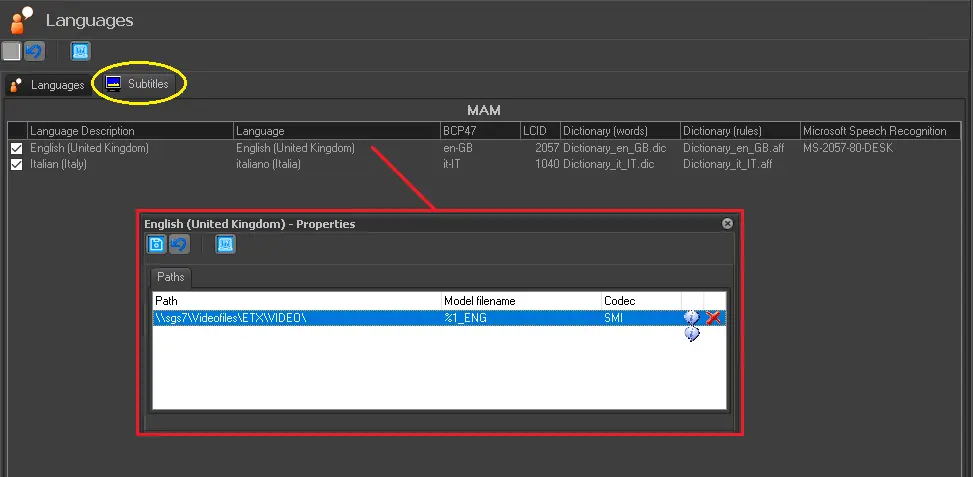
The "Subtitles" area is where subtitles will be defined for all enabled languages; you can indicate the "path", "filename' and "codec" to be used for each supported language by adding subtitles from either the Media Library or the Subtitles Tool.
To set subtitles, right-click on them (only those languages enabled in the languages tab will be displayed) and select the 'properties' option:
Subtitles
Path - Select the cloud device on which subtitle files of the selected language are stored.
Model Filename - Set the filename format for searching the imported subtitles (and saved). You can use two predefined variables:
%1 - Represents the ID of the asset to be broadcasted.
%2 - Represents the Code of the asset to be broadcasted.
For instance, if you set the model file name as '%1_Italian', when a subtitle is imported into an asset which ID is '10', it will be saved as '10_Italian' within the previously defined path.
Codec - Indicate the codec available (e.g. smi, txt, etc.).
Press the [Save] button to save the settings. All data set in this section will be used to import subtitles; Etere will search for all subtitles matching the model filename.
NB: If the setting is deactivated (unchecked), the broadcasting of subtitles from this workstation would be disabled.
 Subtitles