10.6.1 Interface
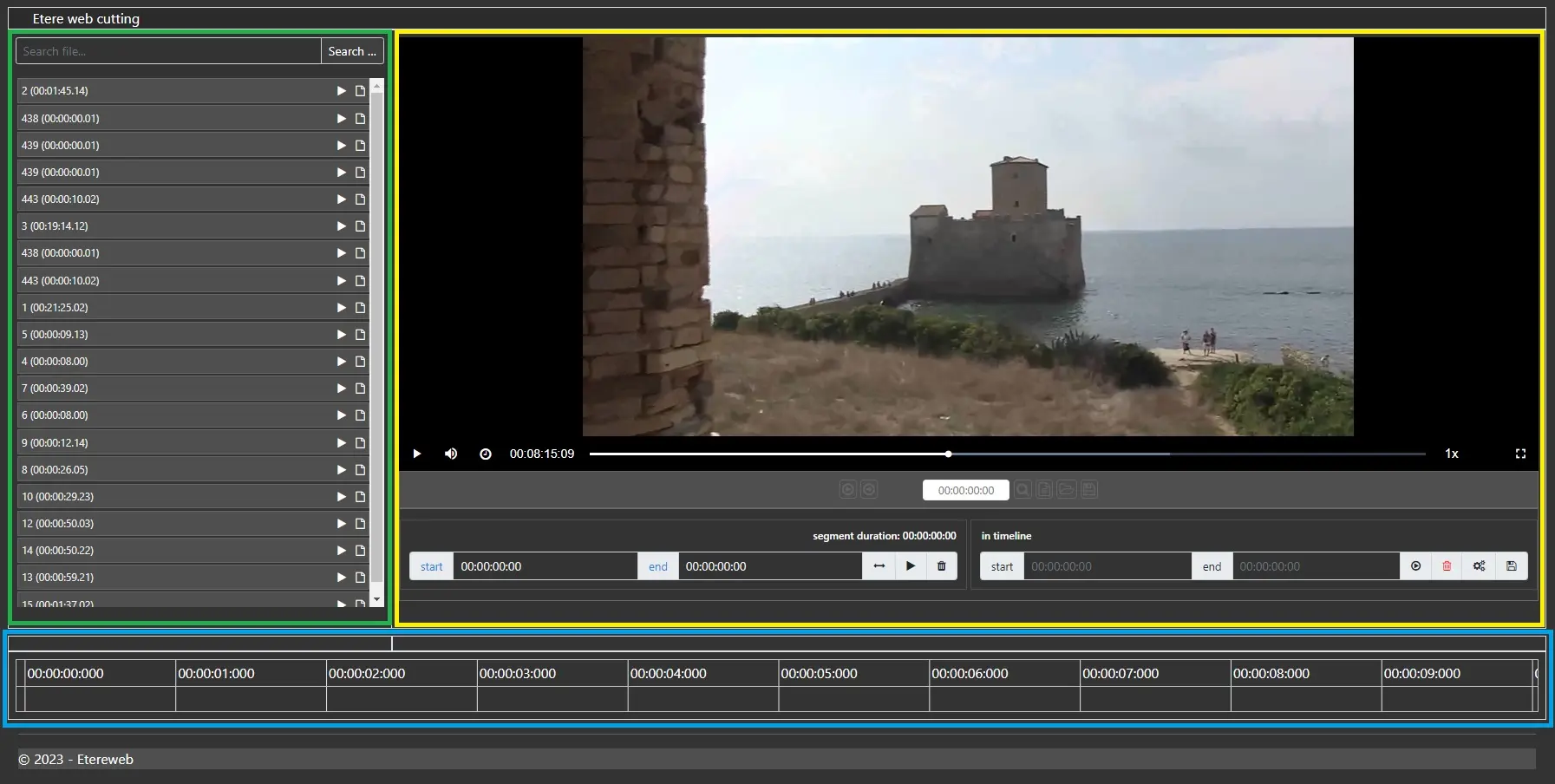
Etere Web Cutting application is formed by three main sections: Search tab, Preview tab and Timeline tab. They're highlighted in green, yellow and blue on the picture Web_Cutting_Interface.
Search Tab
The search section allows one to search across all available media on the Etere System. Based on the codec configuration explained in the previous chapter, it will only show media linked with the codec selected.
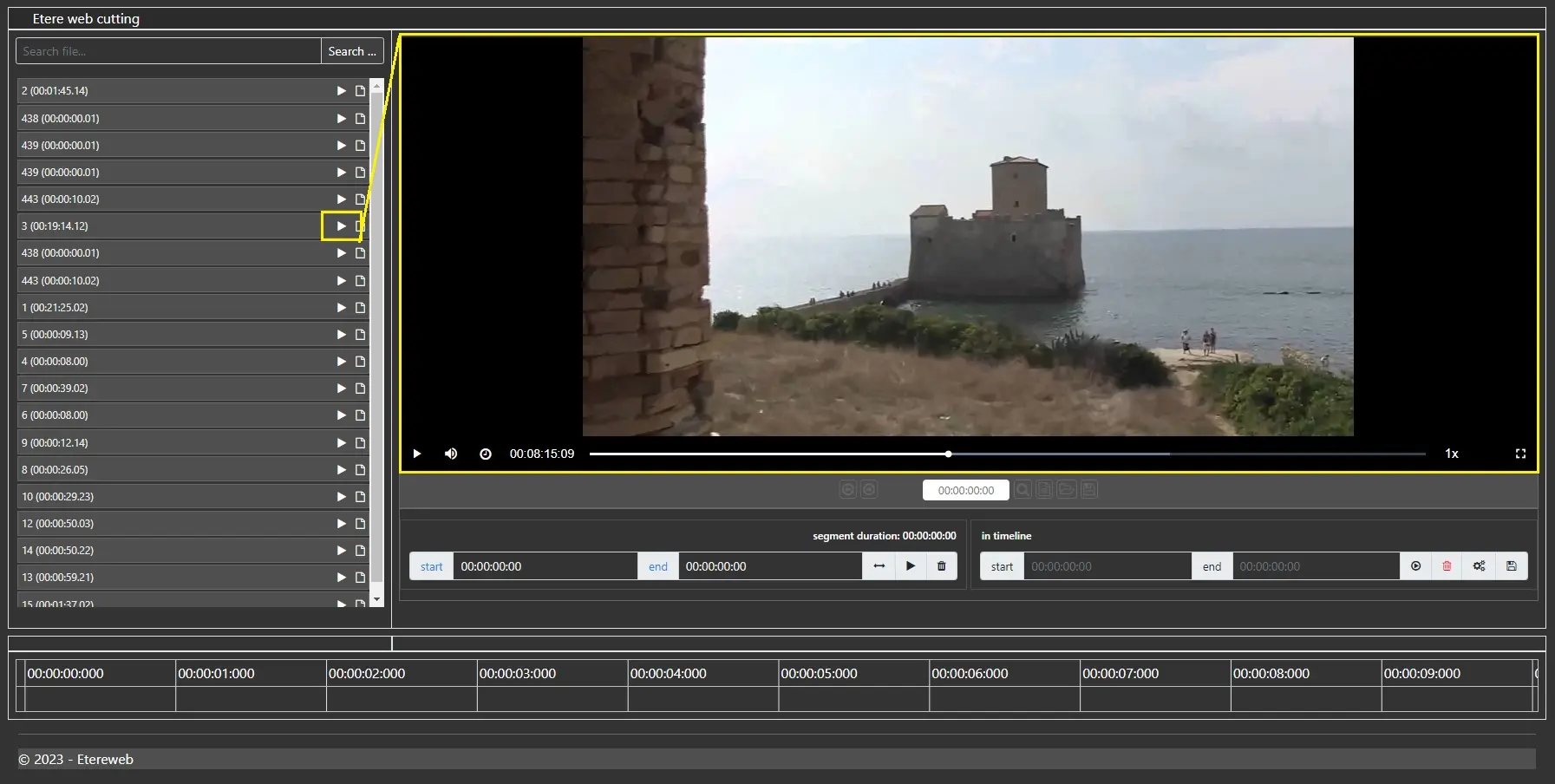
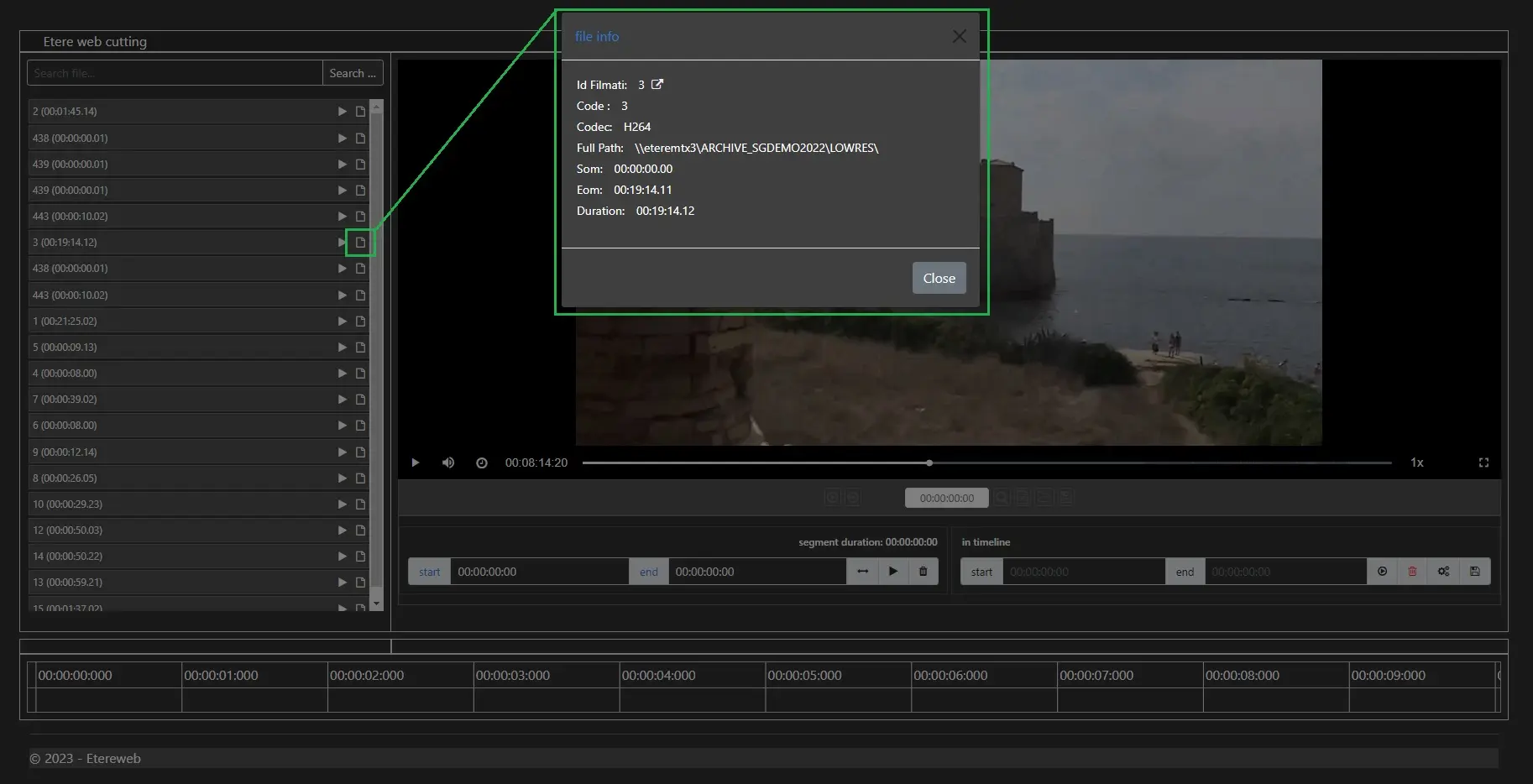
Media are listed, showing the related asset's code and the video's duration. The "play" button will load the media preview (Play_from_search), while the "info" button will show some information related to the media (info_from_search).
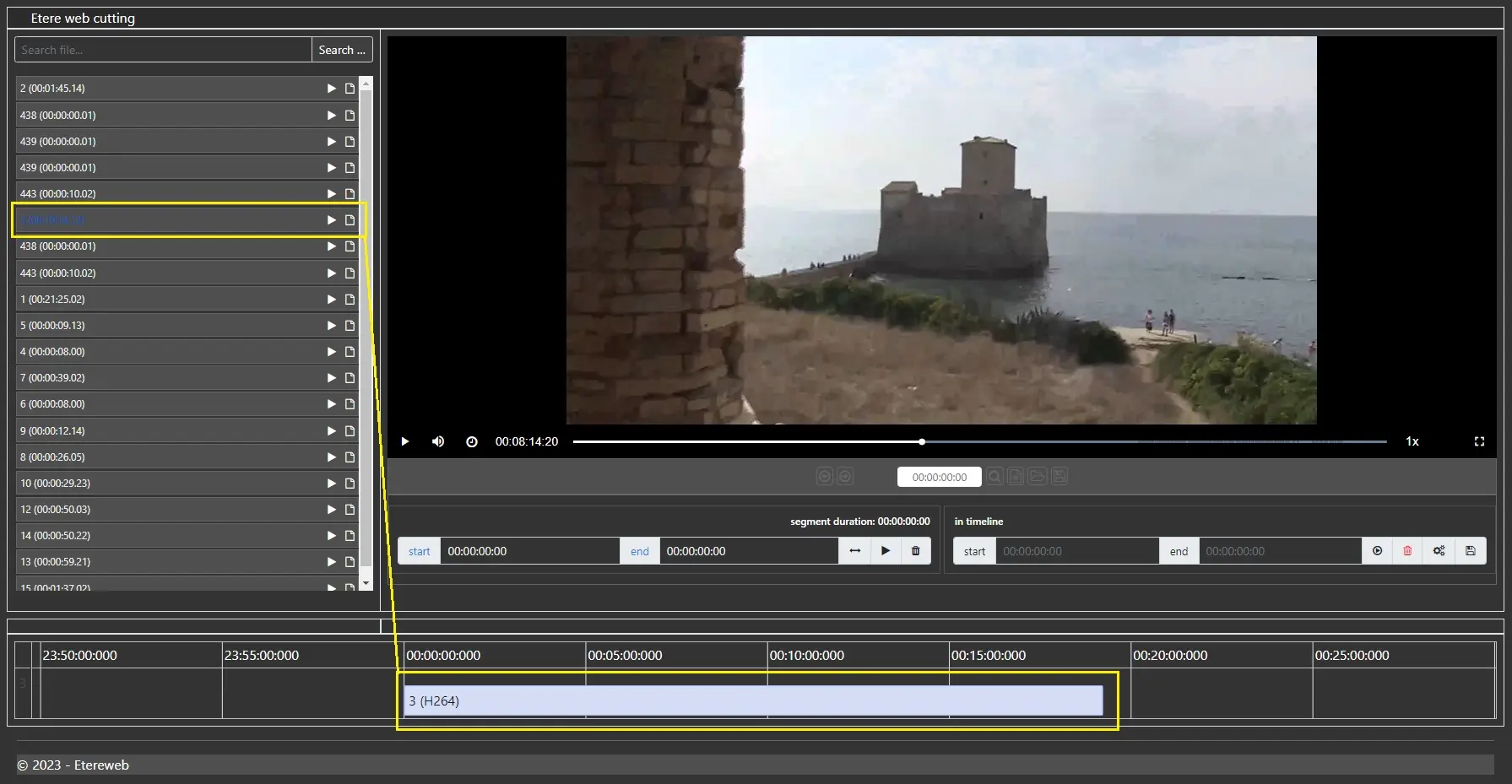
By clicking on the code, the media will be added to the timeline (add_to_timeline)
Timeline Tab
Objects in the timeline are sorted by alphabetic order, and the timeline scale is adaptative to objects loaded into it. Increasing or decreasing the timeline scale is possible by pressing CTRL and rotating the mouse wheel up or down while the mouse pointer is over the timeline.
Once a media is loaded into the timeline, it can also be moved manually on the timeline length and resized.
Preview Tab
The preview form allows one to preview each object loaded into the timeline or have a full preview of the project in progress.
Double-clicking on the object in the timeline, the related media is loaded on the player, and its details are shown on the player toolbar.
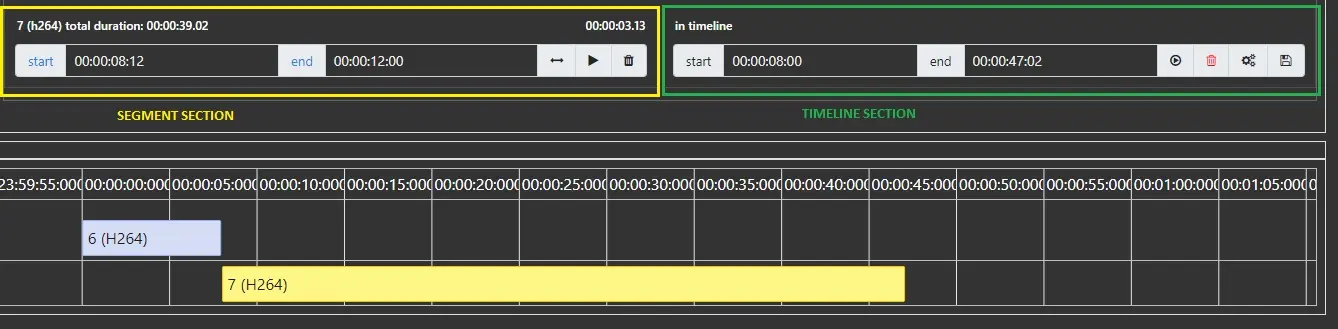
The player toolbar comprises a section related to each object and an area associated with the timeline.
It is possible to start the play of the object by using the "play" button on the segment section of the toolbar, and while media is playing, it is possible to use the "start" and "end" buttons to set SOM and EOM of the segment that is intended to be used. Every time marks are modified, the "SAVE" button on the timeline section must be used to update the interface correctly. The "trashbin" button will remove the object from the timeline.
In the timeline section, it is possible to set the starting and ending time of the object by editing the "start" and "end" fields instead of manually moving the object through the timeline.
The "play" button will start the creation of the resulting media, which will be automatically played on the preview form as soon as it is ready.
The "red trashbin" button will completely delete the whole timeline, thus removing all the objects loaded. In contrast, the "gears" button will complete the project, thus creating a new asset where the resulting media will be linked.
The asset will be a virtual asset with EDL 1 composed by segment edited on the Web Cutting application.
Player_toolbar
 Web_Cutting_Interface
 Play_from_search
 info_from_search
 add_to_timeline
 player_toolbar