93.2.1.17 MMS - Packaging
MMS - ETERE AQC is the action used by ETERE system to export multiple files linked to an asset as one single package (either as a directory or a zipped file).
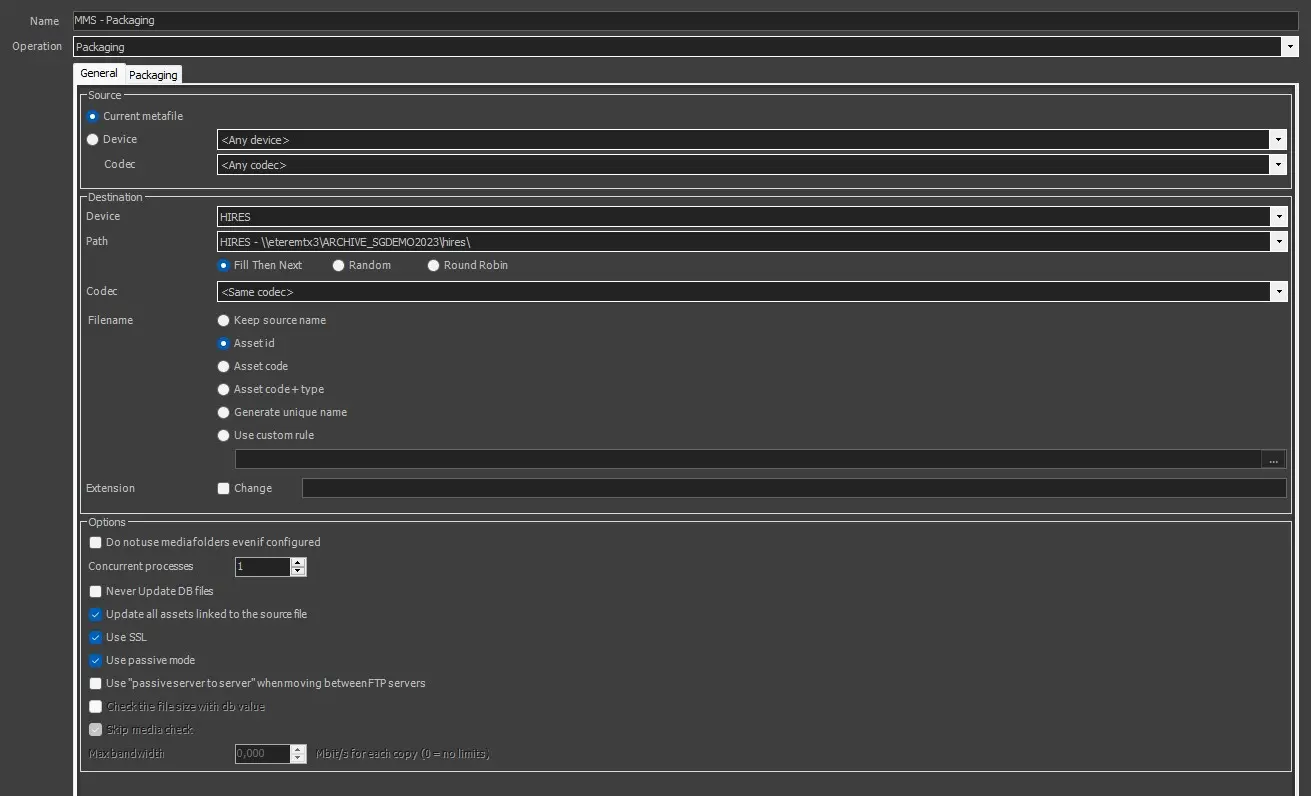
MMS_-_Packaging_-_General_Tab
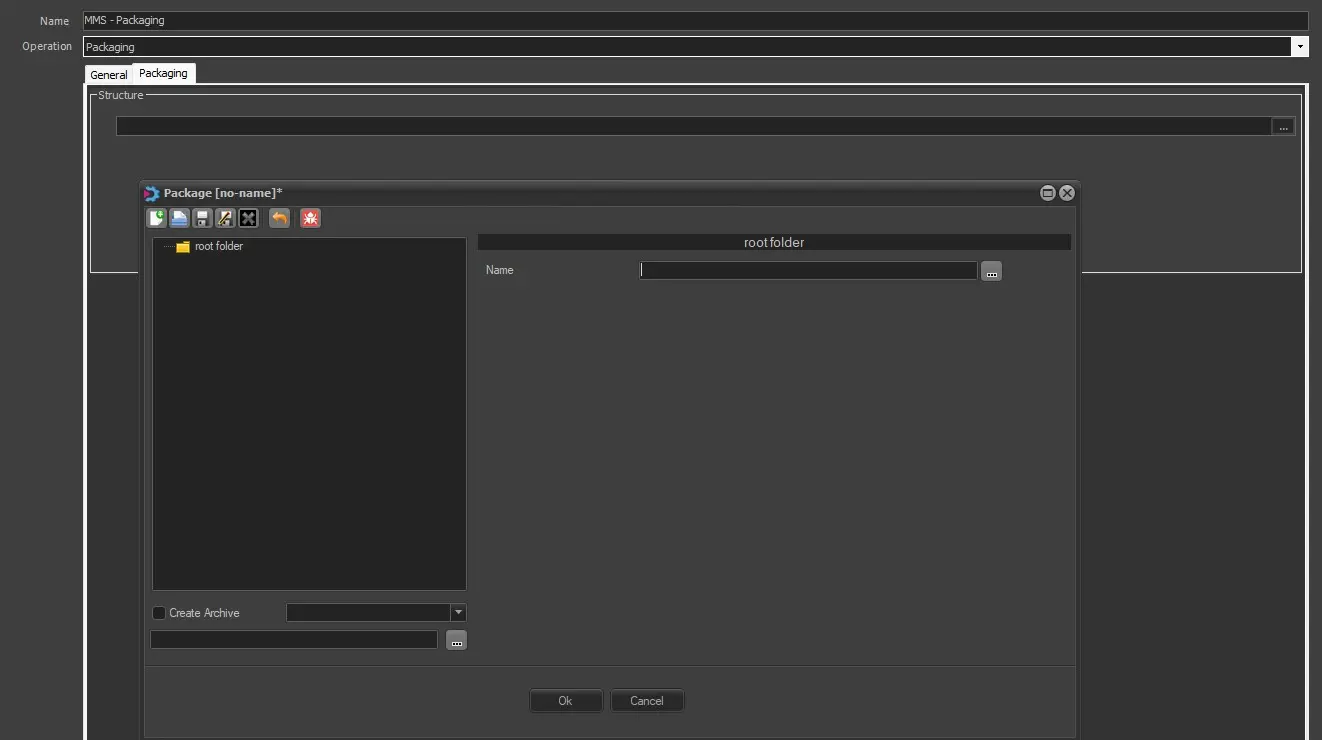
MMS_-_Packaging_-_Packaging_Tab
To create this action, the following fields must be filled.
GENERAL TAB
Name: Give it a short name to identify the action.
Operation: Select "Packaging" option.
SOURCE
Current metafile: Select this option to use the current metafile previously set.
Device/Codec: Select the source device and codec. If the metadevice contains multiple versions (codecs) of the file, select the codec you wish to copy or delete.
DESTINATION
Device: Select the destination device to which the files would be copied.
Path: If the selected cloud device contains more than one path, this parameter allows one to choose one of them as the destination path.
Codec: Select the destination codec where the files would be copied to.
Filename: Choose, among the following options, how the destination filename should be managed.
• Keep source name - Enable this option to maintain the file source file name in the destination. This option is enabled by default.
• Asset ID - Rename the file as the ID of the asset to which the wf is attached.
• Asset code - Rename the file as the asset code to which the wf is attached.
• Asset code + type - Rename the file as the code and the type of the asset to which the wf is attached.
• Generate a unique name - The physical file will be named using a unique identification (UID) automatically generated by a system algorithm.
By default, one unique name is generated for each metafile; therefore, in case the file is formed by multiple physical files (e.g. mpg, pd, vix), MMS will use the same UID for all files but different extensions; for instance, the files 2143.mpg, 2143. vix and 2143.pd will become 02BD0000000000000075.mpg, 02BD0000000000000075.vix, 02BD0000000000000075.PD.
If the metafile name is changed, MMS will use the same UID for both the file and the metafile, thus allowing the support of video servers on which video files are managed, maintaining a relationship between the name of metafiles and physical files.
• Use custom rules - The file will be named with a custom filename based on database references (e.g. Flexi-metadata, asset data...) and free text.
Note: If in the RENAME action, a rule takes the value from a flexi that contains characters not supported by the operating system (such as | \ / : * ") ETERE automatically replaces them with the character - (hyphen).
Extension: This parameter allows modification of the extension of the destination file, activating the "Change" flag and typing it in the field.
OPTIONS
Do not use media folders even if configured: Enable this option to ignore the translated path, even if it's configured.
Concurrent processes: Indicate the maximum number of actions that can be taken at the workstation simultaneously.
Never update DB files: The file won't be updated in the database.
Update all assets linked to the source file: If enabled (default), the copied file will be associated with all the asset forms linked to the source file.
Enabling this option is useful: for instance, when a single file is used by multiple assets (e.g. which transmit it overlaid with different logos); in this case, every time the file is copied, the new copy will be updated across all linked assets.
If disabled, the copied file will be associated only with the asset form for which the T-workflow has been launched.
Disabling this option is useful, for instance, when a single big file (e.g. a live feed recording) is used by multiple assets which partially retrieve a smaller file; in this case, only the support from which the partial retrieve has been executed will be updated.
Use SSL: Enable this option to use SSL (Secure Socket Layer) when saving the file in a destination path over the network. If enabled, the service media manager would attempt to complete the action using the following authentication steps in sequential order:
- FTP over TLS (Transport Layer Security)
- FTP over SSL (Secure Socket Layer)
- Plain FTP (without encryption)
If the FTP server supports SSL encryption, the Media Manager service will use a new set of libraries for copying files. Else, Plain FTP would be used.
Use passive mode: If checked, the FTP client will try to use passive mode for all file transfers (upload/download/move); otherwise (if disabled), the standard active way will be used.
Use "passive server to server" when moving between FTP servers: Enable this option if both source and destination devices use the FTP protocol and support 'passive mode'.
Check the file size with db value: If enabled, an additional check would be performed to compare the size of the copied physical file and the file size stored on db. This is useful to signal if the file has not been copied entirely into the destination folder. In this case, its file size differs from the original one, and this check can alert the operator by signalling an error in the wf. Not available for this kind of action.
Skip media check: Allow to avoid checking if the source file's device and codec match with the ones defined in the action. This is mandatory in the case of the Memory cut action because the Memory cut wf is attached to a new empty asset with no meta file, so the action would end in error if this parameter is disabled. Not available for this kind of action.
Maximum Bandwidth: The maximum bandwidth option is only supported for copies to limit the bandwidth used for data transfers.
PACKAGING TAB
STRUCTURE
Set the behaviour regarding the structure of files within the package.
Press the button to open the Package Editor and configure the structure of the package that will be exported.
Package_Editor
1. Create a new package or open an existing one (e.g. VOD for Canal+)
2. Add all required folders (e.g. Metadata, Proxy, Video, etc.)
3. Add and configure all required contents (e.g. Metadata.xml, Proxy.mp4, Hires. mxf, etc.)
4. Apply all changes by saving the package
5. Perform a dry run to test the package creation on a specific asset.
6. Start using the packaging in T-workflows!
Toolbar menu
The following toolbar functions are provided to allow managing the creation of the package:
• New package: Creates a new package from scratch.
• Open package: Load an existing package.
• Save package: Apply all changes performed to the current package.
• Save package as...: Create a new package as a copy of the current one.
• Delete package: Removes the current package from the database, definitively.
• Undo everything: Cancel all changes performed to the current package since it's last save.
• Dry test on current package: Open a small form that allows simulating a package creation based on the following specific parameters:
Asset ID - Enter the asset ID for which the package creation will be performed.
Base Folder - Select the path of the cloud device in which the package will be created.
[Dry Run] - Simulate the creation of a package, and display its related information:
▪ Actions to perform (i.e. action, source and destination)
▪ Logs (i.e. detailed operations execution)
Zip files: If disabled (default), the package will be created as one directory containing all subfolders and contents.
If enabled, the package directory will be compressed within one zip file, preserving the directory structure.
Contextual menu
The following contextual functions are provided to allow managing the content of the package:
• Add child folder: Insert a sub-folder to the currently selected folder.
• Delete folder: Removes the selected folder from the current package.
• Rename folder: Changes the name of the currently selected folder.
• Add content: Insert new content into the selected folder. The available content types and their available parameters are described below in this page.
• Delete content: Removes the selected content from the current package.
• Rename content: Changes the name of the currently selected content.
• Copy: Push the selected content/folder into the clipboard, making it available for pasting it as a new copy.
• Paste: Pull the content/folder from the clipboard, inserting it as a new copy.
Content types
Available content types included are: Placeholder, Metafile files and Asset data. Here below are described the parameters available for each content type:
Placeholder
A temporary content which is scope merely to remember the user that a real content (e.g. metafile, asset data) needs to be added in future.
Metafile files
Select the asset file to be included in the package, matched through the parameters below:
• Principal source - Indicate the metadevice (e.g. HiRes) and codec (e.g. PRJ) from where to take the file.
• Fallback source - Indicate the metadevice (e.g. NLE) and codec (e.g. PRJ) from where to take the file, ONLY if the primary source doesn't exist.
• Rename - Press the [...] button and define a filename using the Rules Editor. If using a file selection filter, only matched files will be renamed.
• Keep external folder hierarchy - If enabled, the content (e.g. Track_01.wav) will be placed into its package folder (e.g. root folder/), recreating also the metafile's original relative path (e.g. /Audio/Tracks/), thus keeping the external hierarchy (e.g. root folder/Audio/Tracks/Track_01.wav).
• File selection filter - Specify the filter pattern (e.g. Track) to be used to exclusively filter some particular files (e.g. Track_01.wav, Track_02.wav, etc.) and ignore other files in the metafile (e.g. Video. mxf, etc.).
Regular expressions - If enabled, the file selection filter will be matched as a regular expression, supporting special characters (e.g. [Tt]rack). If disabled, it will be searched as a normal string (e.g. House).
Operate on external filename - If enabled, the file selection filter (e.g. Track) will be matched against the metafile's original filename (e.g. Track_01.wav). If disabled, it will be matched against the media name. (e.g. 94137).
Select only the first file that match the filter - If enabled, in case of a match with more than one file, only the first found will be selected.
Note: Please note that FTP paths are not currently supported.
Asset data
Export a file containing specific asset information on-the-fly. Below are the needed parameters:
• Etere standard XML format - Select this option to export asset data in the standard format, the "XML Assets Full" export format.
• Select among F90 supported formats - Choose among the following formats: Apple FCP XML, Louise Cognac-Jay XML, Etere generic subtitle (STL), Etere generic subtitle (PAC), CanalPlus XML, Numericable XML, J-One XML, Discovery custom asset, Won XML, XML Assets Full for XSLT.
• Add an XSLT Processing Stage - If enabled, exported data (e.g. Etere Standard XML) will be automatically transformed using an XSL Transformation (e.g. ET_Generic_Export_1) before being written in the output file.
• Rename - Press the [...] button and define a filename using the Rules Editor.
Note: Further details on this feature can be found in the chapter "Asset Data Export".
 MMS_-_Packaging_-_General_Tab
 MMS_-_Packaging_-_Packaging_Tab