79.7.1 Install Nunzio Playout
To start installing Etere Nunzio Playout in workstation, double-click on Etere installer “EtereInstall.exe” to launch the installation process.
4816_Etere_Install
If Etere Nunzio application is previously installed in the station, the installed version (e.g. EtereInstall_31.1.349.4102.zip) would be reflected in the “Installation package” field. In a fresh installation, this field is displayed as blank.
Use the following icon provided in the installer to begin the installation.
Browse: If the installation package has already downloaded to station, use the browse button to locate the installation package.
Download: Use this icon to view the available released versions in Etere FTP Server and download the desired version.
Version History: Use this icon to compare two versions of Etere installation package and view the changes between versions to determine the right version to be installed.
When you have selected the installation package, click <Next> to continue.
NB: It is recommended to stop all Etere applications during the installation process.
4812_Nunzio_Player_1
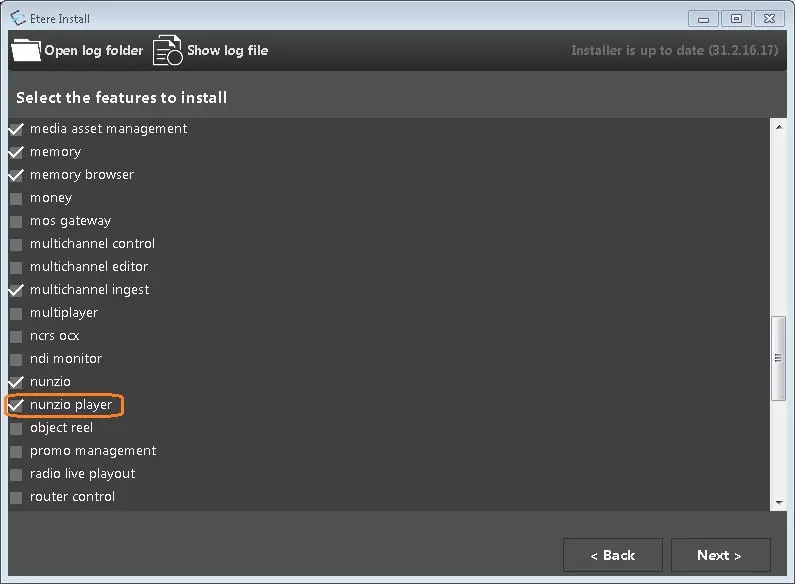
Put a check on “nunzio player” along with other Etere applications to be installed and click <Next> to continue.
4814_Nunzio_Player_2
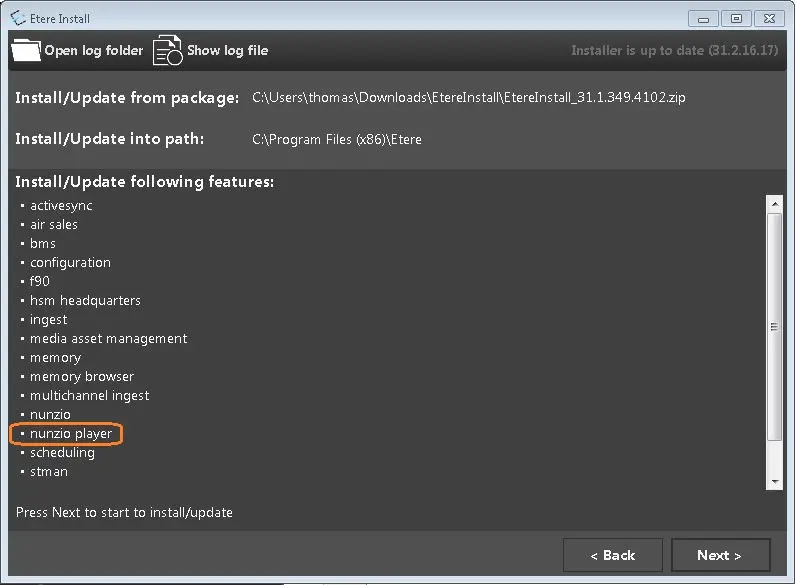
If the selected applications is confirm, click <Next> to start the installation process
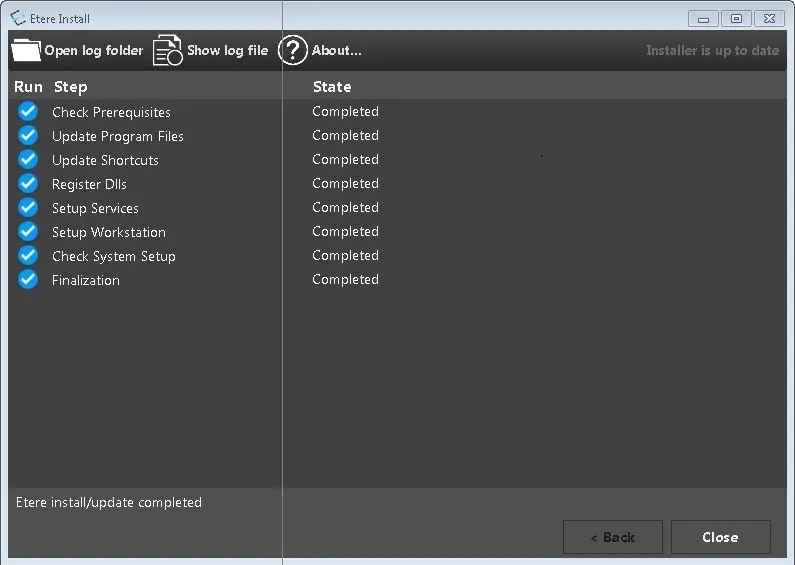
When installation complete, click <Close> to end the process.
4817_Etere_Nunzio_Player
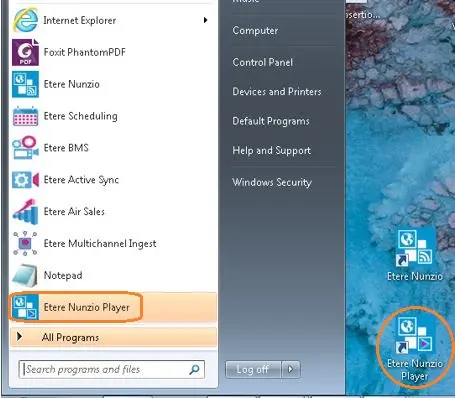
An application shortcut "Etere Nunzio Player" would be deployed in Windows Start Menu for user to launch the Nunzio Player. A shortcut icon with similar name would also added to station desktop for the same purpose
 Etere_Install
 Nunzio_Player_1
 Nunzio_Player_2
 Etere_Nunzio_Player