59.4.10.7 Use UDF (user-defined functions) variables
This chapter explains how to use a UDF (user-defined function) in PowerTools actions; the proposed example will illustrate how to copy the value of an asset field into a fFleximetadata:
1. Create a "Power Tools" action and give it a self-explanatory name (e.g. Copy duration to hhmmssff metadata)
2. Under the Basic Settings, set the following parameter:
Name: Never update db files
Value: Enabled
Description: Do not create nor link files
3. Under the Process Settings, set the following fields:
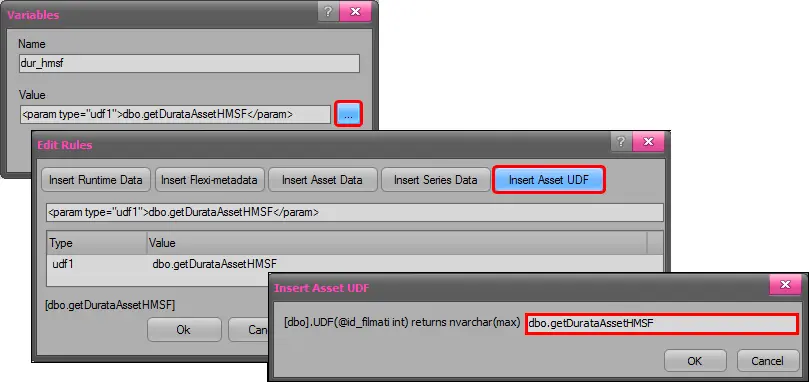
3.1. The job variables, for instance:
job_variables
Name: dur_hmsf
Value: <param type="udf1">dbo.getDurataAssetHMSF</param>
Description: Input duration as "hh:mm:ss,ff"
Note
The "UDF" function will be automatically executed for the asset being processed, returning the value directly on the variable.
The "UDF" (user-defined function) set here must exist in the database. Custom functions can be created under Microsoft SQL Management Studio by executing a query, for instance:
--retrieve the duration of an asset as a "hh:mm:ss,ff" formatted string
Create function dbo.getDurataAssetHMSF(@id_filmati int)
returns nvarchar(11)
as begin
declare @result nvarchar(11)
select @result = dbo._fn_hmsf(durata,dbo.getVideoStandard(1))
from filmati whith (nolock)
where ID_FILMATI = @id_filmati
return @result
end
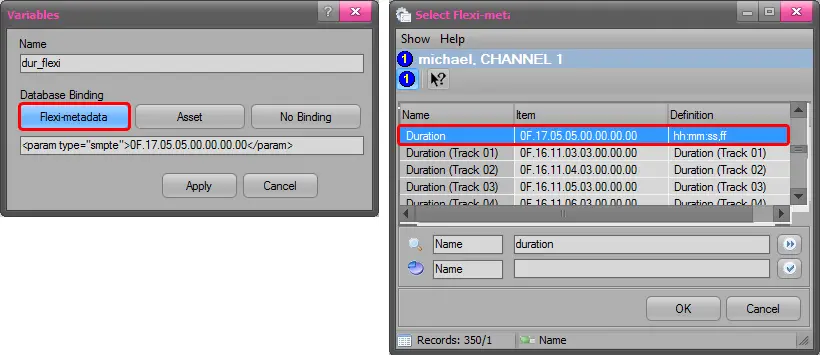
3.2. The output variables, for instance:
output_variables
Name: dur_flexi
Value: <param type="smpte">0F.17.05.05.00.00.00.00</param>
Description: Output variable linked to "duration" flexi-metadata
3.3. The PowerShell script, for instance:
#Copy the "hh:mm:ss,ff" duration from the input variable into the output variable
$dur_flexi = $dur_hmsf
Write-Output "The length is: $dur_flexi"
3.4. Optionally, enable the option "As final step execute the following T-SQL Statement" and enter a query to be launched after the script (see samples).
3.5. Press the [Save] button to apply all changes.
4. Under "T-Workflow > Designer", add the just created action to a workflow:
5. Detailed logs on the T-workflow execution can be consulted as explained in the chapter "Viewing execution logs".
 job_variables
 output_variables