71.4.3.4 Delay a Live ingest
This function allows you to defer the broadcasting of a live event whilst maintaining its LIVE status. For example, if you wish to delay broadcasting a "LIVE Soccer Game" that starts at 22:00 by 45 minutes sending it on air at a later time of 22:45, you must follow the next procedure to perform the referred delay:
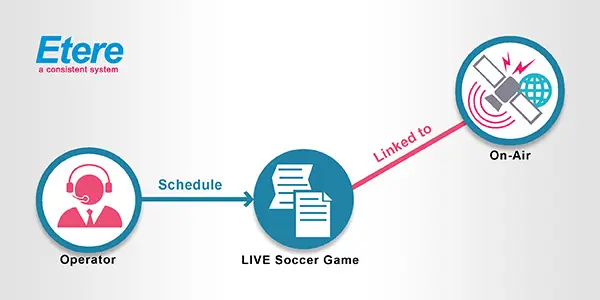
LIVE Soccer Game
1. In order to set a Time Delay, you must create an asset (for example "LIVE Soccer Game") assigning it under the Info tab as a 'LIVE event', this will appear on the schedule list for 22:45.
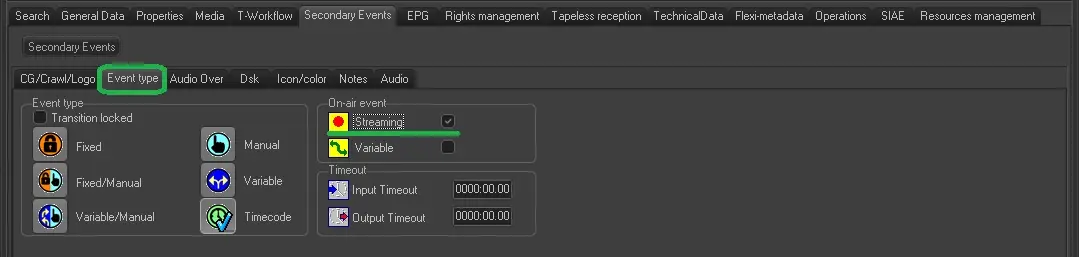
2. The ingest operation will be a made as a second asset, for example "Juve - Real 2009", inputting all relevant data. Under the properties tab of this asset make sure the streaming box is activated under the 'Event Type' tab (this option allows the LIVE event to be broadcast at any time during ingest).
Event Type
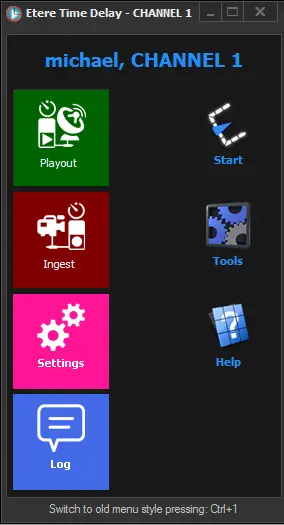
This second asset needs to be linked to the 'scheduled' asset (LIVE Soccer Game) by means of a secondary event called 'Time Delay'. This is done by opening the Time Delay secondary event form and selecting the 'transmission asset' (or in the example above JUVE - REAL 2009).
Time Delay
The scheduled event may be a Time code start (if you are going to opt in to the delayed program at a particular cue point), or a manual start, (if you prefer allow the delayed program to just run, and to '"crash in" to it as thought it were live).
3. In Scheduled Ingest create a new "Single Ingest" with a start time of 22.00 (continuing with the above example) and a duration of two hours, linking the ingest operation to the "Juve - Real 2009" asset.
Check the 'REC with TCIN' box, select the source of the ingest operation and allocate the destination channel.
4. Open the planning tab (note that in this section you can view all scheduled ingest operations, including those events that have "Time delay" as a secondary event) and press the [Start Recording] button. This will open a new window confirming the start time of the ingest operation and its asset description.
5. At 22:00 Scheduled Ingest will start ingesting under the asset code "Juve - Real 2009". At any time after the ingest process has started you can open the preview window, right click in the scheduled ingest and confirm that ingest has started. You can also "cue" the ingest operation to the desired in-point.
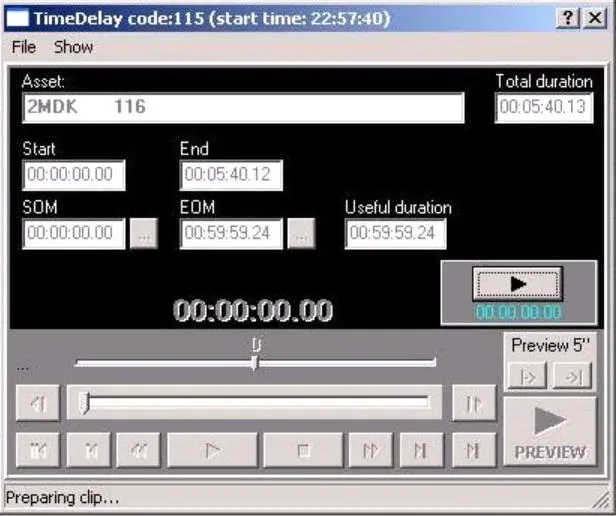
6. At 22:44 (1 minute before the scheduled broadcast of the event) the HQ Preview window will automatically appear previewing the current ingest operation (South Live News) with a countdown until the actual broadcast.
Rec planning
7. Finally, at 22:45 the "Juve - Real 2009" ingest operation will automatically start to play. Simultaneously, Automation will switch to the correct channel (the decoder used for the preview) and transmit LIVE Soccer Game on air. At the end of the 2 hours, the preview window will close automatically.
 Time_Delay
 Rec_planning
 LIVE_Soccer_Game
 Event_Type