9.2.6.1 ASSET Fast Metadata Insertion
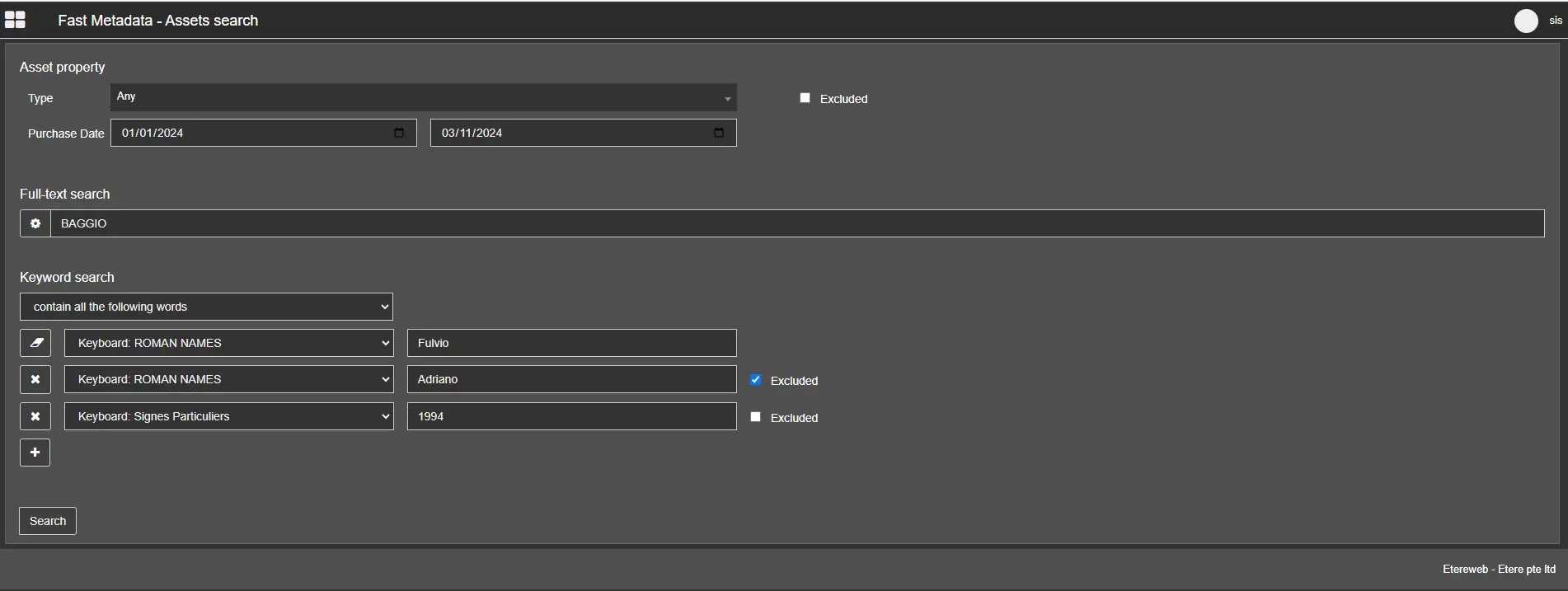
Asset Search is performed full-text on assets, flexi-metadata, people and keywords.
Fast Metadata - Asset Search
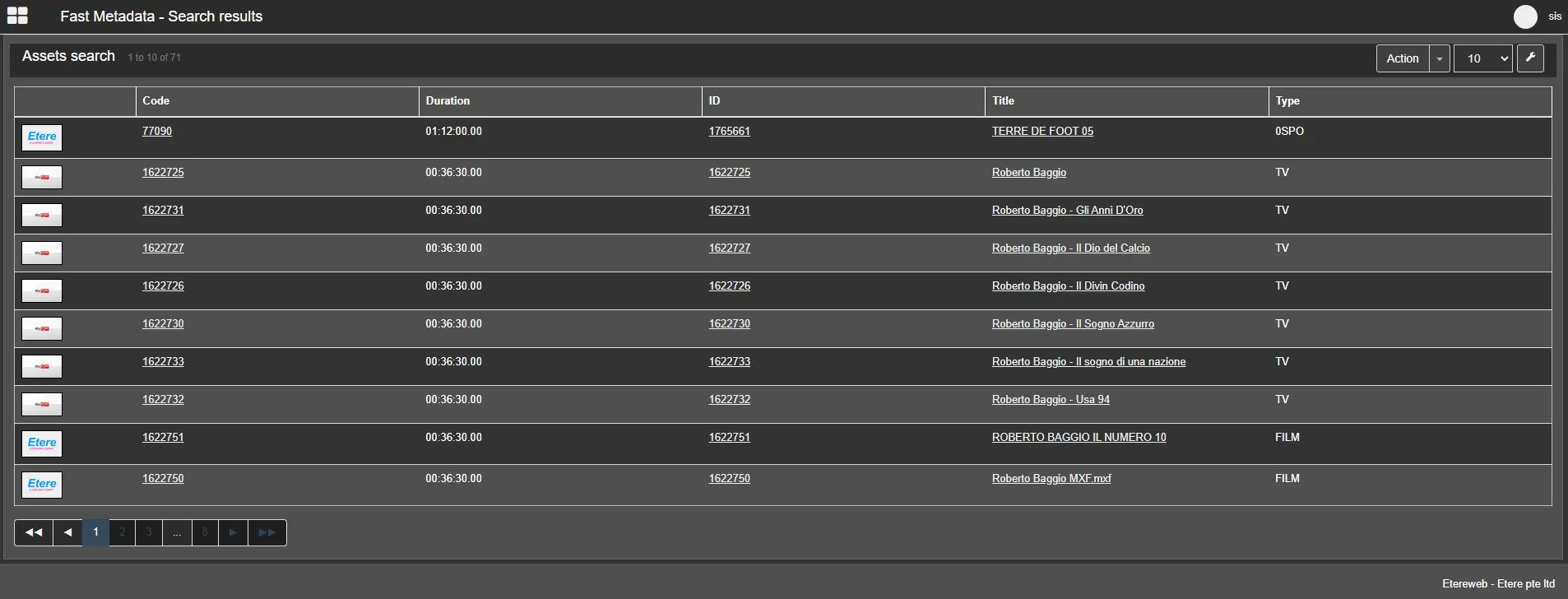
Fast Metadata - Asset Results
The user can perform a search using the TYPE filter, enabling or excluding results from the search and sort them by column.
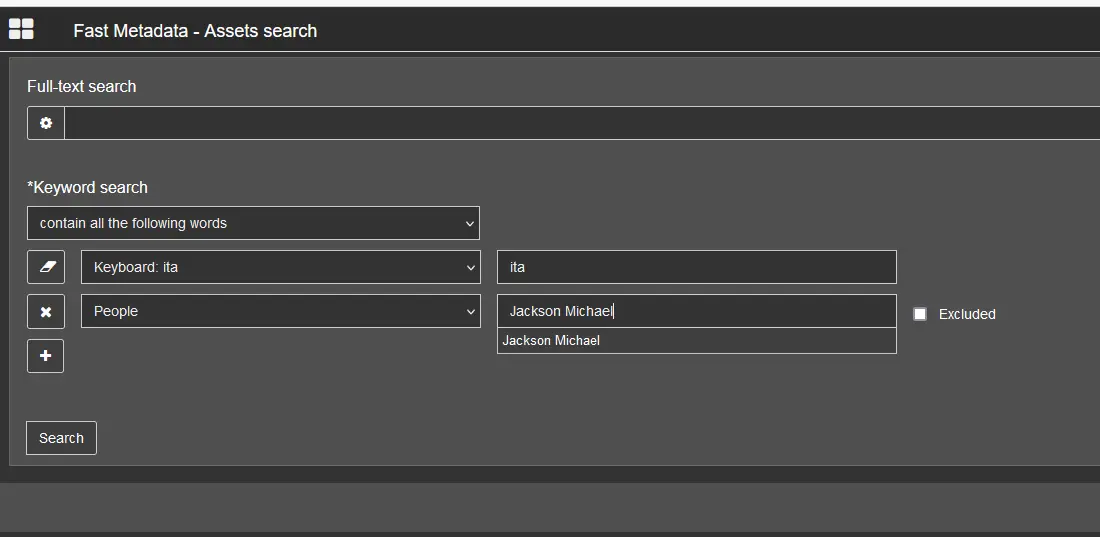
Inside our FULL-TEXT has been added Keywords search in Fast Metadata:
- user can search based on a seleceted Type or excludes the selected type
- user can search based on a range of Purchase Date
- user can search based on a varaible number of keywords or People (the user can add or remove variables by using "+" or "x" buttons)
- search for items having all specified keywords and People or one of them (the user can select "contain all the following words" or "contain any of the followng words")
- exclude items having certain keywords (by selecting "Excluded")
The search has auto-completion lists of keywords (the auto-completion) gives only the keywords that starts with the inputed text (not containing).
Keyword search
Select an asset to open its Fast Metadata Editing.
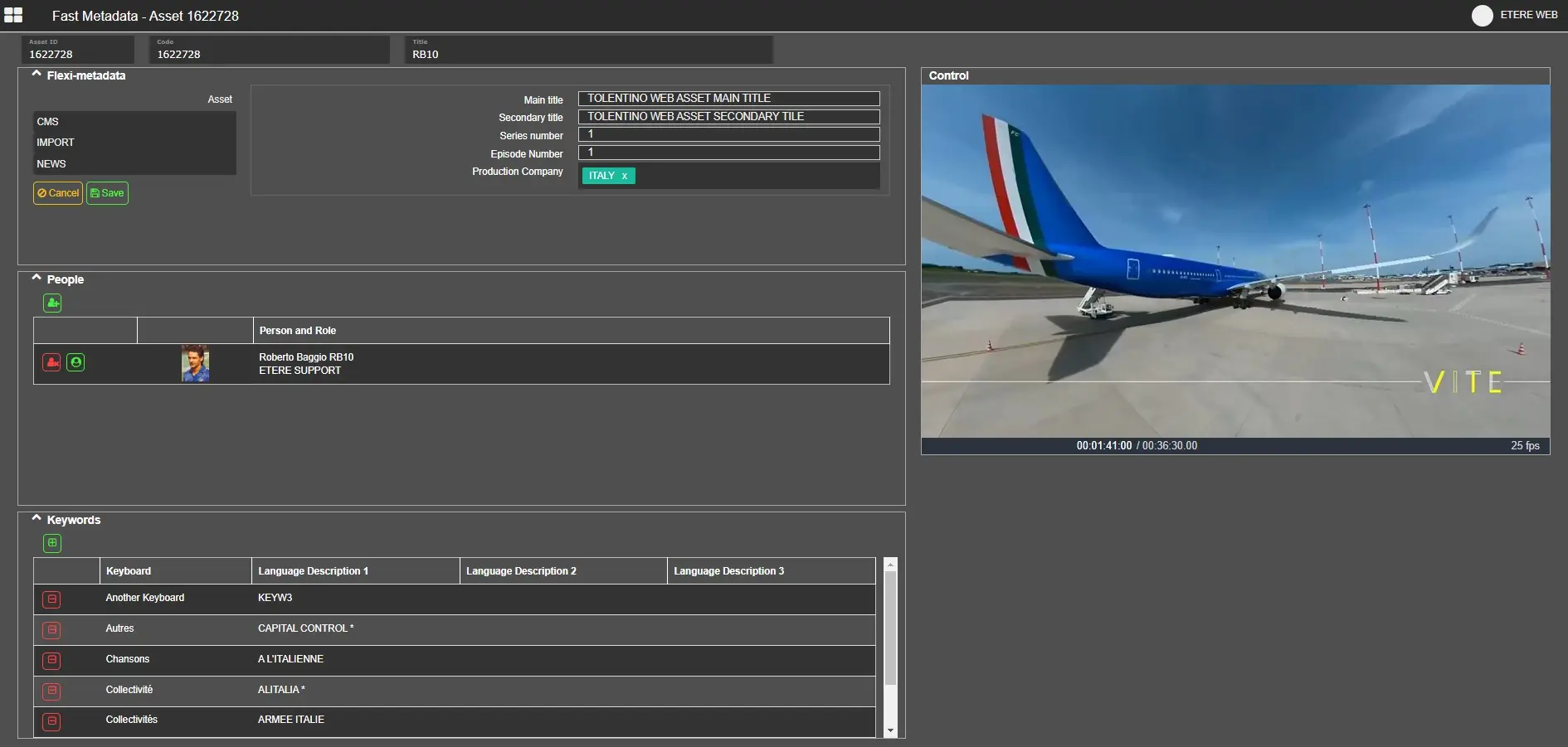
Fast Metadata - Editing
Flexi-metadata
In this area it is possible to Edit the flexi-metadata of the asset, as set by the Flexi-metadata Editor.
Fast Metadata - Flexi-Metadata
People
In this area it is possible to Add and remove People with their Roles. Change role of the Person.
Fast Metadata - People Buttons
To add a new artist you need to click on the “+” button then the system opens a new window where you can find the artist to add to the asset using a full-text search in the artists table. At this point, you can select one or multiple artist by checking their related box and by pressing "select" button.
To remove an artist from the asset you need to select the row of the artist to be removed then click on the “Remove” button.
To change the role of the artist already inserted it is necessary to click on the "change role" button and select by double clicking on the correct role to assign to the artist.
Keywords
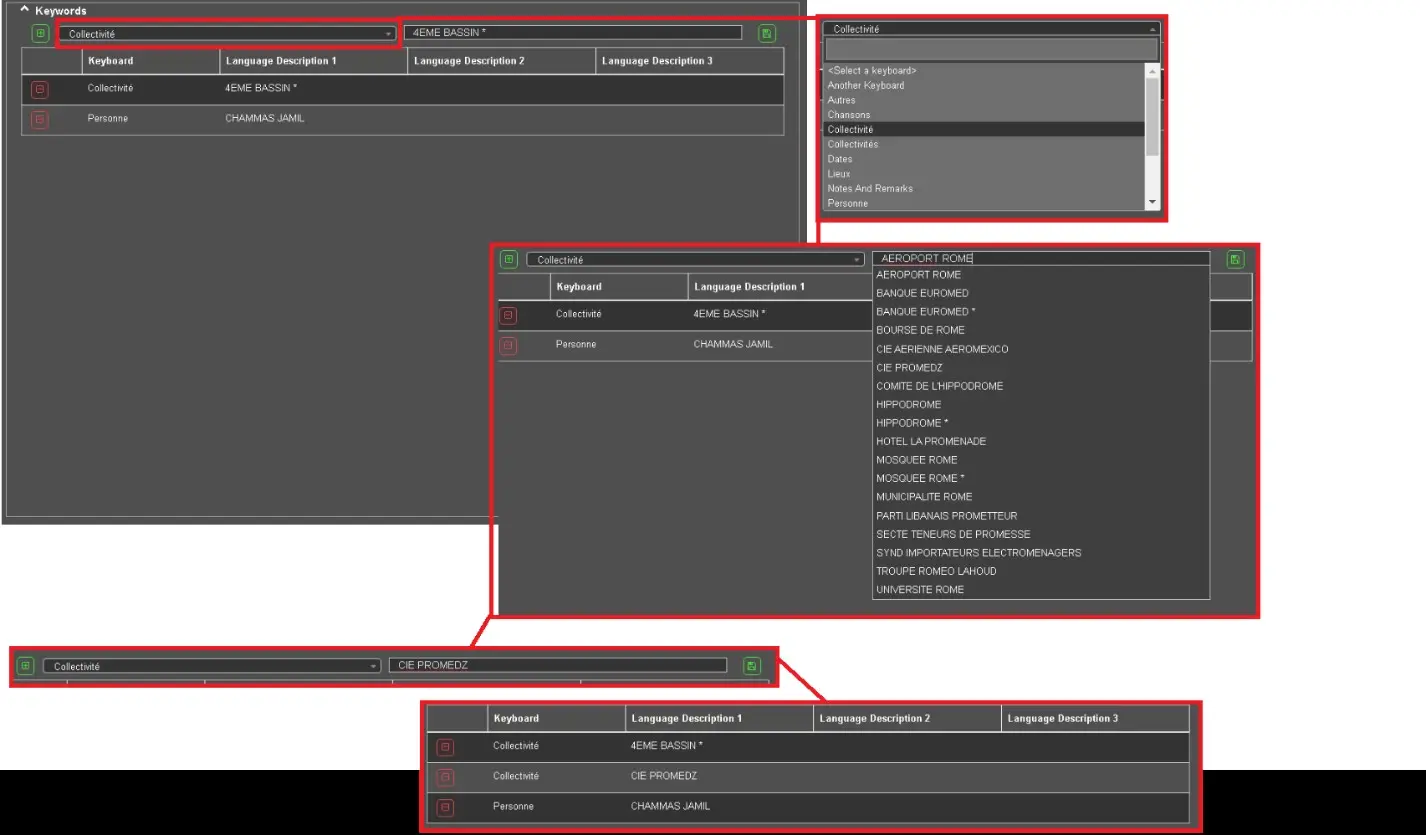
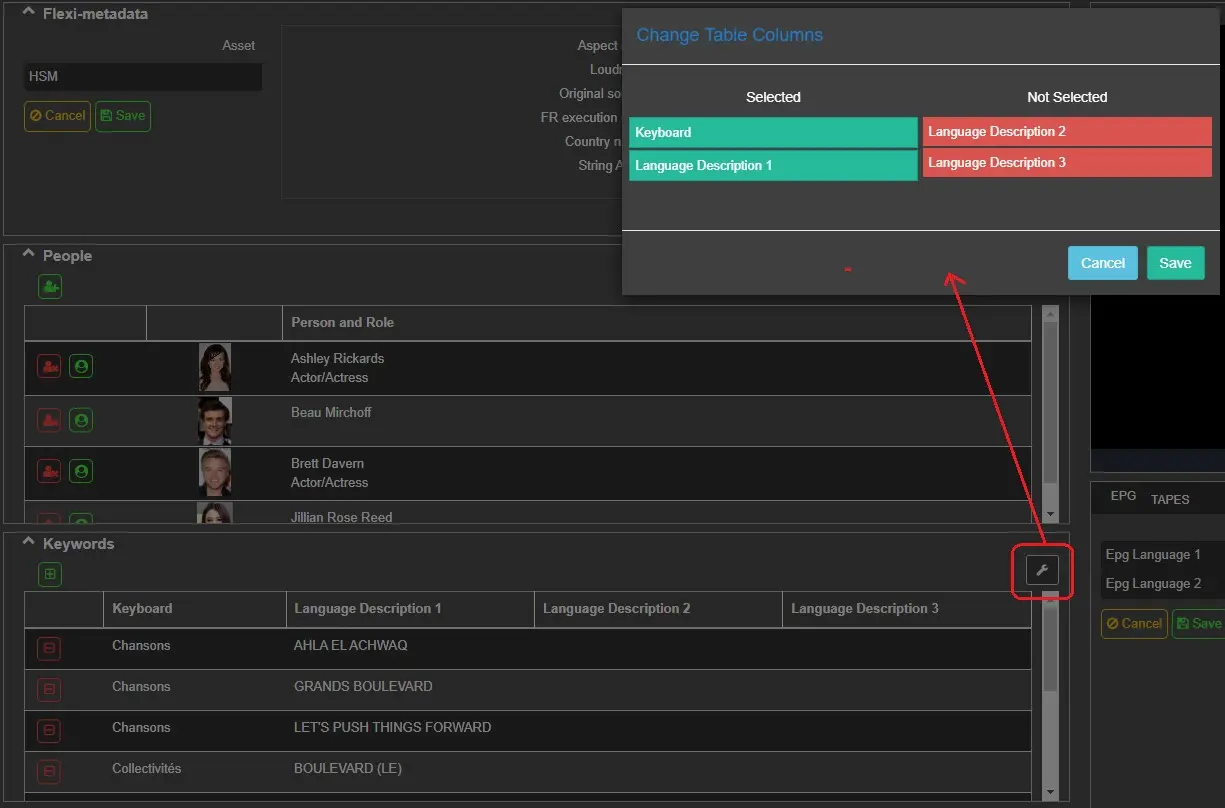
In this area it is possible to add, modify or remove KEYS from the relevant KEYBOARDS in the selected asset.
Below is an example of how it should be used:
If you want to add the CIE PROMEDZ data for the COLLECTIVE you must click on the "+" button then select "collectivitè" from the drop-down menu then write the word "cie promedz" (the system will show suggestions) and select by double clicking on the relevant row to the data to add to the asset and finally click on the “save” button to import it. At this point you can see the data imported into the asset.
Fast Metadata - Keywords - example
The main commands are Add and remove keywords to asset for tagging.
Fast Metadata - Keywords
To link a tape, click on the green button on the top-left of this section, right below the tabs, and select a tape in the list that shows up, or search for it through the search box.
 Fast_Metadata_-_Asset_Search
 Fast_Metadata_-_Asset_Results
 sort_button
 Fast_Metadata_-_Editing
 Fast_Metadata_-_Flexi-Metadata
 Fast_Metadata_-_People_Buttons
 Fast_Metadata_-_Keywords
 Fast_Metadata_-_Control
 Fast_Metadata_-_Keywords_-_example
 keyword_search
 Fast_Metadata_-_webmam_change_columns