59.2.10 Historical
The Historical section is available ONLY if a historical database has been previously specified in the System section, under the historical database section. Once the historical database is configured, it is possible to archive and restore data according to their oldness. Archive and restore actions can be fully customised by the user owing to useful data classification.
Historical
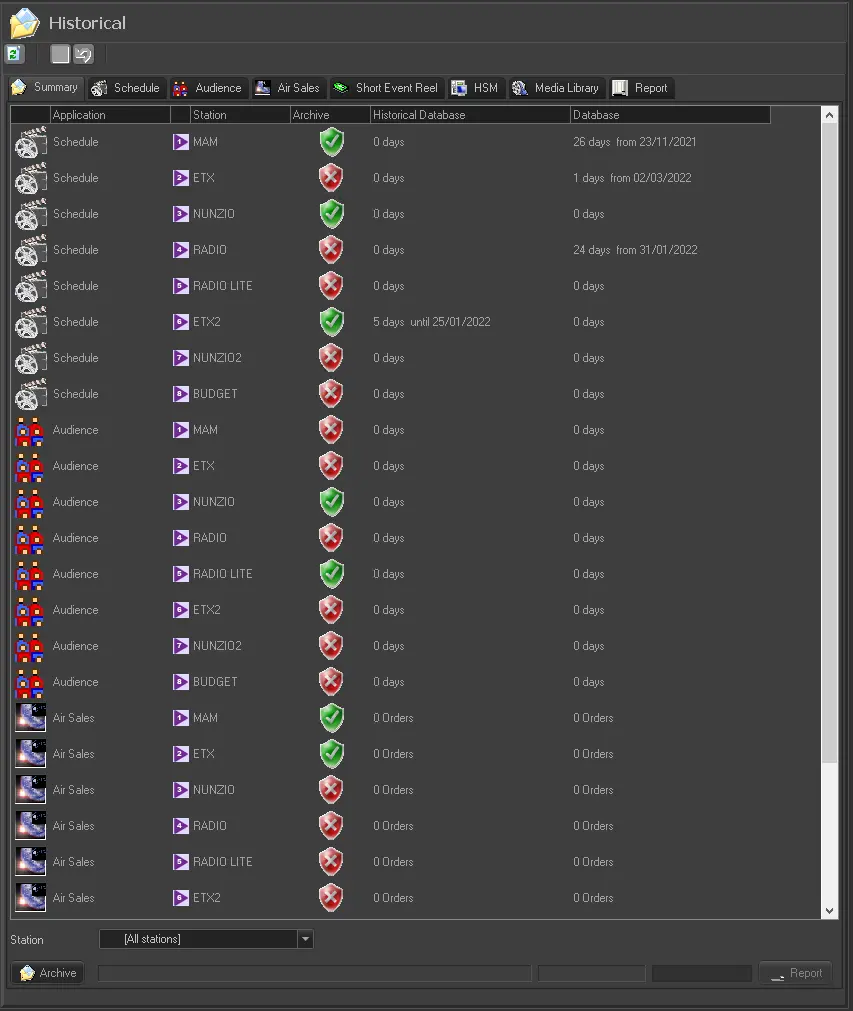
As shown in the image above, the Historical section is composed of the main area (summary), six data-configuration areas (Schedule, Audience, Air Sales, Short Event Reel, HSM, Media Library) and a Report area containing operation's log (Report).
In that example, the summary indicates that for the first station, there are 0 scheduling days in the historical database and 26 in the main database, starting from 23/11/2021. Instead, for the sixth station, there are 5 scheduling days in the historical database, the last one is the 25/01/2022, and 0 scheduling days in the main database.
This way to count the archived data is applied only to schedules and audience data. The data for the other categories is displayed simply as the number of records in the database (e.g.: 250 assets, 54 orders, etc.)
Note
To prevent performance impact to the system, schedules are archived into the historical database daily, one scheduling day at a time. Else, assets are archived one at a time.
ARCHIVING DATA
First of all, in order to archive data inside the historical database, the related section among the six tabs mentioned before (Schedule, Audience, Air Sales, Short Event Reel, HSM, Media Library) must be properly configured. Once all the needed parameters, for the desired stations, have been set and saved, the archive operation is executed by selecting first a specific station or all of them in the lower part of the Summary tab, then pressing the [Archive] button.
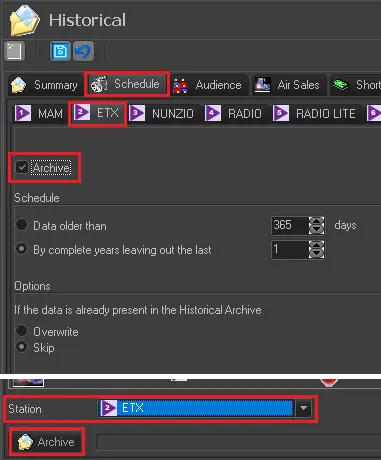
E.g: In the same scenario as the example above, if the user wants to archive schedules for station ETX, he have to browse to tab Schedule, then enable the "Archive" flag and set properly the parameters in ETX tab. Once done, it's enough to go back to Summary tab, select the station in the the droplist and press the [Archive] button.
archive_1station
In case the archive is needed for more than one station, the user must be sure that the "Archive" flag is enabled ONLY for the type of data intended to be archived and the correct stations. That's because in the droplist is not possible to select more than one specific station, the user needs to choose All stations. Therefore the archive for any unwanted station must be disabled, in order to not be included in the process.
Schedule tab
Set the stations which schedules must be archived by enabling its 'archive' option.
Specify the oldness that a schedule must have to be archived, by selecting one of these two options:
Data older than: Archive the schedules older than this amount of days (by default it's set to 365 days).
By complete years leaving out the last: Consider for the archive all the schedules of each complete year, but do not consider a certain amount of years until the current one (by default it's set to 1).
E.g.: In main database there are schedules from 2012 to 2022 (which is the current year and it's not complete). By setting this parameter to 3, will be archived the schedules from 01/01/2012 to 31/12/2018, leaving out 3 complete years: 2019, 2020, 2021.
Specify then the action to be taken if data to be archived is already present in the historical database (i.e. to overwrite or skip).
In the "Cleanup Historical" panel, you can delete old records from the historical database by specifying a date and deleting old records up to the specified date. Old records can be deleted on a selected station or all stations.
Audience tab
Specify channel(s) that will be considered "to be archived" by unchecking their relative 'archive' option, and specifying the oldness of the data that must be taken into account.
Air Sales tab
To enable Air Sales data to be archived, indicate which channels will be taken into account and the oldness of data to be archived. This option will archive all commercial orders (i.e. orders and proposals) for the current station whose expiry date is older than the specified time limit, omitting all orders which are still valid.
Short Event Reel tab
Specify if short event reels should be archived, and set the oldness they must have to be included (i.e. the minimum amount of time that must have been passed since its last modification).
The archiving of this type of data is performed for all the stations.
HSM tab
If this section is enabled (i.e. the 'restore' option is checked off), it is possible to specify the number of days after its last modification date to include data in the archive operation. By default, this value is set to '120' days.
The archiving of this type of data is performed for all the stations.
Media Library tab
This section allows archive assets belonging to a season if enabled. To be archived, the asset must meet the following conditions:
•It does not have any media linked to it, neither high nor low-resolution versions.
•It is not scheduled to be broadcasted.
•It does not have a T-workflow currently running.
•It is expired.
•There are no 'secondary events' defined on it.
•Its last modification has been performed later than the number of days specified in this section.
RESTORING DATA
The restore feature is available only for the Schedule and Media Library data types.
•Schedule: Select the date range for which schedules will be restored; you can specify which action should be taken if data to be restored already exists in the main database (i.e. overwrite or skip).
•Media Library tab: To restore assets belonging to a season from the historical database, click on the search button and search for the assets you intend to restore. Select the assets and press the 'restore' button; all selected asset forms would be restored into the main database.
NB: If you had successfully restored the historical database, but historical schedules are not reflected in Executive Editor, you need to perform System Maintenance with the "Check Historical Database Structure" option enabled to update the database status.
REPORT
By accessing the Report tab and clicking on the 'refresh' button, it is possible to view a complete record of all archive/restore operations performed. In addition, the records can be filtered by the station so that users can view operations carried out on certain stations.
Each operation captured the specific function executed and the date and time it has been performed. In addition, it showed descriptive information regarding the operation (e.g. several records archived or restored, etc.).
 Historical
 archive_1station