71.18.5 Ingest from VTR to XDCAM (Dubbing)
Etere Multifunction Ingest allows dubbing tapes from VTR to XDCAM, in order to do this just follow the next procedure:
1) Check the Devices
1.1. Make sure equipment is ready for the dubbing job:
•VTR: Its status indicates switched from local to remote.
•XDCAM: Its status indicates ready.
•Tape: The target tape to be used for dubbing has been correctly created using the Tape Manager module.
Please note that in this kind of recording, the XDCAM cart is controlled via RS422 since it will be treated as a normal VTR.
2) Prepare the new tape
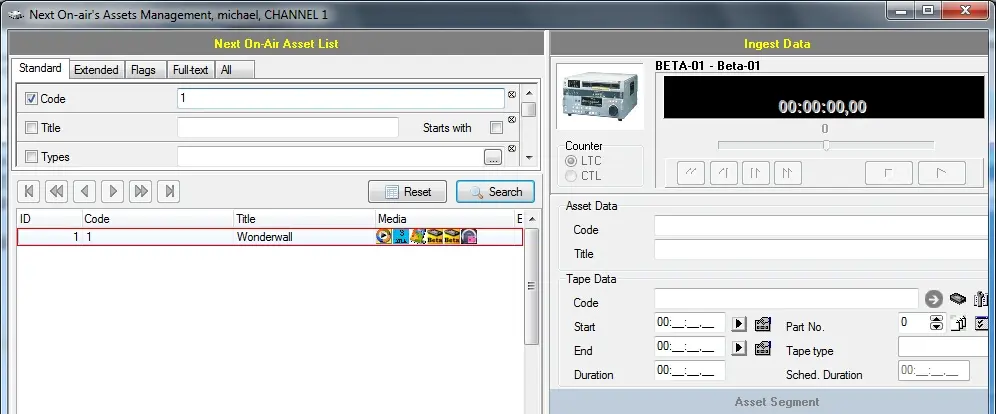
2.1. Open the Tape Manager module. Search for the asset code (e.g. 1) to be dubbed and open it by making double-click on it:
Search for the asset code
NB: In case the asset doesn't exists, it is possible to create it by making right-click on the search results and choosing the "create new asset" option.
2.2. Under the "Ingest Data" section (located in the right side), click on the [ manage tapes] button. The Tape Library module will be open allowing you to press the [New] button to create a new tape (e.g. XDCAM-Disc1413), compile all the tape required information (e.g. title, type, codec, etc).
XDCAM-Disc1413
3) Ingest from tape to disc
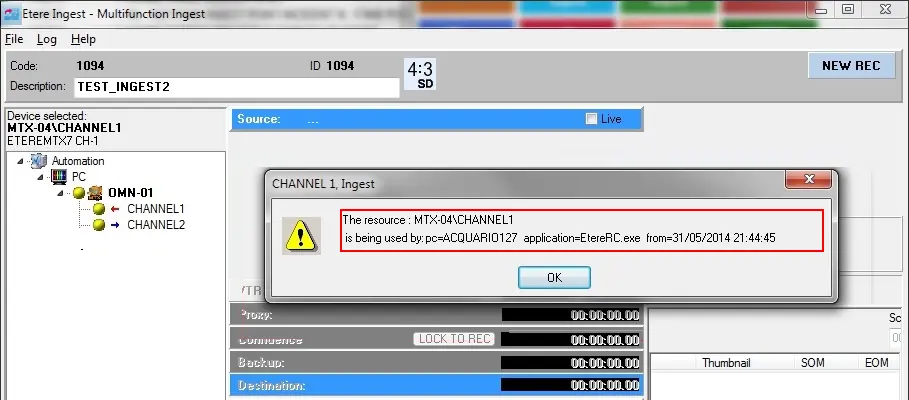
3.1. Open the Multifunction Ingest module and search for the asset to be dubbed. Use any of the available filters (e.g. code, type, title, etc):
Multifunction Ingest
Please note that in case the asset is linked to more than one tape, select the one to be used for the dubbing:
Asset linked to more than one tape
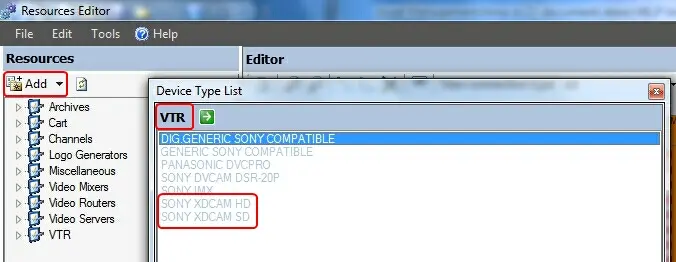
3.2. Set your video tape recorder (e.g. BETA-01) as the source and your XDCAM cart as the VTR (destination), this, by dragging and dropping them from the "Resource tree" to the "Source" and "VTR" sections respectively:
BETA-01
3.3. The source VTR will display the recording timecodes depending on whether the asset is either linked tape or not:
Source BETA-01
- A tape is linked to the asset: In this case, the start time and end time parameters will be automatically retrieved from the asset's measured tape, that is, from its EDL mark-in and mark-out (displayed in the left part of the recording window).
- No tape is linked to the asset: In this case, the start time and end time parameters will be manually set by the operator.
3.4. The target XDCAM VTR will indicate the code of the destination tape linked to the asset:
VTR
The [Link tape] button allows to quickly change the target tape by entering its code. In case the code doesn't exists, it will be possible to create a new one.
3.5. Under the "Source" section set the start and end SOM&EOM marks for ingesting the clip, then, press the [ Recording] button to start the ingest.
3.6. Once the ingest is completed a confirmation will be asked. At this point it is suggested to inspect the recorded clip by playing it back.
4) Checking the dubbed media
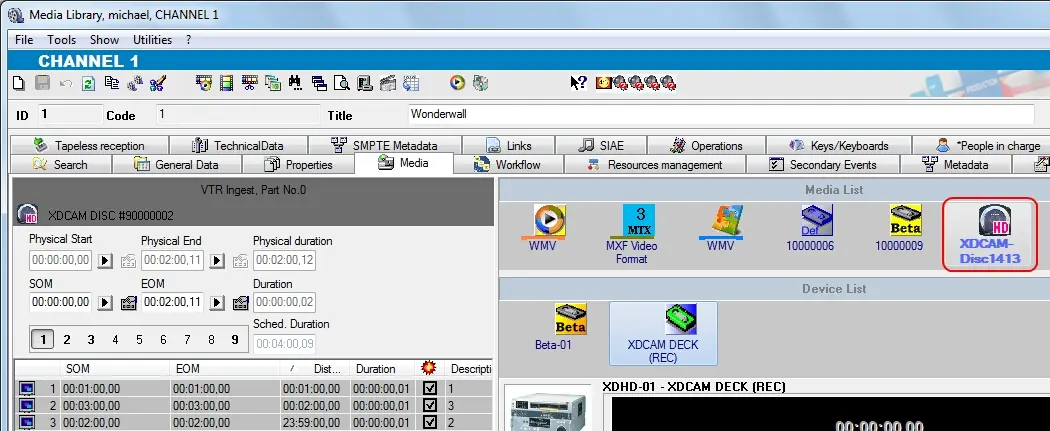
4.1. Open the Media Library, search and load the dubbed asset and then go to the "Media" tab, you will see the dubbed XDCAM Disc available as a linked media:
Dubbed XDCAM Disc
4.2. In case it is required to print the barcode of the disk right-click on the disc and choose the "print barcode" option:
Print barcode
4.3. For detailed information on other operations supported by the Media Library for XDCAM discs please refer to the Media Devices chapter.
 Search_for_the_asset_code
 Source__BETA-01
 Multifunction_Ingest
 VTR
VTR
 Asset_linked_to_more_than_one_tape
 XDCAM-Disc1413
 BETA-01
 Dubbed_XDCAM_Disc