56.1.3 Parameters Tab
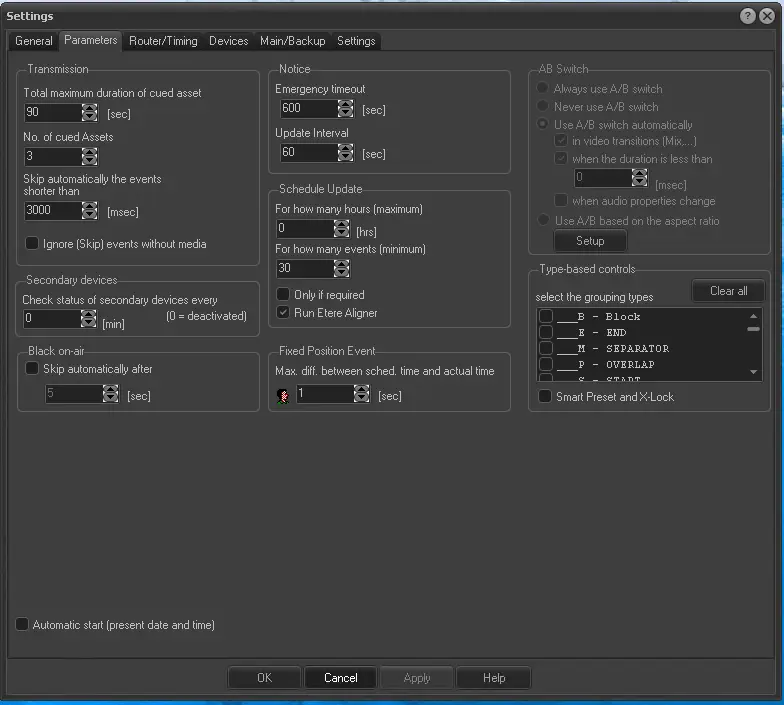
Set under the Parameters tab some options related to times and controls of the Automation's functions:
Parameters_tab
Transmission
Set here some parameters related to the behaviour of the automation engine:
Number of Cued Assets - The number of pre-loaded events by the Automation. Increasing the minimum number (i.e. 2) will allow the operator to monitor the status of more events coming after the current event.
Apart from the next event, all the other events are not cued on the video server (as it is not possible to cue more than one event at once); however, the Automation asks the video server to find those events and return their status (e.g. available, missing, etc.).
The maximum number of cued assets you can set is 10. Setting a high value of cued assets would increase the workload on Video Server, considering the checking of events status on every publication of schedules to identify the cued assets.
NB: If Automation is running on ETX resource, the changed value would also be updated to the "playlist.init.next" string value in Windows Registry in "Computer \ HKEY_CURRENT_USER \ SOFTWARE \ Medialooks \ MPlatform \ MPlaylist" as the minimum cued events in the playlist. The default minimum duration of the event is set to 45 seconds, and changes are not allowed.
NB: If a value less than the minimum (2) is entered, the minimum will be set after the restart.
The maximum duration of a cued asset is the maximum limit in seconds for Cued Assets; whatever the number of the cued assets may be, the pre-loaded events will cover only the specified duration.
Skip automatically the events shorter than - This is the minimum duration in milliseconds for the playable event. This value depends on the video server performances, which can be set to the duration the video server producer suggests for back-to-back play out.
Ignore (skip) events without media - If enabled, Etere Automation will ignore all events without a linked media file by skipping them on the automation playlist. Enable this option if the "events which are not ok to broadcast must not go on-air" parameter is enabled (in Etere Configuration > Settings) to make "not ok to broadcast" scheduled events (which media is omitted on playlists) not be transmitted by the Automation.
If disabled, Etere Automation will transmit an emergency clip for the duration of the event without a linked media file.
A/B Switch
In case the Automation counts with two different decoders, specify when those decoders should be switched:
Always use A/B Switch - The A/B switch will be performed at each clip change.
Never use the A/B switch - The A/B switch won't be performed during the entire playout. In this case, the master control and video router should be manually controlled.
Use A/B switch automatically - The A/B switch will be performed only in the following cases - In video transactions: It will be activated every time a video transaction implies an overlap of two channels (e.g. mix, wipe, etc.).
•When the length is less than It will be forced when there is an event in the sequence with a duration shorter than the limit set in milliseconds.
•When audio properties change: It will be forced after modifying audio properties (e.g. Mono/Stereo).
Use A/B switch based on the aspect ratio - The A/B switch will be performed according to the aspect ratio of the transmitted asset, thus allowing to play events with a specific aspect ratio on a preselected decoder. Use the [Setup] button to assign decoders to each aspect ratio the station manages (e.g. 4=Decoder1, 9=Decoder2).
Notice
Set here parameters related to the monitoring of media on automation devices:
Emergency timeout - If the playout device supports it, this parameter defines the frequency with which video files related to scheduled events will be checked (i.e. they should be stored in the video server).
This check will be performed starting from the last pre-loaded video file.
Update Interval - Set the frequency (in seconds) for video files related to scheduled events to be checked within video servers.
Schedule update
Among the parameters of this area that can be left in default status, you can change the following:
For how many hours (maximum) - Indicate the maximum number of hours to be kept up-to-date in the automation schedule. The default value is 0.
NB: This value must be greater or equal to the "Devices > VTR > Advance alert time".
For how many events (minimum) - Always specify the minimum number of events to keep the automation schedule up-to-date. The default value is 30, and the minimum allowed value is 10.
Only if required - If enabled, the automation schedule will be updated only when the Skip command is executed.
NB: It's suggested to leave this option disabled as it will result in out-of-date automation playlists.
Run Etere Aligner - If enabled, at every Start, the Automation will also launch Etere Aligner to keep the automation schedule synchronized with the SQL server (even when Executive Editor is closed)
Type-Based Controls
Among the parameters of this area that can be left in default status, you can change the following:
Select the grouping types - Select the event types to be used; for example, filter some types to display on the Remote Control Panel > Types/Break panel the remaining time to the first event of the next group (if a possibility of another type is currently on-air), or the remaining time to the end of the group (if an event of the kind is currently on-air).
For instance, if you select those types of commercials when a commercial is on-air, the application will display the countdown to the end of the commercials break. When a non-commercial event is on-air, the application will display the countdown to the next commercial break start.
Others
Configure other parameters related to the transmission of scheduled events:
Automatic Start (present date and time) - Enable this option in case of automatic Start, and the Automation will start from the current event in the present scheduling.
 Parameters_tab