13.1 Select Reports
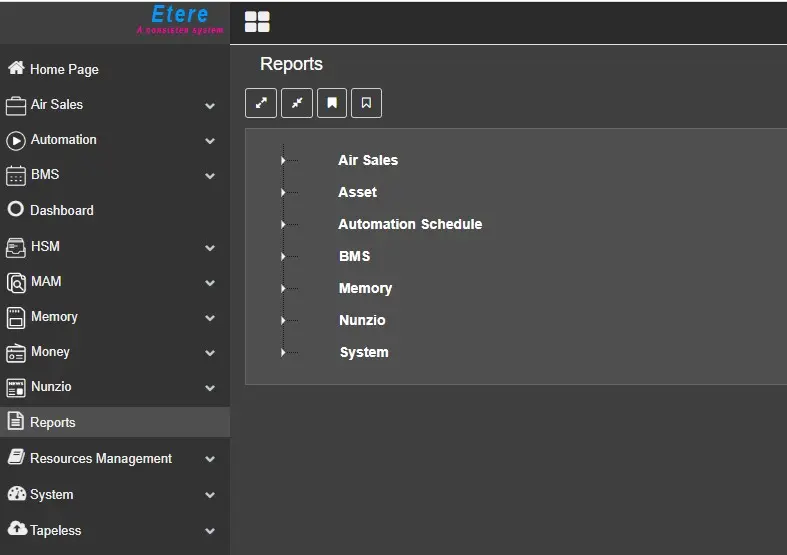
Once logged into ETERE WEB in the list of applications on the left you can find the REPORT item and by clicking on it the system will open a tree diagram where the categories of available REPORTS will be shown which are:
Air Sales reports
Asset reports
Automation Schedule reports
BMS reports
Memory reports
Nunzio reports
System reports
ETEREWEB_REPORTS
Each category can be opened by clicking on it and once done all the reports belonging to it will be shown.
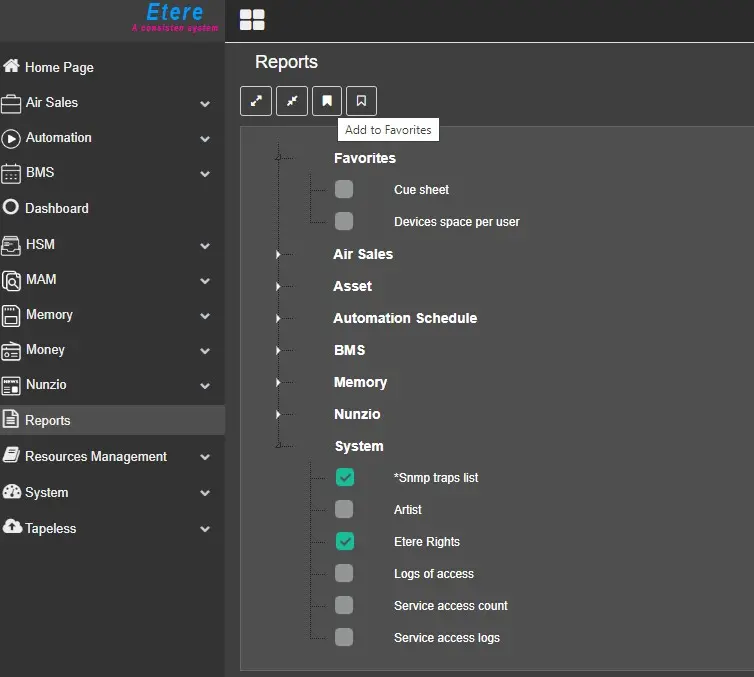
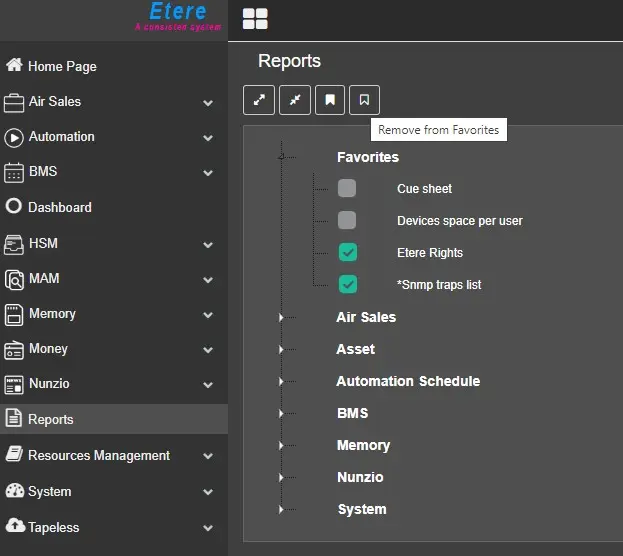
You can add frequently used reports to the list of preferred reports by selecting the report checkbox and clicking on the (Add to favourites) icon to include the reports in the preferred list or click on the (Remove from favourites) icon to delete the report from the favorities list.
ADD_REPORTS_TO_FAVORITIES
REMOVE_REPORTS_TO_FAVORITIES
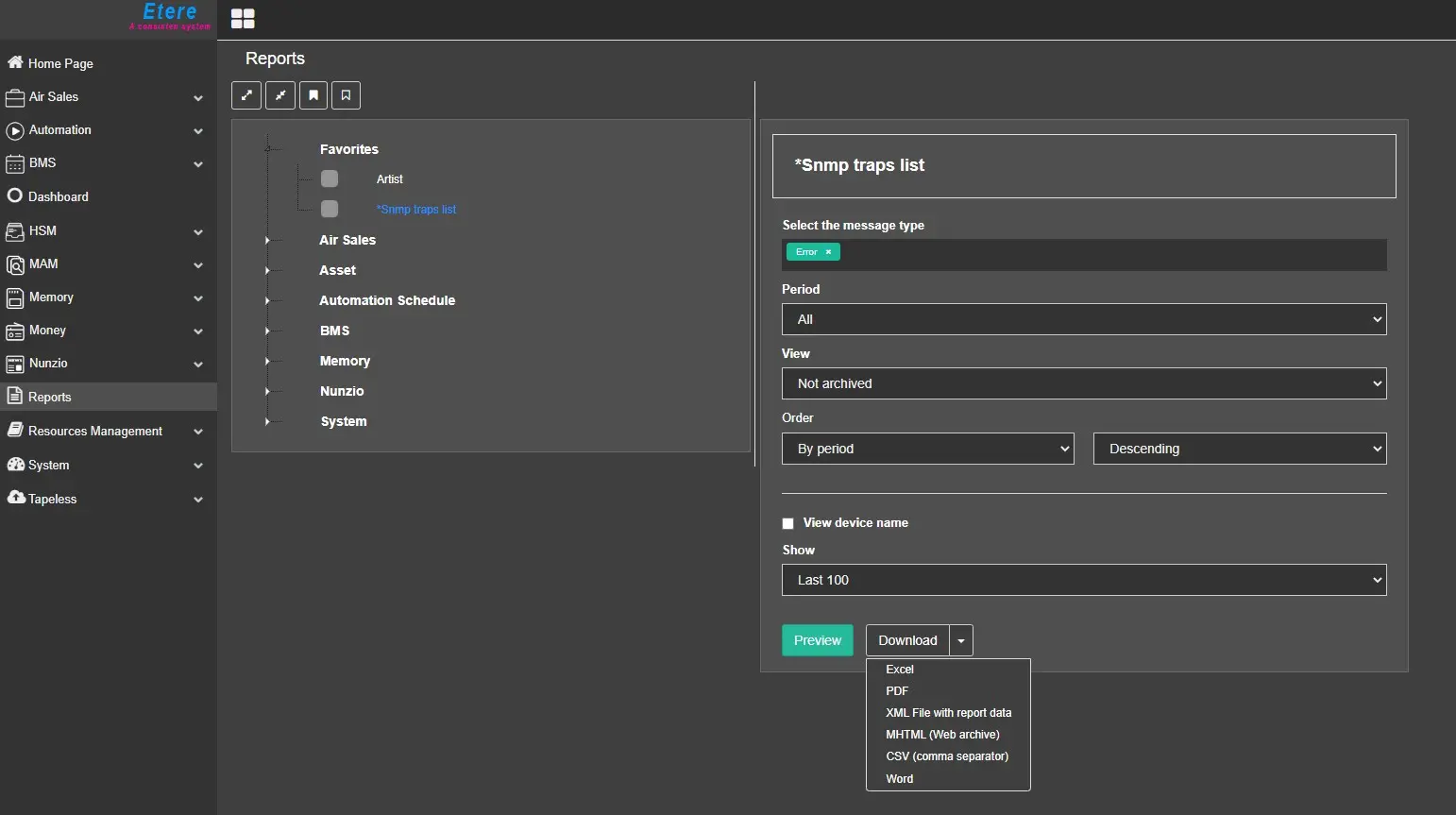
Instead, to use the selected report, simply click over its name and the system will load the default form on the right of the screen so that the operator can insert the necessary parameters to be able to print the necessary information. We remind you that the options may be different and customized for each selected report. Once the correct information has been inserted, the operator will be able to decide whether to PREVIEW the print to evaluate the correct exported information or to DOWNLOAD it in Excel, PDF, XML, MHTML, CSV and WORD formats.
Below is a sequence of images where you can understand how to use a report.
STEP1_SelectAReport
STEP2_InsertInformationNeeded
STEP3_PreviewButton
STEP4_DownloadToPDF
 ETEREWEB_REPORTS
 ADD_REPORTS_TO_FAVORITIES
 REMOVE_REPORTS_TO_FAVORITIES
 STEP1_SelectAReport
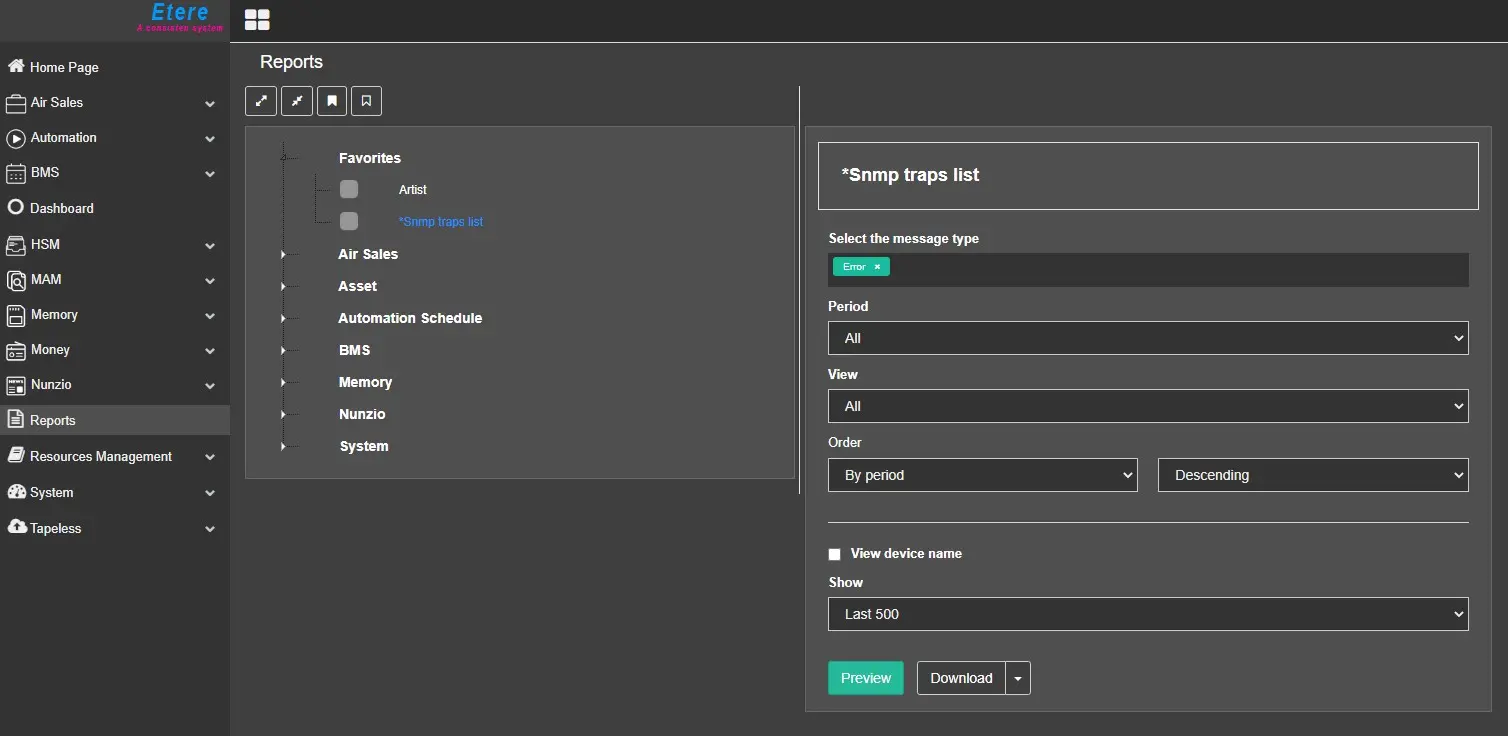 STEP2_InsertInformationNeeded
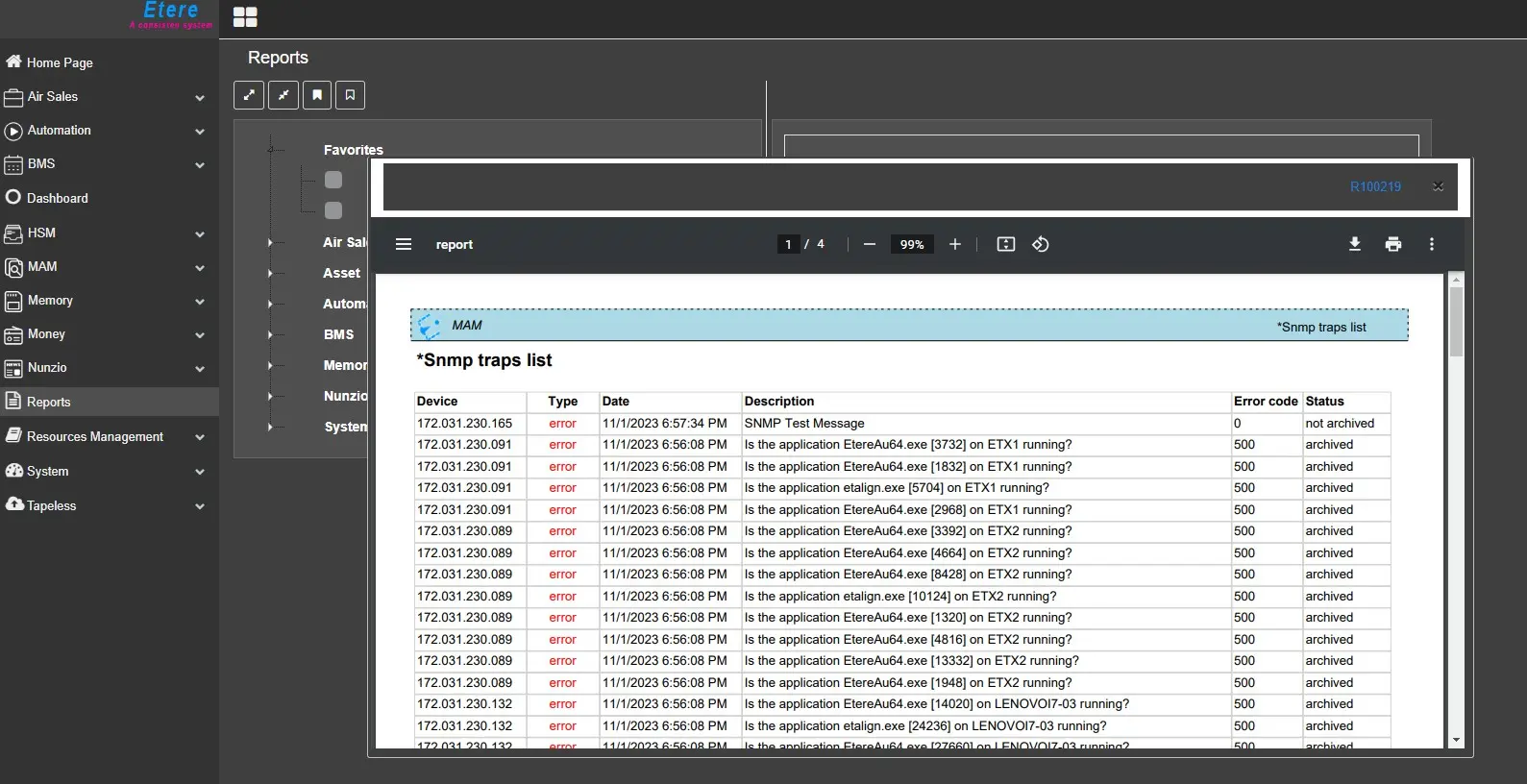 STEP3_PreviewButton
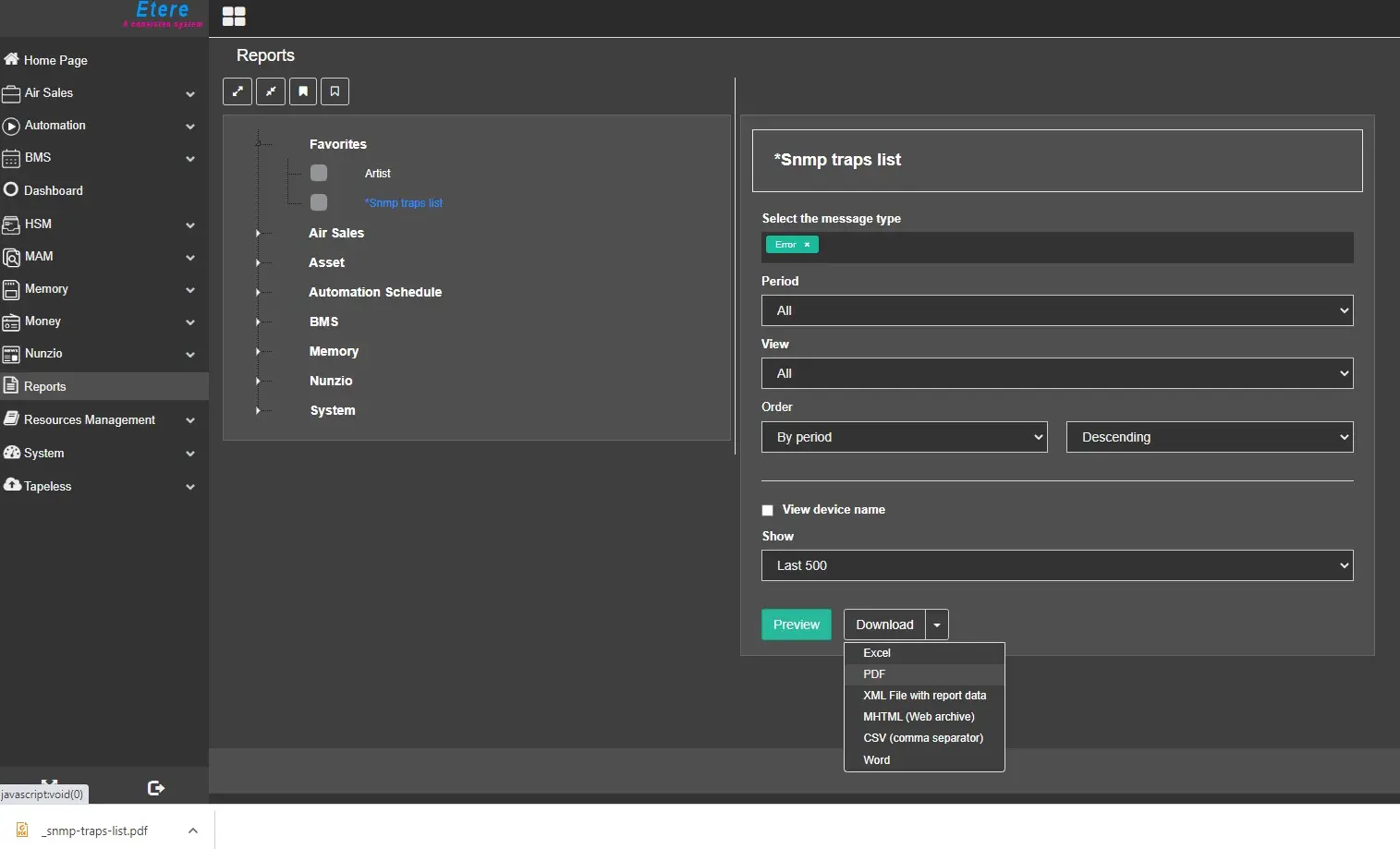 STEP4_DownloadToPDF