71.7.1 Automatic Video Files Operations
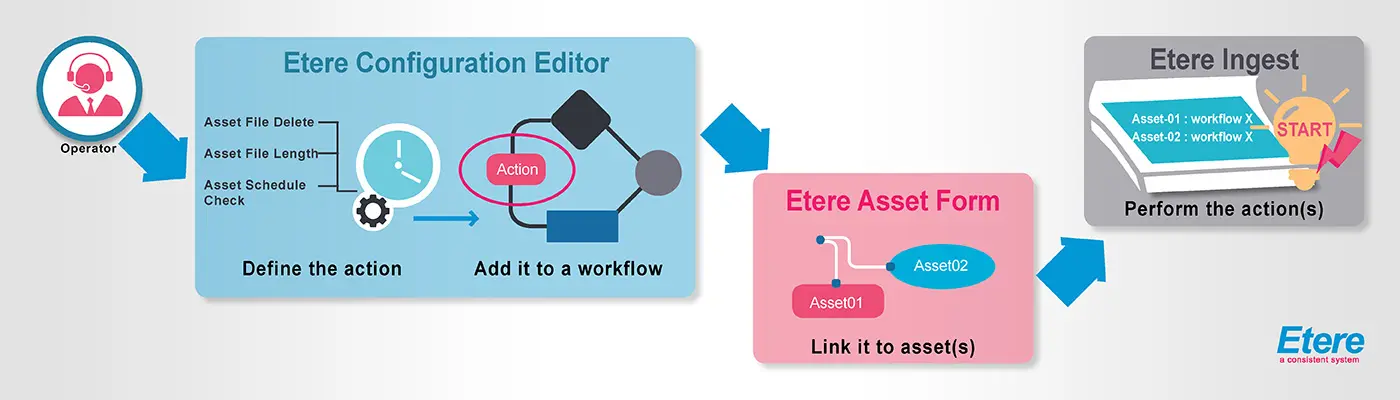
The Operations by Workflow module allows to either manually or automatically perform deletions, asset duration check and scheduled duration check of video files associated to certain assets attached to T-workflows based on these actions. It's here were they are confirmed and performed after have been launched from the relative asset forms, the figure below clearly illustrates how to perform this task:
Operations by Workflow
Can I delete any asset?
In order to be allowed for deletion, the requisites listed below must be accomplished for all assets:
✓The asset must not be linked to a tape (e.g. it's archived on a LTO cartridge)
✓The asset must not be scheduled (e.g. it's scheduled for on-air transmission)
✓The asset must not be associated to sale proposals (e.g. it's a contractual spot)
✓The asset must not be in historical schedules (e.g. it's featured in archived on-air playlists)
✓The asset must not have child assets (e.g. it forms part of a project)
- If the parent assets were deleted, the child assets would became single asset.
✓The asset must not have related costs (e.g. it has performed worksheets)
Video Server deletions
When deleting files from video server, if the video server has a path configured, the files would be deleted from Windows Explorer directly.
Here below is explained how to use this module to perform automatic operations via T-workflow:
Creating and Linking the T-workflow
1.Launch the Etere Configuration module, open the Configuration Editor component and follow the steps described below:
Ingest -Operations by Workflow 1
1.1. Create either a Delete, Length Check or a Schedule Check action. For further information please refer to the chapters:
DELETE:
Asset File Delete
Delete by codec
Delete on device
LENGTH CHECK:
Asset File Length
SCHEDULE CHECK:
Asset Schedule Check
1.2. Design a T-workflow containing the action previously created, this task is described in the Creating a T-Workflow chapter,
1.3.Associate the T-workflow to all those assets intended to be processed, consult the chapter How to Attach a T-Workflow for details.
Executing the T-workflow
1.Launch the Etere Ingest module, and open the Operations by Workflow component to execute the previously assigned T-workflows:
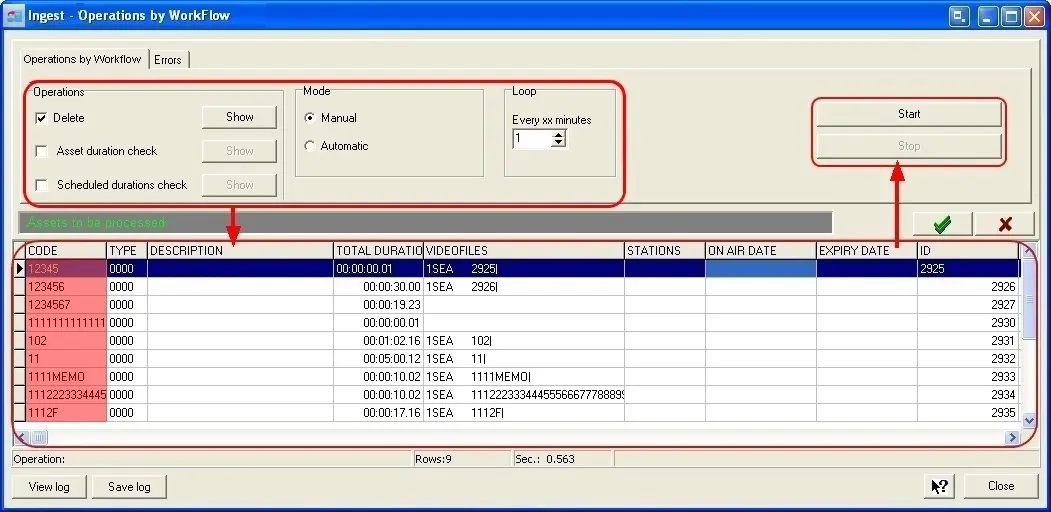
2.Select the OPERATION(s) you intend to execute, multiple selection is allowed:
Delete - Delete a video file(s) associated to certain assets from a specific metadevice. All assets with a T-workflow positioned in a delete action (i.e. asset file delete, delete by codec, delete on device) will be listed. Use this option carefully because files will be deleted even if the asset is scheduled to be broadcasted.
As a precaution measure, the file deletion T-workflow procedure has been enhanced to automatically create file deletion actions to delete file without TC for every meta devices, it will eliminate the impact to other assets during video file deletion.
Please note that in case a T-workflow includes multiple delete actions, the deletion will be performed according to the following conditions:
Delete by codec: x
Delete on device:
Behaviour: Delete all files matching at least one between the given codecs
For instance: AVI or MOV or MPG
Delete by codec:
Delete on device: x
Behaviour: Delete all files matching at least one between the given devices
For instance: MTX1 or MTX2 or MTX3
Delete by codec: x
Delete on device: x
Behaviour: Delete all files matching the given codec and all devices
For instance: AVI and MTX1 and MTX3
For specific customer, the deletion support SFTP with FTP commands for deletion made by Operations by T-workflow.
NB: From Etere version 30.2 onwards, file deletion workflow would only delete the files if both destination path and file names are fulfilled. The workflow would not be perform if only path name is available.
Asset duration check - Check the file length of video file(s) associated to certain assets and stored on specific metadevice(s). All assets with a T-workflow positioned in a Asset File Length action will be listed, this action will detect any discrepancy (of one or more frames) between the logical and real duration of assets, and if it exists, the logical duration will be updated with the real one (including SOM and EOM timecodes).
Scheduled duration check - Compare the complete EDL (as well as parts) of scheduled events with their actual values. If any difference is found, it will update data of the scheduled event with the asset's actual values, as if it were just ingested. All assets with a T-workflow positioned in a Asset Schedule Check action will be listed.
3.Select the MODE on which the module will process the operations:
•Automatic: The application will scan every xx minutes (Loop) for ALL assets with either a 'file deletion' or 'file length check' T-workflow running on them, and will delete the relative video file AUTOMATICALLY, it is useful if you want operations to be performed directly without requesting a confirmation.
•Manual: The user can decide which files will be deleted just by making double-click on them.
NB; In order to perform deletion, you must be granted “Allowed” access in Etere Configuration > Configuration Editor > Rights > Ingest\Delete function.
4.Once you have selected the operation(s) to be performed, click on the Show button to list all the assets which have either a Deletion or Length Check T-workflow CURRENTLY running (aborted and reset T-workflows will not be showed).
Select amongst all assets displayed in the list those intended to be processed. Additionally, if you make right-click on any asset listed in the bottom of the window, the following options will be displayed:
Proxy Preview - View a proxy preview, a low resolution version of the video file through a simple window (with playback controls enabled) .
High Resolution Preview - Open a small window (with SOM, EOM and playback controls enabled) which allow to view a high resolution version of the video file.
Memory Preview - Shows an 'On-Air Review' of the selected asset, that is, it shows the ingested version of its last on-air transmission.
Select media - Facilitate the selection of assets, allowing you to use the more common selection options as 'select all', 'unselect all', 'from here till the start', 'from here till the end'.
View Video Files - Shows all the video files linked to the current asset.
View Tapes - List the tapes currently associated to the selected asset.
Asset Form - Open the selected asset in the Media Library, so you will be able among various things to control the asset T-workflows and the video files associated to it.
Abort workflow - Cancel ALL T-workflows related to the current active operation the currently selected assets.
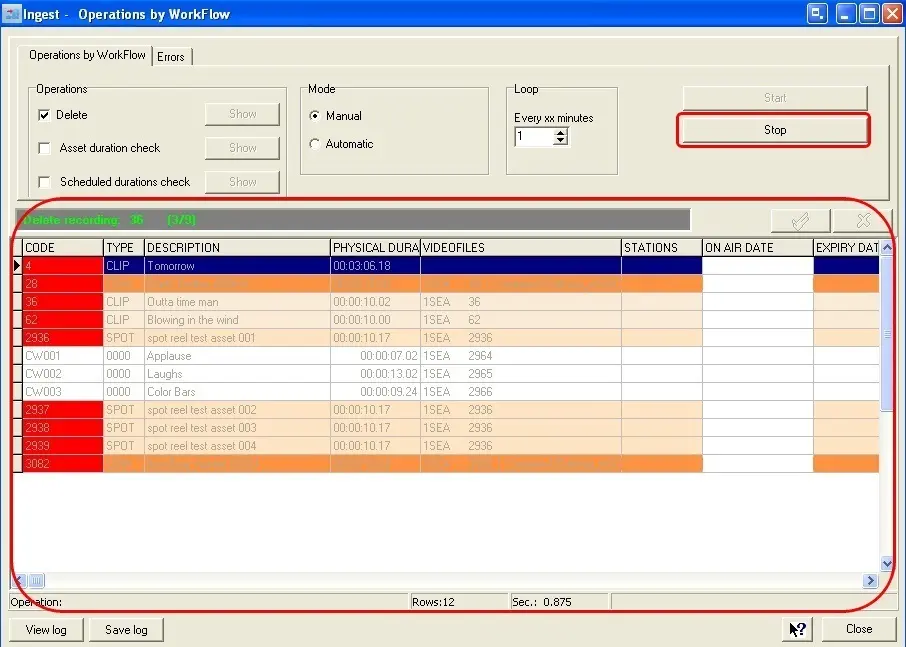
5.Click on the Start button to initiate with the execution of all selected T-workflows on the selected assets. Remember that you can always interrupt the process by clicking on the STOP button,
Ingest -Operations by Workflow 2
6.All errors encountered during the process (e.g. no SQL connection) will be listed in the ERRORS tab; however you can consult a complete log of all the performed operations by clicking on the View Log function positioned in the left bottom of the window. There are up to 40 log files available for viewing.
Suggestion:
Please note that Etere allows to automate the execution of T-workflow operations from the command line, just left checked (before existing) all operations intended to be automatically performed and launch the Etere Ingest executable with the parameters indicated in the Modules Shortcuts chapter.
Note:
In case a user doesn't have enough rights to use a certain T-workflow action, the related clip won't be deleted. At the first attempt all asset data and files will be logged, whereas in following attempts only the "missing rights" issue will be logged.
Aborting T-workflows
In order to abort one or more T-workflows just follow the procedure described below:
1.Search for them by selecting the related operation and pressing the show button,
2.Select the assets on which it is intended to abort the T-workflow,
3.Make right-click on them and select the 'Abort workflow' option,
4.At this point, ALL selected T-workflows will be canceled.
 Ingest_-Operations_by_Workflow_2
 Operations_by_Workflow
 Ingest_-Operations_by_Workflow_1