84.4.4.19 STANDARD > GENERIC > XML ASSETS FULL FOR XSLT
Export Scope - The XML Asset Full for XSLT export allows exporting an XML file containing all database information related to an asset including:
Specifications
It's worth mentioning that the export supports the following tables of the Etere database:
▪<Filmati> (main asset properties)
▪<FSerie> (seasons of multiple assets)
▪<Anagraf> (personal data)
▪<SmpteDictionary> (flexi-metadata structures)
▪<SmpteMetadata> (values of flexi-metadata)
▪<FEDLDescription> (EDLs)
▪<FInterruzioni> (marks of EDLs)
▪<Artisti> (artists)
▪<Generi> (genres)
▪<TipoGeneri> (types used to group genres)
▪<FS_Metafile> (files)
▪<FSec> (secondary events)
▪<FSupporti> (tapes)
▪<DoMa> (virtual documents)
▪<Rig_RowExtraData> (purchase orders)
▪<Rig_Header> (lines of purchase orders)
Note: More information on XML Asset Full for XSLT can be found in chapters: "Etere tables & fields" and "Sample file" .
Export process - In case an transformation is enabled, before being exported, data will be transformed according to the selected XSLT schema.
(See "XSL Transformation").
The exported file is saved and named following specifications.
Log data management:
•If the export is automatically launched by Data Mover with asset primary key (ID_FILMATI) set to “0”, the export process would be recorded.
•To streamline log data, the detailed log are only written every 10 imports.
•The maximum log file size is set at 9 MB.
If the Export is launched by Data Mover, you can select the issuer (station, e.g. MAM, ETX) in Parameter section in order to use the export parameter relative to the selected issuer. Upon export, the exported XML file would be created in the destination path indicated in Data Mover.
Note
Files exported with this function can be imported from other systems through the "XML ASSETS FULL for XSLT" import function.
Export Parameters
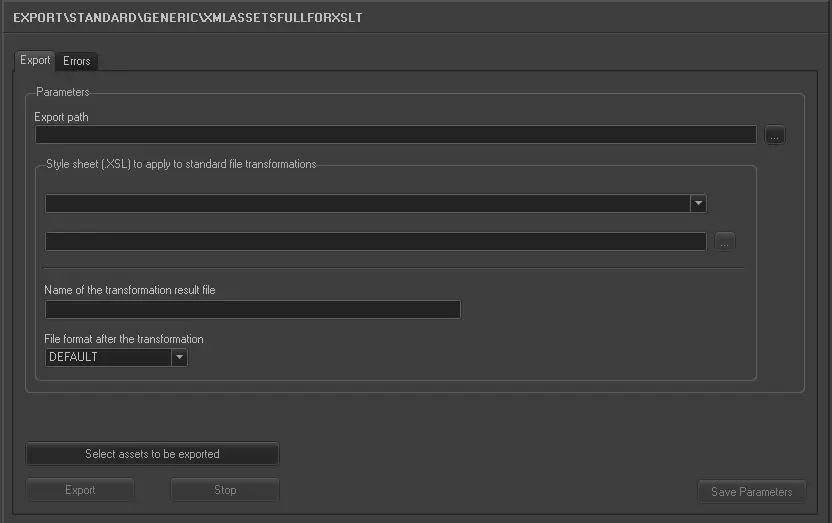
In order to use this export function the following fields must be compiled:
Export_standard_generic_xml_asset_full_xslt
Export path - Data of exported assets will be put in single XML files created with the following name format:
Etere.Asset.[SiteID]_[AssetID]_[yyyymmdd]_[hhmmss].xml
[SiteID] - ID of the source site (e.g. 701)
[AssetID] - ID of the exported asset (e.g. 12345)
[yyyymmdd] - Date on which the asset was exported (e.g. 20130831)
[hhmmss] - Time at which the asset was exported (e.g. 102245)
NB: The date (yyyymmdd) and time (hhmmss) of exported files is always in UTC format (GMT +0).
Select assets to be exported - Open the Media Library's search engine for selecting the assets intended to be exported. Assets can be searched using the filters listed below and pressing the [Search] button:
Filters groups
Base - Id, code, title, type, stations, sites, genre, artist, etc
Media - Duration, metadevice, codec, video file, workflows, worksheets, etc
Dates - Production, ingest, creation, arrival, scheduling, validity start, expiry, etc
Flags - Ok to broadcast, live, expired, ingested, archived, inactive, not tapeless, etc
With - Edl, video tape, data tape, subtitles, cad approval, detected blacks, etc
Full-text - Title, segments, artists, genres, roles, metadata, subtitles, documents, etc
Retrieved assets can be selected by clicking on them while holding the [SHIFT] key (consecutive selection) or the [CTRL] key (discontinuous selection), then double-clicking on the entire selection.
Stylesheet (.XSL) to apply to standard file transformations - If specified, exported XML data will be converted from the standard format into a custom format, based on the given XSL style sheet (e.g. ET_XML_ASSETS_FULL_XSLT).
In case the <External> option is selected, it will be possible to freely browse and select any .XSL file.
Name of the transformation result file - Enter here the full path and name with which the transformed file will be fixedly saved.
If not specified, no transformation will be performed (i.e. only standard XML files will be created).
Launch the export
Once the export has been configured, it can be started just by pressing the <Export> button, a xml file will be created for each selected asset within the indicated folder.
NB: In case some problems are encountered during the export process, under the 'errors' tab it will be possible to consult them in order to override them.
Sample exported file
Here below is provided a sample XML that illustrates the structure of the exported file:
etere.asset.701_1_20141204_124444.xml
<?xml version="1.0" encoding="UTF-8" standalone="yes"?>
<ASSETDATA datetime="2014-12-04 13:44" lastrevision="24.01.82.00" description="Station=CHANNEL 1 User=1" videostandard="PAL" fps="25">
<ASSET>
<Id_filmati>1</Id_filmati>
<VirtualDocuments>
<Document>
</Document>
</VirtualDocuments>
<Genres>
<Genre>
</Genre>
</Genres>
<Edls>
<Edl>
<Segments>
</Segments>
</Edl>
</Edls>
<Metafiles>
<Metafile>
<Metafile>
</Metafiles>
<SmpteMetaData>
<SmpteData>
</SmpteData>
</SmpteMetaData>
<SecondaryEvents>
<SecondaryEvent>
</SecondaryEvent>
</SecondaryEvents>
</ASSET>
<SEASONS>
<Id_serie>10923</Id_serie>
</SEASONS>
<TAPES>
<Tape>
</Tape>
</TAPES>
<ARTISTS>
<Artist>
</Artist>
</ARTISTS>
<SUBTITLES>
<Subtitle>
</Subtitle>
</SUBTITLES>
</ASSETDATA>
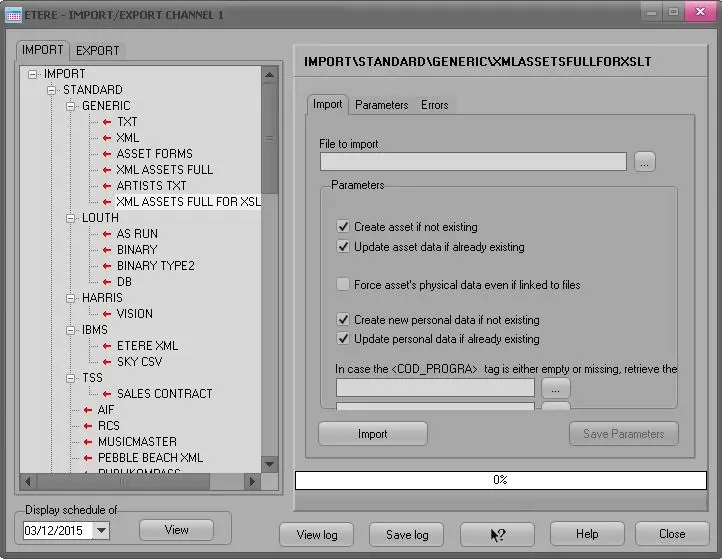
Import XSLT with ACTIVE SYNC
Scheduling import
Prerequisites
There are some constraints when using the metafile insertion with Asset:
• The metafile tag must have the same codec and path of the AS path to be scanned.
• The options "create new asset" must be tick
• The options "process the file only if the descriptive file(.xml) exist" must be tick (this means you have to use a dedicated path for this configuration,cannot be mixed with the actual one)
Import XSLT
The import use a file .xml with the structure of the EXPORT_STANDARD_GENERIC_XMLASSETSFULLFORXSLT .
Each xml file manage one asset.
Parameters
Following parameters are available:
•Create new asset if not exists
•Update metadata if the asset exists
•Update asset PHYSICAL DATA even if metafiles exists
Shown below are the fields \tag for physical data:
FILMATI.POS_INI
FILMATI.POS_FIN
FILMATI.DURATA
FILMATI.INF_DIGIT
FILMATI.DUR_FISICA
all EDLs
Note
Create Personal Data form does not exists
Update Personal Data Form exists
In case the tag <COD_PROGRA> is empty or not present in the file, use the Asset code from the first available flexi-metadata Item.
The import managed most of the asset data, following the list of tables:
FILMATI
FSERIE
ANAGRAF
SMPTEMETADATA
SMPTEDICTIONARY
FEDLDESCRIPTION
FINTERRUZIONI
ARTISTI
GENERI
TIPOGENERI
FS_METAFILE
FS_PATH
FS_FILE
Check Consistency of the Import File
Prior to running the import files, run the following consistency checks to ensure that the import is executed without problems.
Basic checklist:
•Extension must be .xml
•The xml must be valid
•The First Tag must be <AssetData> following <Asset> Tag.
• If the attribute 'videostandard' is declared, it must be one that Etere recognizes, for e.g. videostandard="PAL" , if not will be take the Database default
• COD_PROGRA cannot exceed 32 car. If COD_PROGRA is already present, it will be checked for its compatibility with the seasons indicated in the file. If there is no compatibility, the file will not imported.
Note
The seasons will search for DESCRIPTION + SEASON
NEWTYPE, if present, must be in Etere, if the tag is not in the asset, it will be set '0000' unknown type.
Flexi metadata, if on file must exist in Etere. The check is done by ITEM and if one is missing on the Etere database, the import wil not start.
Conditions for the Import
If the Tag <COD_PROGRA> does not exists or is empty, the asset code can be import from 1 of the 3 smpte metadata selected in the configuration settings.
The priority is Tag <COD_PROGRA>.
If <COD_PROGRA> is not in the file and the parameter "Create Asset If Not Existing" is ticked, the asset code follows Etere Rules.
•The import does not delete asset or files, it only deletes EDLS if they are present in the files.
•When import XML-EDL linked asset, it does not import the segment in the asset.
•Empty Tags, even if there are present in the files are not consider\managed. For e.g. Tag <DESCRIZIO></DESCRIZIO> No asset title will be updated\imported.
•The Ids are not considered for e.g. ID_FILMATI , ID_METAFILE , ECC.
•The import is executed with success or failure.
•The import can manage comment tags.
•If the import is successful, the file is renamed as .old. , if not, the file will be renamed as .err .
•Tags like <MARKOUT value="0">00:00:00.00</MARKOUT> will consider only the value 00:00:00.00 and converted in frames.
•The Data format must be : 'YYYY/MM/DD' or 'YYYY/MM/DD hh:mm:ss'
How to Manage Seasons
seasons and tags:
•From the file, all assets are considered as singular, like commercial, music clip, trailer,films etc unless the tag is PUNTATA > 0 .
•If in the file there is the tag PUNTATA=0, SEASON>0, the import will fail with errors.
•If the asset is singular, tags <DESCRIZIO> and <NEWTYPE> of the node asset and seasons must be the same, if not the import will fail
•If the asset already exists in Etere, there's a check with the seasons data, the tags DESCRIZIO and SEASON must be the same as the database data.
•If the asset don't exist in Etere, it will create one.
If the asset is an episode of a seasons:
•The tag <NEWTYPE> of the asset and seasons must be the same, if not the import will fail.
•If the asset already exists in Etere, there's a check with the seasons data, the tags DESCRIZIO and SEASON must be the same as the database data.
•If the asset do not exists in Etere, the import will seek for a seasons that matches the tags <DESCRIZIO> e <SEASON> :
•If only one seasons exists with those values, the asset is an episode of the seasons. If there is only one set with that data, it is attributed that seasons.
•If more than one seasons exist with those values, the import will fail.
•If no seasons exist with those value, it will crate a new seasons.
Conditions to Import Genre
To import Genres the following tags must be present, if not, the import will fail:
<DESCRIZIO>
<GENRE_TYPE_DESCRIPTION>
•If the value of the tag <DESCRIZIO> do not exists in Etere,a new genres will be created.
•If the value of the tag <GENRE_TYPE_DESCRIPTION> do not exists in Etere, it will create a new one.
•The tag <COD_GEN> is not considered. This is because the user from the configuration can create genres only by descriptions.
•The import checks the genres in the Database through the tag <DESCRIZIONE>, if not exists, a new genre will be crated and the code will be = id.
•If the asset already contains some genre, it will not delete if it is not present on file. See the above conditions of import.
The import adds Genres and do not delete from the asset.
E.g. to import
<Genres>
<Genre>
<DESCRIZIO>Horror</DESCRIZIO>
<GENRE_TYPE_DESCRIPTION>Films</GENRE_TYPE_DESCRIPTION>
</Genre>
<Genre>
<DESCRIZIO>bumper</DESCRIZIO>
<GENRE_TYPE_DESCRIPTION>Promos</GENRE_TYPE_DESCRIPTION>
</Genre>
</Genres>
Conditions to Import Personal Data
The Personal Data metadata are imported if tags <PersonInCharge> e <Supplier> are present.
To Create\Update Personal data, check whether the tag <COD_CONTO> exists in the Database.
E.g.
<PersonInCharge>
<COD_CONTO>Balestieri@italy.etere.com</COD_CONTO>
If cod conto does not exist and the parameter "Create Personal Data if not exist" is enabled, a new Personal Data will be created in the Database.
If cod conto exists and the parameter "Update Personal Data if exist" is enabled, Personal Data will be update through the matching of tag <COD_CONTO>.
Conditions to Manage EDLS
•If the asset has the files, the EDL are not managed.
•If the parameter "Update asset PHYSICAL DATA even if metafiles exists" is enabled, the import will delete all the EDLS for the asset and import the one present on the file.
Conditions to Manage Files
•If the Node <Metafiles> is present in the file, it always imported.
•If the metafile has the tag <LEGACY_BASESUPP> with value, the import will search for the cloud device, if the cloud device does not exist, the metafile is not imported but the asset is.This condition is logged.
•If the metafile does not have the tag <LEGACY_BASESUPP> , the cloud device searches for the <METADEVICE_DESCRIPTION> tag. If there is no cloud device in the Database the metafile is not imported but the asset is.This condition is logged. If the value of tag <CODEC_TYPE> is not present in the database, the metafile is not imported but the asset is. This condition is logged.
•To import the metafile, the tags <FILE_ID> and <full_pathname> must be present.
•It is not possible to update a metafile on these tags, these are tags to identify a metafile and update other metadata:
<FILE_ID>
<CODEC_TYPE>
<METADEVICE_DESCRIPTION>
Conditions to Manage FlexiMetadata:
The Fleximetadata are linked to :
•ASSET
•EDL
•FILES (metafile)
•Asset Fleximetadata are added if it does not exists or updated if it exists.
•Fleximetadata already present in the Asset(db)and not in the file(xml) to be import will not be changed.
•FlexiMetadata for the EDL follows the EDLS conditions.So will be deleted and reimported based on the import file.
•Metafile Fleximetadata are added if it does not exists or updated if it exists
•Fleximetadata already present in the metafile(db)and not in the file(xml) to be imported will not change.
•As per consistency check on the file, all the Fleximetadata must be in the Database.The match between the file tag and the db is per 'item'
Conditions to Manage Artists
Artists are always managed, if there's the entry in the file it will be imported to create or update it.
To manage the artists, the file structure should be as followed:
<Artists>
<Artist>
<DESCRIZIO>Colclough Martin</DESCRIZIO>
<ROLE>REGISTA</ROLE>
</Artist>
The tag <DESCRIZIO> is mandatory stage name.
The import search in the database for Stage Name follows the following attributes:
•If there is an entry in the database with the same data, the other tag will be updated for the corresponding artist.
•If there is not any artist with that value in the database, the artist will be created and linked to the asset or edls.
•If the tag <ROLE> has values, the import will search for that value in the database.
•If the that value matches, it will be linked to the asset\artist matching that role.
•If the value does not exist\match, the import will create a new role and link it to the asset\artist.
Condition to Manage Child and Parent Assets
Export_Standard_Generic_XMLAssetsFullforXSLT is able to export child assets linked to the parent asset by inserting table <FLINKS>. Under <FLINKS>, you can define many <FLINK> tab as possible within the <FLINKS>. There are 3 tags in the <FLINK> tag that define the child assets and parent asset relationships in the XML.
•<LINKCODE> // fixed value as “PE”
•<COD_PROGRA> // program code to link to the asset code
•<PARENT_TYPE> // the asset type, its value must be “child” or “parent”
ImportExport_STD_GEN_FLINKS
The import of whole XML file would failed if any of the 3 tag is not defined or missing.
 5083_Export_standard_generic_xml_asset_full_xslt
 5084_Scheduling_import